A successful SendGrid API request tells you the message was accepted for sending. To test SendGrid deliverability beyond that response, send the finished email to monitored mailboxes and check where each copy arrives. A delivered message can still be filed in Spam.
Doing that by hand means keeping personal and business mailboxes, finding the same message in each one, and recording its folder. MailSlurp is an email testing platform that provides monitored recipients for inbox placement testing and brings those observations into one report.
This walkthrough uses SendGrid's Mail Send API. You'll need a key permitted to send mail, your configured sender and a MailSlurp workspace with placement tests available. Run the downloadable example with Node.js 22 or later, or keep your existing sending integration.
Our order-receipt test observed all eight recipients: three Microsoft 365 copies reached **Focused**, counted as Inbox, and five copies reached **Spam**. [Jump to the placement result](#read-the-sendgrid-inbox-placement-result) to inspect the provider breakdown, or follow the send first.
## Prepare the message and its normal SendGrid sender
Let's use a receipt from Slurp Store, a fictional shop selling reusable straws. The populated email has two product photographs, a stainless steel four-pack at $14.90, a silicone six-pack at $18.90 and a $33.80 total. It also includes cleaning instructions and a store link. No purchase is required for this example.
You can [download the Slurp Store email and sending scripts](/resources/slurp-store-email-testing/slurp-store-email-testing.zip) to repeat the example. Unzip it into a local folder; the bundle includes the exact `email.html` and `email.txt` used here, a SendGrid placement script and an environment-file example. The [HTML source](/resources/slurp-store-email-testing/email.html) and [plain-text version](/resources/slurp-store-email-testing/email.txt) are also available individually.
For an email deliverability test of your application, keep its populated template and existing SendGrid integration. Change the controlled recipients to the current MailSlurp seed list and include the test token in the subject or body. Preserve the sender identity you intend to test; [SendGrid domain authentication](https://www.twilio.com/docs/sendgrid/ui/account-and-settings/how-to-set-up-domain-authentication) explains how to check that domain's configuration.
**SendGrid sandbox mode must be disabled.** Sandbox validates a request without delivering an email and returns HTTP 200 on success. A normal accepted Mail Send request returns HTTP 202. [SendGrid's sandbox documentation](https://www.twilio.com/docs/sendgrid/for-developers/sending-email/sandbox-mode) explains this distinction.
## Send the receipt to the current placement recipients
### 1. Create a MailSlurp test
Open [Inbox placement in MailSlurp](https://app.mailslurp.com/inbox-placement) and create a new test. Copy the complete token under **Put this token in subject or body**, then copy all addresses under **Add all recipients**.
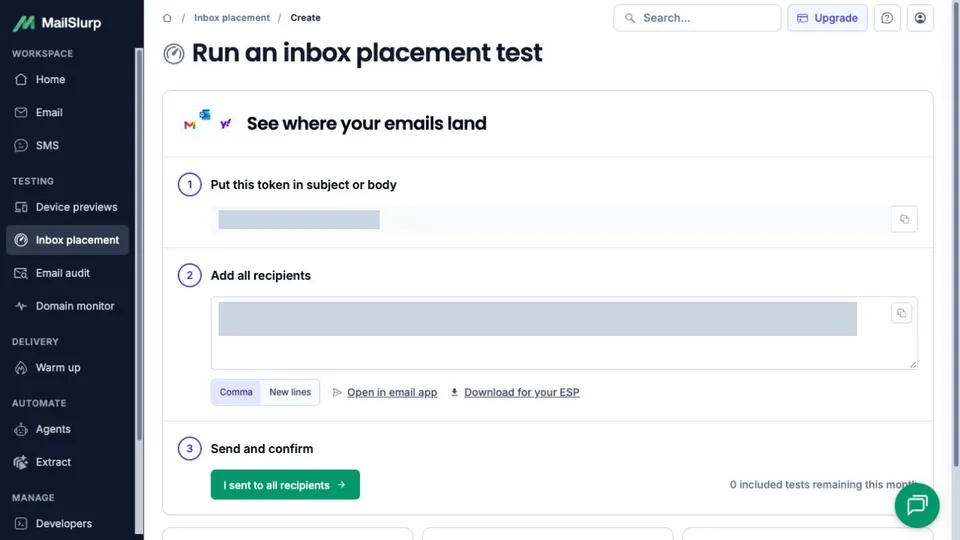
Copy the token and recipients from your current test. The hidden example values are not reusable.
These recipients are seed inboxes: monitored mailboxes that let you observe the destination of a controlled send. Select **New lines**, copy the full list into a local `seeds.txt` file, and keep one address per line. Our list contained eight recipients; use every address your own test supplies rather than assuming its count.
Keep the token with that recipient list. It lets MailSlurp match the received message to the correct test. The downloadable script appends it to the subject, leaving the receipt body unchanged.
### 2. Submit one marked message through SendGrid
Use [sendgrid-placement.mjs](/resources/slurp-store-email-testing/sendgrid-placement.mjs) from the unzipped bundle, with `email.html`, `email.txt` and your current `seeds.txt` in the same folder. Replace the two email files when checking your own message.
Copy `.env.example` to `.env` and set `SENDGRID_API_KEY`, `EMAIL_FROM` and `MAILSLURP_TEST_TOKEN` to your sending key, plain sender email address and exact test token. Set `MAILSLURP_EXPECTED_SEED_COUNT` to the current test's recipient count; the script checks the file against it and rejects duplicates. Set `EMAIL_SUBJECT` and `EMAIL_FROM_NAME` when using your own content. The script adds the token to the subject.
Keep `.env` private and out of source control. From that folder, run the script with Node.js 22 or later:
```sh
node --env-file=.env sendgrid-placement.mjs
```
The request uses one SendGrid personalization per seed, so each monitored address gets its own copy. Sandbox is disabled. Compare the printed recipient count with the MailSlurp list and retain the returned SendGrid message identifier to trace the submission. On rejection, the script reports HTTP status and a safe diagnostic.
Our SendGrid test email returned HTTP 202, and the matching receipt was subsequently observed at all eight seeds. If a request times out or its status is uncertain, inspect SendGrid's email activity and the current MailSlurp result before submitting it again. The script does not retry automatically; repeating it can send duplicate mail.
### 3. Confirm the send in MailSlurp
Return to the same test and select **I sent to all recipients**. Wait for its provider results to resolve. Keep the test open while it collects observations; an accepted API request does not remove the need to wait for the receiving mailboxes.
### See where your SendGrid email lands
Send your finished message through SendGrid and use MailSlurp to compare its Inbox and Spam results across monitored mailboxes.
[Test my inbox placement](https://app.mailslurp.com/sign-up/?onboardingRequest=spamTest)
## Read the SendGrid inbox placement result
The completed report shows **3 Inbox**, **5 Spam**, **0 Promotions** and **0 Not received**. Its displayed delivery score is 38, while the placement breakdown gives the exact fraction: 3 of 8, or 37.5%, in Inbox.
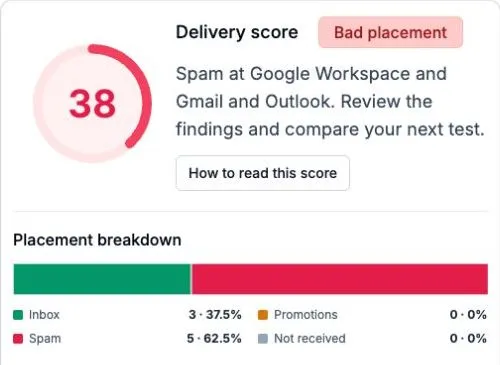
Detail of the SendGrid result: 3 of 8 in Inbox and 5 of 8 in Spam. The displayed delivery score is 38; the breakdown gives 37.5% Inbox.
Inspect the complete placement-report screen
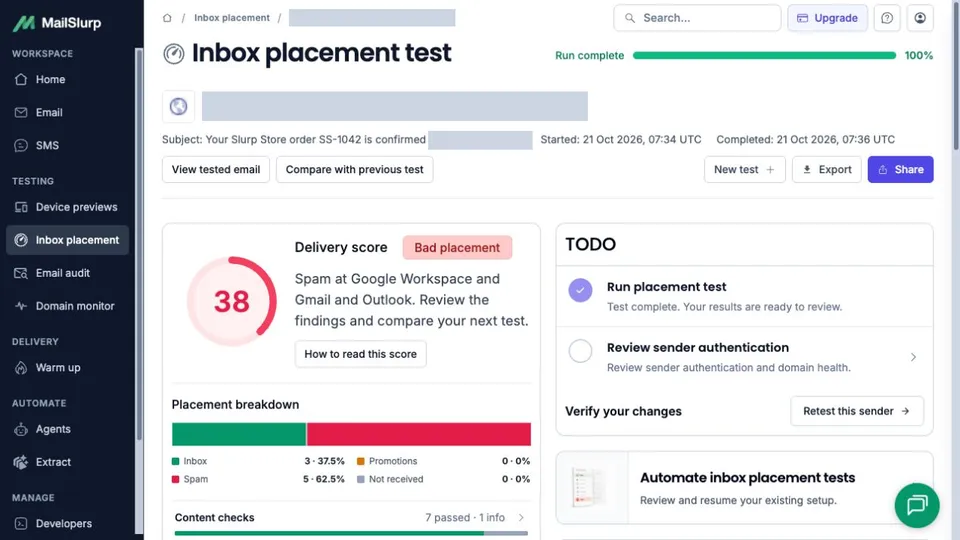
All eight recipients were observed. The breakdown is 37.5% Inbox and 62.5% Spam, alongside a displayed delivery score of 38.
The provider rows explain where those copies went:
| Monitored provider | Recipients observed | Placement |
| --- | ---: | --- |
| Microsoft 365 | 3 | Focused, counted as Inbox |
| Google Workspace | 2 | Spam |
| Gmail | 2 | Spam |
| Outlook | 1 | Spam |
Microsoft 365 and personal Outlook did not make the same folder decision in this sample. Read the rows rather than treating every Microsoft mailbox as one result. **Run complete** means the test finished, not that every copy reached Inbox.
Inspect the original provider rows
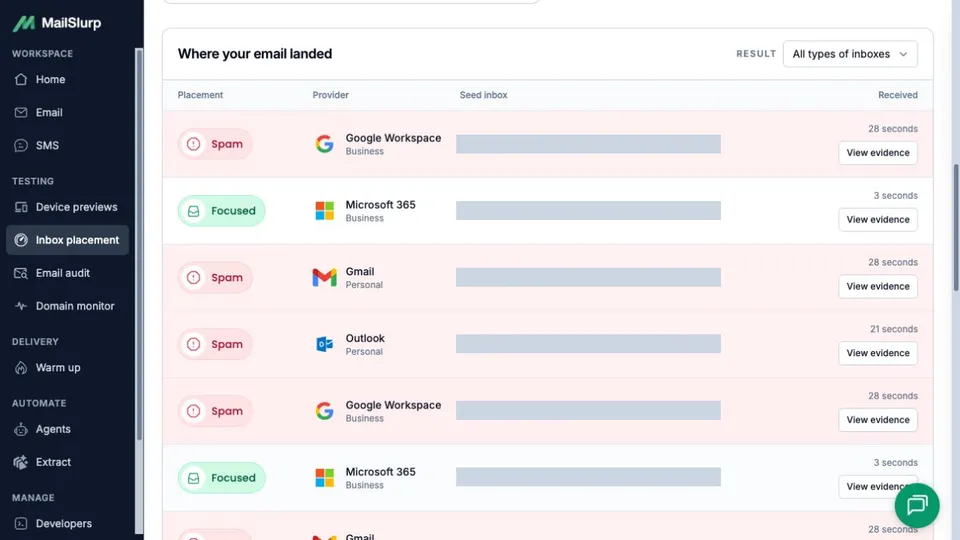
The first six rows of the eight-recipient report. Scroll through the complete list and use View evidence to inspect a recipient's observed folder.
Seed list testing describes the monitored sample. These eight recipients do not establish what percentage of all customers will see this email in Spam, or a general placement rate for SendGrid. Keep the sender, message and recipient mix in view when comparing another run; the [inbox placement rate guide](/guides/inbox-placement-rate/) explains the denominator and category differences.
## Investigate SendGrid emails going to spam
The five Spam observations identify a real outcome. To choose what to investigate, open the report's sender and content findings. An email spam test based on content checks can be useful alongside placement, but a clean content check does not guarantee an Inbox result.
Here, the report had seven passed content checks and one informational finding for a probable tracking pixel. It found no insecure HTTP links. The sender findings were more specific:
- **Envelope sender SPF record: Pass.** A valid record was found for the envelope-sender domain used by this message.
- **DKIM record: Pass.** The SendGrid DKIM check found a valid record on selector `s1` with a 2048-bit key.
- **DMARC record: Warning.** The record existed with `p=none`, a non-enforcing policy. This was not a missing-record finding.
- **Blocklist checks: Fail.** The observed sending IP was listed on `bl.spamcop.net`. This check covered one IP and one list; it was not an assessment of every SendGrid IP or every public blocklist.
Select **View details** on the blocklist check to read its specific target, list and lookup result:
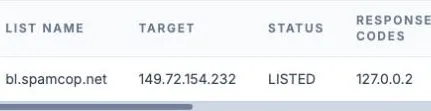
The result row names bl.spamcop.net and marks the observed IP as LISTED. The complete dialog and sender findings remain available below.
Inspect the complete sender findings and blocklist dialog
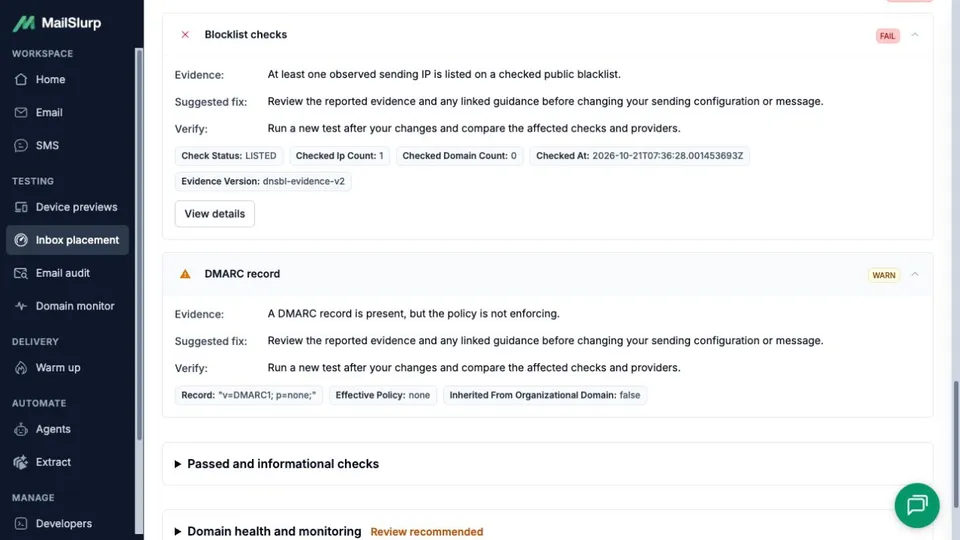
The expanded checks identify a blocklist listing and a non-enforcing DMARC policy. They are findings to investigate alongside the placement results.
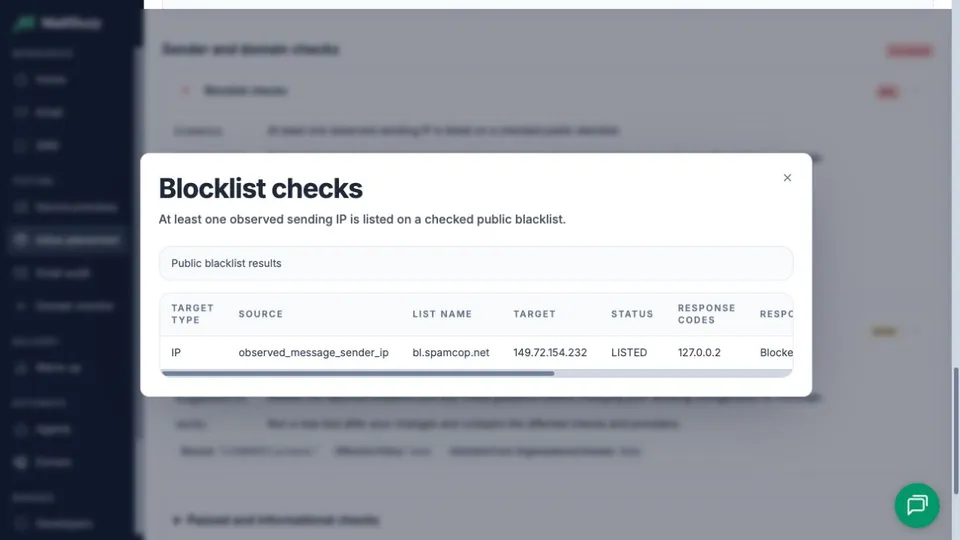
The detail identifies the observed IP and the checked list. This one lookup does not establish a general result for SendGrid infrastructure.
Start with the specific finding you can investigate, then check the sender configuration:
1. **Take the IP listing to the sending-IP owner.** Save the SendGrid message identifier, observed IP, list name and current lookup result alongside the MailSlurp provider breakdown. Ask the person managing your SendGrid account, or SendGrid support, to confirm the IP used by this send and investigate the listing. Recheck its current status before acting; the screenshot records one lookup, not a permanent state. Do not assume a shared IP is yours to delist.
2. **Have the email or DNS owner verify message authentication.** Compare the sending domain and selector with [SendGrid's authentication instructions](https://www.twilio.com/docs/sendgrid/ui/account-and-settings/how-to-set-up-domain-authentication), and inspect authentication and alignment in a received test copy's headers. The SPF and DKIM results above describe records, not every mailbox's message-level verdict. Name the envelope-sender domain when checking SPF; a lookup of the visible From domain can return a different result. Missing receiving MX records do not by themselves mean an outbound message is unauthenticated.
3. **Retest a verified change under comparable conditions.** Keep the message and sender consistent unless one of them is the change you are checking. Create a fresh MailSlurp test, use its new token and recipients, and compare equivalent provider rows. Save the original report so an apparent improvement can be checked against the recipient mix rather than just its headline score.
The listing does not prove why five copies reached Spam. The SendGrid DMARC warning also needs review of legitimate senders and alignment before any policy change; do not switch to enforcement just to clear it. No DNS repair, delisting or retest was performed for this example.
### If a SendGrid email is not received
No recipient was missing in this run. For a test with **Not received** rows, trace the send before treating those rows as Spam:
1. Confirm the API request was a real send with sandbox disabled and included every current seed address.
2. Check SendGrid's recipient-level activity for rejection, suppression, deferral or delivery feedback. HTTP 202 alone is only acceptance of the request.
3. Check that the submitted subject or body contains the exact token for the MailSlurp test you are viewing.
4. Let the observation window finish and retain any unresolved rows in the result. A delivery event still needs a matching mailbox observation before you can assign an Inbox or Spam outcome.
For broader SendGrid email testing, the [integration testing guide](/sendgrid-email-testing/) covers message assertions, links, headers and webhook checks. To inspect the delivered layout separately, follow the [SendGrid device-rendering guide](/guides/sendgrid-device-rendering/) and compare the receipt in phone and desktop clients.