
guides
Ping Identity SAML SSO setup
Connect MailSlurp enterprise SSO with Ping ID
You can connect MailSlurp to your Ping Identity IdP using SAML SSO. This guide walks through the high-level setup so you can enable single sign-on for your team without guesswork.
Requirements
- MailSlurp Enterprise Plan
- Ping ID
Steps
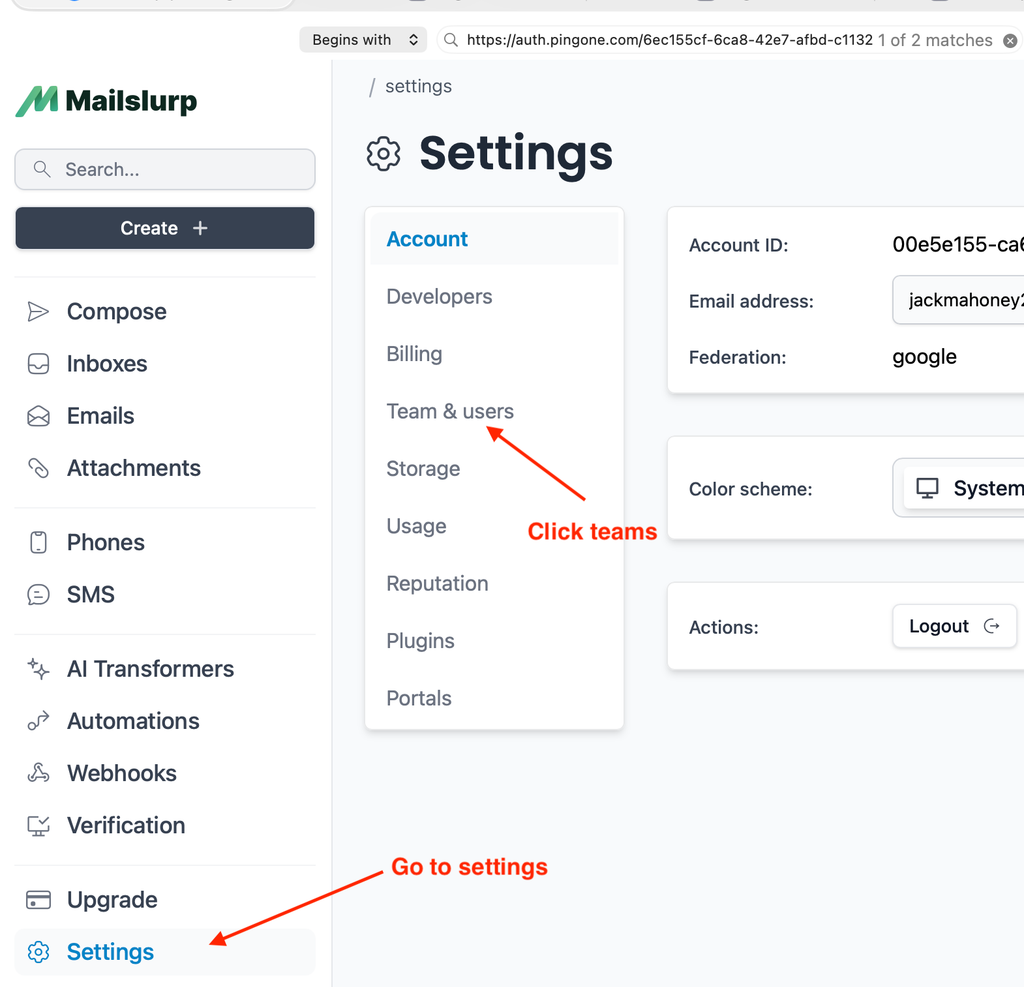
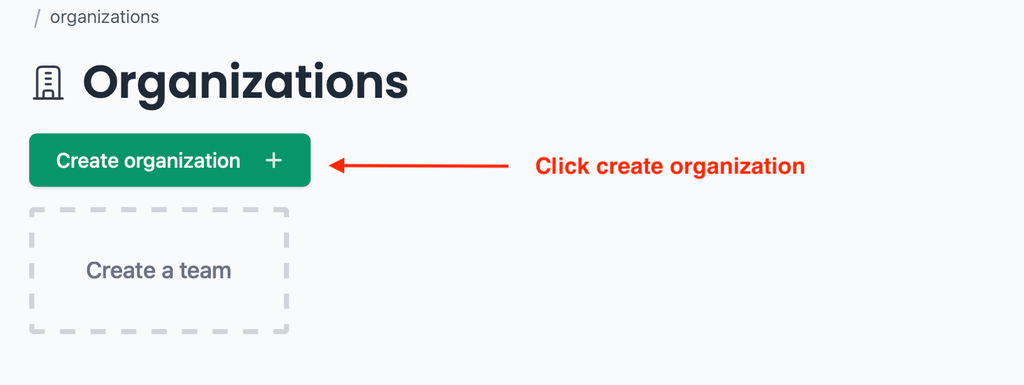
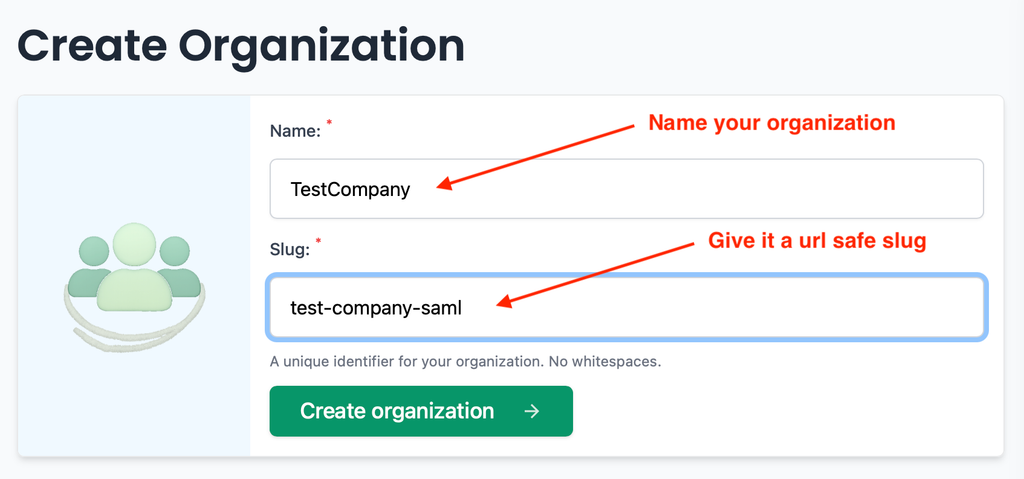
1. Create a MailSlurp organizations
Start by creating an organization in MailSlurp. The organization owns the SSO configuration and lets you manage access for your team. If you already have an organization, you can skip to the SAML configuration step.
When the organization is created, open its security settings and choose the SAML option. MailSlurp can generate service provider (SP) metadata for Ping ID to ingest.
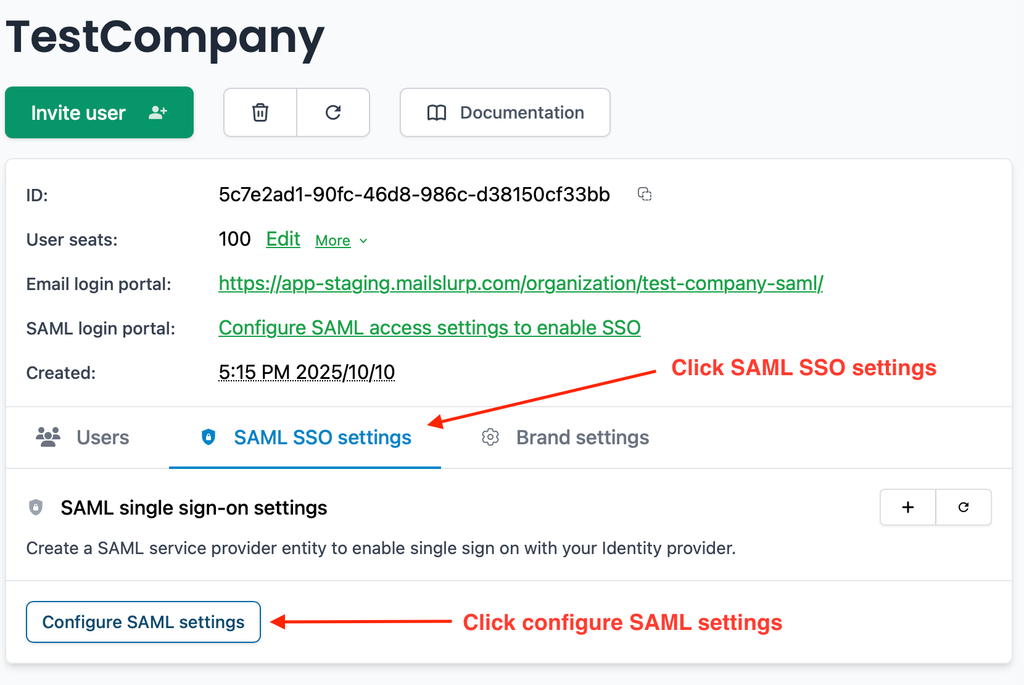
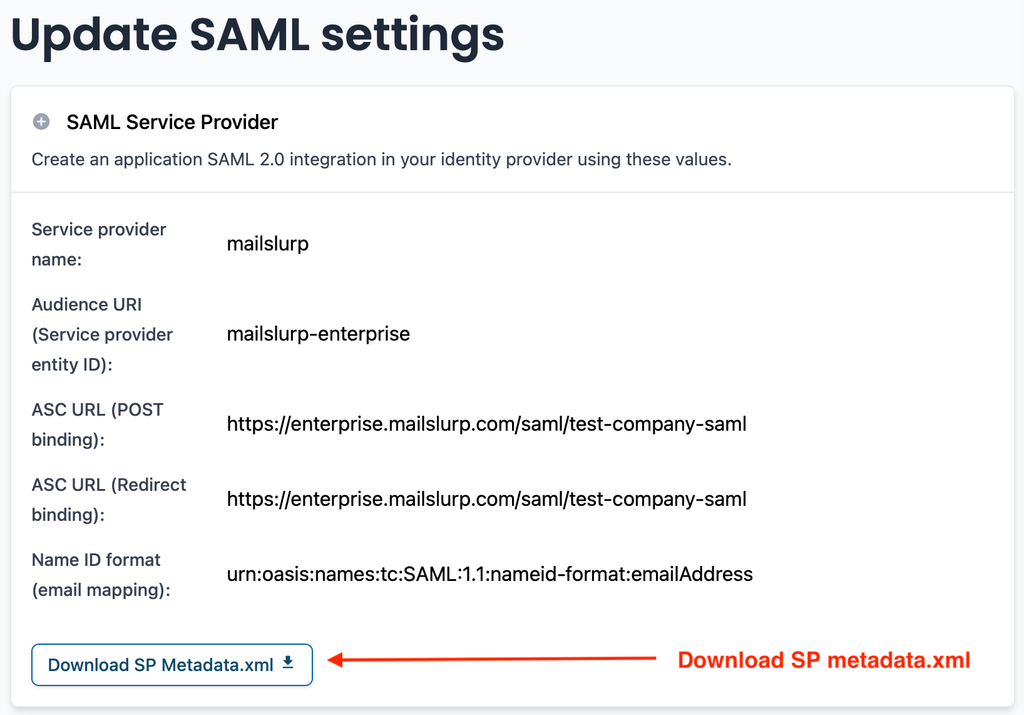
Keep the generated SP metadata handy. You will use it in Ping ID to create the application and to ensure the Assertion Consumer Service (ACS) URL and entity ID match exactly.
2. Create a Ping ID SAML application
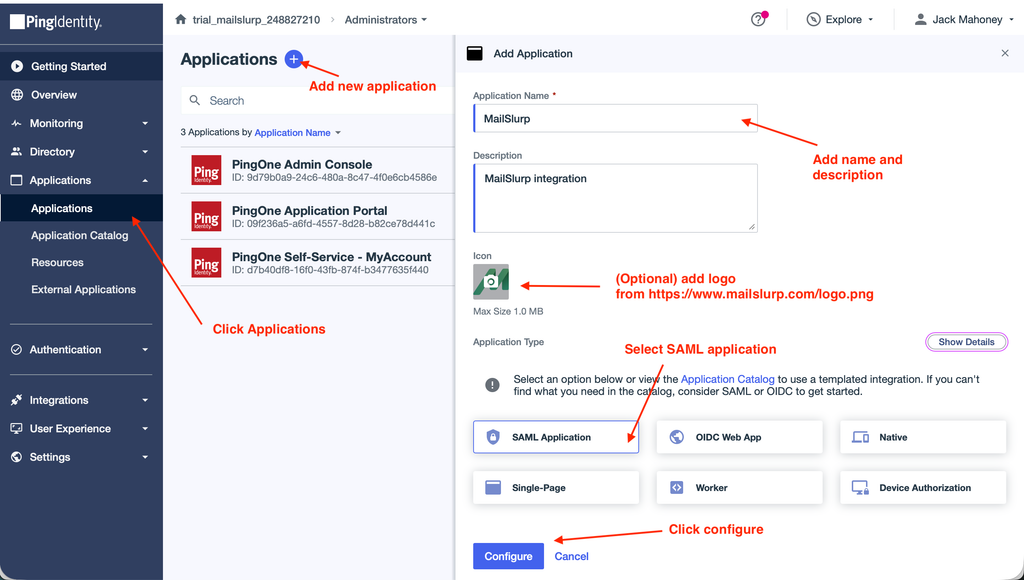
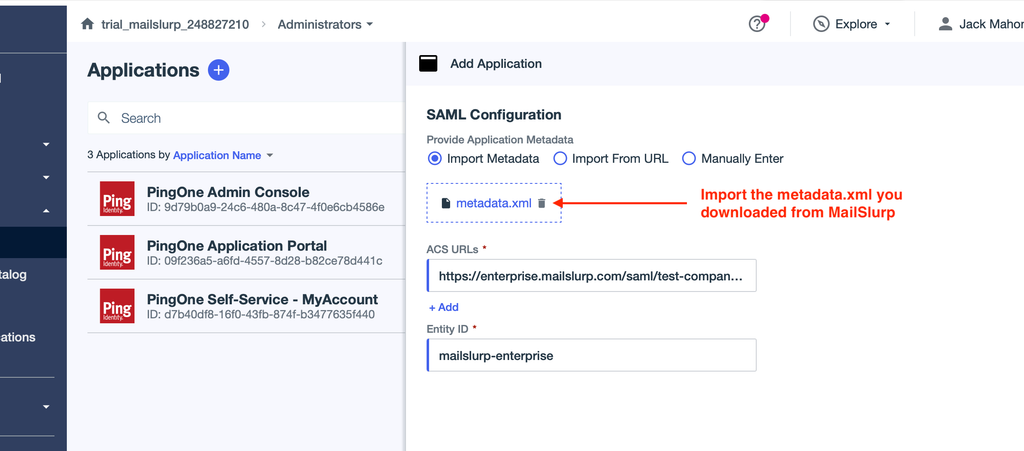
In Ping ID, create a new SAML application and import (or paste) the MailSlurp SP metadata. This defines the ACS URL and audience values that Ping ID should target when issuing assertions.
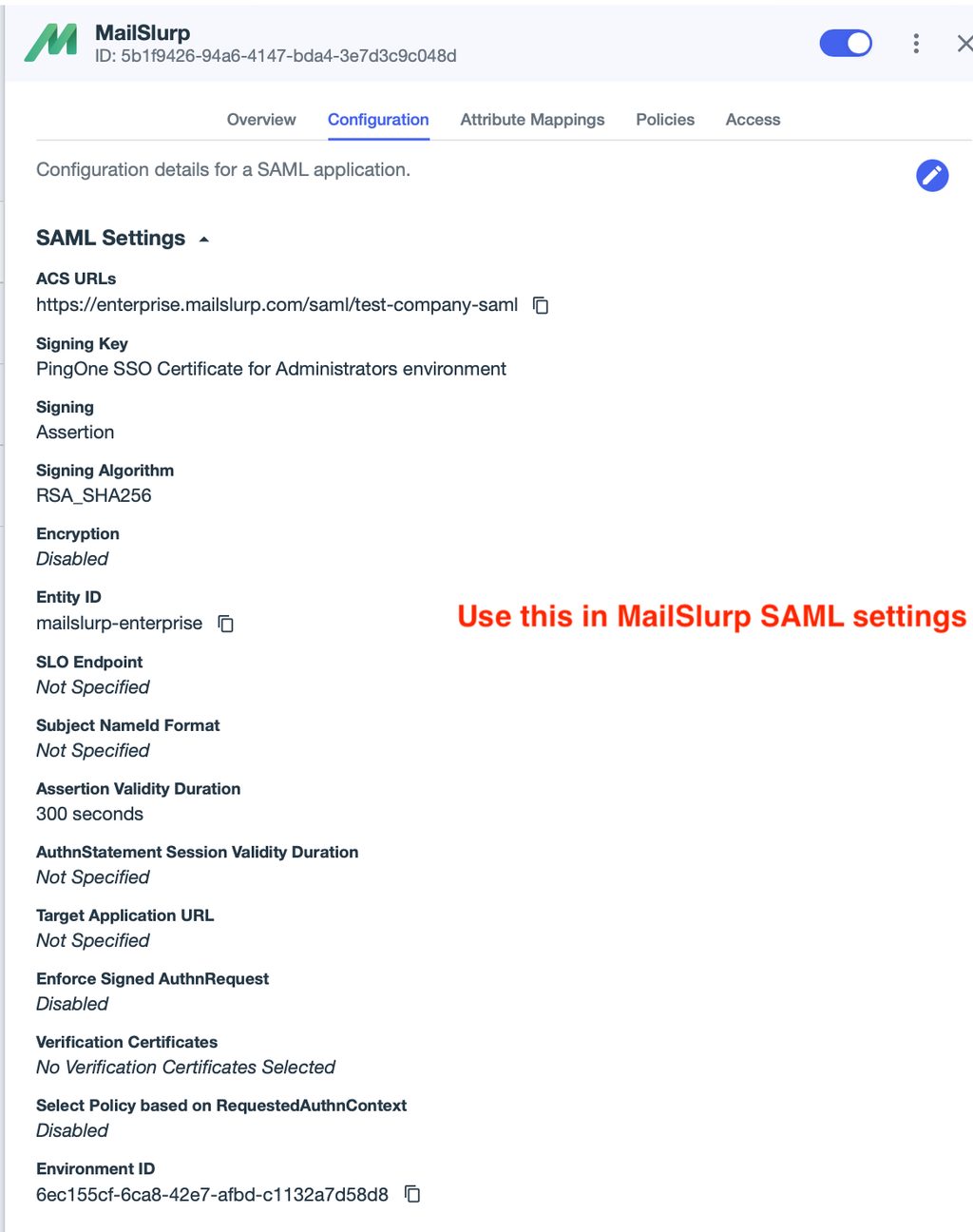
After the application is created, enable it and make sure the right users or groups are assigned. If the app is not enabled or not assigned, users will not be able to start an SSO session.
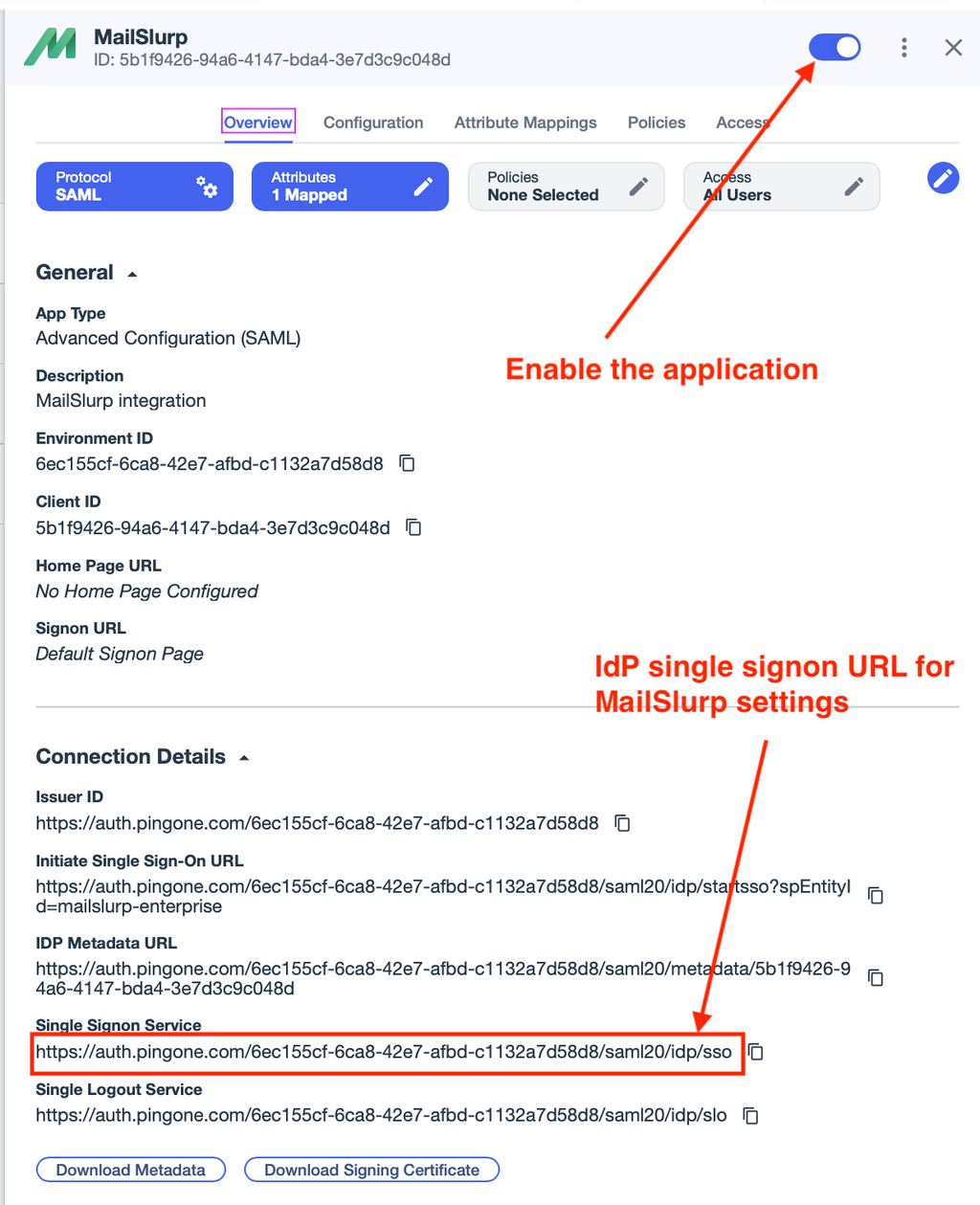
Download the certificate and metadata from Ping ID. MailSlurp uses the certificate to verify signed assertions.
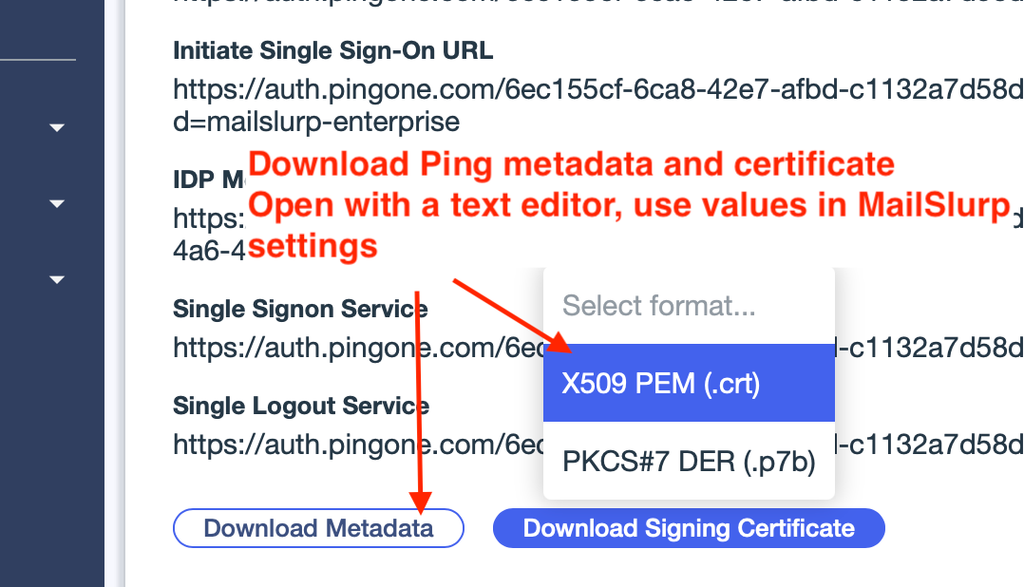
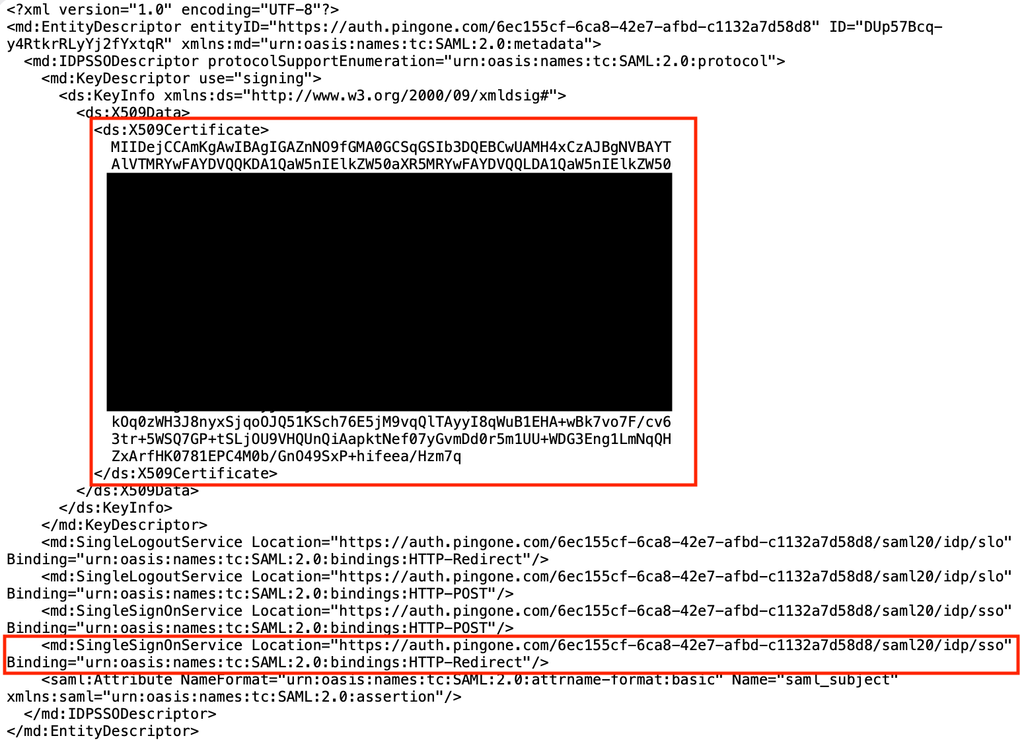
3. Configure the MailSlurp SAML connection settings
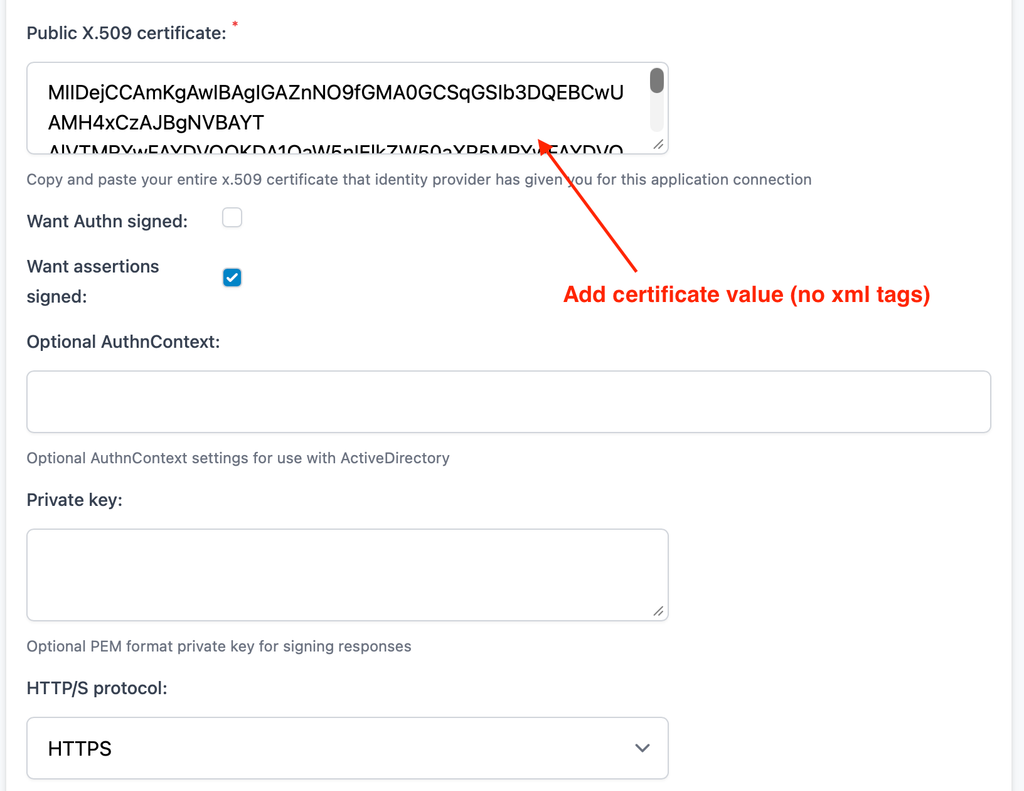
Back in MailSlurp, open the SAML configuration for your organization and enter the identity provider details from Ping ID. Depending on your Ping setup, this usually includes:
- IdP issuer / entity ID
- Single sign-on URL
- X.509 certificate (public)
If you paste metadata instead of individual fields, confirm the same values are populated in the form after import.
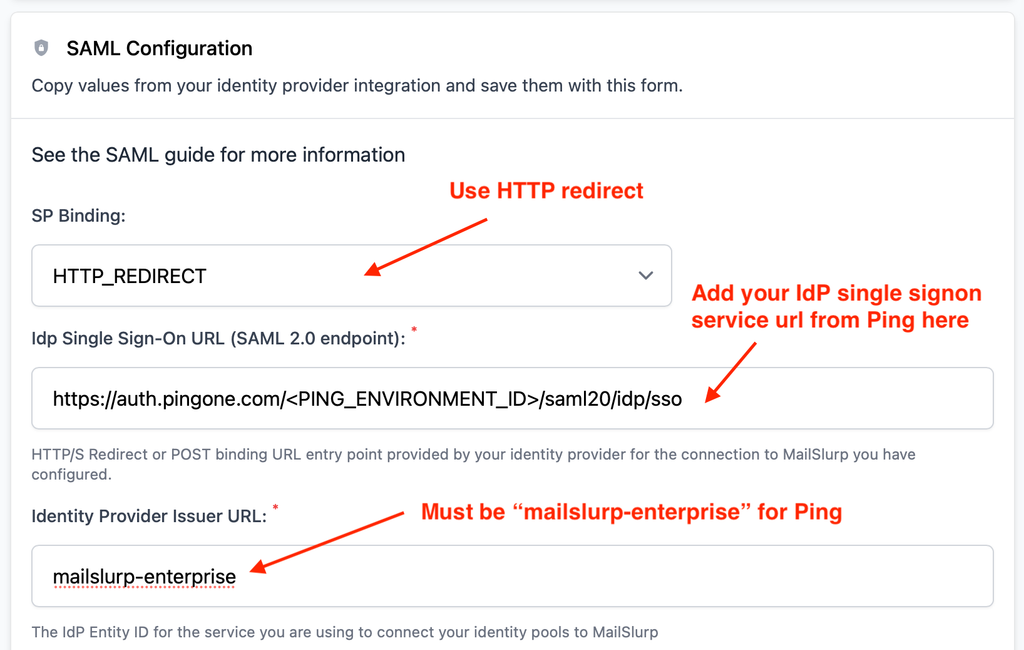
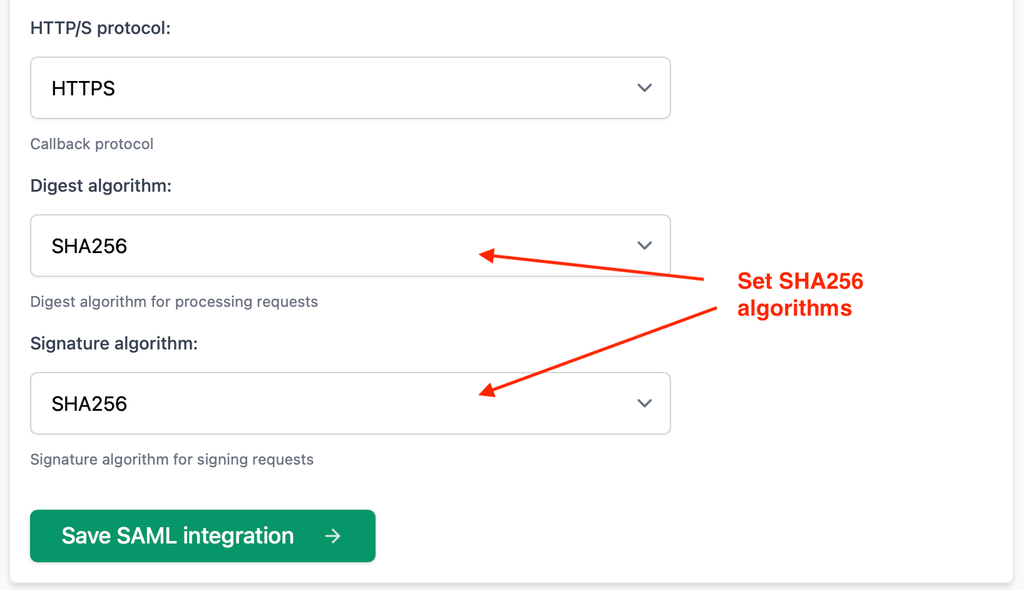
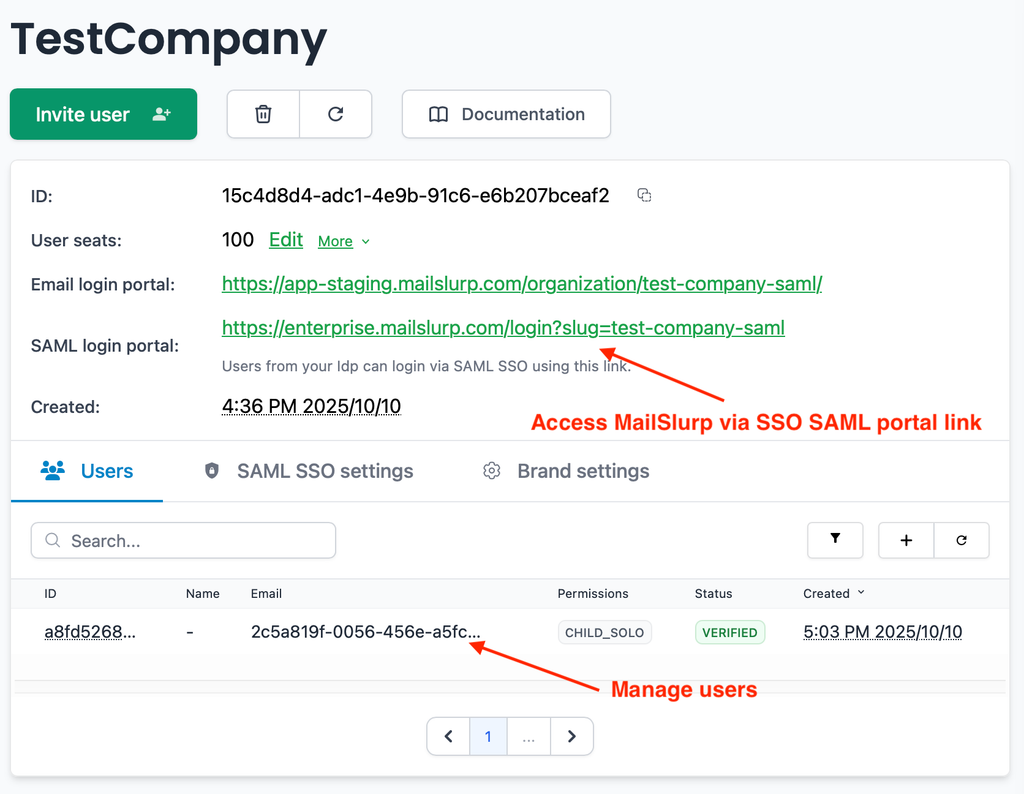
Save the configuration, then run a sign-in test with a user assigned to the Ping ID application. A successful SSO flow should return you to MailSlurp and create a session without requiring a password.
Troubleshooting
If SSO fails, check the following first:
- Certificate mismatch: the IdP certificate in MailSlurp must match the one used by Ping ID to sign assertions.
- ACS URL mismatch: the assertion consumer URL in Ping ID must match the MailSlurp SP metadata exactly.
- Audience/issuer mismatch: verify the entity ID values on both sides.
- Clock skew: if assertions are rejected as expired or not yet valid, confirm system clocks are in sync.
Next steps
- If you are setting up SSO with a different IdP, see the SSO guides.
- For Okta specifically, follow the Okta SAML SSO setup guide.
- If you need help with enterprise onboarding, contact sales.