
blog
Email Rendering Test for Outlook, Gmail, Mobile, and Dark Mode
Run an email rendering test for Outlook Classic, Outlook New, Gmail, iPhone, Android, and dark mode before a campaign or product email launches.
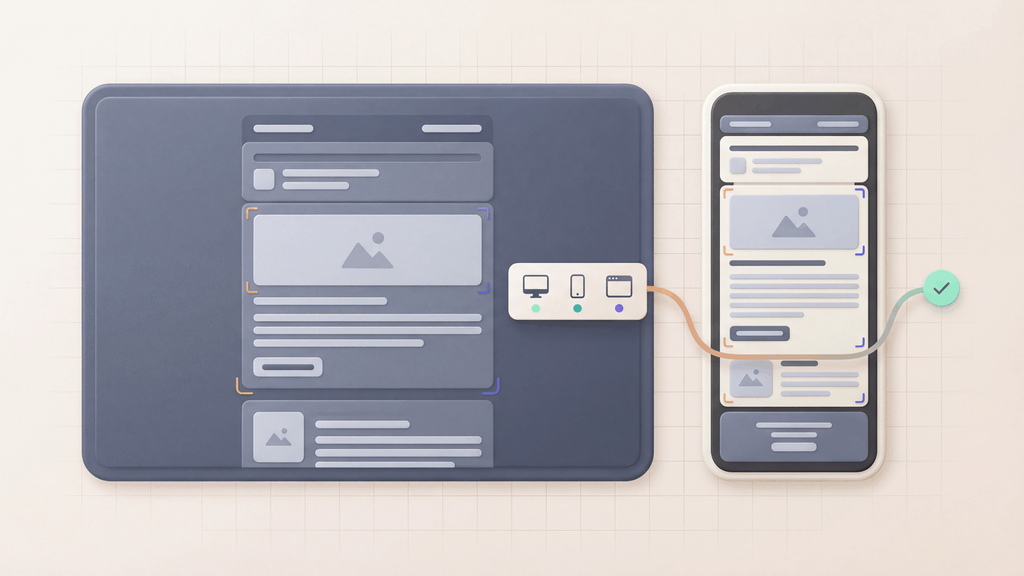
An email rendering test shows how the final delivered message appears across Outlook Classic, Outlook New, Outlook.com, Gmail, iPhone, Android, and other supported client and device targets.
That matters because Gmail, Outlook, Apple Mail, iPhone, Android, desktop webmail, and dark mode do not render HTML in exactly the same way. A template can look right in your editor and still ship with broken spacing, clipped content, hidden buttons, unreadable text, or missing images.
MailSlurp device previews give teams a practical way to catch those issues before the send. You can start with the free email render test, use device previews for repeatable review, or trigger render runs from the dashboard, an .eml import, an email render address, HTML upload, or the email preview API.
If you need a repeatable approval process, use the email rendering QA checklist to connect client previews with content, link, image, dark mode, and launch-owner checks. Use the email preview approval workflow when multiple reviewers need a shared sign-off path.
When should I run an email rendering test?
Run an email rendering test whenever an email is important enough that a visual failure would hurt activation, revenue, support load, or trust.
For most teams, the test should cover:
- Gmail web and mobile
- Outlook Classic, Outlook New, Outlook.com, and the mobile paths that matter to your audience
- iPhone and Android views
- Apple Mail and other high-volume mailbox clients
- dark mode and light mode
- CTA visibility, image loading, layout width, and footer content
Use MailSlurp when rendering review needs to connect to the rest of your workflow: inbox receipt, campaign QA, link checks, email audit, deliverability checks, Slack or Teams notifications, and API-triggered release gates.
How do I preview an HTML email in Outlook?
Send the final email to a MailSlurp render address, open a received message in MailSlurp, upload the HTML, or import an .eml file. Choose the Outlook targets available for the run, including Outlook Classic, Outlook New, and Outlook.com where applicable, then compare the screenshots with Gmail and mobile results before approving the send.
Use the final delivered message rather than a browser-only mockup. That catches the tracking links, hosted images, MIME structure, merge output, and ESP changes that customers will actually receive.
A focused Outlook review should check:
- table spacing and column widths in Outlook Classic
- layout, font, and image behavior in Outlook New and Outlook.com
- CTA visibility above the fold
- fallback text when remote images are blocked
- mobile stacking and tap targets
- light-mode and dark-mode contrast
Start with the free email render test for a one-off check. Use device previews when the same Outlook, Gmail, and mobile matrix should be saved, shared, or triggered through an API.
What an email rendering test catches
Rendering bugs tend to be simple, expensive, and easy to miss without real previews.
Common examples include:
- a button that disappears in dark mode
- an Outlook layout that adds unexpected spacing
- a two-column design that stacks poorly on mobile
- a hero image that is blocked, too large, or misaligned
- an unsubscribe link that falls below clipped content
- a preheader that displays placeholder text
- a tracking URL that redirects to the wrong environment
The value is not only seeing screenshots. The value is finding customer-visible defects while there is still time to fix them.
Email rendering test vs local preview
A local browser preview is useful while building the template, but it is not a final release check.
Most email clients do not behave like a normal browser. Outlook can use a different rendering engine from Gmail. Mobile inboxes have smaller viewports and touch targets. Dark mode can transform colors. Some clients block images by default or handle CSS support differently.
Use local preview for fast iteration. Use a real rendering test before approval.
Mobile email preview for iPhone and Android
A mobile email preview checks the delivered message in a phone's email client. Look for overflowing images, columns that stack in the wrong order, hard-to-tap buttons, and dark-mode contrast before approving the send.
The email app matters as well as the phone. Apple Mail and Gmail on an iPhone are separate review targets; an Android screenshot doesn't establish how either iPhone app will render the message. Select the combinations available in your render run that match your recipients. Add a light and dark variant where the selected target supports both.
Resizing a browser window is useful while writing responsive HTML. It shows how that browser handles the layout, rather than proving what the delivered message looks like in a mail app.
Preview one delivered campaign from start to finish
Take a campaign with a two-column offer, a hero image, and one main button. The review is easier if every screenshot comes from the same final message.
- Send the actual test email. Use your email service provider's test-send action and a MailSlurp render address. Include the final subject, preheader, image URLs, and tracking settings. For Mailchimp, the device-rendering walkthrough shows the provider workflow.
- Choose the mobile targets. Select the available iPhone and Android client combinations that your audience uses. Include a desktop reference so you can see where columns change order, and a supported dark-mode target to inspect color changes.
- Wait for the screenshots. Inspect each target's status. A missing or failed screenshot is unfinished coverage, not evidence that the layout passed.
- Compare the first screen and the full message. Does the offer appear before the image takes over? Does the primary button remain readable? Scroll through the result to check stacked sections, long product names, prices, and the unsubscribe footer.
- Repair and send again. A screenshot represents the email already received. After editing the source template, send a fresh test and render the new message. Reopen the affected client and mode, then compare the surrounding content for regressions.
For personalization, send examples with a short and a long name or product title. A placeholder such as First name can hide wrapping that the real value exposes. Keep those test values fictional and use the same values when comparing clients.
The screenshot verifies appearance. Open and check the actual links separately, using email audit for link and content checks. If the question is whether the campaign reaches the inbox, run an inbox placement test through the same sending provider.
Diagnose a mobile rendering failure
| What the preview shows | What to inspect before the next test |
|---|---|
| Horizontal overflow | Fixed-width tables, wide images, and an unbroken URL or code in the delivered HTML |
| Columns stack in the wrong order | Source order and the responsive rules applied to that section |
| Button or logo disappears in dark mode | Foreground/background contrast and transparent parts of the image in the affected target |
| A blank space replaces the hero | The delivered image URL, its public availability, and the text that remains without it |
| Long personalization breaks the layout | The final substituted value, text wrapping, and the width of the surrounding cell |
| Only one target has no screenshot | That target's run status and error before changing the template |
A useful fix is tied to a particular result: "the offer button is unreadable in this dark-mode target" is actionable. "Make mobile better" leaves the next reviewer guessing. Save the new render result with the corrected email so the team can verify the change.
How MailSlurp runs device previews
MailSlurp supports several practical ways to start a render, so teams can keep using their current tools.
Start with the free render tool
Use Free email render when you want a fast check.
MailSlurp gives you an address, you send the email to that address, and the tool opens a render result when screenshots are ready. It is a simple way to validate a campaign, lifecycle email, or template change before moving into a fuller workflow.
Open a render from a received email
If the message already exists in a MailSlurp inbox, open the email and start a device preview from the message detail view. This works well for product emails, password reset flows, signup links, billing notices, and other messages that are already part of a test environment.
Import an .eml file
If your ESP, mailbox, or QA tool can export the message as .eml, upload it into MailSlurp device previews and choose the render targets. This is useful when campaign teams need to review a message generated outside MailSlurp.
Send to a render address
MailSlurp can provide an emailondevice.com render address. Send a campaign or template to that address from your ESP or email client and MailSlurp starts a render automatically.
Profiles let teams map local parts such as marketing, qa, or all to different target sets. That keeps routine checks simple while still supporting team-specific review needs.
Trigger renders with the API
Use the API when previews belong in CI, release gates, team tools, or campaign approval systems.
A typical API flow is:
- Create or receive an email in MailSlurp.
- Store the email ID.
- Trigger a device preview run with the target clients.
- Poll for status and results.
- Store or share the render result link.
This is where rendering moves from a manual screenshot task into a repeatable release check.
Where rendering fits in campaign QA
For marketing campaigns, run a rendering test after final content, links, tracking, images, and personalization are in place.
The best order is:
- Send the final email from the same ESP or workflow that will send the real campaign.
- Render it across the clients and devices that matter.
- Check the first screen, CTA, images, footer, dark mode, and mobile behavior.
- Run a link and image audit.
- Check deliverability when sender reputation or inbox placement matters.
MailSlurp also supports campaign testing, email audit, inbox placement tests, and email deliverability testing so rendering can sit beside the rest of the launch review.
Where rendering fits in product email testing
Product emails need a different standard from one-off campaign screenshots.
For signup, password reset, OTP, invoice, alert, and onboarding messages, the question is not just "does it look right?" The team also needs to know:
- Did the real workflow send the message?
- Did it arrive in the expected inbox?
- Does the link contain the right environment and token?
- Does the message render correctly on key clients?
- Can the release process block a broken template?
Pair device previews with email integration testing when the same message must be correct visually and functionally.
Recommended render matrix
Do not test every possible inbox equally. Start with the clients that create the most business risk.
| Audience risk | Suggested render targets | What to inspect |
|---|---|---|
| B2B customers | Outlook Classic, Outlook New, Outlook.com, Gmail desktop | layout spacing, CTA visibility, legal/footer content |
| Consumer mobile | iPhone, Android, Gmail mobile, Apple Mail | responsive stacking, tap targets, image scaling |
| Dark mode users | dark mode variants for supported targets | contrast, logos, button colors, background changes |
| Campaign launches | Gmail, Outlook, Apple Mail, mobile clients | hero, CTA, tracking links, unsubscribe, images |
| Product flows | Gmail, Outlook, mobile, target customer clients | token links, short copy, critical instructions |
The goal is enough coverage to catch the failures your customers are most likely to see.
Release checklist
Before approving an important email, confirm:
- the main CTA is visible on desktop and mobile
- the first screen explains the message clearly
- images load or have useful fallback text
- dark mode does not hide text, logos, or buttons
- Outlook does not break spacing or tables
- Gmail does not clip important content
- footer and unsubscribe links remain accessible
- render issues have an owner and a retest path
For a quick first run, use Free email render. For repeatable team workflows, create a MailSlurp account and move device previews into your normal campaign or release process.
FAQ
What is an email rendering test?
An email rendering test previews an email across clients, devices, and viewing modes before it reaches customers. It helps catch layout, spacing, image, dark mode, and client-specific display issues.
Can I test Gmail and Outlook rendering with MailSlurp?
Yes. MailSlurp device previews are designed for real client and device rendering checks, including Gmail, Outlook, mobile, desktop, dark mode, and light mode workflows.
Is a rendering test the same as deliverability testing?
No. Rendering checks what the recipient sees. Deliverability testing checks whether the message reaches the inbox and how sender reputation, authentication, and content affect placement. Important sends should use both.
Can I run device previews from an ESP?
Yes. You can send from an ESP to a MailSlurp render address, upload an exported .eml, or use API-triggered runs when previews need to fit automated tooling.
What should I test first?
Start with the emails that affect conversion and support: signup, password reset, billing, onboarding, account alerts, and major campaigns.