
blog
Why Transactional Emails Go to Spam (and How to Diagnose It)
Find out why password resets, OTPs, receipts, and account alerts go to spam. Trace dispatch, delivery, inbox placement, authentication, and latency with a practical incident workflow.

Your application says the password reset was sent. The email provider accepted it. The customer is still staring at an empty inbox.
That awkward gap is where transactional email incidents live. An OTP, receipt, invoice, magic link, or security alert can leave your application successfully and still arrive late, land in spam, or disappear into a mailbox rule. The useful question is not simply, "Did we send it?" It is, "Where did this exact message stop helping the customer?"
This guide gives you a calm way to find out.
The short answer
When transactional emails go to spam, check the journey in this order:
- Confirm that the application created the right message for the right recipient.
- Read the email provider event, including any rejection, deferral, or bounce detail.
- Reproduce the final message through the production sending route.
- Compare Gmail and Outlook placement using controlled inboxes.
- Inspect SPF, DKIM, DMARC, the return path, and the received headers.
- Check latency, reputation, traffic changes, content, and links.
- Change one likely cause, send a fresh test, and record the result.
Do not start by swapping words in the subject line. Copy can matter, but authentication drift, a new sending domain, a reputation change, or a slow queue will not be repaired by replacing "urgent" with "important."
First, work out which kind of failure you have
Email systems produce several success signals. They are not interchangeable.
| Stage | What it proves | What it does not prove |
|---|---|---|
| Application dispatch | Your code queued or requested an email | The provider accepted it |
| Provider acceptance | Your ESP or SMTP relay accepted the request | The receiving mailbox accepted it |
| Delivery | The receiving system accepted the message | The message reached the main inbox |
| Inbox placement | A controlled mailbox observed inbox, tab, spam, junk, or missing placement | Every real recipient will see the same result |
| Visible in time | The message arrived where a person could use it before expiry | The link, code, or template works correctly |
A 202 Accepted response from an email API is good news, but it usually means the provider accepted work. It is not a photograph of the customer's inbox.
For short-lived messages, timing belongs in the diagnosis too. A six-digit code that appears in the inbox after it expires is technically delivered and practically useless.
Start with one affected message
Choose a single real example before opening five dashboards and a DNS editor. Record:
- the workflow, such as password reset, login code, invoice, or account alert;
- the UTC time the customer triggered it;
- the recipient's mailbox provider;
- the visible
Fromaddress and sending domain; - the template and application release version;
- the email provider message ID; and
- what the customer actually observed: spam, junk, delay, missing message, or a broken action.
If several message types are failing, pick the smallest reproducible case first. A password reset and a monthly newsletter may share infrastructure, but they have different urgency, content, audience behavior, and sometimes different sending streams. Mixing them too early makes the evidence muddy.
Reproduce the final email, not a polite little substitute
Trigger the message through the same path customers use. Keep these details unchanged where possible:
- sending provider and IP pool;
Fromaddress, return path, and DKIM signing domain;- subject, HTML, plain-text part, links, and tracking behavior;
- personalization and localization;
- attachments; and
- the application or worker that queues the send.
Send the reproduction only to controlled addresses. MailSlurp test inboxes can confirm receipt, content, links, attachments, and timing. An inbox placement run adds controlled Gmail, Google Workspace, Outlook, Microsoft 365, and other provider results so you can see whether the problem is broad or provider-specific.
Avoid sending a stripped-down test from a personal mailbox. It may prove that email exists. It does not test the route that is failing.
Compare Gmail and Outlook placement
A result from one inbox tells you about that inbox. Compare several providers to see whether the same message meets different treatment elsewhere.
Create a fresh MailSlurp inbox placement test, add its unique marker to the message, and send the final transactional email to every address in the current seed list. Then read each provider row separately.
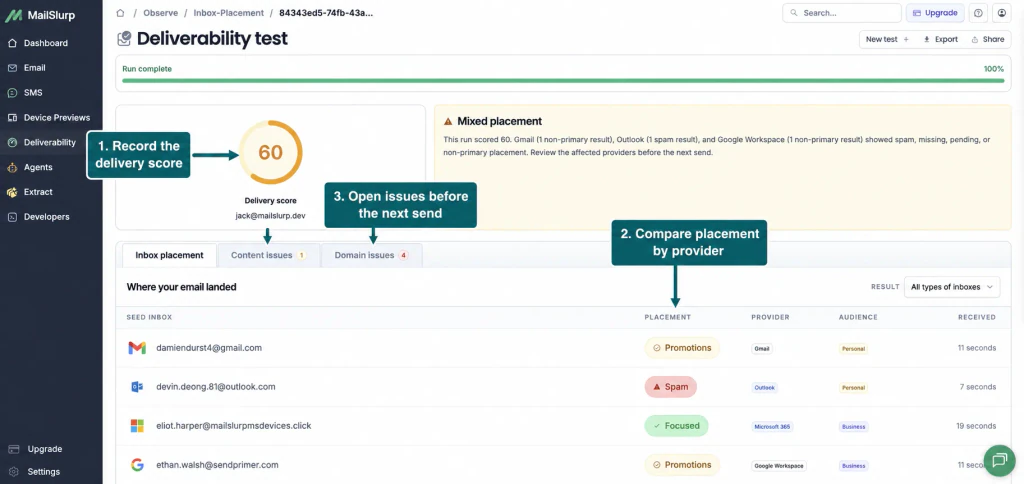
The completed example above has a delivery score of 60, but the useful clues are in the rows:
- Gmail and Google Workspace placed the message in Promotions.
- Outlook placed it in Spam.
- Microsoft 365 placed it in Focused.
- all four copies arrived within 19 seconds.
That pattern does not look like an application queue failure. It also does not justify a universal "email is broken" conclusion. The next investigation should focus on the Outlook result and on whether Promotions is expected for this particular message.
For a receipt containing an offer, Promotions might be unsurprising. For a password reset or security alert, it deserves a closer look. Spam and Promotions are also different outcomes: Promotions is a delivered Gmail tab, not a synonym for junk.
Check authentication and alignment from the received message
Now inspect the message that actually arrived. DNS records show what should happen; received headers show what happened to this copy.
Look for:
Authentication-Resultsfor SPF, DKIM, and DMARC outcomes;- the visible
Fromdomain; - the envelope sender or
Return-Path; - the DKIM signing domain and selector;
- the
Receivedchain; - the provider message ID; and
- timestamps on each hop.
SPF verifies whether the sending source is authorized for the envelope-sender domain. DKIM verifies a cryptographic signature. DMARC checks whether an authenticated SPF or DKIM domain aligns with the domain people see in the From address.
That last word - alignment - catches many otherwise confusing incidents. A message can show an SPF pass for a provider-owned return-path domain and still fail to align with your visible sender. It can also lose a DKIM pass if an intermediary modifies signed content.
Google's current email sender guidelines recommend SPF, DKIM, and DMARC and explain the additional requirements for higher-volume senders. Microsoft likewise explains how SPF, DKIM, DMARC, and its other signals work together. Use the provider documentation for the current requirements; do not diagnose from an old checklist saved in a team wiki.
If you have a received Gmail copy, use More > Show original to view the full header. Google's header tracing instructions also show where to find delivery timing. MailSlurp's email header analyzer is useful when you want the fields laid out without manually reading every hop.
Check delay as its own failure mode
For an OTP or magic link, record at least three timestamps:
- when the user requested the message;
- when your provider accepted it; and
- when the controlled inbox received it.
This separates application queue time from provider and mailbox time.
| What you observe | Where to look next |
|---|---|
| Long delay before the provider message ID appears | application job, queue, retry policy, rate limit, or provider API call |
| Fast provider acceptance followed by a deferral | receiving-provider response, sending rate, IP/domain reputation, or temporary throttling |
| Fast delivery to Gmail but slow or missing Outlook receipt | provider-specific response, Microsoft reputation, or routing |
| Fast receipt in controlled inboxes but customer reports delay | recipient rules, forwarding, quarantine, client sync, or an incorrect address |
Do not bury latency inside an average delivery rate. A median can look healthy while the slow tail quietly ruins time-sensitive flows.
Review sender history before blaming the template
Mailbox providers judge patterns as well as individual messages. Ask what changed shortly before the incident:
- Did traffic jump after a launch, migration, or retry storm?
- Did marketing and transactional traffic start sharing a domain or IP pool?
- Did a new service begin sending for the domain?
- Did bounce or complaint rates move?
- Did you switch to a new subdomain or dedicated IP without a gradual warmup ramp?
- Did a compromised form or account create unexpected mail?
Google advises senders to increase volume gradually, avoid sudden bursts, monitor responses, and keep spam rates reported in Postmaster Tools below 0.1% while avoiding 0.3% or higher. Those are complaint-rate measurements, not message-level spam scores.
If Microsoft-hosted addresses are the outlier, follow Microsoft's external-sender troubleshooting flow. It covers sending reputation, new IPs, DNS, non-delivery reports, junk placement, and throttling. A block or deferral code is more useful than a vague "Outlook hates us" theory.
After repairing the cause, use a sender reputation recovery plan to decide when and how much traffic to add. Use a blacklist checker as supporting evidence, not as a verdict. A clean result does not guarantee inbox placement, and one listing does not explain every mailbox decision.
Inspect content and links after the sending path
Content still matters. It is simply not the only suspect in the room.
Compare the affected template with the last known-good version. Look for:
- a new or redirected link domain;
- URL shorteners;
- a mismatch between the visible sender and the purpose of the email;
- promotional material inserted into a receipt or security message;
- malformed HTML or a missing plain-text part;
- attachments that changed type or size;
- misleading display names or subject lines; and
- tracking changes that alter links or message structure.
Google explicitly advises against mixing different types of content in one message. A receipt should not moonlight as a sale flyer. Keeping operational and promotional streams distinct also makes reputation and incident evidence easier to read.
Run the delivered message through an email spam checker and inspect its links and HTML with Email Audit. Treat a spam score as a list of clues. It cannot reproduce each mailbox provider's history with your domain or each recipient's behavior.
Change one thing, then run the test again
An incident invites a grand cleanup. Resist it for one more test.
Choose the most likely cause supported by evidence, make one meaningful change, and create a fresh placement run. For example:
- repair DMARC alignment;
- restore the previous verified link domain;
- separate promotional material from the transactional template;
- move the message back to the established transactional stream;
- slow an accidental traffic burst; or
- fix a queue retry that created duplicate sends.
Keep the sender, template, recipients, and timing as stable as the change allows. Record the old and new provider rows. If Outlook moves from Spam to Focused while Gmail remains stable, you have a much stronger result than "we changed a few things and it seems better."
If the result does not improve, undo speculative content changes and continue with the next supported hypothesis. Negative results are still useful when they stop a team from repeating the same guess during the next incident.
Copy this transactional email incident worksheet
Keep this worksheet in the ticket, release note, or incident document. Fill it with exact values and links to evidence rather than "looks fine."
TRANSACTIONAL EMAIL INCIDENT

Workflow:
Customer impact:
Incident owner:
First reported (UTC):
Mailbox provider(s):

MESSAGE
Provider message ID:
Visible From address:
Envelope sender / Return-Path:
Sending domain and subdomain:
Sending provider / IP pool:
Template name and version:
Application release / commit:
Subject used in reproduction:

TIMING
User action time (UTC):
Application dispatch time (UTC):
Provider acceptance time (UTC):
Controlled inbox receipt time (UTC):
End-to-end latency:
Code or link expiry:

AUTHENTICATION AND HEADERS
SPF result and domain:
DKIM result, domain, and selector:
DMARC result and alignment:
Relevant Received hops:
Blocklist / reputation evidence:

PLACEMENT
Gmail result:
Google Workspace result:
Outlook result:
Microsoft 365 result:
Yahoo or other provider result:
Content / spam-check findings:
Link and redirect findings:

CONTROLLED CHANGE
One change made:
Reason this change was selected:
Fresh test ID:
Retest results by provider:
Retest latency:
Decision and follow-up owner:
The worksheet is deliberately boring. During an incident, boring is rather lovely: it gives the next person facts instead of folklore.
A release gate for critical transactional emails
You do not need a large seed test on every commit. Match the check to the cost of failure.
Before a high-impact release, verify that:
- the real application can trigger the message;
- a controlled MailSlurp inbox receives it;
- the subject, recipient, code, action link, and expiry are correct;
- received headers show the expected sender identity and authentication;
- Gmail and Outlook placement are acceptable for the workflow;
- latency leaves enough time to use the code or link;
- the delivered HTML works on the devices and clients that matter; and
- the result, owner, and approved template version are recorded.
Use email integration testing for repeatable receipt and content assertions. Use device previews to catch visual failures. Use inbox placement for the provider-folder evidence. They answer different questions, and the important flows often need all three.
Common transactional email patterns to check
Password resets and magic links
Measure end-to-end latency against the real expiry. Confirm that link scanners or prefetchers cannot consume the action before the user clicks it, and make sure the reset message is not mixed with promotional content.
OTP and MFA emails
Record duplicate sends, retry timing, and whether a newer code invalidates an earlier one. A mailbox delay can look like a bad code when the customer is simply reading the wrong arrival.
Receipts and invoices
Check attachment size and type, billing links, reply handling, and any promotional block added to the template. A receipt may land differently after it becomes half receipt, half campaign.
Security and account alerts
Keep the sender identity stable and recognizable. Confirm that urgent language describes a real action rather than imitating a phishing message. Test the complete link and login path, not just inbox receipt.
FAQ
Why do transactional emails go to spam even when SPF, DKIM, and DMARC pass?
Authentication proves important parts of sender identity, but mailbox providers also use reputation, sending history, recipient behavior, message content, links, and provider-specific signals. Passing authentication is necessary evidence, not a guarantee of main-inbox placement.
Is a delivered event proof that the email reached the inbox?
No. A delivered event usually means the receiving system accepted the message. The mailbox may still put it in spam, junk, Promotions, quarantine, or another folder.
Should transactional email always land in Gmail Primary?
There is no universal guarantee. Measure the observed result for the finished message and decide whether the placement supports its purpose. A time-sensitive reset or security alert has a different visibility requirement from a product update.
Can a spam score predict inbox placement?
No. A spam score can identify message and configuration risks. An inbox placement test observes where controlled provider mailboxes put the sent message. Use both when the incident evidence points to content as well as provider placement.
How do I test a password reset or OTP without emailing customers?
Trigger the real workflow with controlled MailSlurp inboxes and test users. Assert the received subject, code or link, and timing, then run a placement test with the final sender and template when Gmail or Outlook placement is part of the risk.
What should I fix first?
Fix the earliest confirmed failure in the journey. A queue problem comes before inbox placement; failed or misaligned authentication comes before copy polishing; a provider-specific spam result comes before a site-wide template rewrite. Make one supported change and retest.
For the broader concepts, read what inbox placement testing measures and why legitimate emails go to spam.