

View your Salesforce journey emails on real email clients
Compare Gmail, Outlook, Yahoo, Apple Mail, iPhone, Android, and dark mode at a glance.
MailSlurp gives stakeholders one delivered preview across real clients plus inbox or spam results before go-live.

 Salesforce email preview
Trusted by top companies worldwide






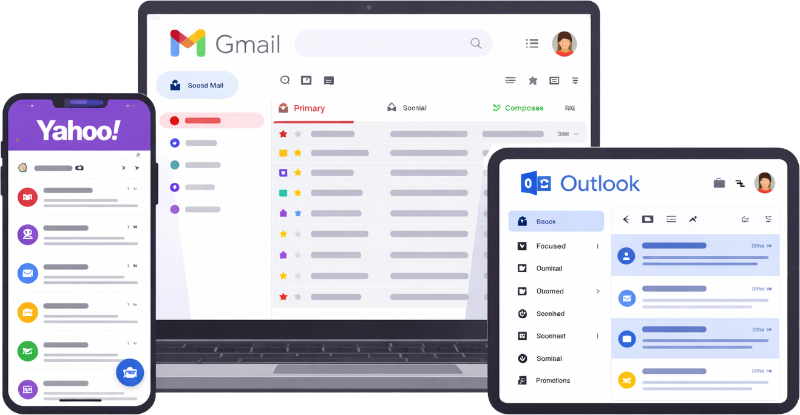
MailSlurp captures the message Salesforce sends across email clients, making mobile layout, image, link, footer, and dark-mode issues visible before approval.
Compare Gmail, Outlook, Yahoo, Apple Mail, iPhone, Android, and dark mode at a glance.

Spot dead buttons, missing assets, clipped layouts, and awkward mobile stacking before launch.

Fix the friction before it costs a click—or a sale.
See your delivered Salesforce campaign across iPhone, Android, Windows, Mac, Gmail, Outlook, Yahoo Mail, and Apple Mail—including light and dark mode.

Follow a published Salesforce marketing email into a controlled MailSlurp review across mobile, Outlook, and desktop.
Follow the Salesforce device preview guideChoose the clients, send one Salesforce test, and fix anything that looks wrong.
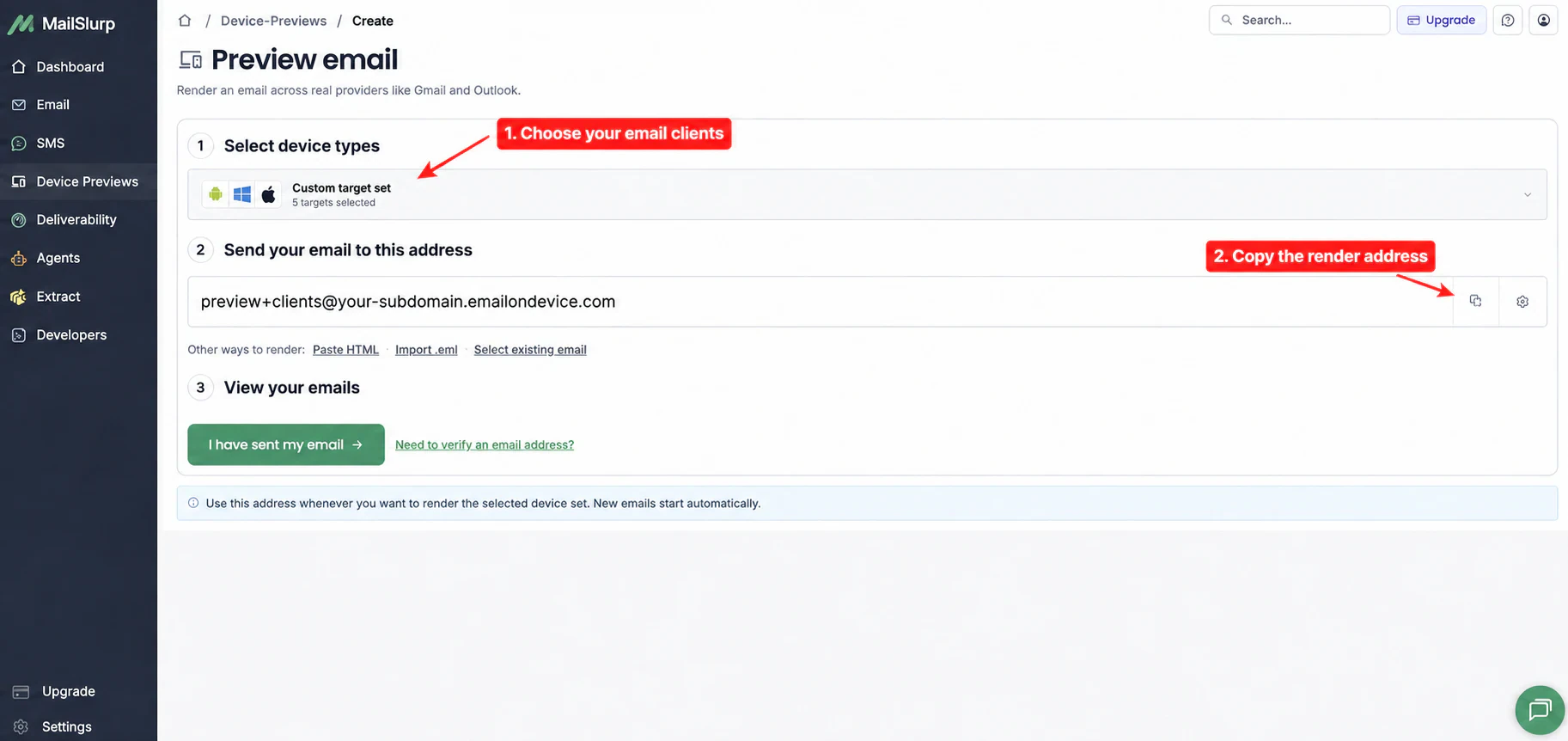
Pick the email apps, devices, and dark-mode views your customers use.
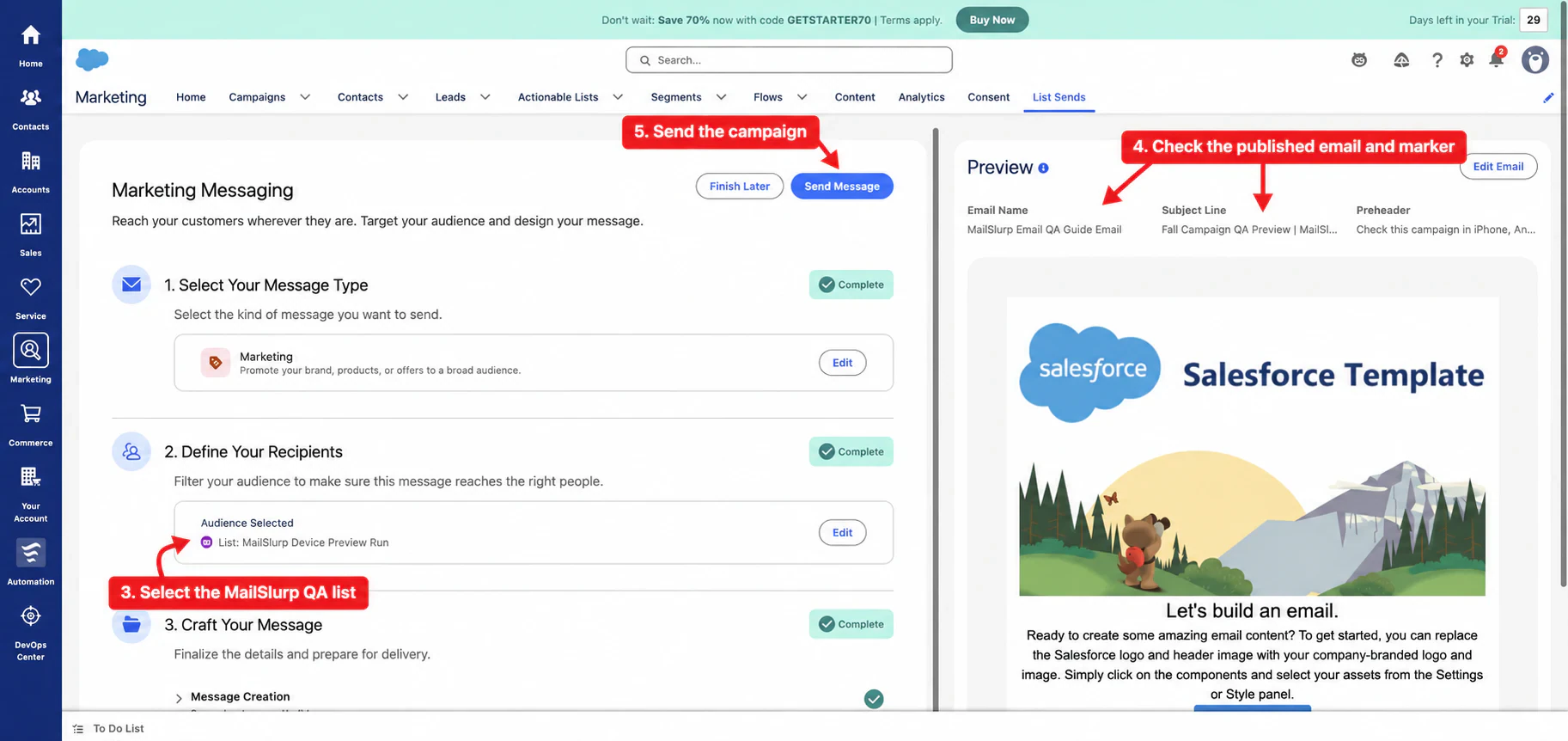
Send the finished campaign to your MailSlurp render address.
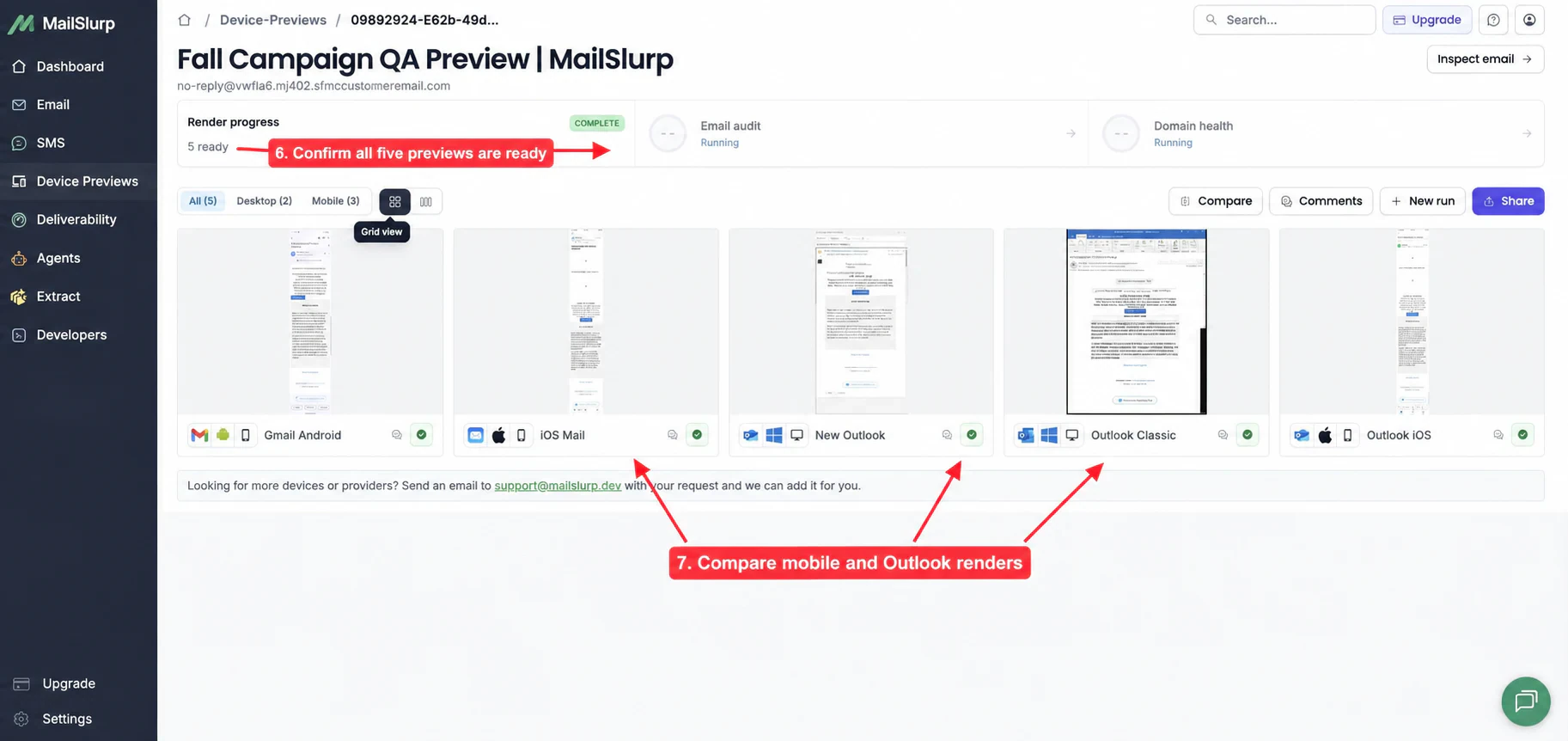
Compare every preview, make the fix, and send with confidence.
Campaign approval
Send render updates to Slack or Microsoft Teams, then open the same shareable result to review Gmail, Outlook, Yahoo, mobile, and dark mode before launch.
# campaign-qa
Email launch reviews · 12 members

Maya
What do you think about these mobile previews?
app.mailslurp.com/device-previews/8edc1b89...

Salesforce mobile render
iOS Mail · delivered email
Use a separate seed run to see inbox, tab, spam, and missing placement across Gmail, Google Workspace, Outlook, Microsoft 365, and Yahoo before launch.
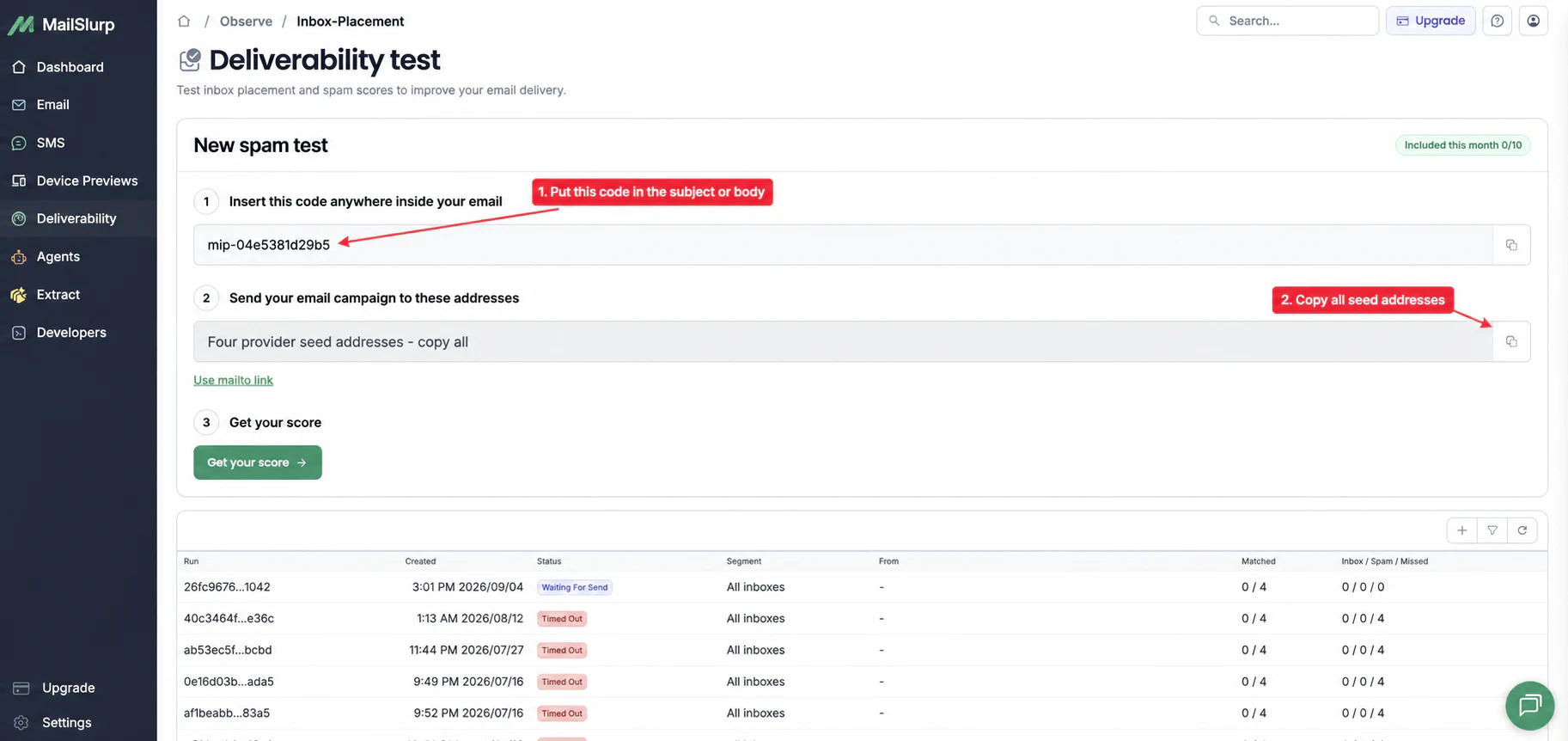
Start a new MailSlurp inbox placement test. Copy its marker and current Gmail, Google Workspace, Outlook, Microsoft 365, and Yahoo test addresses.
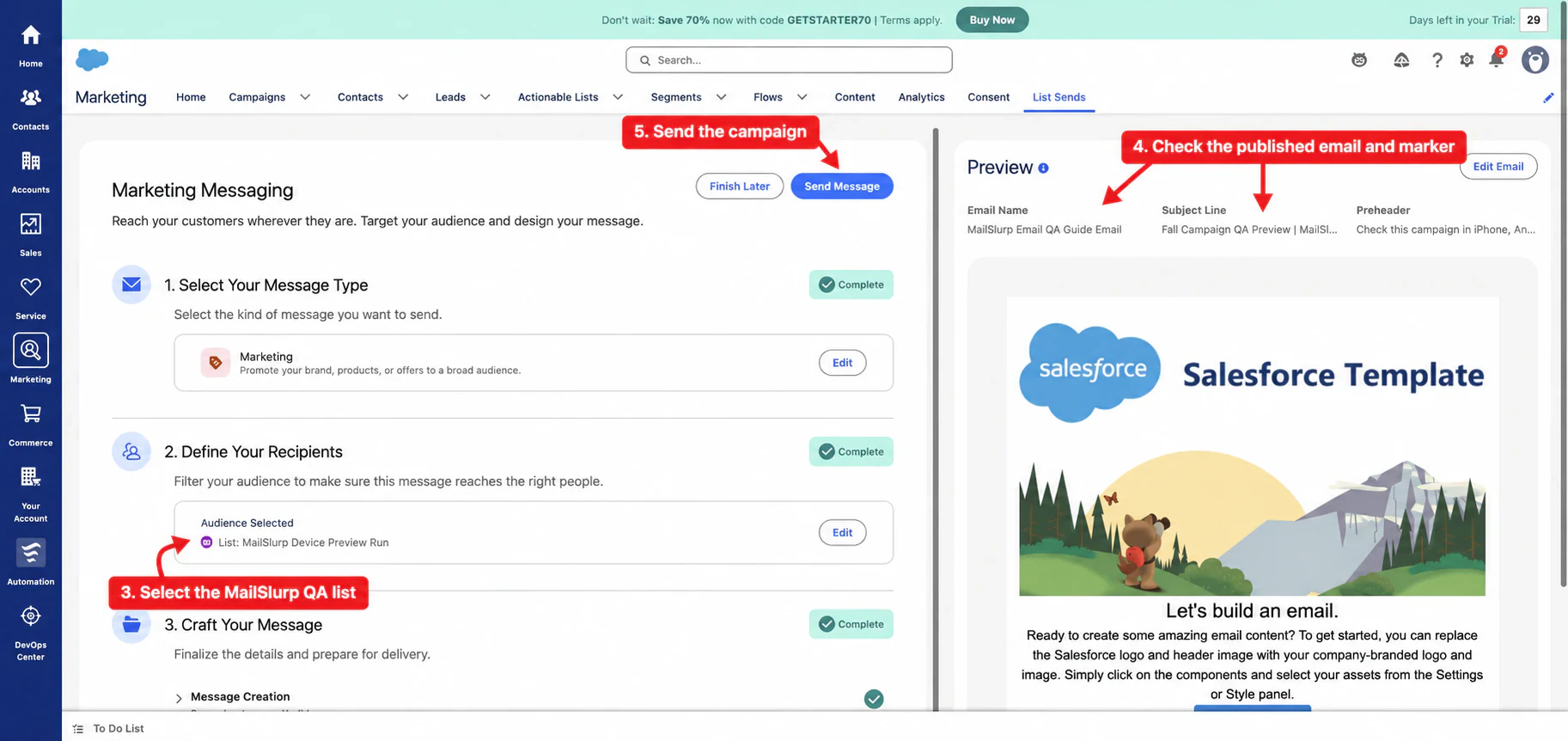
Create opted-in seed contacts, add them to a dedicated Actionable List, keep the exact marker in the email, and send only from the QA campaign.
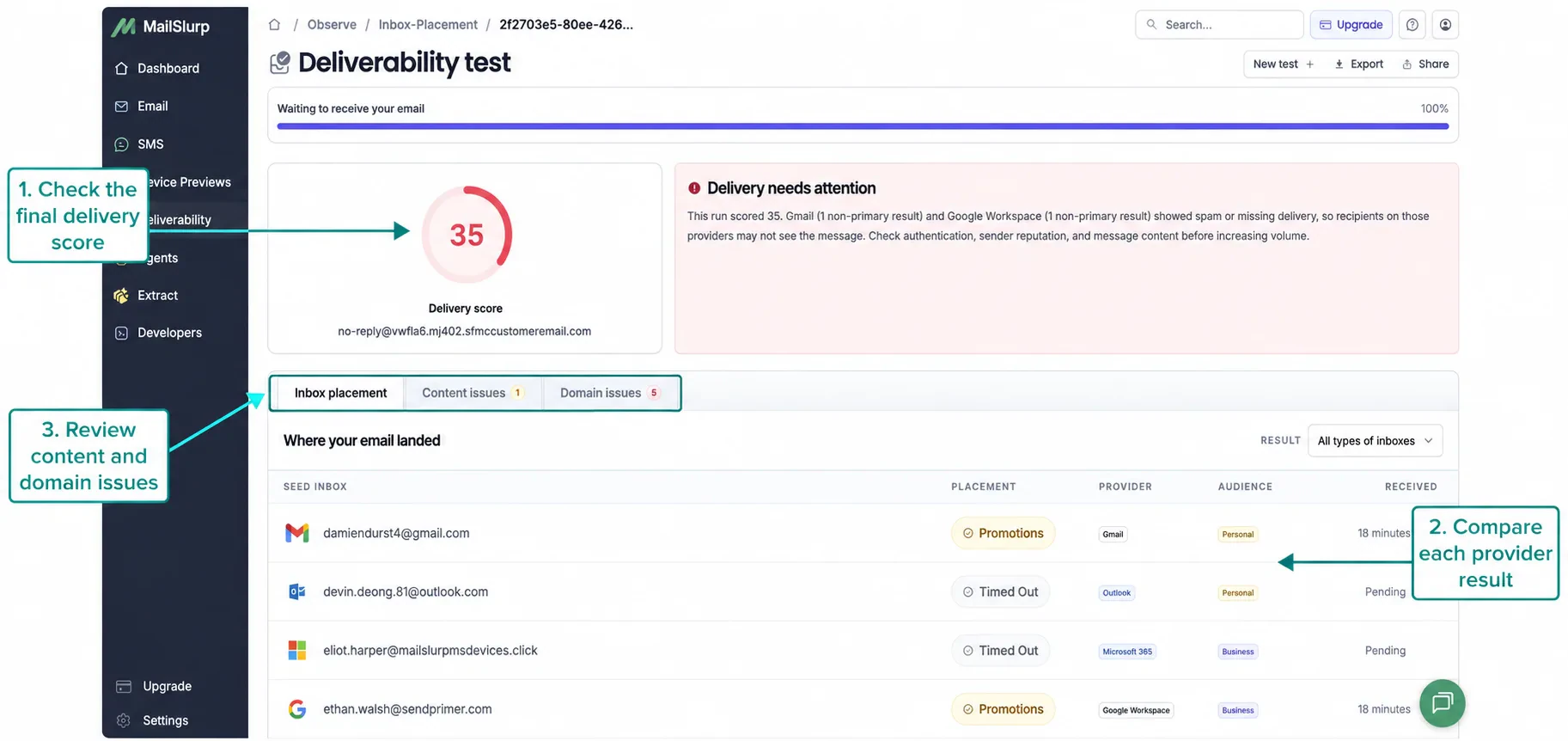
Check inbox, tab, spam, and missing results, then review content and sending-domain findings before the full send.
Combine observed mailbox placement with the delivered Salesforce email, client rendering, sender authentication, and content checks so the next fix is based on evidence.

Confirm whether the campaign reaches inbox, promotions, spam, junk, or goes missing across personal and business mailboxes.
Preview the same delivered email across Gmail, Outlook, Yahoo, Apple Mail, mobile, desktop, light mode, and dark mode.
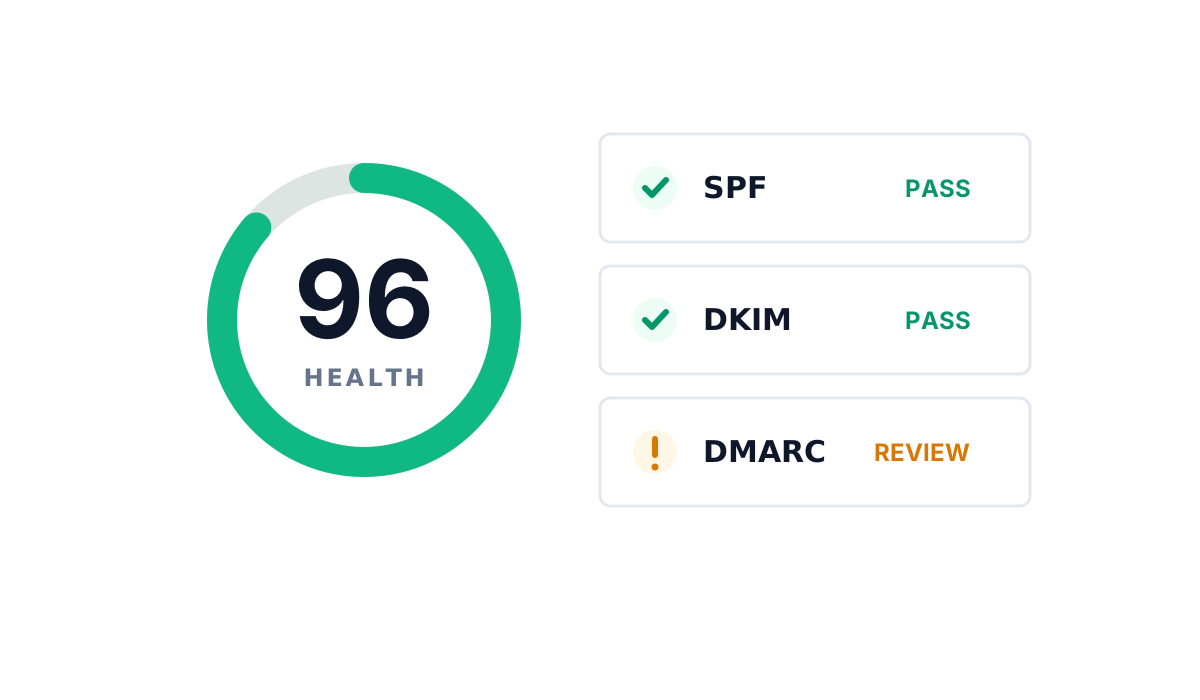
Track SPF, DKIM, DMARC, MX records, reputation signals, blocklists, and domain changes alongside each send.

Catch broken links, missing images, unsupported markup, and content warnings in the exact campaign sent for preview.
Practical answers for checking a Salesforce email before the full send.
Create a MailSlurp device preview, choose the clients and dark-mode views your audience uses, and send the finished Salesforce test email to the render address. MailSlurp then shows the delivered message in every selected client. Follow the Salesforce device preview guide.
Yes. The preview starts from the delivered test message, including its HTML, hosted images, links, footer, and campaign content.
Yes. Start a separate inbox placement test, use its current test addresses and exact marker, send the campaign, and check inbox, tab, spam, content, and sending-domain results in MailSlurp. Open the Salesforce inbox placement guide.
No. Device previews show how the delivered email looks. Inbox placement shows which folder receives it. Run both before an important send.
Run the checks again after changing copy, images, personalization, layout, links, tracking, sender details, footer content, audience, or campaign settings.
Salesforce
Review the delivered design and inbox placement before the marketing journey starts.
Free to start. No credit card required.