
How to Preview Email Campaigns in Salesforce on iPhone, Android, and Outlook
Use MailSlurp as an email preview tool for Salesforce email campaigns. Test the delivered campaign in Gmail, iPhone, Android, Outlook Classic, and New Outlook.
Use with your tools
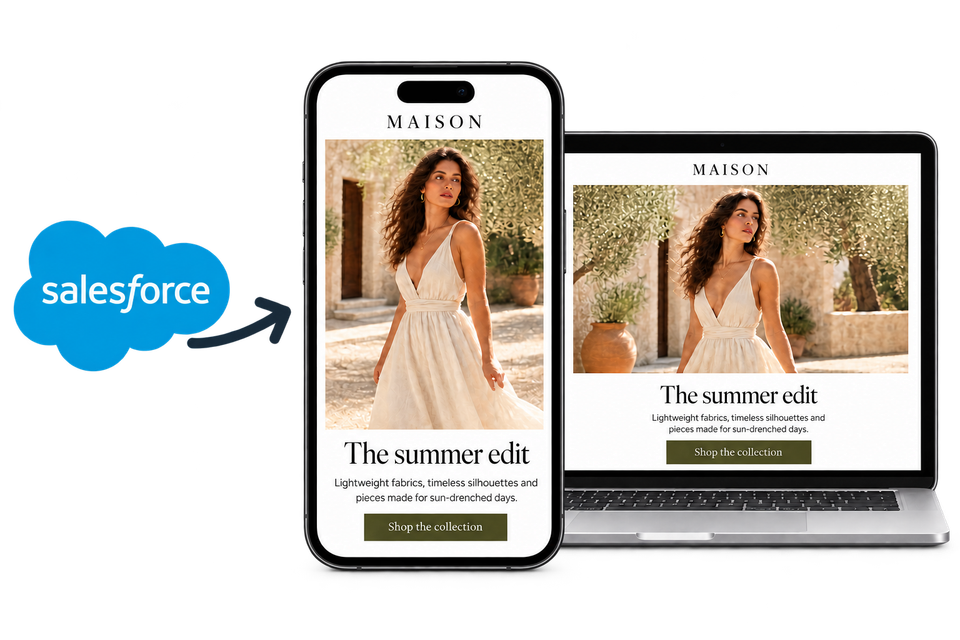
Salesforce email campaigns can look different after they reach Gmail, Apple Mail, Outlook Classic, New Outlook, iPhone, and Android. MailSlurp receives the finished Salesforce marketing email and captures it in real email clients, giving your team one email preview tool for cross-client approval.
This tutorial follows the Salesforce Starter and Pro Marketing Send Marketing Email flow. It shows how to add a MailSlurp render address to a small Salesforce test list, send the published email from a campaign, and compare the completed device previews before sending to customers.
Quick answer
To preview a Salesforce campaign on iPhone, Android, and Outlook:
- Start a device preview in MailSlurp.
- Select Gmail Android, iOS Mail, New Outlook, Outlook Classic, and Outlook iOS.
- Copy the unique MailSlurp render address.
- Create a Salesforce contact with that address and set its marketing consent to Opted In.
- Add the contact to a small Actionable List used only for campaign QA.
- Open the Salesforce campaign and choose Send Marketing Email.
- Select the test list and the latest published email, then send.
- Return to MailSlurp and compare the completed mobile and Outlook renders.
Use the same subject, preheader, images, links, footer, and published content planned for the real campaign. That makes the preview an approval of the delivered email, not an earlier editor draft.
Watch the Salesforce device preview workflow
This walkthrough shows how to prepare a Salesforce marketing email, send it to a MailSlurp render address, and review the delivered campaign across mobile, webmail, and Outlook clients.
Before you begin
You need a published Salesforce marketing email, permission to create or update test contacts, and a MailSlurp account with device previews enabled. In Salesforce, choose an authenticated sender and the subscription category that matches your test campaign.
Keep the test list separate from production audiences. A clear name such as Salesforce Device Preview QA makes it easy to reuse without including customers.
Step 1: Choose the email clients in MailSlurp
Open Device Previews in MailSlurp and start a new render. Choose the client set that represents your audience. For a balanced Salesforce email rendering test, include:
- Gmail on Android
- Mail on iPhone or iOS Mail
- New Outlook
- Outlook Classic
- Outlook on iOS
MailSlurp creates a render address for that target set. Copy the complete address under Send your email to this address.
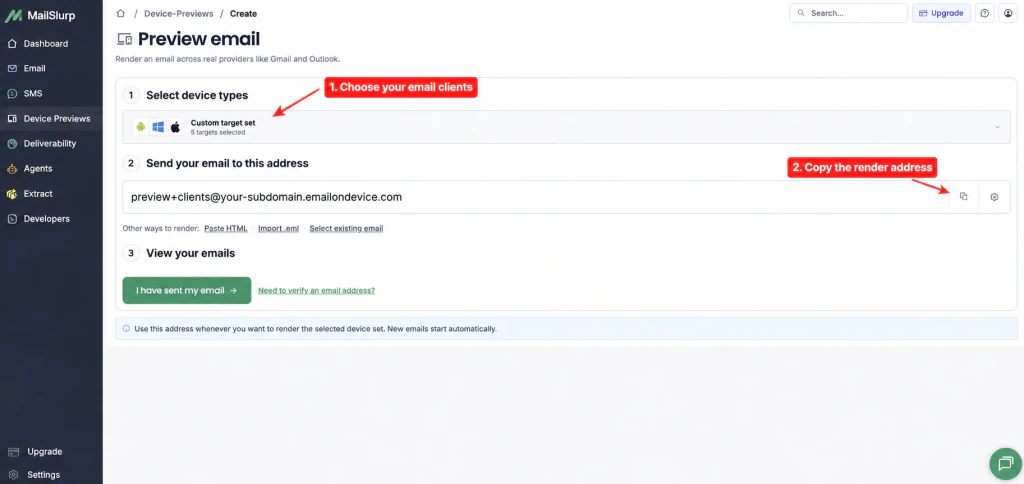
The address shown in your account is unique. Use the real address from your MailSlurp screen rather than the example in this screenshot.
Step 2: Create an opted-in Salesforce test contact
In Salesforce, create a contact that uses the MailSlurp render address as its email address. Add it to a test account if your organization requires every contact to have an account.
Open the contact's marketing consent record and set the email consent status to Opted In. Salesforce respects consent during marketing sends, so an address can be present on a list and still be excluded when its consent is missing or opted out.
Step 3: Add the contact to an Actionable List
Create or open an Actionable List for email QA and add the render-address contact. Confirm the list member count before moving on.
Using one reusable QA list keeps device-preview sends away from customer segments. You can add other controlled test recipients to the same list when a stakeholder also needs a copy.
Step 4: Publish the final Salesforce email
Open the Salesforce marketing email used by the campaign. Verify the subject, preheader, images, buttons, links, footer, and unsubscribe content, then publish the latest revision.
The send flow uses the published version. Saving an updated draft is not enough if the previous version is still published.
Step 5: Send the campaign to the QA list
Open the campaign and select Send Marketing Email. Choose the QA Actionable List, the published email, an authenticated sender, and the appropriate subscription category. Review the recipient count and click Send.
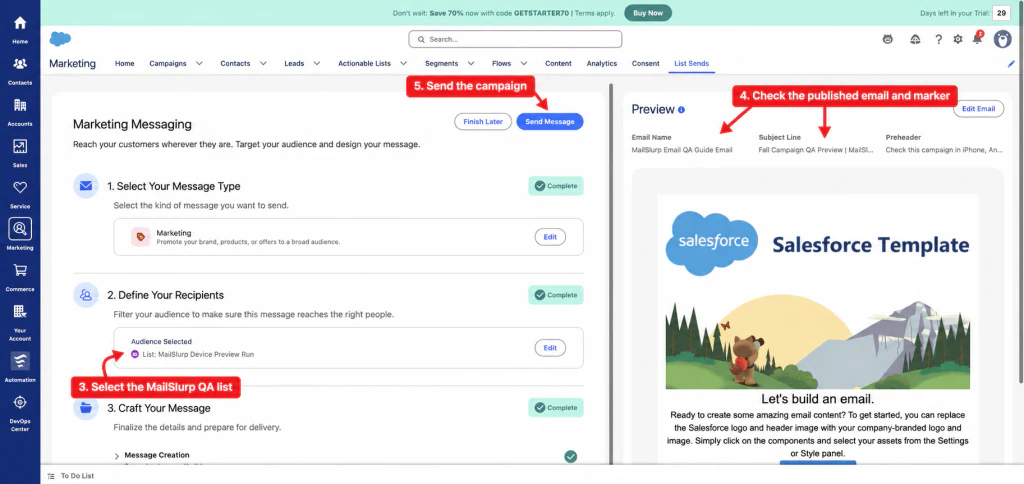
Salesforce queues the list send. MailSlurp starts the render run as soon as the message reaches the render address.
Step 6: Review iPhone, Android, and Outlook results
Return to MailSlurp and open the detected email. Wait until the required targets show Ready, then compare mobile and desktop results.
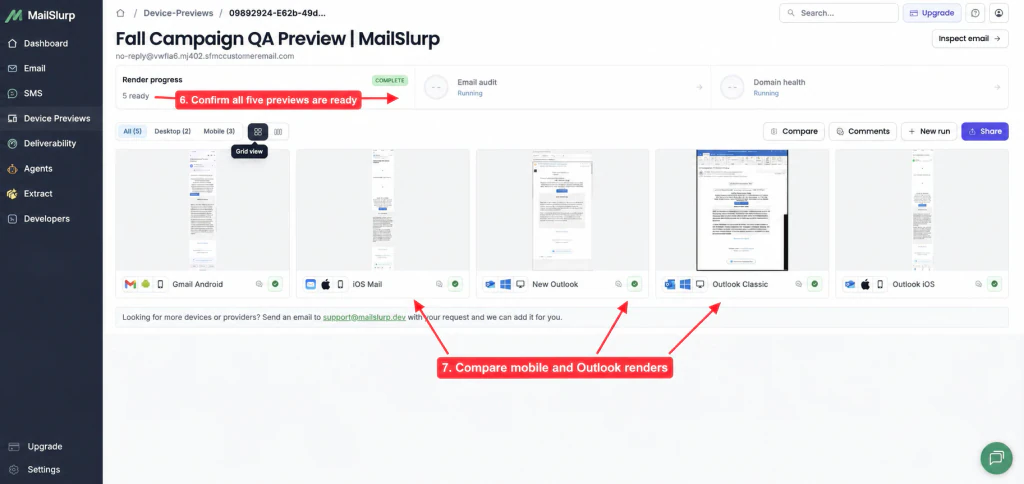
Check the parts most likely to change between clients:
- headline wrapping and content width
- column stacking on iPhone and Android
- image loading, cropping, and scaling
- button width, contrast, and tap area
- Outlook Classic spacing and table layout
- New Outlook font and alignment differences
- footer, preference, and unsubscribe links
Open an individual preview for a larger image or use Compare to place a mobile result beside Outlook. If you edit the Salesforce email, publish the new revision and repeat the send so approval always refers to the latest content.
A practical Salesforce campaign approval checklist
Before sending the campaign to customers, confirm:
- the correct Salesforce email revision is published
- the render-address contact is opted in
- all priority device previews are ready
- images load without stretching or clipping
- the primary call to action remains visible and usable
- the email is readable on narrow mobile screens
- Outlook Classic and New Outlook both preserve the intended hierarchy
- footer, sender identity, and unsubscribe content are present
- links point to the expected destinations
- the preview was rerun after the last campaign change
Troubleshooting Salesforce email previews
MailSlurp does not detect the campaign
Confirm that the Salesforce contact contains the complete render address, the contact is opted in, and the Actionable List includes that contact. Then check the Salesforce list-send status to confirm the message was queued.
Salesforce sends an older email version
Return to the email content record, save the latest revision, and publish it. Reopen Send Marketing Email and confirm the selected content before sending again.
One preview is still processing
Each client capture finishes independently. Review ready results while the remaining target completes, but wait for every priority client before approval.
Outlook looks different from mobile clients
Outlook Classic uses a different rendering engine from many web and mobile clients. Simplify fragile layouts, use email-safe table structure where needed, provide explicit image dimensions, and rerun the delivered email after every correction.
FAQ
Can Salesforce preview an email on mobile?
Salesforce provides editor and test-send workflows, while MailSlurp adds delivered-email previews across specific clients. Send the Salesforce campaign to a MailSlurp render address to inspect iPhone, Android, Gmail, Outlook Classic, New Outlook, and other selected targets.
Does this test the real Salesforce campaign email?
Yes. Salesforce assembles and sends the published marketing email to MailSlurp, which renders the received message. The result contains the HTML, images, links, preheader, and footer included in that send.
Should I use a Salesforce test list or a customer list?
Use a dedicated QA Actionable List containing only controlled test recipients. This makes repeated email client testing predictable and protects customer audiences from accidental test sends.
When should I rerun device previews?
Rerun them after changing content, images, links, layout, sender details, footer text, or Salesforce personalization logic. Also rerun before a major campaign if the template has not been checked recently.
Can the same render address be reused?
Yes. A render address can receive another Salesforce send and start a new run for its configured client set. Keep it in the QA list for repeatable campaign reviews.
After visual approval, continue with the Salesforce inbox placement testing guide to see whether the campaign reaches primary, promotions, or spam folders. You can also review the full device preview documentation.