
How to Preview Braze Emails Across Gmail, Outlook, iPhone, and Android
Run Braze email client testing with MailSlurp. Preview the final campaign across Gmail, Outlook Classic, New Outlook, iPhone, Android, and desktop clients.
Use with your tools
Braze email preview tools help you check content and personalization while composing a campaign. MailSlurp extends that review into real email client testing: one Braze email can be captured across Gmail, Gmail Android, iOS Mail, New Outlook, Outlook Classic, Outlook iOS, and other selected targets.
This guide covers two useful paths. Send a Braze test message to a MailSlurp render address when you want to inspect the assembled email and its sent-message headers. Download the Braze HTML and paste it into MailSlurp when you want a fast pre-send layout check.
Quick answer
To preview a Braze email across Gmail, Outlook, iPhone, and Android:
- Open Device Previews in MailSlurp and start a new render.
- Select the web, mobile, and desktop email clients that represent your audience.
- Copy the generated MailSlurp render address.
- Open the final Braze campaign and choose Preview & Test.
- Create or update a Braze test user whose email is the render address, select that user on Test Send, and send the message.
- Alternatively, choose Download file, unzip the Braze HTML, and use Paste HTML in MailSlurp.
- Wait until every required client shows Ready.
- Compare the Gmail, Outlook, iPhone, and Android screenshots before launch.
Use a direct Braze test send for final approval. The exported-HTML path is convenient for checking layout while a campaign is still being assembled.
Before you begin
Prepare the Braze campaign, Canvas message, or email template you want to test. Finish the subject, preheader, sender, images, links, footer, unsubscribe content, and representative Liquid data before the final run.
Braze's email campaign workflow places previewing and testing between message composition and audience selection. Keep the campaign in draft while reviewing screenshots, then rerun the final version after any correction.
Step 1: Choose a practical client matrix
Open Device Previews in MailSlurp and create a new render. Select the clients that matter for this campaign. A balanced Braze email preview set includes:
- Gmail.com
- Gmail Android
- iOS Mail
- New Outlook
- Outlook Classic
- Outlook iOS
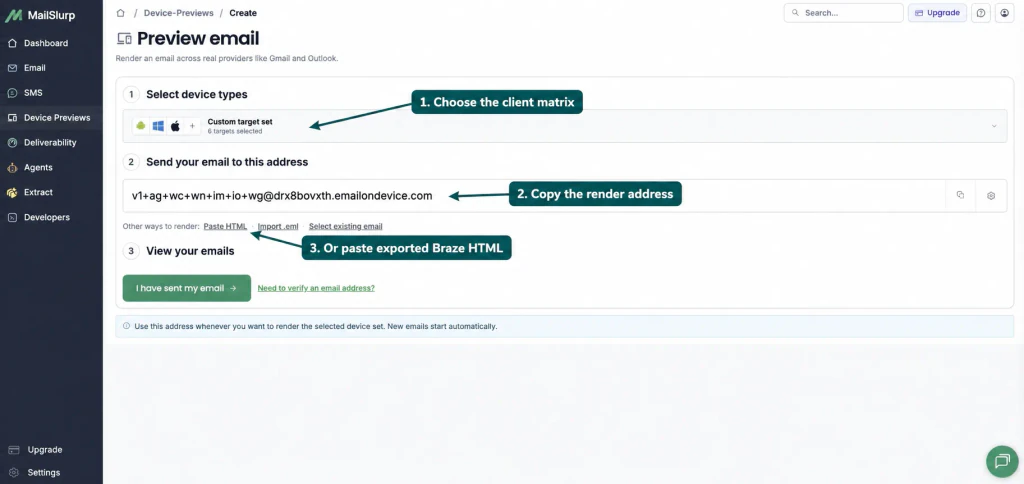
The render address encodes the selected target set. Copy the complete address shown in your account rather than reusing an address from an old screenshot.
Step 2: Open Preview & Test in Braze
Open the email message in the Braze campaign composer. Choose Preview & Test, then select Test Send.
Braze lets you add an individual user or a Content Test Group. Individual recipients and bulk-added group members must already be known in the Braze dashboard, so create or update a dedicated test user whose email is the active MailSlurp render address. Give that profile representative attributes when Liquid changes names, offers, product rows, localization, or conditional sections.
Braze's drag-and-drop editor documentation also describes desktop and mobile preview controls, dark mode preview, test sends, and downloadable HTML.
Step 3: Select the render-address test user
Under Add individual users, search for and select the Braze test user whose email is the complete MailSlurp render address. Then choose Send Test.
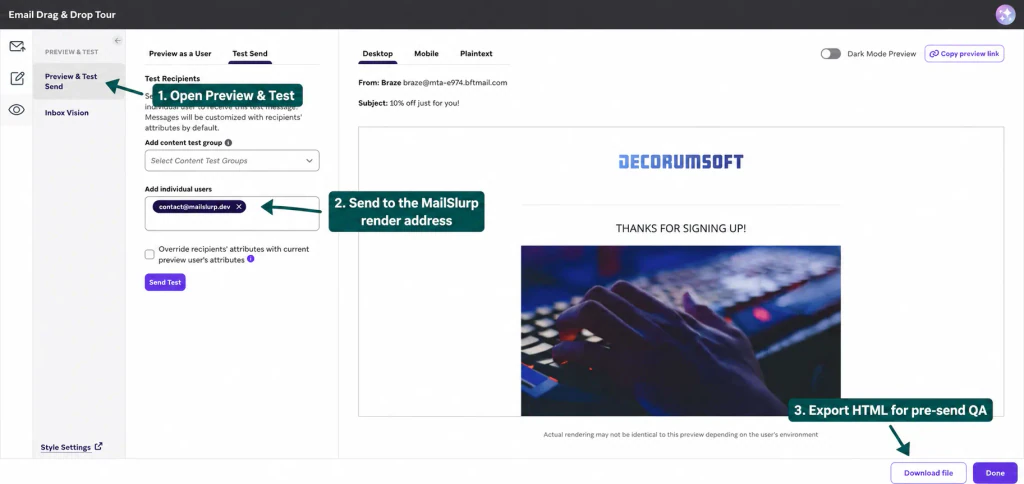
The screenshot shows the recipient control. Replace the example recipient with the test user tied to the complete emailondevice.com address from your active MailSlurp render.
This path tests the message after Braze assembles it for the chosen user. It is the best choice for final approval because it preserves the sent email's content and headers.
Step 4: Use exported HTML for an early layout check
If you want to inspect the current creative before a direct test send, choose Download file in Braze. Unzip the download, open Paste HTML in MailSlurp, paste the exported HTML, and start the run with the same client matrix.
Use representative values for Liquid or other dynamic content before treating an exported-HTML render as final. A direct test send remains the clearest check of personalized output.
Step 5: Wait for all required clients
MailSlurp creates a separate capture for every selected client. You can review finished targets while another capture is still running, but final approval should wait until the priority set is complete.
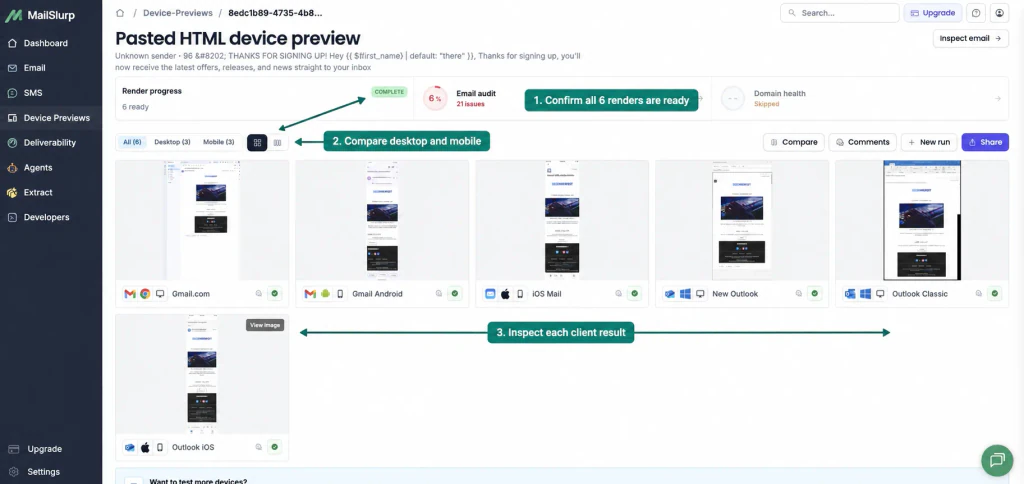
The completed run below contains six ready renders: Gmail.com, Gmail Android, iOS Mail, New Outlook, Outlook Classic, and Outlook iOS.
Step 6: Compare the screenshots
Open each result or use Compare to place two clients side by side. Check the areas most likely to change between rendering engines:
- subject and preheader consistency
- headline wrapping and content width
- mobile column stacking and horizontal overflow
- hosted image loading, dimensions, cropping, and alternative text
- button width, text contrast, and tap area
- font fallbacks and line-height changes
- Outlook Classic table spacing and alignment
- New Outlook and Gmail web layout differences
- iPhone and Android responsive spacing
- footer, unsubscribe, preference, and legal content
- light and dark mode behavior where relevant
If one client breaks, update the Braze template, send or import the new version, and compare the rerun with the previous result.
Braze email preview checklist
Before launching the campaign, confirm:
- the latest Braze email version was used
- representative user or event data was applied
- the final subject, preheader, sender, and reply handling are correct
- every priority web, mobile, and desktop render is ready
- images load and scale correctly
- mobile content remains readable without horizontal scrolling
- buttons remain visible, legible, and easy to tap
- Outlook Classic preserves the intended hierarchy
- footer and unsubscribe content are present
- the preview was rerun after the last template change
Troubleshooting Braze device previews
MailSlurp does not detect the Braze test email
Copy the full render address again, confirm a Braze test-user profile exists with that exact email, and verify that profile is the selected individual recipient. Then confirm the Braze test send completed and that an old recipient was not left in the field.
Liquid appears instead of personalized content
Choose an appropriate preview user before sending the Braze test. For the exported-HTML path, replace test-only variables with representative values or use a direct test send for the final personalized output.
Images are missing in one client
Confirm that every image uses an absolute HTTPS URL and is publicly reachable. Compare the failing client with another completed render, correct the Braze template, and rerun the exact message.
Outlook spacing differs from Gmail
Outlook Classic uses a different rendering engine from many web and mobile clients. Keep email layouts table-safe where necessary, use explicit image dimensions, and test each correction in a new run.
FAQ
How do I preview a Braze email in Gmail and Outlook?
Create a MailSlurp device preview, select Gmail and Outlook targets, create or update a Braze test user with the generated render address, and select that user for a Braze Test Send. MailSlurp captures the received message in each selected client.
Can I preview Braze emails on iPhone and Android?
Yes. Include iOS Mail, Outlook iOS, and Gmail Android in the MailSlurp target set. The completed result keeps the mobile screenshots beside web and desktop clients for comparison.
Should I send a Braze test or paste the exported HTML?
Use a direct Braze test send for final approval of assembled content, personalization, and headers. Use exported HTML for a fast pre-send layout check while editing.
Does Braze Inbox Vision replace a delivered-email preview?
Inbox Vision is available inside the Braze preview area. MailSlurp adds a reusable render address, client matrix, comparison tools, comments, and shareable results that can sit alongside the Braze workflow.
When should I rerun the preview?
Rerun after changing copy, Liquid conditions, images, links, layout, sender details, footer content, or campaign settings. Approve only the latest Braze message.
After visual approval, continue with the Braze inbox placement and spam score guide to measure where the campaign lands. The complete dashboard workflow is in the device preview documentation.