
How to Preview Constant Contact Emails in Gmail, Outlook, iPhone, and Android
Send a Constant Contact test email to MailSlurp and preview the delivered campaign across Gmail, Outlook, Apple Mail, iPhone, iPad, Android, desktop, light mode, and dark mode.
Use with your tools
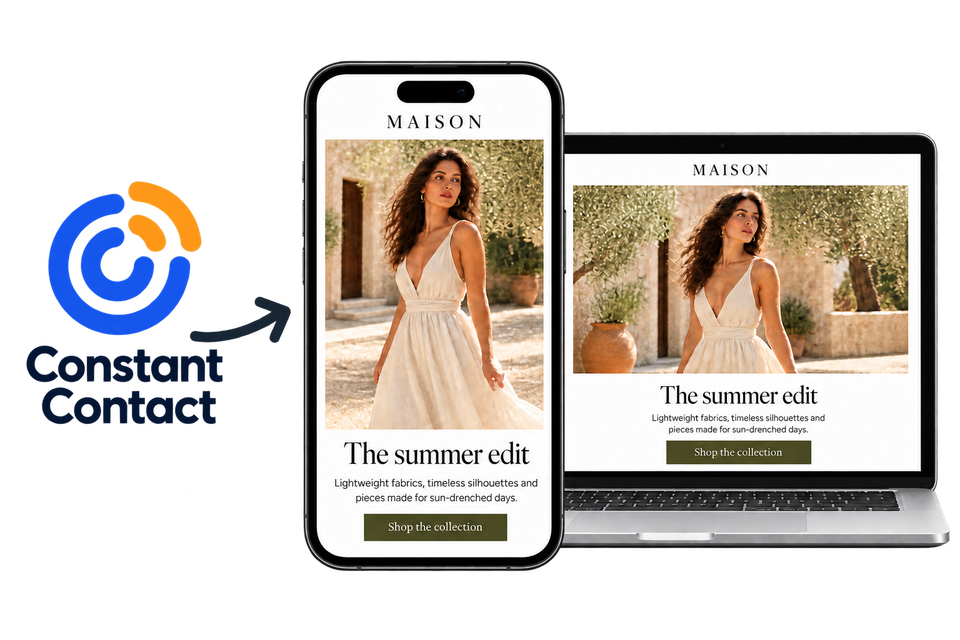
A Constant Contact email preview should show the campaign after it leaves the editor. MailSlurp receives the actual Constant Contact test email and renders that delivered message across Gmail, Outlook, Apple Mail, Yahoo, iPhone, iPad, Android, and desktop clients. This gives campaign reviewers concrete evidence for responsive layout, image loading, buttons, typography, footers, and dark mode before launch.
Quick answer
To test a Constant Contact email across clients and devices:
- Open Device Previews in MailSlurp and create a render.
- Select the Gmail, Outlook, Apple Mail, iPhone, Android, and dark-mode targets that matter to your audience.
- Copy the complete MailSlurp render address.
- In Constant Contact, open the campaign editor, choose Check & Preview, and open Send a Test.
- Enter the render address and send the test version.
- Return to MailSlurp and wait until every selected target is Ready.
- Compare the screenshots and correct the campaign before launch.
Use the final sender, subject, preview text, body, images, links, personalization, footer, and unsubscribe content for the run.
Before you begin
Prepare the final email campaign, an approved From address, and a dedicated list containing only controlled MailSlurp seeds.
Finish the campaign before testing. If the email uses personalization, select a representative profile or contact so fallback content, conditional sections, and merge fields can be reviewed in the delivered message.
How the Constant Contact test path works
Constant Contact's Check & Preview area combines proofreading, preview, and test delivery. The provider documents a daily cap for tests to unverified recipients, so use one active MailSlurp render address and avoid repeatedly sending obsolete campaign revisions.
See the Constant Contact test email documentation for the provider's current account and campaign requirements.
Step 1: Create a MailSlurp device preview
Open Device Previews and create a new render. Select a target set that represents your audience. A practical release check includes Gmail web and dark mode, Outlook.com, New Outlook, Outlook Classic, Apple Mail, iOS Mail, Gmail iOS, Gmail Android, Outlook iOS, Outlook Android, and Yahoo.
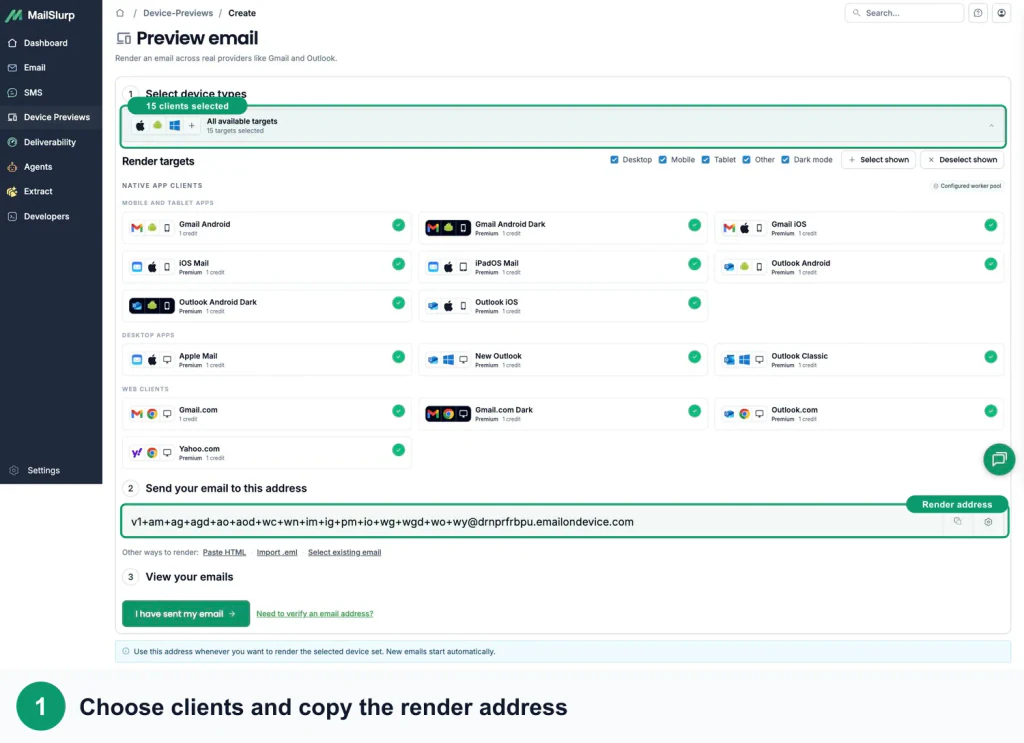
Copy the complete address from the active run. The address encodes the selected targets, so do not shorten it or reuse an address shown in a tutorial screenshot.
Step 2: Prepare the final Constant Contact message
Open the email campaign you intend to send. Confirm the visible From identity, reply handling, subject, preview text, images, links, personalization, footer, physical address, and unsubscribe content.
Constant Contact permits test sends to verified and unverified addresses, with a documented daily limit for unverified recipients. Use the active MailSlurp render address and the final saved campaign revision.
Step 3: Send the Constant Contact test email
In Constant Contact, open the campaign editor, choose Check & Preview, and open Send a Test. Then enter the render address and send the test version. Use only the active MailSlurp render address for this device-preview run.
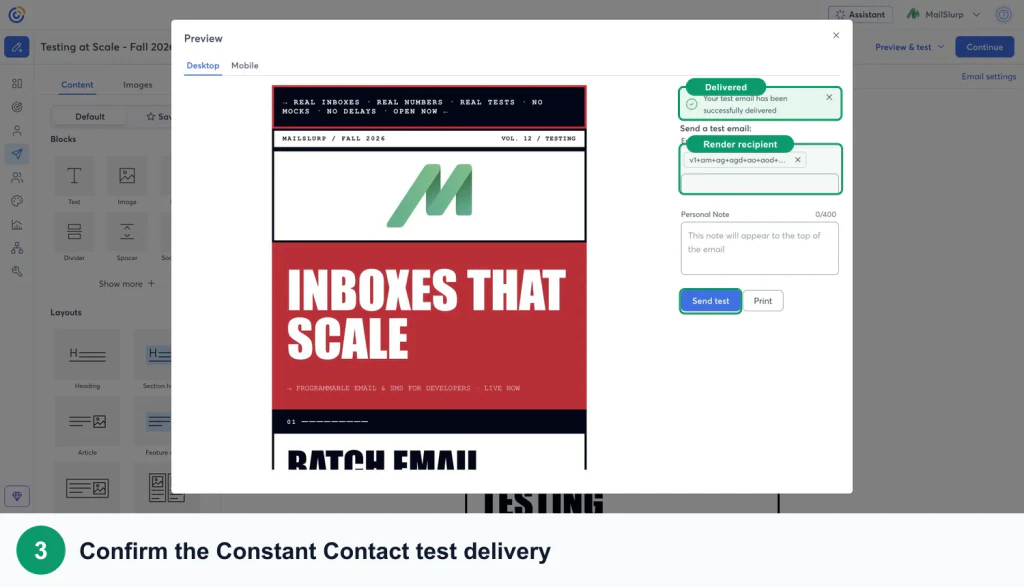
Wait for Constant Contact to confirm that the test was accepted. Do not close the campaign until the saved content and recipient are correct.
Step 4: Wait for every client to finish
Return to MailSlurp. Receiving the Constant Contact message starts the render automatically. Open the result and wait until every required target displays Ready.
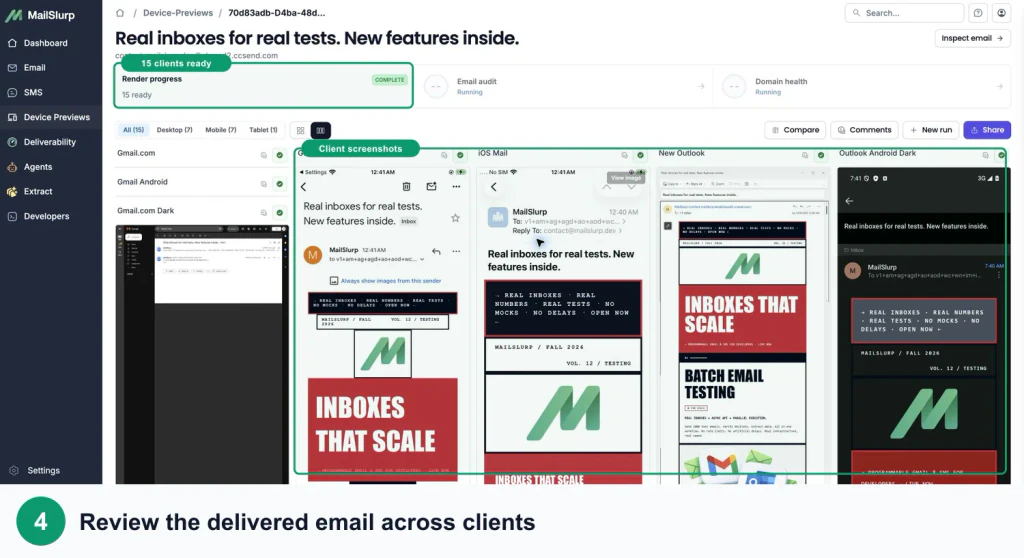
If a target reports a temporary capture failure, use its retry action and keep the completed captures. Approve the run only when the required target set is clean.
Step 5: Inspect the delivered renders
Open the highest-risk screenshots at full size and compare clients when needed. Check:
- headline wrapping, body width, and reading order
- mobile stacking and horizontal overflow
- hosted image loading, cropping, dimensions, and alternative text
- button contrast, width, spacing, and tap area
- font fallbacks and line-height changes
- Outlook Classic spacing and table alignment
- light- and dark-mode contrast
- footer, physical address, unsubscribe, and preference links
If one client breaks, correct the Constant Contact campaign and send the revised message to a new MailSlurp render run so the approval evidence clearly belongs to the latest version.
Constant Contact email preview checklist
- The latest saved Constant Contact revision was sent.
- The final sender, subject, and preview text were used.
- Representative personalization data was applied.
- Every priority web, desktop, mobile, and dark-mode target is Ready.
- Images load and scale without clipping.
- Buttons remain readable and easy to tap.
- Outlook Classic preserves the intended hierarchy.
- Footer and unsubscribe content are visible.
- The run was repeated after the last material edit.
Troubleshooting
MailSlurp does not detect the email
Copy the active render address again, confirm Constant Contact accepted the send, and make sure the address was not shortened or changed.
Personalization is blank
Update the test profile or contact values in Constant Contact, preview the assembled content again, and send a fresh test.
An image is missing in one client
Use absolute public HTTPS image URLs, set useful dimensions and alt text, compare the failing client with another completed render, and retest the corrected campaign.
Outlook spacing differs from Gmail
Outlook Classic uses a different rendering engine from many web and mobile clients. Use email-safe table structure where needed, set explicit image dimensions, and rerun each correction.
FAQ
How do I preview a Constant Contact email in Gmail and Outlook?
Create a MailSlurp device preview, copy its render address, and send the final Constant Contact test email to that address. MailSlurp captures the delivered message in the selected Gmail and Outlook targets.
Can I preview Constant Contact emails on iPhone and Android?
Yes. Include iOS Mail, Gmail iOS, Outlook iOS, Gmail Android, and Outlook Android in the MailSlurp target set.
Does the Constant Contact editor preview replace email client testing?
The editor is useful while composing. MailSlurp adds client-specific screenshots of the delivered message so reviewers can see rendering differences outside the editor canvas.
When should I rerun the preview?
Rerun after changing copy, contact data, images, links, layout, sender details, footer content, or campaign settings. Approve only the latest delivered version.
After visual approval, continue with the Constant Contact inbox placement and spam score guide to measure where the campaign lands.