
examples
How to test Android Firebase Auth Link E2E
Use disposable email accounts in espresso to test firebase authentication
If you have an android app it probably has a sign-up function. Many use Firebase or similar services to provide email and password based login with a confirmation link. In order to test this we can use Espresso with free MailSlurp temporary inboxes to generate unique email accounts for each test and use them to receive confirmation links, open them in a webview, and verify real accounts and user sign-up. Let's see how it works.
Setup our application
For this example we will use a test application hosted on GitHub that uses Firebase Auth to allow user sign-up. We will use the MailSlurp Java client to create email accounts on the fly then wait for a confirmation link.
The Espresso test flow looks like this:
- Open the test application
- Use MailSlurp SDK to create a real email account
- Fill out sign-up form using the test email address
- Wait for email to arrive in MailSlurp inbox
- Extract the link and open it in a webview
- Reload the app and check user is verified
Configure our tests
In our example we will use Kotlin and Espresso with JUnit runner and the Android studio emulator to load the app and test user sign up of a Firebase authentication UI form. The app looks like this:
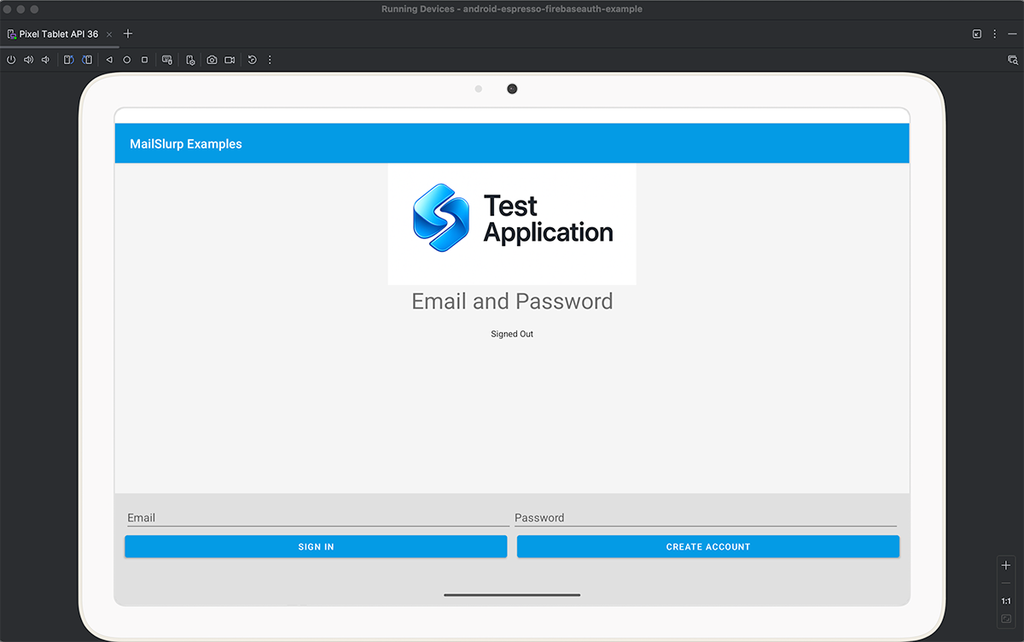
And our basic test file is this:
@LargeTest
@RunWith(AndroidJUnit4::class)
class EntryChoiceActivityTest {

    @Rule
    @JvmField
    var mActivityScenarioRule = ActivityScenarioRule(EntryChoiceActivity::class.java)

    @Test
    fun entryChoiceActivityTest() {
        // will open app and test user sign up here
    }
}
Setup email accounts
In your build.gradle.kts add the mailslurp-client-java client so we can control inboxes:
implementation("com.mailslurp:mailslurp-client-java:16.1.3")
MailSlurp is free you just need to get a free API KEY and set it in the ApiClient config. In our tests import the client:
import com.mailslurp.clients.ApiClient
import com.mailslurp.apis.*
import com.mailslurp.models.*
Then read your API Key from ENV or test arguments and set it on the client:
val YOUR_MAILSLURP_API_KEY = InstrumentationRegistry
    .getArguments()
    .getString("API_KEY")
Set in the client like this:
val apiClient = ApiClient().apply {
    // set MailSlurp API KEY
    setApiKey(YOUR_MAILSLURP_API_KEY)
    // set generous timeouts
    readTimeout = TIMEOUT_MILLIS
    writeTimeout = TIMEOUT_MILLIS
    connectTimeout = TIMEOUT_MILLIS
}
Test user sign up
Now we have the test and client setup we can test user authentication.
Creating an email account
In order to test a firebase passwordless style auth flow we need a temporary mailbox that can receive an email address. Use the MailSlurp inbox controller to create one:
// create a temporary inbox
val inboxController = InboxControllerApi(apiClient)
val inbox =
    inboxController.createInboxWithOptions(
        CreateInboxDto()
            .expiresIn(300_000)
    ).execute()
val testEmail = inbox.emailAddress
val testPassword = "test-password-${System.currentTimeMillis()}"
Filling user sign up form
Now we can use the inbox we created to sign-up for an account:
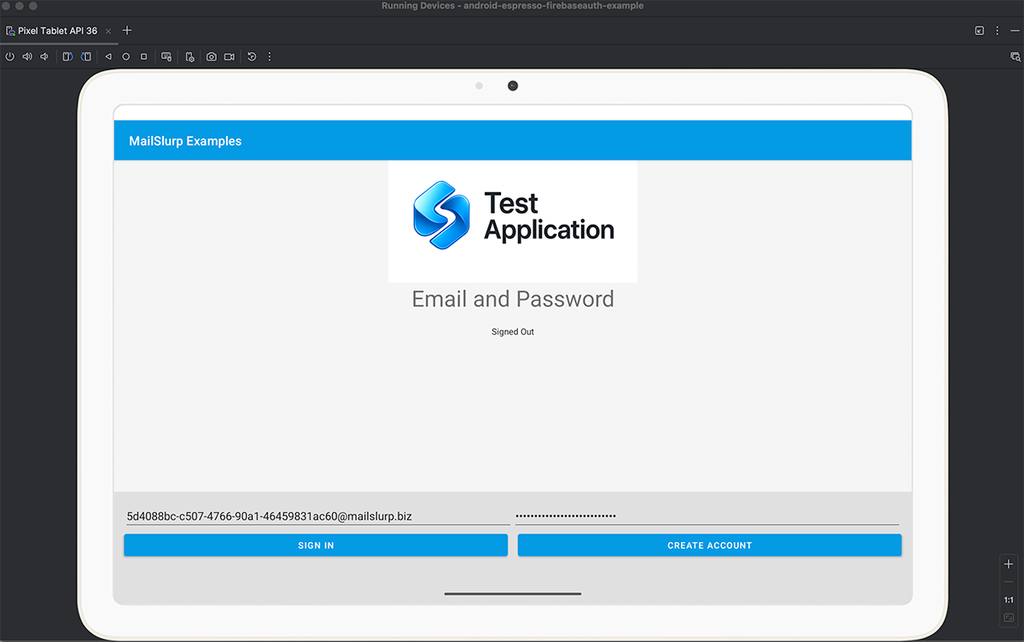
The test looks like this:
// find email and password input
val emailInput = onView(
    allOf(
        withId(R.id.fieldEmail),
        childAtPosition(
            childAtPosition(
                withId(R.id.main_layout),
                2
            ),
            1
        ),
        isDisplayed()
    )
)
val passwordInput = onView(
    allOf(
        withId(R.id.fieldPassword),
        childAtPosition(
            childAtPosition(
                withId(R.id.main_layout),
                2
            ),
            2
        ),
        isDisplayed()
    )
)
// use test email and password to fill sign-up form
emailInput.perform(replaceText(inbox.emailAddress), closeSoftKeyboard())
passwordInput.perform(replaceText(testPassword), closeSoftKeyboard())
onView(
    allOf(
        withId(R.id.emailCreateAccountButton),
        isDisplayed()
    )
).perform(click())
Receive email verification link
After submitting the form Firebase will send an email to our disposable account.
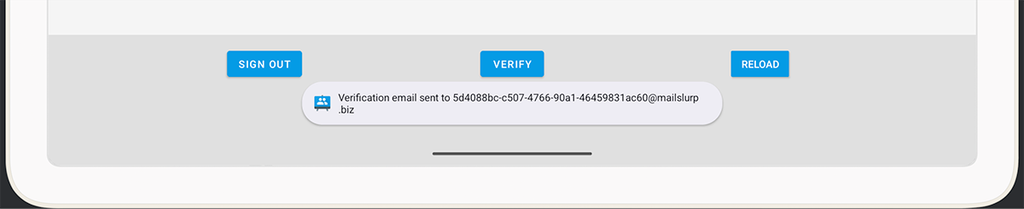
Now we can wait for the email to arrive using the MailSlurp waitController and the fetch the links from the email using MailSlurp helper methods:
// wait for the confirmation email to arrive in the inbox
val waitController = WaitForControllerApi(apiClient)
val email =
    waitController.waitForLatestEmail()
        .inboxId(inbox.id)
        .timeout(TIMEOUT_MILLIS.toLong())
        .unreadOnly(true)
        .execute()
assertThat(email.subject, Matchers.containsString("Verify your email"))

// now extract the links in the email
val emailController = EmailControllerApi(apiClient)
val emailLinkQuery = emailController.getEmailLinks(email.id).execute()
val verificationLink = emailLinkQuery.links.first()
Next we want to click the verification link and open it in a browser:
// launch browser to open link and verify email
val device = UiDevice.getInstance(InstrumentationRegistry.getInstrumentation())
val context = InstrumentationRegistry.getInstrumentation().targetContext
val intent = Intent(Intent.ACTION_VIEW, Uri.parse(verificationLink)).apply {
    addFlags(Intent.FLAG_ACTIVITY_NEW_TASK)
}
context.startActivity(intent)
// wait a moment for Chrome to come up and load the page
Thread.sleep(5000)
device.pressBack()
Once the link opens we see a screen confirming our account:
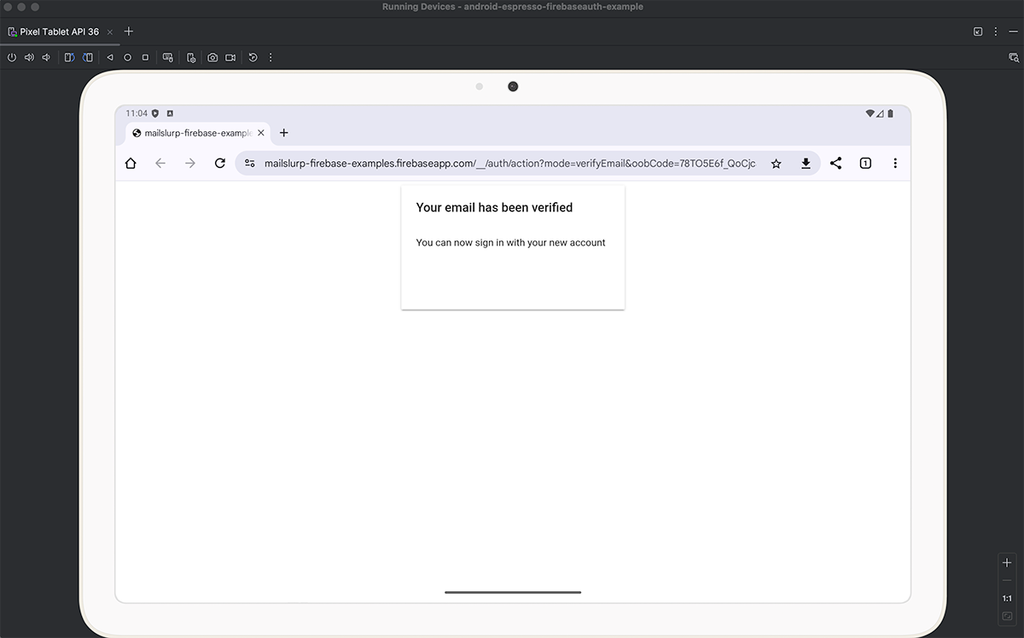
Assert user is verified
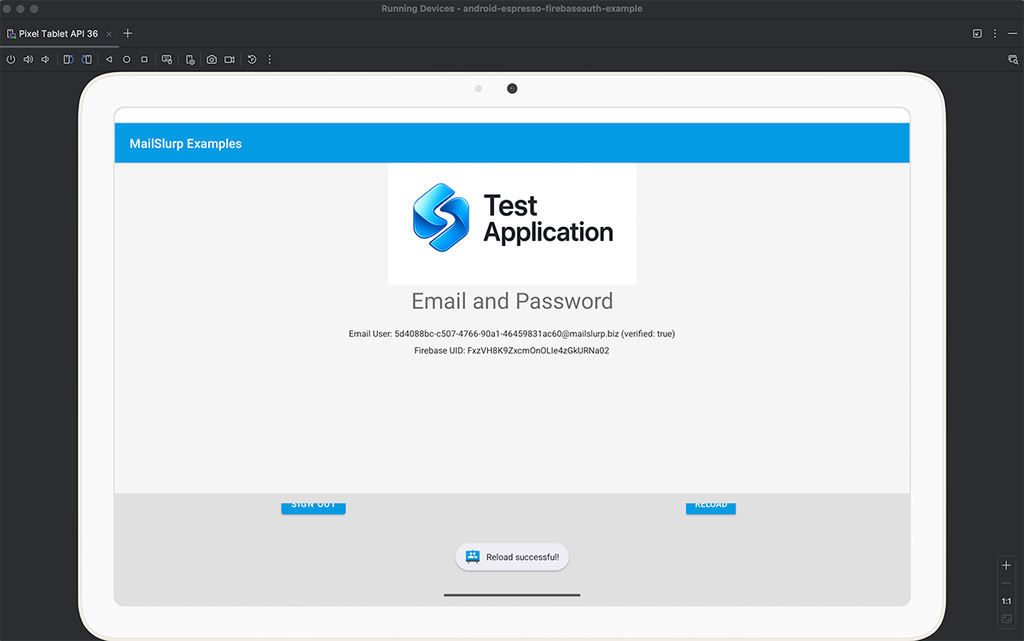
Now that we have received the confirmation email and opened the link we can go back and assert our user is verified.
onView(
    allOf(
        withId(R.id.reloadButton), withText("Reload"),
        childAtPosition(
            childAtPosition(
                withId(R.id.main_layout),
                2
            ),
            9
        ),
        isDisplayed()
    )
).perform(click())
// wait for verification screen
Thread.sleep(2000)

val textView = onView(
    allOf(
        withId(R.id.status),
        withParent(withParent(withId(R.id.main_layout))),
        isDisplayed()
    )
)
textView.check(matches(withText("Email User: ${testEmail} (verified: true)")))
In our emulator this verified user account screen looks like this:
Recap
Wow - we just tested user sign-up and OTP links using real email accounts in Android end-to-end tests. Let's go over how we did that. First we used the MailSlurp Java client to create a throwaway mailbox for our test run. We then filled a sign up form backed by firebase and submitted our account. Next we used the waitFor methods in MailSlurp to hold test open until the expected confirmation email arrived. We extracted the link and opened it in Chrome. Then we reloaded our app and asserted the user verification.
You can use this technique too! MailSlurp is free for personal use so take a look today!