
How to Test Resend Emails for Inbox Placement
Test Resend inbox placement with an API send and a downloadable email example. Read Inbox and Spam results, then choose what to investigate next.
By MailSlurpUpdated
Use with your tools

Resend deliverability testing needs more than a successful sending response. Once the provider accepts an email, the receiving mailbox still decides where to put it. To check Resend inbox placement, send the populated message through your normal sender to monitored recipients, then inspect Inbox, Spam and any missing observations.
Repeating that check manually across Gmail, Google Workspace, Outlook and Microsoft 365 takes several accounts and a consistent way to find each copy. MailSlurp is an email testing platform that supplies those recipients and collects their mailbox results in one report.
We'll use a real order-email send through the Resend API. You'll need a sending API key, a verified sending domain and a MailSlurp workspace with inbox placement tests available. The downloadable sending script uses Node.js 22 or later; an existing Resend integration can send the test instead.
All eight recipients received our example: two Microsoft 365 copies reached Focused, counted as Inbox, while six copies reached Spam. The same report had eight passed content checks. Skip to the completed placement report to see why those checks and the mailbox results need separate readings.
Use a real message and a verified Resend sender
The example receipt comes from Slurp Store, a fictional reusable-straw shop. It confirms one stainless steel four-pack at $14.90 and one silicone six-pack at $18.90, with product photographs, a $33.80 total and cleaning instructions. We sent its HTML and plain-text versions through the Resend API using a verified sending domain.
To repeat the example, download the Slurp Store email and sending scripts and unzip them into a local folder. The bundle contains the exact email.html and email.txt used here, plus the Resend placement script and an environment-file example. The HTML source and plain-text version are also available separately.
For an email deliverability test of your own application, keep its normal sender and populate the message with representative values. You can use your existing published template, React Email component or SDK integration: send to every current MailSlurp recipient and retain the test token in the subject or body. Check Resend domain verification against Resend's domain instructions for the account-generated SPF and DKIM values.
Simulated delivery events are a different test
A Resend test email addressed to delivered@resend.dev simulates a delivery event. Resend also has addresses for simulated bounces, complaints and suppressions. These help exercise event handling, but they are not the monitored mailboxes used by this placement test. Resend's test-email documentation describes those recipients.
Send to the MailSlurp seed list
1. Copy the token and every recipient
Open Inbox placement in MailSlurp and create a new test. Copy the exact value under Put this token in subject or body. Then use New lines under Add all recipients and save the complete list to a local seeds.txt file, one address per line.
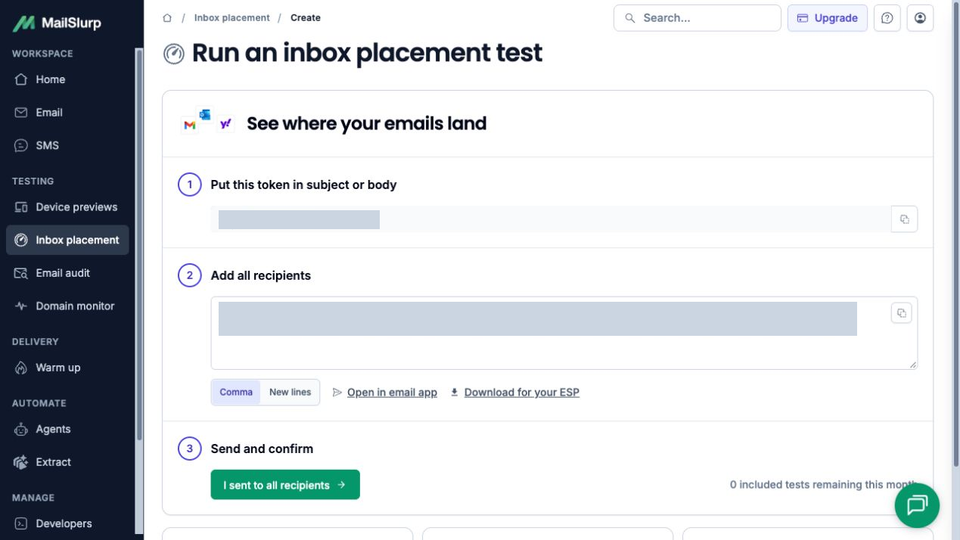
The token matches the email to this test. The seeds provide its mailbox observations. Our test supplied eight addresses; your current list is the authority for which recipients to include. Do not reuse a list or marker from an older run.
2. Send the populated email through Resend
From the unzipped bundle, use resend-placement.mjs. Keep email.html, email.txt and your current seeds.txt in that folder. Replace the email files if you are checking your own content.
Copy .env.example to .env and set RESEND_API_KEY, EMAIL_FROM, MAILSLURP_TEST_TOKEN and RESEND_IDEMPOTENCY_KEY. Use your plain verified sender address, the exact MailSlurp token and a unique idempotency key for this send. Set MAILSLURP_EXPECTED_SEED_COUNT to the recipient count shown in your current test; the script checks it against the file and rejects duplicate addresses.
Use EMAIL_SUBJECT if you want a different subject; the script appends the test token. EMAIL_FROM_NAME optionally sets a display name. Keep .env private and out of source control, then run with Node.js 22 or later:
node --env-file=.env resend-placement.mjs
The request sends to the controlled seed list only. Compare the printed recipient count with your test, and retain the returned Resend message ID to trace the send. On rejection, the script reports HTTP status and a safe diagnostic to help resolve the sending error.
Our request returned HTTP 200, and MailSlurp subsequently observed the marked message at all eight recipients. If your request's status is uncertain, inspect the corresponding Resend email status and current MailSlurp result before retrying. Keep the same idempotency key for a retry of that same request; the script never retries automatically.
3. Confirm and wait for the observations
On the same MailSlurp test, select I sent to all recipients. Wait for the provider rows to resolve and read the completed report. Keep any pending or missing rows visible instead of interpreting an early partial result as the final placement rate.
Read the completed Resend placement report
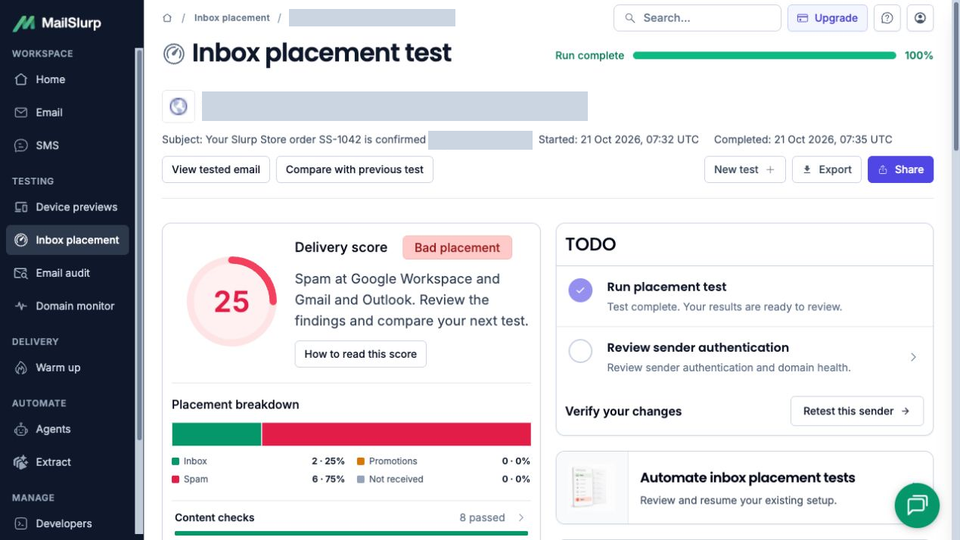
The Slurp Store test finished with 2 Inbox, 6 Spam, 0 Promotions and 0 Not received. All eight targeted recipients were observed, so its 25% Inbox and 75% Spam figures describe the complete test sample.
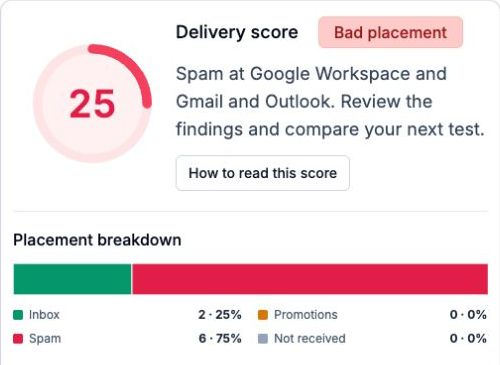
Inspect the complete placement-report screen
| Monitored provider | Recipients observed | Placement |
|---|---|---|
| Microsoft 365 | 2 | Focused, counted as Inbox |
| Google Workspace | 3 | Spam |
| Gmail | 2 | Spam |
| Outlook | 1 | Spam |
The Microsoft 365 copies reached Focused while the personal Outlook copy reached Spam. Keep those provider rows distinct. Promotions is also a separate category from Spam, and Not received means the test did not observe a matching message during its window.
Inspect the original provider rows
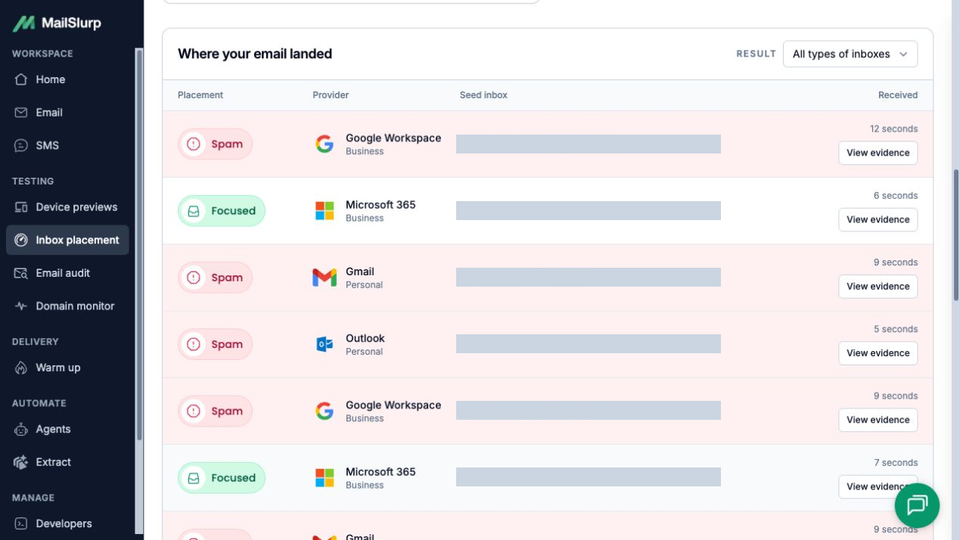
Inbox placement testing gives you a controlled sample for this sender and message. It does not predict that exactly 75% of your customers will receive the email in Spam, or establish a general Resend delivery rate. When comparing runs, check the recipient mix and the conditions of the send as well as the overall number; see the inbox placement rate guide.
Investigate Resend emails going to spam
Open the content and sender findings beneath the placement summary. In this run, all eight content checks passed, including the insecure-link and tracking-pixel checks. Six copies still arrived in Spam. An email spam test that examines message content provides useful checks, while the provider rows establish the observed folders.
The sender findings need a closer reading than a single warning color:
- SPF record: Pass. MailSlurp found a valid record for the envelope-sender domain used by the message.
- Resend DKIM record: Warning. A valid record existed on selector
resend, with a 1024-bit key. The warning concerned key length; it was not a finding that the record was missing or a message signature had failed. - Resend DMARC record: Warning. The record was present with
p=none, so its policy was non-enforcing. - Blocklist checks: Pass. The one observed sending IP was not listed on the one checked list. That result does not cover every blocklist or guarantee Inbox placement.
Inspect the complete sender-findings screen
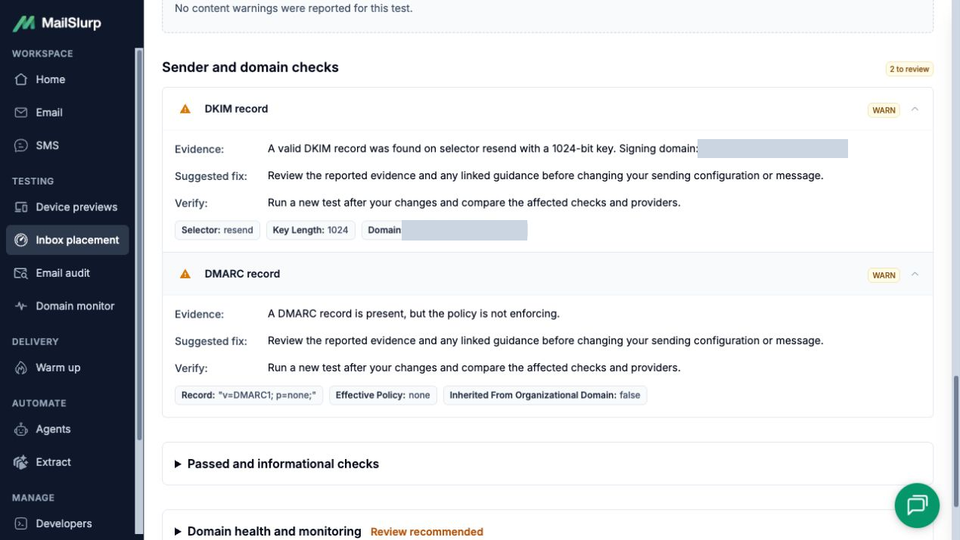
With this combination of clean content checks and sender warnings, investigate in this order:
- Connect the result to the send. Keep the Resend message ID, sender domain and provider breakdown with the MailSlurp report. Ask the person responsible for the sending integration to check the corresponding Resend status. Use View evidence on a Spam row to confirm the folder; a provider delivery event does not contradict that observation.
- Have the email or DNS owner check authentication. Compare the actual domain and selector with Resend's domain configuration, then inspect authentication and alignment in a received test copy's headers. A valid DNS record alone does not establish that the message passed. The envelope sender and visible From address can use different domains, so name the domain behind each SPF result. Missing receiving MX records do not by themselves establish an outbound authentication failure.
- Decide whether a change is warranted. The 1024-bit DKIM warning is a key-length finding, and
p=noneis an existing monitoring policy. Have the domain owner review those settings against the sender configuration and legitimate sending services; do not change DMARC to enforcement just to clear a warning. If authentication checks out and Spam persists, give your email delivery team or Resend support the message ID, sender domain and affected provider rows to investigate further.
The findings do not establish why these six copies went to Spam. We did not change DNS, edit the email or test a repaired version. After a verified change, create a fresh MailSlurp test with its new token and recipient list, record what changed, and compare equivalent provider rows. Keep the sender and content unchanged when testing a sender-setting change so the comparison is useful.
If a Resend email is not received
This completed test had no missing recipients. If your run does, check the sending chain in order:
- Confirm the recipient was a current MailSlurp seed, not a Resend simulated-event address or an omitted line in
seeds.txt. - Inspect the API response and the corresponding email status in Resend. Check recipient errors, suppression or bounce feedback rather than treating acceptance as delivery.
- Confirm the exact token survived in the subject or body and that you are viewing its matching MailSlurp test.
- Wait for the current observation window to finish. Report unresolved recipients as Not received, keeping them separate from Spam.
For visual Resend email testing, continue with previewing the same receipt on devices. That guide sends to a different MailSlurp address and compares the delivered product images, prices and layout in Gmail and iPhone Mail. Once you have a repeatable placement check, the Resend sender-connection documentation covers connecting the sender for ongoing tests.