
How to Test WooCommerce Order Emails for Inbox Placement
Send a WooCommerce order email through your store's mail connection to MailSlurp's test inboxes. Check Inbox and Spam results and investigate missing notifications.
Use with your tools
A WooCommerce order email can leave your store successfully and still land in Spam. To check its placement, send a controlled order notification through your store's normal mail connection to monitored inboxes, then inspect the folder where each copy arrives.
Sending yourself a receipt checks one mailbox. Repeating that across personal Gmail, Google Workspace, Outlook and Microsoft 365 means maintaining several accounts and finding the same message in each one. MailSlurp is an email testing platform that supplies those test recipients and collects their placement results in one report.
This walkthrough tests a native WooCommerce Processing order email. All eight test recipients received it: two Microsoft 365 inboxes placed it in Focused, and the other six placed it in Spam.
Send a representative order through your store's mail connection
For this example, Slurp Store is a fictional shop selling reusable straws. Its order email contains two products, photographs, a $33.80 total, a customer note and care instructions. WooCommerce generates the notification from the populated order, using its customized native template.
Use a staging store with fictional orders and a working sending connection. Keep the sender identity and mail service you intend to test: changing them would change the delivery path. Our example used the store's existing WP Mail SMTP connection through SMTP2GO; your store can use its own configured service.
You'll need permission to edit WooCommerce email settings and orders, plus a MailSlurp workspace with inbox placement tests available. This procedure temporarily adds test recipients to one notification template, so isolate the staging store from real orders and fulfillment integrations. Never add placement-test recipients to real customer notifications.
WooCommerce's Send a test email control is useful for a template check, but it uses sample order data. Here we trigger the actual notification from a fictional order so the email deliverability test includes its populated content. A successful SMTP send is the beginning of that test; the inbox observations supply the placement result.
1. Create the placement test and copy its values
Open Inbox placement in MailSlurp and create a new test. If you have already previewed the email on devices, Start placement test on that result opens this workflow too.
Copy the exact token shown under Put this token in subject or body and every address under Add all recipients. The token identifies the message for this test. The addresses are seed inboxes: monitored recipients used to observe where the email lands.
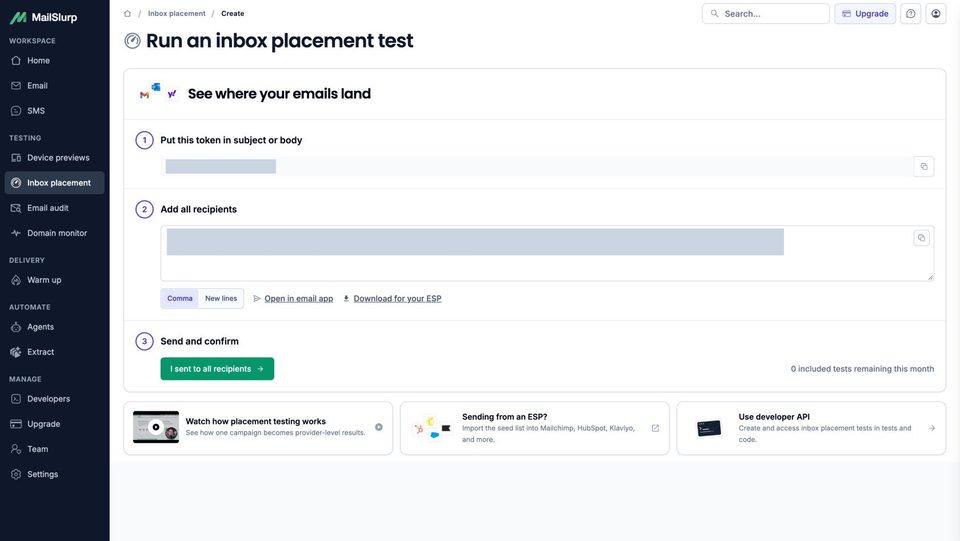
This test provided eight recipients. Use the full list your own test supplies rather than assuming the count will always be eight. Comma gives you a comma-separated list suitable for the WooCommerce Bcc field.
2. Add the token and test recipients in WooCommerce
On the staging store, go to WooCommerce > Settings > Emails and select Manage beside Processing order. Make sure the notification is enabled, then prepare the subject and recipients:
- Save a copy of the original subject so you can restore it afterward. Append a space and the exact MailSlurp token to Subject, retaining any existing placeholders such as
{order_number}. - Reserve one seed address for the test order's billing email.
- Put all the remaining seeds in Bcc(s), separated by commas. Leave Cc(s) empty for this test.
- Save the email settings. Check that every seed is included exactly once across the billing recipient and Bcc list.
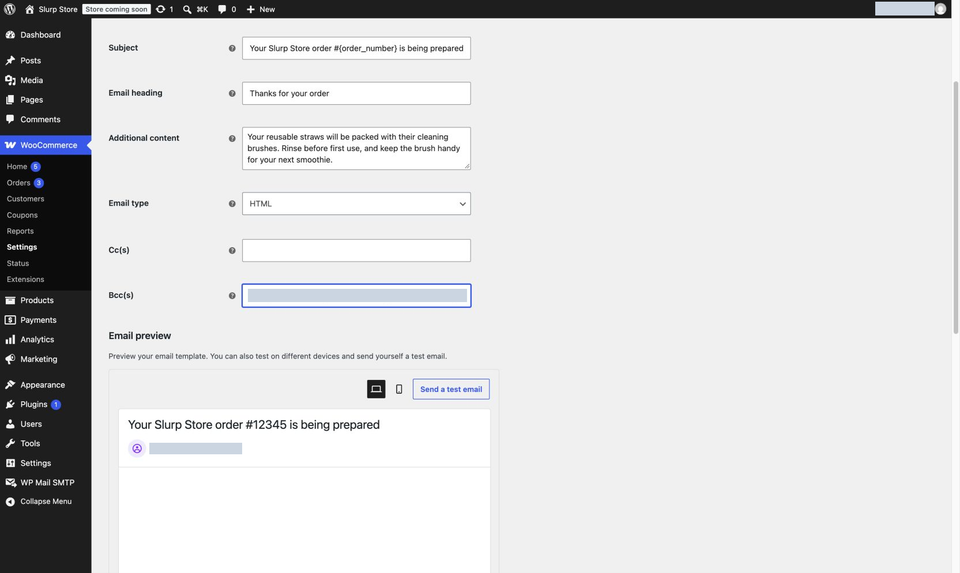
These are template-level settings: Bcc recipients would receive later Processing order notifications too. Keep other sends out of this staging store during the test and remove the temporary settings afterward. If your version or email editor doesn't expose Bcc(s), don't put a comma-separated seed list into the order's single billing-email field; use a supported recipient method before proceeding.
3. Trigger the test order notification
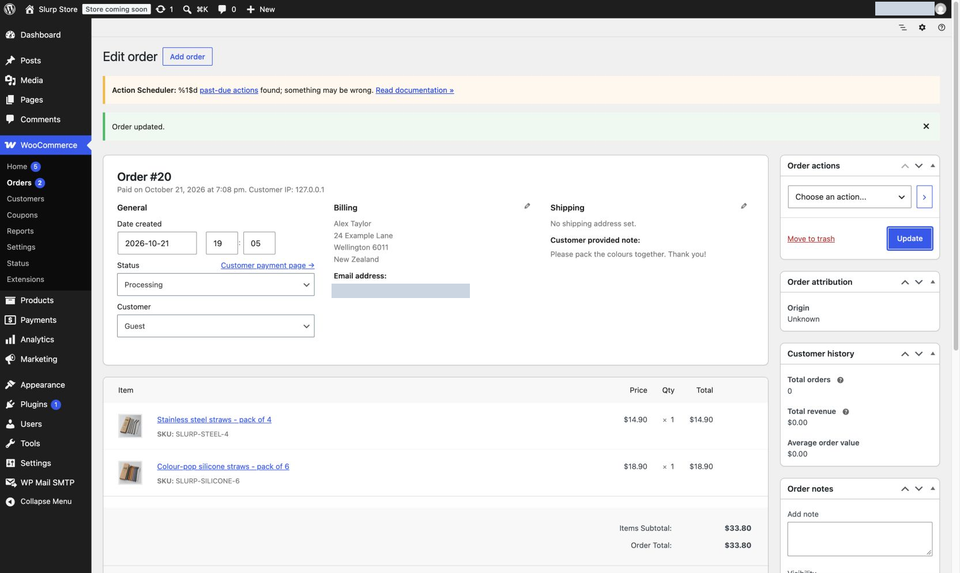
Under WooCommerce > Orders, prepare a fictional order in Pending payment status. Add representative products and customer details, use the billing pencil control to set Email to the one reserved seed, then save the pending order.
Check the token, notification type and all recipients once more. Change Status to Processing and select Update. In this example, that action sent one marked order notification through the configured SMTP connection to the billing recipient and seven Bcc recipients. The WooCommerce order editor documentation explains these controls.
Once the send is confirmed, return to the same MailSlurp test and choose I sent to all recipients. Let its provider results resolve rather than starting another test or sending duplicate copies while you wait.
After confirming the outgoing notification, restore the original WooCommerce subject and clear the test seeds from Bcc(s). Save and reopen the settings to check that the temporary recipients and token are gone.
Read the provider results
The completed Slurp Store test observed the message at all eight targeted addresses. Its Delivery score was 25, with two messages counted as Inbox and six as Spam. Run complete means the test has finished collecting its results; it doesn't mean the email passed every check.
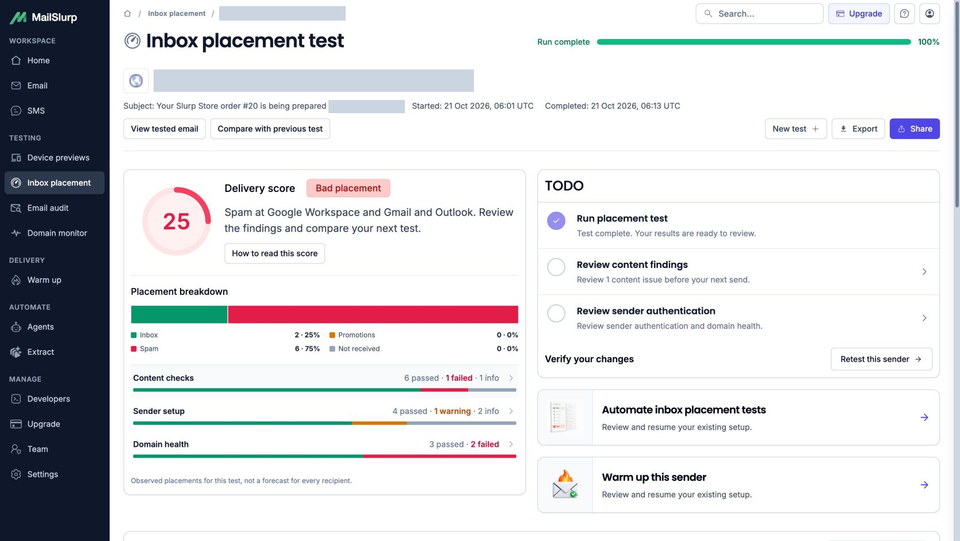
The provider rows explain that total:
| Monitored provider | Recipients observed | Placement |
|---|---|---|
| Microsoft 365 | 2 | Focused, counted as Inbox |
| Google Workspace | 3 | Spam |
| Gmail | 2 | Spam |
| Outlook | 1 | Spam |
The 25% Inbox and 75% Spam figures use these eight test recipients as their denominator. They describe this sender and message in the monitored sample, not the percentage of all shoppers who will see the email in either folder. The Microsoft 365 results also differ from the personal Outlook result, which is why reading the individual providers matters.
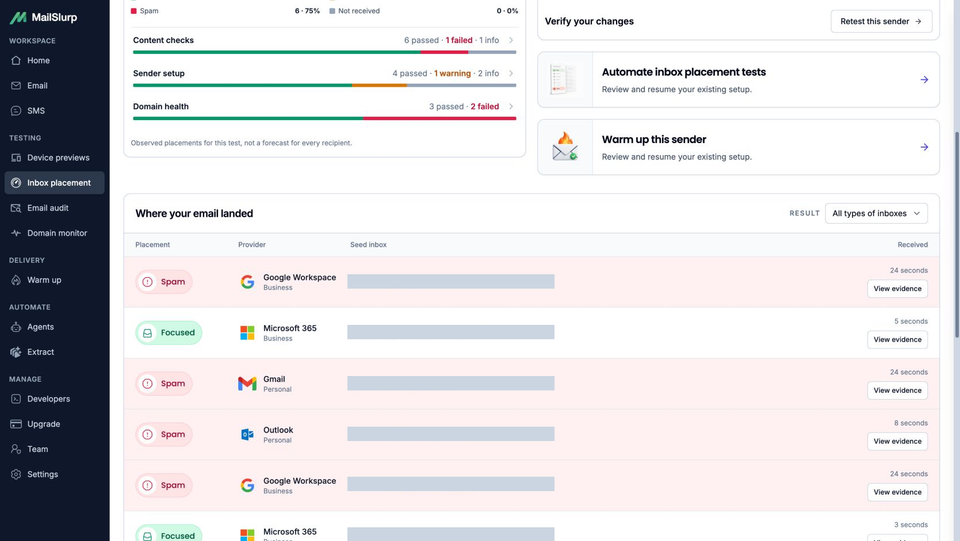
Treat Promotions as a separate mailbox category from Spam. Treat Not received as a missing observation during the test window, rather than quietly adding it to Spam or dropping it from the recipient count. For comparisons across different seed sets, use the inbox placement rate guide.
Investigate WooCommerce emails going to spam
A Spam result tells you where the message arrived. It doesn't identify the cause by itself. Open the report's content and sender findings to choose a specific issue to investigate before another send.
For this order email, MailSlurp found one insecure HTTP link and a DMARC record with the non-enforcing policy p=none. The sender setup checks also found a valid envelope-sender SPF record and a valid DKIM record. Those record checks are useful configuration evidence, but they don't establish that every recipient's authentication checks passed.
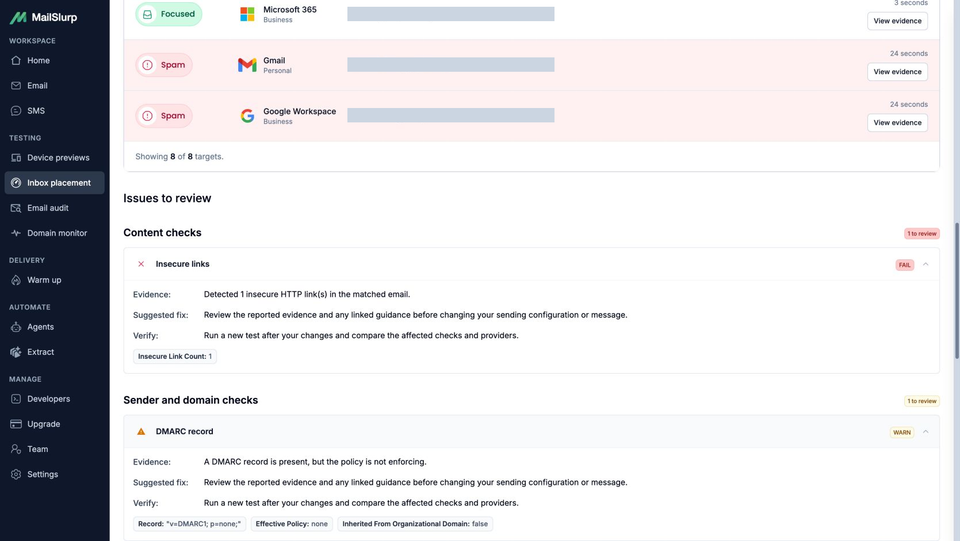
For an HTTP-link finding in your own email, find the link in the tested message and check whether its intended destination works over HTTPS before updating the template. For a sender warning, review the identity and authentication settings with your mail provider. WooCommerce's email troubleshooting guidance is a useful starting point for tracing the store's sending route.
Neither finding proves why these six messages went to Spam. Changing a DMARC policy or replacing a link is not an inbox guarantee, and this example doesn't include a repaired message or a retest. After a verified change, create a fresh placement test with its own token and recipients, send the revised notification, and compare the provider rows under the same sending conditions.
Distinguish WooCommerce emails not sending from missing placement results
If no matching message appears, work through the send in order:
- Check that Processing order is enabled and that the fictional order actually changed to the status that triggers it. Saving an unchanged pending order isn't the same action.
- Inspect the outgoing mail log for the expected subject, billing recipient and every Bcc seed. If the notification was generated but submission failed, review the store's WooCommerce SMTP settings and the mail service's rejection or authentication feedback.
- Confirm the delivered subject or body contains the exact token and that you are viewing the corresponding MailSlurp test. A changed token or an omitted seed can leave an observation unmatched.
- If only some recipients remain pending, inspect recipient-level delivery feedback and let the current observation window finish. Keep unresolved recipients visible in your interpretation.
WooCommerce email deliverability and visual appearance need separate checks. Once you've examined placement, use the WooCommerce email preview guide to send the populated order to a render address and inspect its photographs, prices and layout in phone and desktop clients.