
How to Preview and Test WooCommerce Order Emails
Preview WooCommerce email templates, then send a real order notification to MailSlurp and compare its images, prices and layout in desktop and phone email apps.
Use with your tools
WooCommerce's built-in email preview is a useful place to check a template while editing it. Before using that template for customers, send an order notification with representative products and open the delivered message in the email apps they use. A phone-width preview in the store editor and an email opened on a phone answer different questions.
Order emails have plenty to squeeze onto a small screen: product photographs, long item names, quantities and prices. Repeating the check by hand means sending each revision to several mailboxes, opening it in the right apps and collecting screenshots of the same version.
MailSlurp is an email testing platform with automated device rendering. It captures the delivered WooCommerce notification in your selected clients, bringing the desktop and phone views together for review.
How automated device rendering works
Choose the devices and email services you want to test, and MailSlurp gives you a special email address. Send your campaign to that address. MailSlurp opens the email in the selected apps and webmail services, then captures screenshots automatically.
The screenshots come back together, ready to compare across phones, tablets and computers. Check the layout, images and buttons, then share a result link so your team can review the same version of the email.
Use WooCommerce's built-in email preview
Open WooCommerce > Settings > Emails. In the email template settings, choose the notification you want to preview and switch between the desktop and mobile views. To change an individual notification's subject, heading or additional content, select Manage beside it in the email list.
To send a WooCommerce test email, choose Send a test email, enter a recipient you control and select Send test email. The current built-in controls let you review the template without adding a WooCommerce email preview plugin. WooCommerce's email settings documentation explains these controls and the individual notification settings.
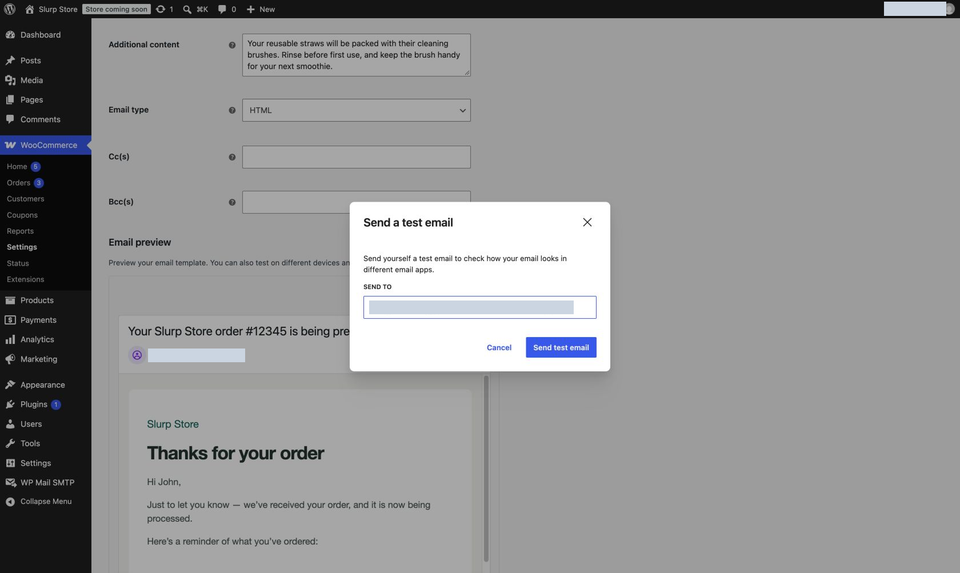
The built-in preview uses a dummy order, as WooCommerce's preview integration documentation explains. It helps you edit WooCommerce email templates, but it won't exercise your own product names, customer notes or order fields. For those checks, send a notification from a populated test order.
Preview an order notification in Gmail and iPhone Mail
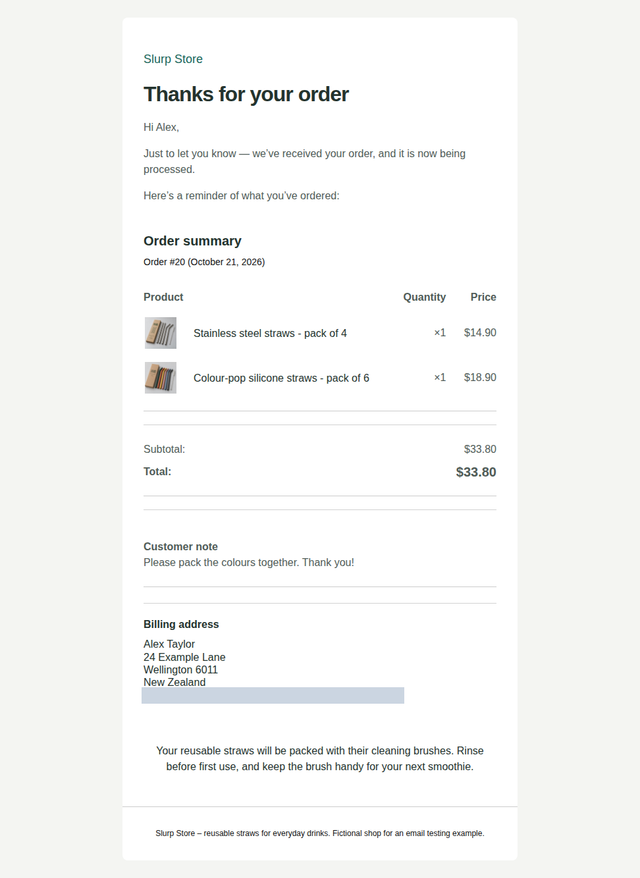
Let's try a receipt from Slurp Store, a fictional shop selling reusable straws. The order contains a stainless steel four-pack at $14.90 and a silicone six-pack at $18.90, for a $33.80 total. Each product has a photograph, and the shopper has left a packing note.
We used a customized native Processing order template with the store's branding and care instructions. The aim is straightforward: on a phone, the shopper should still be able to match each photograph and product name to its quantity and price, then read the total and note.
For your email rendering test, use a staging store with fictional customer details and a working mail connection. Use the template and sending integration you want to check. You'll also need a MailSlurp workspace with device previews and enough credits for the clients you select.
1. Select the receiving apps
Open MailSlurp's new device preview form and expand Select targets. For this example, choose Gmail.com, Gmail Android, iOS Mail and Outlook Classic.
These cover Gmail in a browser, Gmail's Android app, Apple's Mail app on iPhone and the classic Outlook application on Windows. Gmail.com and Gmail Android are separate tests; selecting one doesn't include the other.
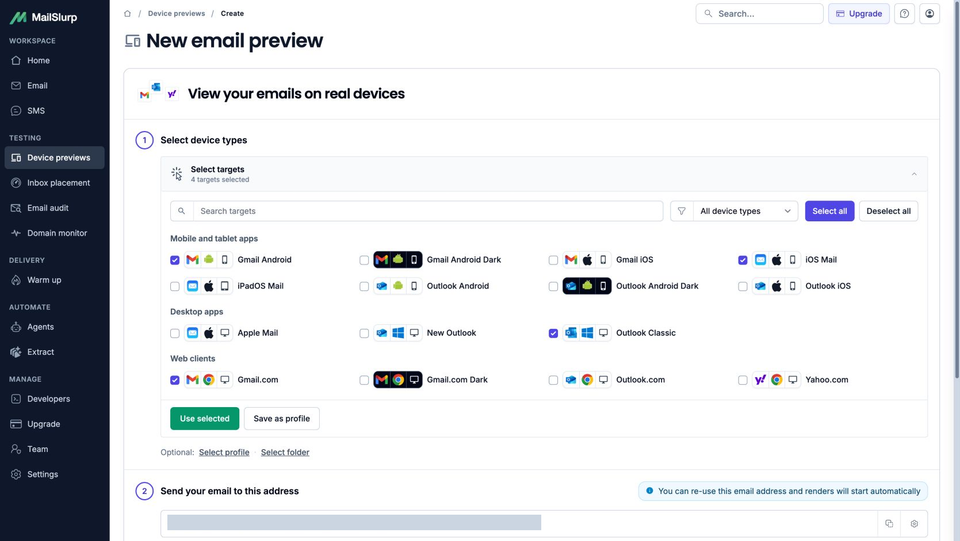
Choose the clients relevant to your shoppers. If you also want to check dark mode, select the available dark targets explicitly; the four captures in this example use the default appearances shown in the picker.
2. Copy the address for your selected clients
Choose Use selected, then copy the complete address under Send your email to this address. This is the recipient for the notification you want MailSlurp to capture. Copy it after confirming the target list so the email goes to the intended preview setup.
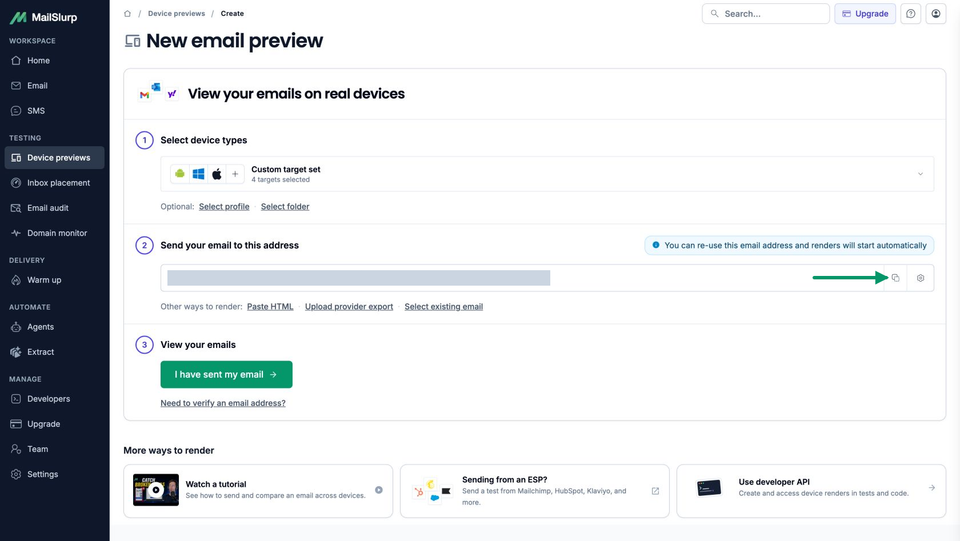
3. Send the WooCommerce notification
For a template-only check, paste the address into WooCommerce's Send a test email dialog. To test WooCommerce order emails with your own product and customer data, use a test order instead:
- In your staging store, open WooCommerce > Orders and choose Add order, or open an existing fictional test order in Pending payment status.
- Use the pencil beside Billing to edit its details. Set Email to the MailSlurp address you copied. Check that any additional notification recipients are also controlled test addresses.
- Add the products, quantities and customer information you want to check, then save the pending order. For this example, that includes both straw packs and the packing note.
- Under WooCommerce > Settings > Emails, check that Processing order is enabled. Return to the test order, change Status to Processing and select Update.
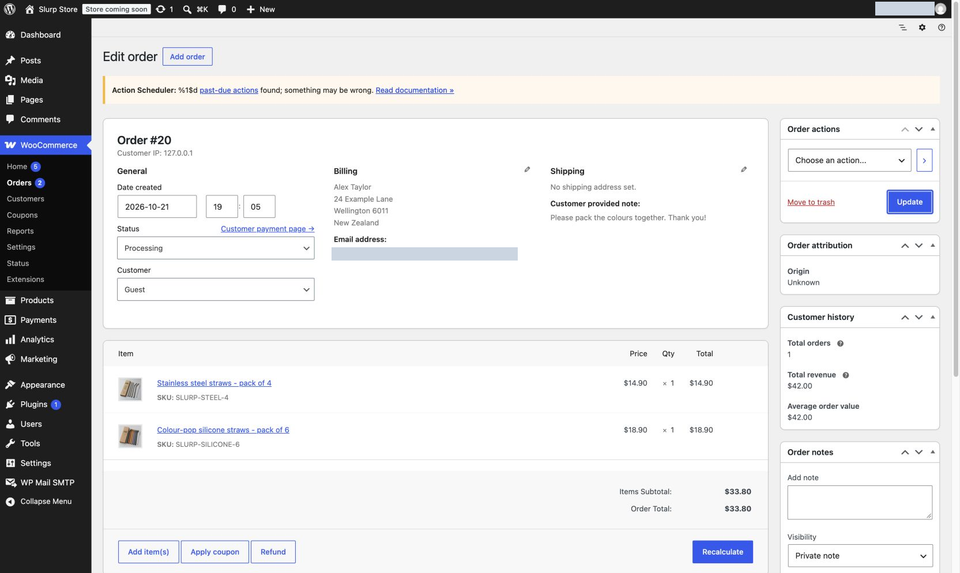
That status change sent the example's native order notification through the store's configured SMTP connection. Check your mail log for the intended recipient and subject, then verify receipt in MailSlurp. WooCommerce's order-editing documentation covers the order controls.
Keep this workflow on staging: changing an order status can affect other store integrations. It exercises the notification without requiring a purchase; checkout, payment and fulfillment need their own tests.
4. Open the completed result
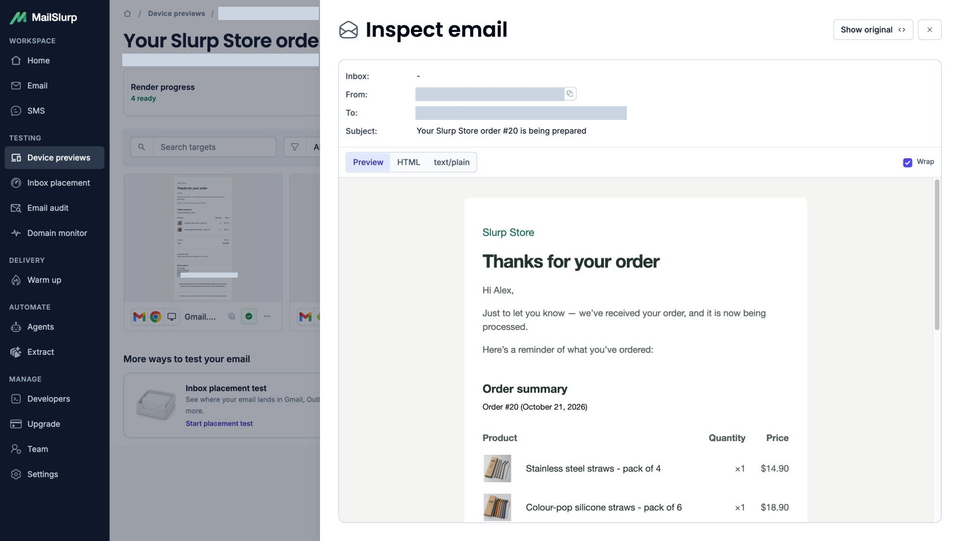
Back in MailSlurp, choose I have sent my email to open the waiting view. Receipt starts rendering automatically. Open the result matching your order notification and wait for the selected captures to become ready.
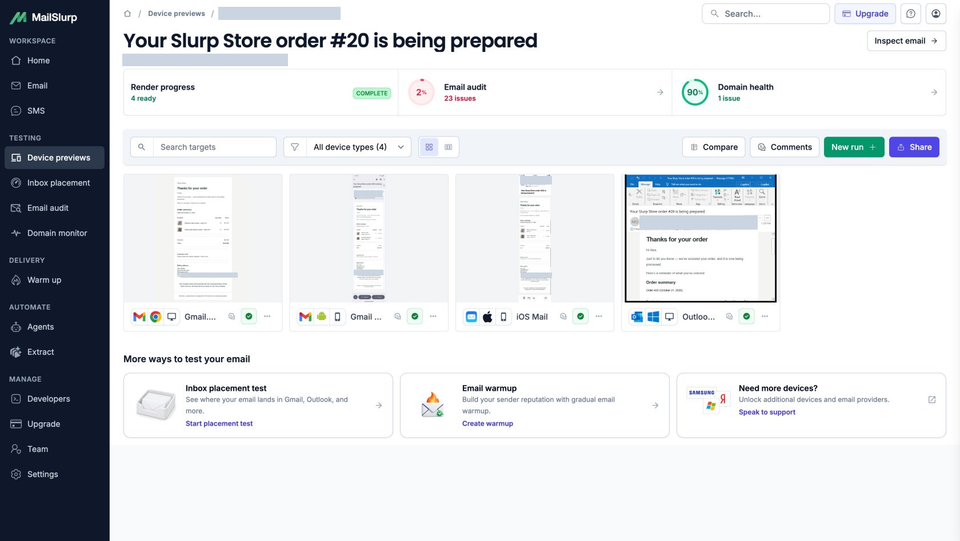
Here, Render progress is complete, while the email audit still reports issues. Ready means a capture is available to inspect; it doesn't mean every content or sender check passed.
If the email hasn't arrived, confirm the test order's billing email, notification setting and status change, then inspect the store's outgoing mail log before sending again. If the email arrived but one capture failed, inspect that target's status separately from the sending step.
Read the whole order email on each device
Open the Gmail.com and iOS Mail captures from the same result, then follow the order from greeting to footer. Use each image's full-size link to inspect small text and compare the values against your test order.
Gmail.com
iOS Mail
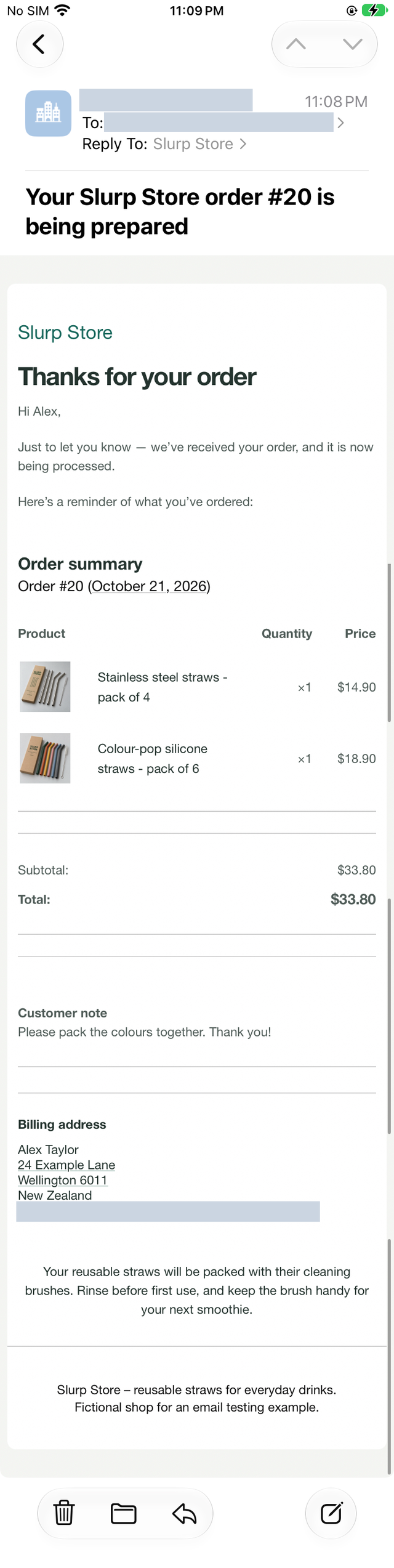
Both clients display the product photographs, the two prices and the $33.80 total. On iPhone, the product names wrap onto more lines while the quantity and price columns stay readable. The customer note, billing address, care instructions and footer are present in both complete captures.
For your own order, include the details your template needs to handle: product variations, longer names, discounts, shipping charges or taxes. Check that the delivered amounts agree with the order, and inspect every image. Open order links in a test message separately; a screenshot can show their appearance but cannot verify their destination.
Extend the check to your shoppers' apps
The Gmail preview guide explains Gmail's browser and phone targets, while the Outlook guide distinguishes its desktop and mobile apps. The shared coverage overview below can help you choose another comparison; confirm availability and appearance options in your workspace's picker.
| Device | Email app | Appearance |
|---|---|---|
| Android phones | Gmail, Outlook | Light and dark |
| iPhone | Gmail, Apple Mail, Outlook | Default |
| iPad | Apple Mail | Default |
| Mac | Apple Mail | Default |
| Windows | New Outlook, Outlook Classic | Default |
| Webmail | Gmail | Light and dark |
| Webmail | Outlook.com, Yahoo Mail | Default |
Choose the available clients and modes in your workspace when starting a preview. Test the apps your customers use, including dark mode where it is offered.
After changing the template or order data, send the new notification and review its new result. To check whether the same order email reaches Inbox or Spam, continue with WooCommerce inbox placement testing. That is a separate send to monitored mailboxes, with a different result from these device screenshots.