
How to Preview Resend Emails on Phones and Desktop Clients
Preview your delivered Resend email in Gmail, iPhone Mail and Outlook. Follow the API walkthrough with a downloadable example or your own populated template.
By MailSlurpUpdated
Use with your tools
A Resend email preview helps you check a template while building it. Before relying on that layout, send the populated message and open it in the email clients your customers use. An order receipt that looks comfortable in a browser can give its photographs, product names and prices much less room on a phone.
Checking each revision manually means maintaining several mailboxes, finding the same message in every app and collecting comparable screenshots. MailSlurp is an email testing platform with an automated email preview tool that brings those client views together for review.
The sending steps use Resend's API. You'll need a sending API key, a verified domain and a MailSlurp workspace with device previews available. Use your existing application integration, or run the downloadable example with Node.js 22 or later.
How automated device rendering works
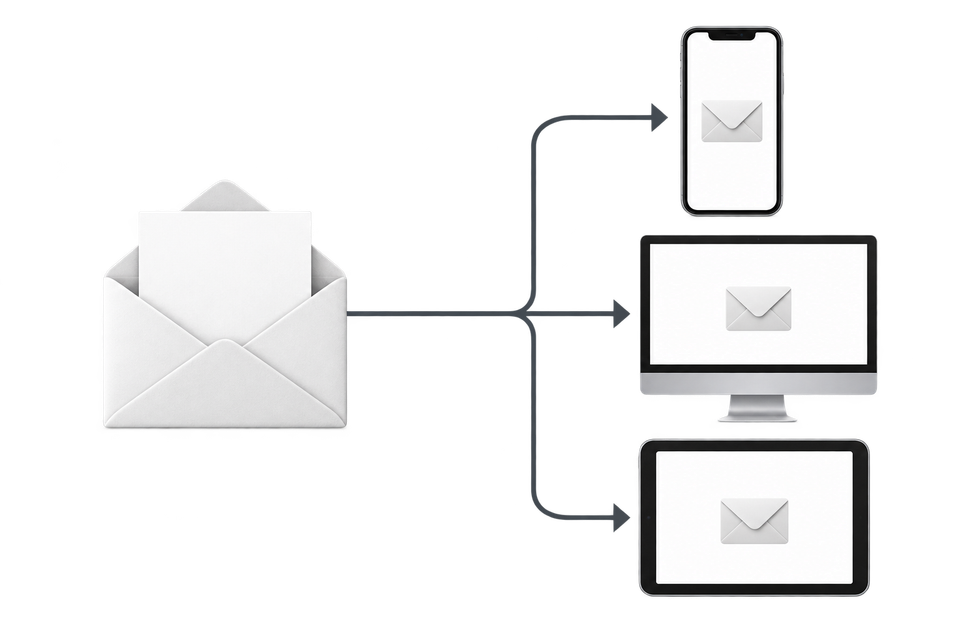
Choose the devices and email services you want to test, and MailSlurp gives you a special email address. Send your campaign to that address. MailSlurp opens the email in the selected apps and webmail services, then captures screenshots automatically.
The screenshots come back together, ready to compare across phones, tablets and computers. Check the layout, images and buttons, then share a result link so your team can review the same version of the email.
Let's preview a populated order email
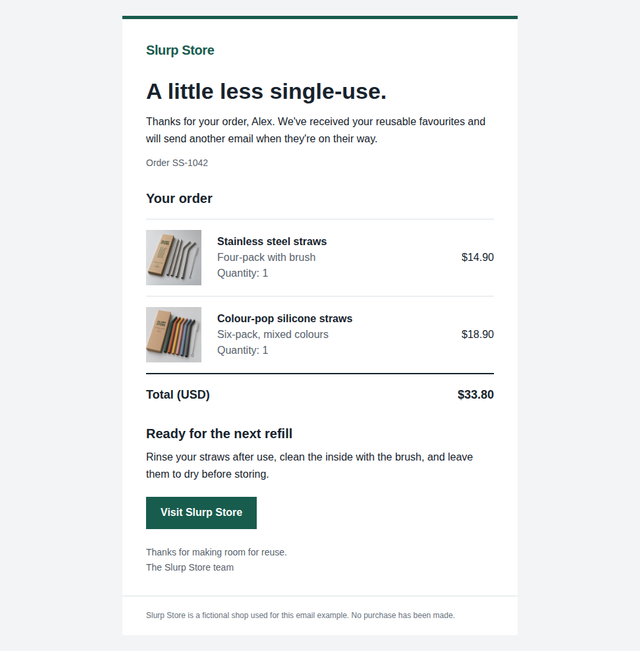
Our example is a receipt from Slurp Store, a fictional shop selling reusable straws. It contains a stainless steel four-pack at $14.90 and a silicone six-pack at $18.90, a $33.80 total, product photographs and cleaning instructions. The shopper should be able to match each product to its price without losing the total or the store link further down the message.
In the completed test, iPhone Mail wrapped the product names onto more lines than Gmail, while both views kept the prices and total readable. Jump to the complete Gmail and iPhone comparison to inspect that result, or follow the send below to try your own email.
We sent this Resend HTML email through the sending API with matching plain text. Here is the received message in MailSlurp's Inspect email view; the client captures later in the guide show how that message actually opens in Gmail and iPhone Mail.
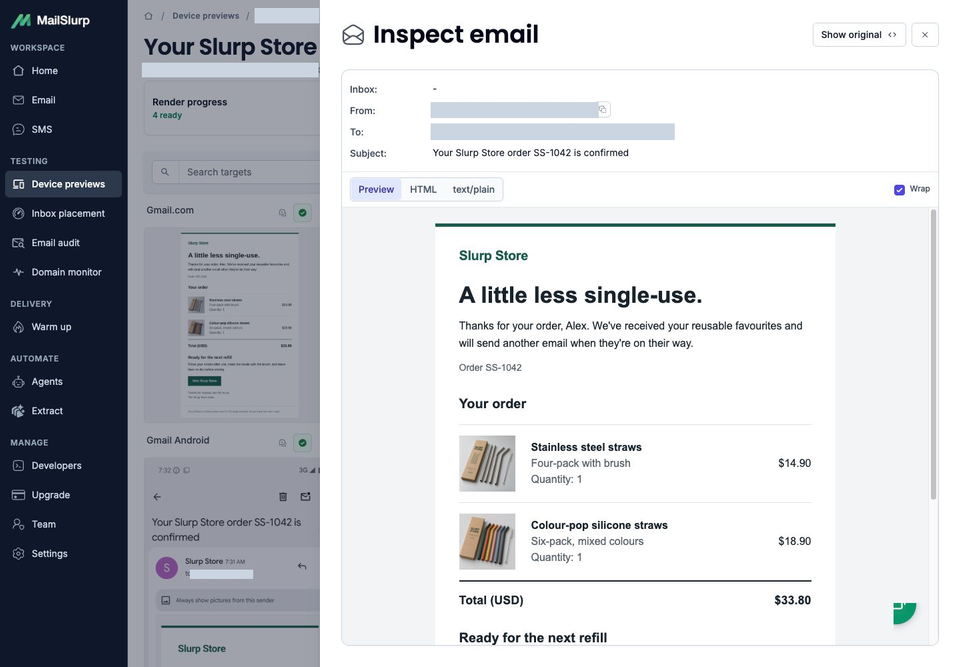
To use this example, download the Slurp Store email and sending scripts and unzip them into a local folder. The bundle includes the exact email.html and email.txt used for the receipt, the sending scripts and an environment-file example. You can also open the HTML source and plain-text version separately.
For your own Resend email templates, use representative values: long product names, multiple line items and the amounts your customers will see. If you use Resend with React Email, keep your existing component and sending code. A published Resend template can retain its template ID and variables; the Resend template documentation explains that option. Keep your normal sender, using Resend's domain setup instructions if verification is still required.
Compare the complete Gmail and iPhone views
Read both views from the greeting through the footer. The full-size links let you inspect every line, including the bottom of the longer phone capture.
Gmail.com
iOS Mail
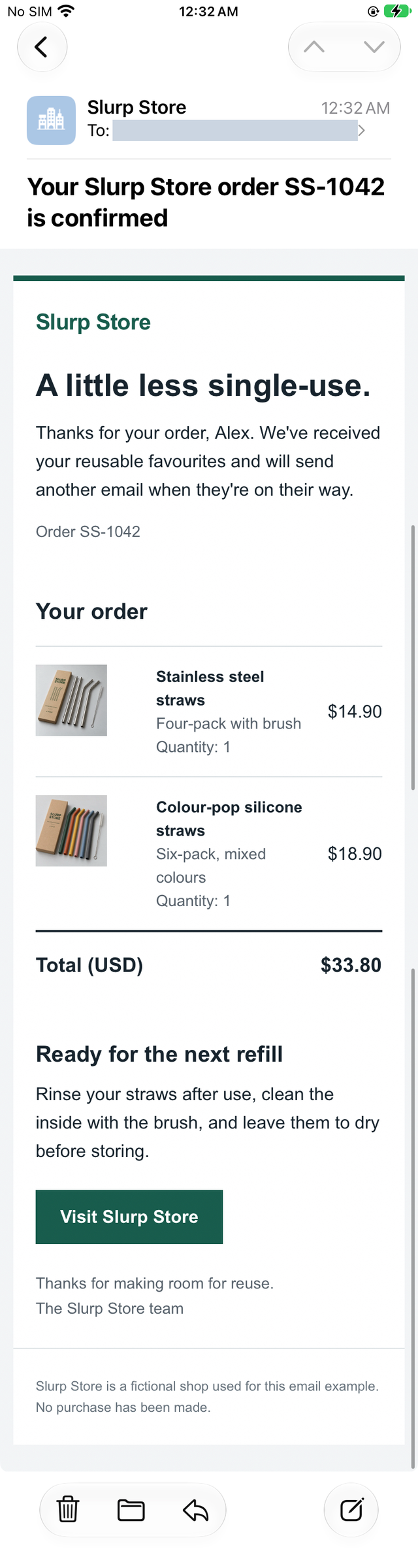
Both product photographs appear in these captures. Gmail has room for the product names on one line; iPhone Mail wraps them, including the longer silicone-straw description. The $14.90 and $18.90 prices remain readable beside their products, and both views show the $33.80 total, care instructions, store button and footer.
That is the useful comparison for responsive email testing: the phone can be taller without losing the connection between an item and its price. For your own receipt, inspect long names and discounts as well as the shortest example. Check that the total agrees with the order data and that text remains readable beside images. Open links separately in a test message to verify their destinations; screenshots show their appearance.
Send the Resend test email to your selected clients
1. Choose the apps you want to inspect
Open MailSlurp's new device preview form and expand Select targets. This email rendering test uses Gmail.com, Gmail Android, iOS Mail and Outlook Classic.
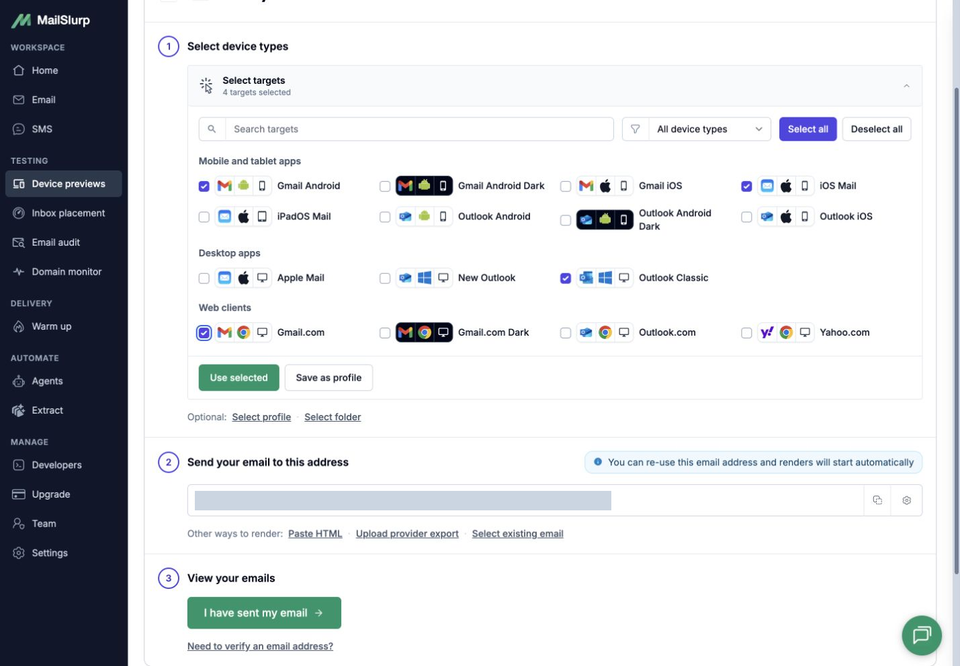
Choose the apps relevant to your customers, then select Use selected. The example uses the default light appearances. For email dark mode testing, add the available dark targets explicitly and review their separate results; these four captures do not establish how the receipt looks in dark mode.
2. Copy the receiving address
Under Send your email to this address, use the Copy control to copy the complete recipient. Check the selected target count before sending.
Inspect the complete receiving-address screen
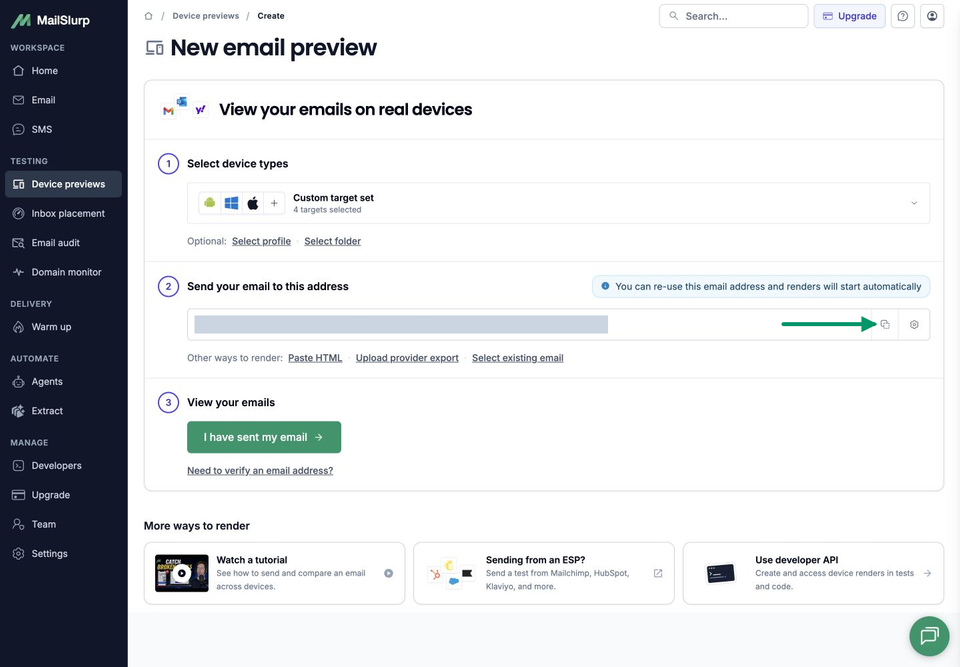
Use that address as the recipient in your Resend integration. Resend's delivered@resend.dev and other test-event addresses simulate events; they won't deliver this email to your MailSlurp preview.
3. Send through Resend
To send the downloadable receipt, open the unzipped folder and use resend-preview.mjs. For your own HTML email, replace email.html and email.txt first. Copy .env.example to .env and fill in these values:
RESEND_API_KEY: your sending key.EMAIL_FROM: the plain email address of your verified sender.MAILSLURP_RENDER_TO: the full address copied from MailSlurp.RESEND_IDEMPOTENCY_KEY: a unique value for this send; retain it if you need to retry the same request after checking its status.
You can set EMAIL_SUBJECT to match your email and EMAIL_FROM_NAME for its display name. Keep .env private and out of source control. Run the script from the folder containing the email files with Node.js 22 or later:
node --env-file=.env resend-preview.mjs
The script uses Resend's HTTP API and prints its accepted message ID when one is returned. A rejected request produces its HTTP status and a safe diagnostic; use that information to resolve the sending error before continuing. It does not retry automatically.
Our example request returned HTTP 200 and the message subsequently arrived in MailSlurp. Use the returned ID to trace your own send in Resend if receipt is uncertain, then check MailSlurp before submitting another copy.
4. Wait for the captures
Return to MailSlurp and select I have sent my email. That opens the waiting view; receipt starts rendering automatically. Open the result with your subject and wait for the selected targets to become ready.
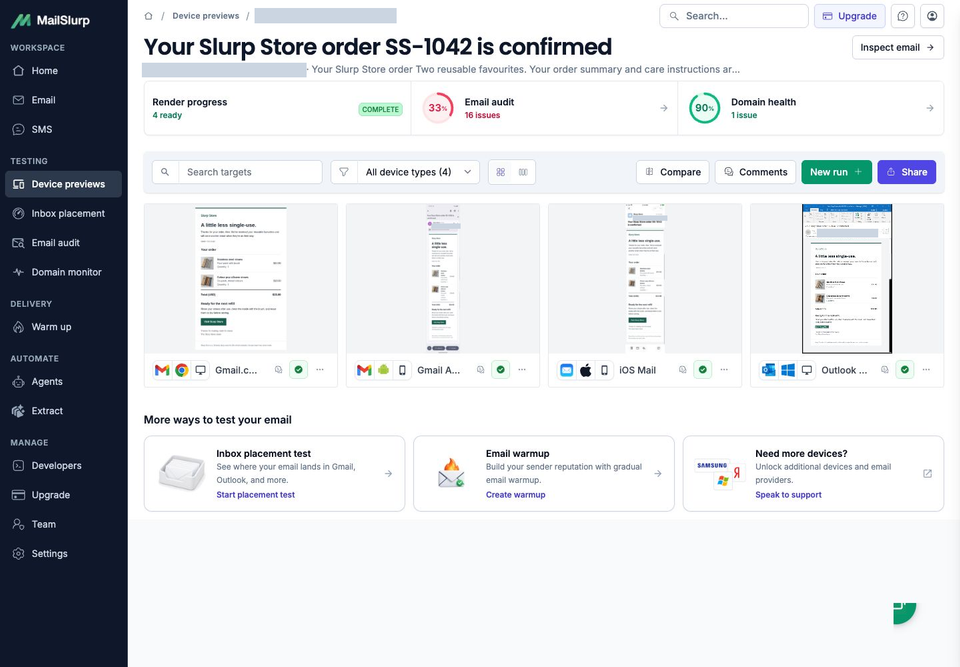
Complete describes render progress. It does not mean the email passed every audit or sender check. Here, all four screenshots are available while the separate checks still have findings to review.
If no email appears, check the recipient you submitted, the API response and the corresponding Resend email status before sending another copy. If the message arrived but a target isn't ready, inspect that target's result separately from the send.
Include the other clients your customers use
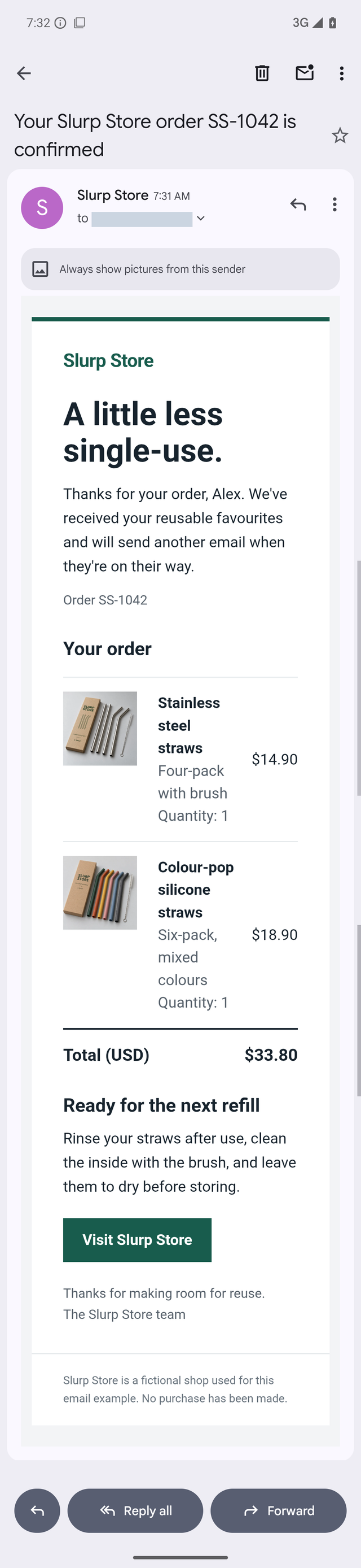
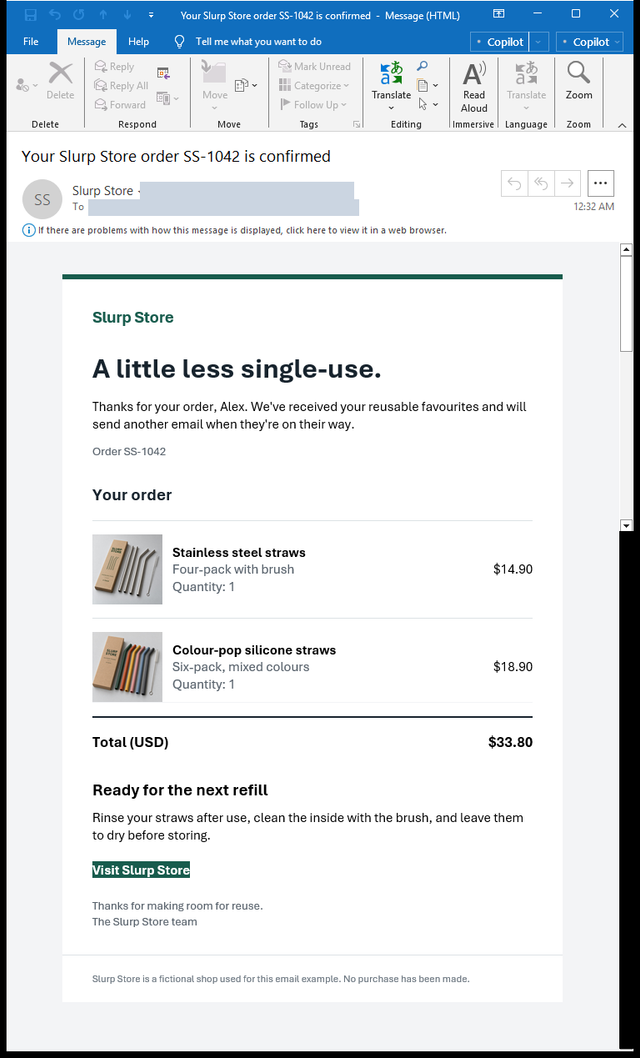
The other two captures reveal another useful difference. Gmail Android wraps the product names into a narrow column, while keeping both images, the prices and $33.80 total visible. Outlook Classic keeps the product names on one line, but Visit Slurp Store appears as a compact green-backed text link with much less padding than Gmail's rectangular button. The link is present; its appearance needs a separate review from the order rows.
Inspect the complete Gmail Android and Outlook Classic captures
Gmail Android
Outlook Classic
Use the Gmail preview guide and Outlook preview guide when choosing between their browser and app targets for your next test.
| Device | Email app | Appearance |
|---|---|---|
| Android phones | Gmail, Outlook | Light and dark |
| iPhone | Gmail, Apple Mail, Outlook | Default |
| iPad | Apple Mail | Default |
| Mac | Apple Mail | Default |
| Windows | New Outlook, Outlook Classic | Default |
| Webmail | Gmail | Light and dark |
| Webmail | Outlook.com, Yahoo Mail | Default |
Choose the available clients and modes in your workspace when starting a preview. Test the apps your customers use, including dark mode where it is offered.
After editing the template, send the revised message and compare its new captures. For the next part of Resend email testing, follow the Resend inbox placement guide to see where a separate send lands in monitored mailboxes. A readable receipt and an Inbox result answer different questions.