
guides
How to preview an email in Outlook
Preview the same delivered email in Outlook Classic, New Outlook, Outlook on the web, iOS, Android, light mode, and dark mode before sending.
If a reviewer says an email is broken in Outlook, the first useful reply is: "Which Outlook?"
Outlook Classic for Windows, New Outlook for Windows, Outlook on the web, and the mobile apps are separate test targets. The same HTML can lose a background image and button fill in Classic while looking intact in New Outlook. On a phone, the layout may stack, colors may change, and a transparent logo may become hard to read.
This guide shows how to preview the final delivered email in each current MailSlurp Outlook target. It also includes a controlled test from September 29, 2026: the same .eml was rendered in all targets, then a narrowly repaired version was rerun in Classic and New Outlook.
Choose the Outlook target first
Use the client named in the bug report, approval plan, or audience data:
- Outlook Classic for Windows for the long-running Windows desktop application.
- New Outlook for Windows for Microsoft's newer Windows app.
- Outlook on the web for the browser experience.
- Outlook on Android for the light mobile target.
- Outlook on Android in dark mode for the dark mobile target.
- Outlook on iOS for the iPhone app.
If you do not know which Windows app caused the problem, render both Classic and New Outlook. The Outlook versions guide explains how to identify each app without expecting the person reporting the issue to know its rendering engine.
Microsoft documents New Outlook for Windows as a WebView2-based application inspired by Outlook on the web. That explains why Classic and New Outlook must stay separate in a test plan, but it does not predict whether a particular email technique passes. The screenshots below provide that message-level evidence.
What changed when the same email reached Classic and New Outlook
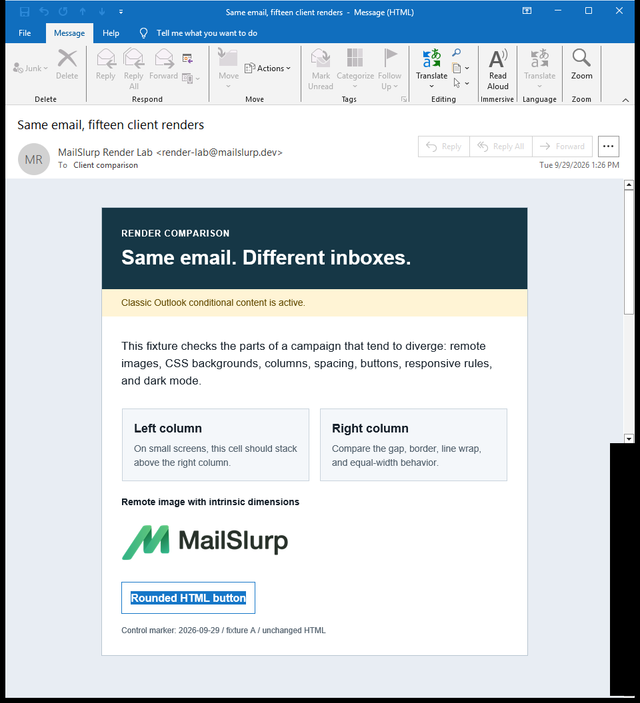
The controlled fixture contained a CSS background image in the dark hero, two equal table columns, a remote image with dimensions, an ordinary HTML link styled as a rounded button, and Outlook-only conditional content.
Outlook Classic for Windows
New Outlook for Windows
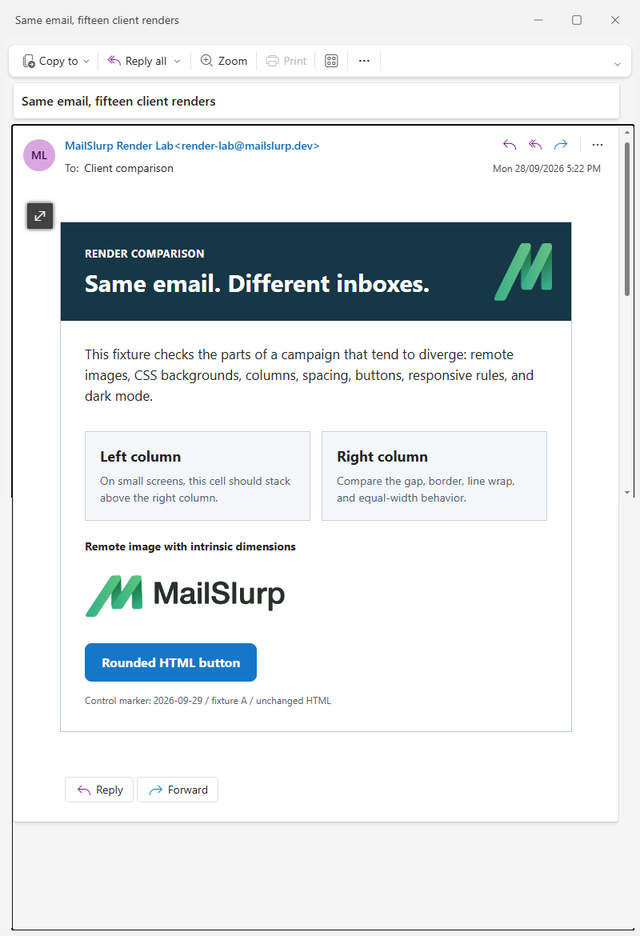
This is why "looks good in Outlook" is not a complete approval. In this run:
- both clients kept the two-column desktop structure and remote wordmark;
- only Classic displayed the conditional comment content;
- the logo supplied as a CSS background image was absent in Classic;
- the same logo appeared in New Outlook;
- Classic left the CTA as a plain-looking link area, while New Outlook kept the blue rounded button.
These are observations from this one controlled message, not a promise that every template fails in the same way. Your ESP may inline CSS, replace links, or generate an Outlook-specific button for you. Test its delivered output.
A verified Classic Outlook repair
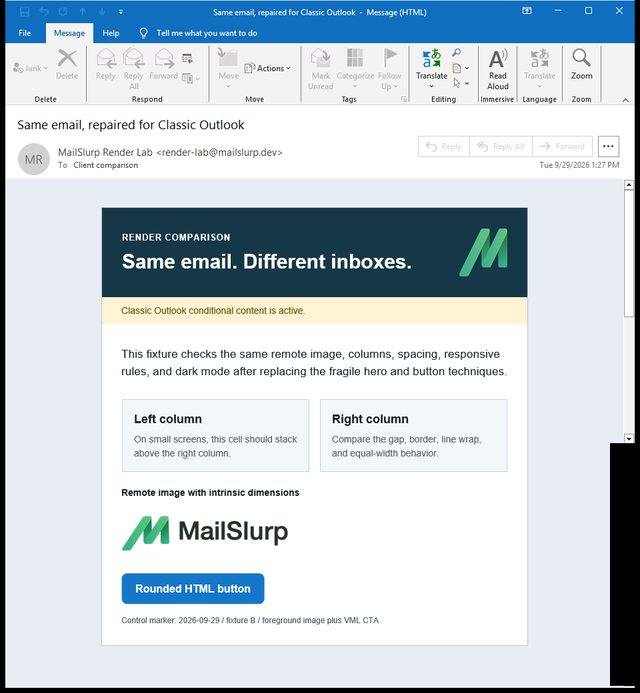
The repaired fixture changed two mechanisms. It replaced the decorative CSS background image with a normal image inside a table cell, and added a VML fallback for the CTA. The heading color was also applied directly to the text because the first repair attempt showed that relying on inherited white text was not enough in Classic.
Before: CSS background and ordinary link button
After: foreground image, direct text color, and VML CTA
For a smaller comparison of the background alone, see email background-image fallbacks. If a normal image is missing, the missing-image checks separate an unavailable URL from a download setting and show how to preserve the offer in text.
The repair did not try to force every pixel to match New Outlook. It restored the information and action that mattered: recognizable artwork, readable hero copy, and a visible CTA.
For an ESP campaign, check whether the editor's maintained image and button blocks already produce equivalent fallbacks before adding custom VML. A coded template owner should keep Outlook-specific markup small, documented, and backed by a real rerender.
Mobile Outlook is another pair of targets
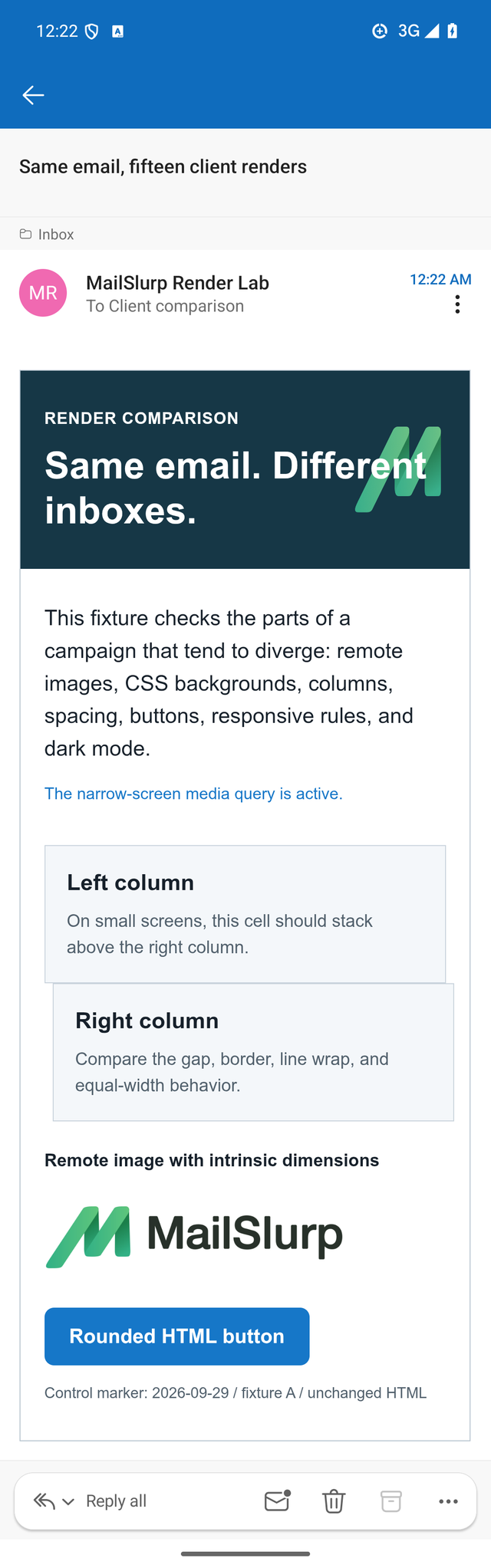
The same fixture was also sent to Outlook on Android in light and dark modes. Both mobile renders activated the narrow-screen rule and stacked the two content columns. The dark target changed the message surfaces and exposed a contrast problem in the transparent wordmark.
Outlook Android light
Outlook Android dark
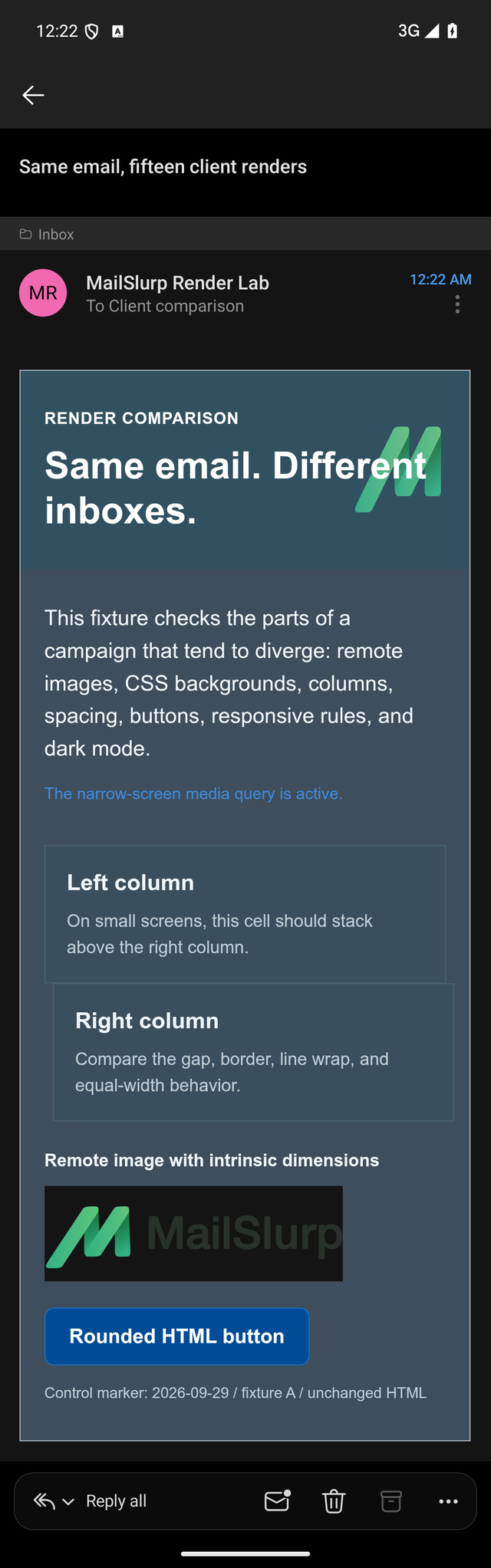
That wordmark issue cannot be found by looking only at a light desktop preview. Give transparent logos a deliberate dark-mode treatment or use an asset with a controlled opaque surface when the brand permits it.
Outlook on iOS also stacked the columns in this run and kept the CTA visible. It remains a separate target because iPhone layout, text size, mail chrome, and available width differ from Android.
Preview the final Outlook email with MailSlurp
- Open the free render link for the exact Outlook target.
- Paste HTML, upload the final
.eml, or send the finished email to the temporary render address. - If you use Mailchimp, HubSpot, Klaviyo, or another ESP, prefer a real test send so the render includes its processed links, images, preview text, and footer.
- Wait for the named client result, then inspect the whole message rather than only the hero.
- Record the client, mode, campaign revision, and visible symptom.
- Make one focused repair and send the complete email again.
- Rerun the client that failed, then check one other priority target for regression.
For a repeatable team process, use the email rendering QA checklist. The deeper Outlook rendering troubleshooting guide covers images, spacing, columns, backgrounds, buttons, fonts, and dark mode.
What to inspect in each Outlook preview
Outlook Classic for Windows
Check background images, button fill and padding, table widths, nested columns, paragraph spacing, font fallbacks, and conditional content. Do not hide essential prices, dates, or calls to action inside background artwork.
New Outlook and Outlook on the web
Check the actual delivered content rather than assuming browser-like means identical to your web page. Mail clients still sanitize markup, block scripts, rewrite links, proxy images, and apply their own message styles. Compare New Outlook with web Outlook when either one is important to approval.
Outlook on iOS and Android
Check the reading order after stacking, touch-friendly CTA size, long subject wrapping, image width, transparent artwork, and dark-mode contrast. Test the mode your customers use; a light render does not approve the dark version.
A concise Outlook approval record
Save enough detail for another person to reproduce the result:
- Outlook target and light or dark mode
- campaign or template revision
- final
.emlor repeatable test-send path - full screenshot and a close description of the symptom
- one change made to the email
- repaired render result
- one regression target checked afterward
"Outlook Classic, fixture B, foreground hero image plus VML CTA, passed on September 29" is useful. "Fixed Outlook" is not.
Frequently asked questions
Which Outlook preview should I run first?
Use the client your audience or reviewer actually uses. For a B2B list with unknown Windows usage, start with Outlook Classic and New Outlook. Add web and mobile targets when they represent meaningful traffic or the email contains an urgent action.
Are New Outlook and Outlook on the web the same test?
No. They are closer relatives than Classic Outlook and New Outlook, but they are still separate application contexts. Run the exact target named in your approval plan rather than substituting one screenshot for the other.
Should every Outlook version look pixel-identical?
Aim for equivalent communication, not a forced screenshot match. The hierarchy, content, brand identity, and primary action should survive. Small font and spacing differences are acceptable when they do not hide information or make the email hard to use.
Can I test Outlook without sending a campaign?
Yes. Paste HTML or upload an .eml for a fast design check. Before launch, send the final message through the real ESP path so its transformations are included.
Make the bug report name the client
The most valuable change is often procedural: replace "broken in Outlook" with "background image missing in Outlook Classic for Windows" or "transparent logo loses contrast in Outlook Android dark mode." Then the next render tests a specific repair instead of restarting the debate.
Preview the email in Outlook Classic, or choose another target from the list above.