
blog
Outlook versions explained: classic Outlook, new Outlook, Outlook.com, Mail, and the rest
A practical guide to the many Outlook apps, including release dates, operating systems, rendering engines, and which version matters for email testing.
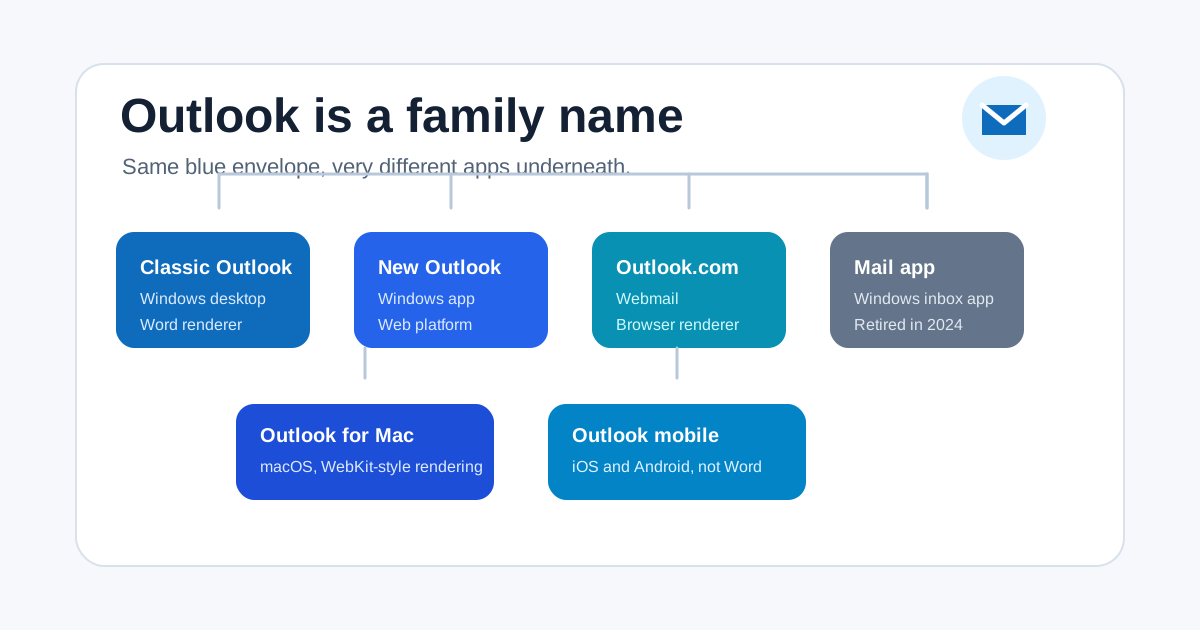
Outlook is not one thing. It is a family name, a desktop app, a webmail service, a mobile app, a former Windows inbox app replacement, and sometimes a toggle that says "try the new Outlook" when you were only trying to answer one email.
If that feels confusing, that is because it is confusing. Microsoft has used the Outlook name across several products with different codebases, different release histories, and very different HTML email rendering behavior.
This guide explains the main versions people usually mean when they say "Outlook": classic Outlook, new Outlook for Windows, Outlook.com, Outlook on the web, the retired Windows Mail app, Outlook for Mac, Outlook for iOS and Android, Outlook Preview, and the Outlook PWA.
Quick answer
If someone says "Outlook", ask one follow-up question:
Do you mean classic Outlook for Windows, new Outlook for Windows, Outlook on the web, Outlook.com, Outlook for Mac, or mobile Outlook?
That sounds pedantic until an HTML email breaks in classic Outlook for Windows but looks fine everywhere else. Then it sounds like incident prevention.
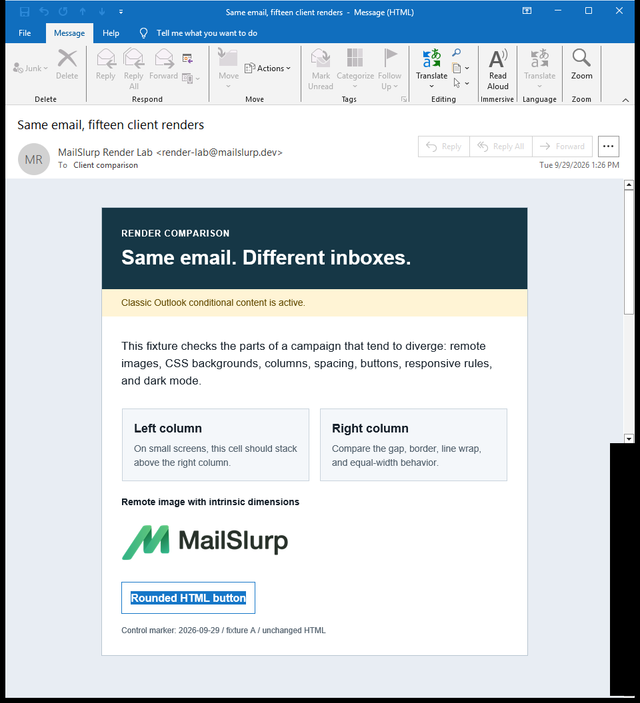
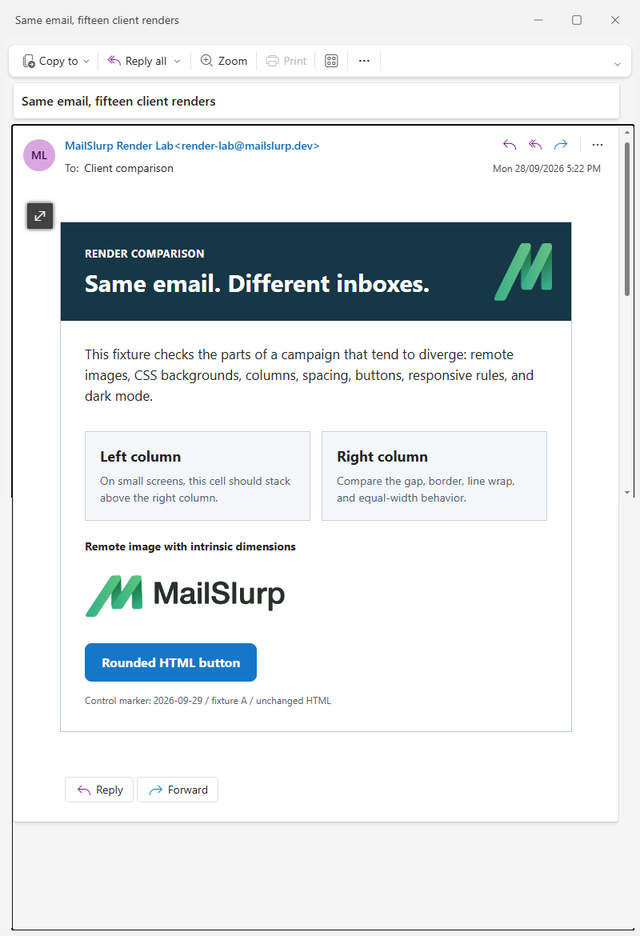
Here is the difference in one controlled render. Classic Outlook omitted the CSS background logo and did not preserve the ordinary HTML button treatment. New Outlook displayed both from the same .eml.
Classic Outlook for Windows
New Outlook for Windows
Use the Outlook preview guide to run Classic, New Outlook, web, iOS, and Android checks against your own delivered email.
Outlook version comparison
In this table, "rendering engine" means the engine that matters most to email builders: how HTML email is interpreted and displayed. App chrome, compose windows, account sync, security filtering, and admin policy can still differ by edition.
| Name people use | What it usually means | First major release or key date | Platforms | HTML email rendering engine | Current status |
|---|---|---|---|---|---|
| Classic Outlook, Outlook desktop, Outlook for Windows classic | The Win32 Microsoft Outlook desktop app included with Office and Microsoft 365 Apps | Outlook has existed since the 1990s; Outlook 2007 is the key rendering milestone because it moved HTML email rendering to Microsoft Word | Windows | Microsoft Word-based HTML rendering in modern classic Outlook for Windows | Supported until at least 2029, widely used in business environments |
| New Outlook, Outlook new, new Outlook for Windows | The newer Windows Outlook app built around the Outlook web experience | Generally available on August 1, 2024 | Windows 10 and Windows 11 | Web-based rendering closer to Outlook on the web than classic Word Outlook | General availability; Microsoft is moving Windows users toward it over time |
| Outlook Preview | Usually the preview or early-access phase of new Outlook for Windows, or a preview toggle in another Outlook app | The Windows preview label appeared before general availability | Mainly Windows, sometimes Mac depending context | Same family as the previewed app | Not a separate long-term product name |
| Outlook for Windows | Ambiguous name that can mean either classic Outlook or new Outlook | Depends on which app is installed | Windows | Word for classic Outlook; web-based rendering for new Outlook | Always clarify which one |
| Mail app, Windows Mail, Mail and Calendar | The simpler Windows inbox mail/calendar apps that shipped with Windows | Windows 10 era app, later present on Windows 11 | Windows 10 and Windows 11 | Native Windows app rendering, not the classic Outlook Word renderer | Support ended December 31, 2024 |
| Outlook.com | Microsoft's consumer webmail service at outlook.com | Outlook.com preview launched in 2012; Hotmail users were migrated by 2013 | Browser, plus accounts used in mail apps | Browser engine: Blink, WebKit, or Gecko depending browser | Active consumer webmail service |
| Outlook on the web, Outlook Web App, OWA | The web client for Exchange Online and Microsoft 365 work or school mailboxes | OWA predates the modern Outlook.com brand; "Outlook on the web" is the modern name | Browser | Browser engine, with Microsoft email sanitization and web client rules | Active web client |
| Outlook PWA | Outlook on the web installed as a progressive web app | Browser-dependent | Windows, macOS, ChromeOS, Linux depending browser | Browser engine | Useful, but still basically Outlook on the web |
| Outlook for Mac | The macOS Outlook desktop app | Long-running Mac app; the "new Outlook for Mac" experience rolled out in the 2020s | macOS | WebKit-style rendering, not the Windows Word engine | Active |
| Outlook for iOS and Android | Microsoft's mobile Outlook apps, built after the Acompli acquisition | Acompli acquired in December 2014; Outlook mobile launched in January 2015 | iOS, iPadOS, Android | iOS WebKit and Android WebView/Blink-style rendering | Active |
Classic Outlook for Windows
Classic Outlook is the one many enterprise users still mean by "real Outlook": the full Windows desktop application with PST/OST files, rules, add-ins, shared mailboxes, Exchange features, and decades of accumulated muscle memory.
It is also the reason email developers keep a small collection of Outlook-specific techniques in their toolbox. Since Outlook 2007, classic Outlook for Windows has used Microsoft Word to render HTML email. Word is excellent at documents. It is not a modern browser. That means support for CSS can be limited or unusual, and email templates often need table-based layout, conditional comments, and Outlook-specific fixes.
Classic Outlook still matters because it remains common in businesses and Microsoft has said support continues until at least 2029. If your customers are in finance, government, healthcare, education, legal, or other Microsoft-heavy organizations, classic Outlook is not a historical curiosity. It is probably in the room.
Why classic Outlook is different
Classic Outlook for Windows is different because it is a Windows desktop application with a Word-based email renderer. A message can look perfect in Gmail, Outlook.com, and new Outlook, then lose spacing or layout in classic Outlook.
That does not mean classic Outlook is bad. It means it is old, powerful, and opinionated. Treat it like a senior stakeholder with a very specific preferred format.
New Outlook for Windows
New Outlook for Windows is Microsoft's newer Windows email and calendar app. It is designed to feel more consistent with Outlook on the web, and Microsoft made it generally available on August 1, 2024.
This is the app many people call:
- New Outlook
- Outlook new
- Outlook Preview
- Outlook for Windows
- The Outlook app that replaced Mail
- The blue envelope that appeared after a Windows update and started a family group chat
New Outlook is not the same as classic Outlook. It has a different architecture, a different release model, and a web-based rendering path that behaves much closer to Outlook on the web than to classic Word-based Outlook.
What changed with new Outlook
The important practical change is that new Outlook reduces some of the gap between the Windows app and the web client. For email rendering, this generally means fewer classic Outlook Word-engine surprises. For organizations, it also means a migration period: classic Outlook remains supported, but Microsoft is clearly steering Windows users toward the new app over time.
Windows Mail and Calendar
Windows Mail and Calendar were the lightweight inbox apps that shipped with Windows. They were convenient, simple, and easy to mistake for Outlook because they handled Outlook.com and Microsoft 365 accounts.
They were not classic Outlook.
They were not new Outlook either, at least not originally.
They were their own Windows apps, and Microsoft ended support for Mail, Calendar, and People on December 31, 2024. Users are expected to move to new Outlook for Windows or use Outlook.com in a browser.
Why the Mail app still causes confusion
Many people used "Mail" and "Outlook" interchangeably because the account was an Outlook.com address or a Microsoft 365 mailbox. The icon changed, the app changed, and the account stayed the same. This is how normal people end up saying "my Outlook disappeared" when the product that disappeared was Windows Mail.
Outlook.com
Outlook.com is Microsoft's consumer webmail service. It is the thing you visit in a browser when you sign in with an @outlook.com, @hotmail.com, @live.com, or similar Microsoft account.
The history matters because it explains another naming knot. Hotmail launched in 1996, Microsoft acquired it in 1997, and the Hotmail brand was eventually replaced by Outlook.com. Microsoft completed the Hotmail-to-Outlook.com migration in 2013.
Outlook.com is a service, not a desktop application. It can be used in a browser, in mobile Outlook, in new Outlook, in classic Outlook, or in third-party mail clients.
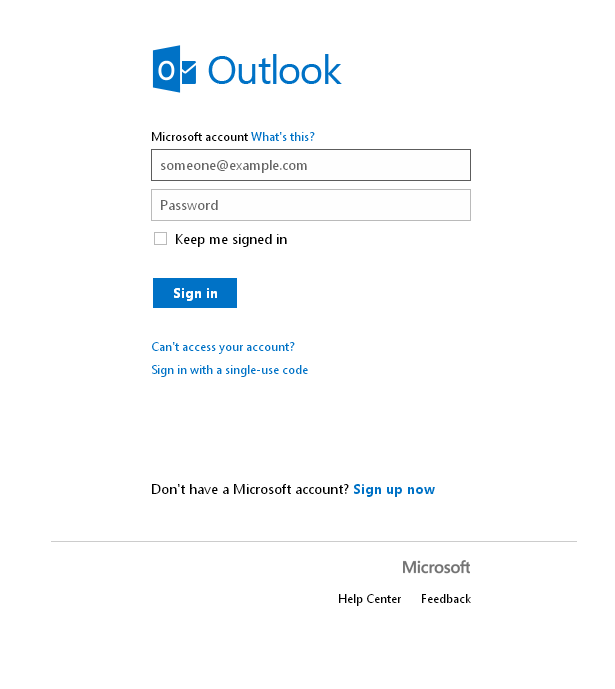
This historical Outlook.com image is useful because it shows the webmail side of the Outlook family, not the desktop app. It is a 2014 Wikimedia Commons image marked public domain because it is considered ineligible for copyright.
Outlook.com rendering
Because Outlook.com runs in a browser, its rendering behavior is much closer to modern webmail than classic Outlook for Windows. The browser engine may be Blink, WebKit, or Gecko, depending on whether the user is in Edge, Chrome, Safari, Firefox, or another browser.
That does not mean "anything that works on a website works in Outlook.com email." Webmail clients sanitize HTML, strip scripts, rewrite links, proxy images, and apply their own security rules.
Outlook on the web, Outlook Web App, and OWA
Outlook on the web is the browser-based Outlook experience for work and school Microsoft 365 or Exchange mailboxes. People still call it OWA because older versions were named Outlook Web Access or Outlook Web App.
If Outlook.com is the consumer webmail service, Outlook on the web is the business and school webmail experience. They look related because they are related, but account type, admin policy, tenant configuration, retention rules, and security controls can make them behave differently.
OWA is not a separate modern app
When someone says "check it in OWA", they usually mean "open Outlook in the browser for the work mailbox." It is a useful shorthand. It is also why Outlook conversations sometimes sound like archaeology.
Outlook for Mac
Outlook for Mac is its own desktop app. It is not classic Outlook for Windows wearing a nicer sweater.
The Mac app has a separate history and a different rendering stack. For HTML email, Outlook for Mac is generally associated with WebKit-style rendering rather than the Word rendering engine used by classic Outlook for Windows.
That distinction matters. An email problem reproduced in Outlook for Windows classic may not reproduce in Outlook for Mac, and vice versa. They share a brand and many mailbox features, but they are not the same test target.
Outlook for iOS and Android
Microsoft's mobile Outlook apps came from a very different branch of the family tree. Microsoft acquired Acompli in December 2014 and launched Outlook for iOS and Android in January 2015.
The mobile apps are not miniature classic Outlook. They use mobile rendering stacks: iOS uses WebKit, while Android relies on Android WebView/Blink-style rendering. They also have mobile-specific UX choices around focused inboxes, swipe actions, notifications, attachments, and account aggregation.
Why mobile Outlook deserves its own test
Mobile email is narrower, touch-based, and more likely to expose spacing, tap target, dark mode, and responsive layout issues. A message can pass desktop checks and still feel awkward on a phone.
Outlook Preview
Outlook Preview is usually not a product you should list separately in a support matrix. It is usually a label for a preview version of another Outlook app, especially new Outlook for Windows before general availability.
If a bug report says "Outlook Preview", ask for a screenshot or version details. It may mean new Outlook for Windows. It may mean a preview toggle in Outlook for Mac. It may mean the person is bravely exploring a Microsoft naming cave with a candle and good intentions.
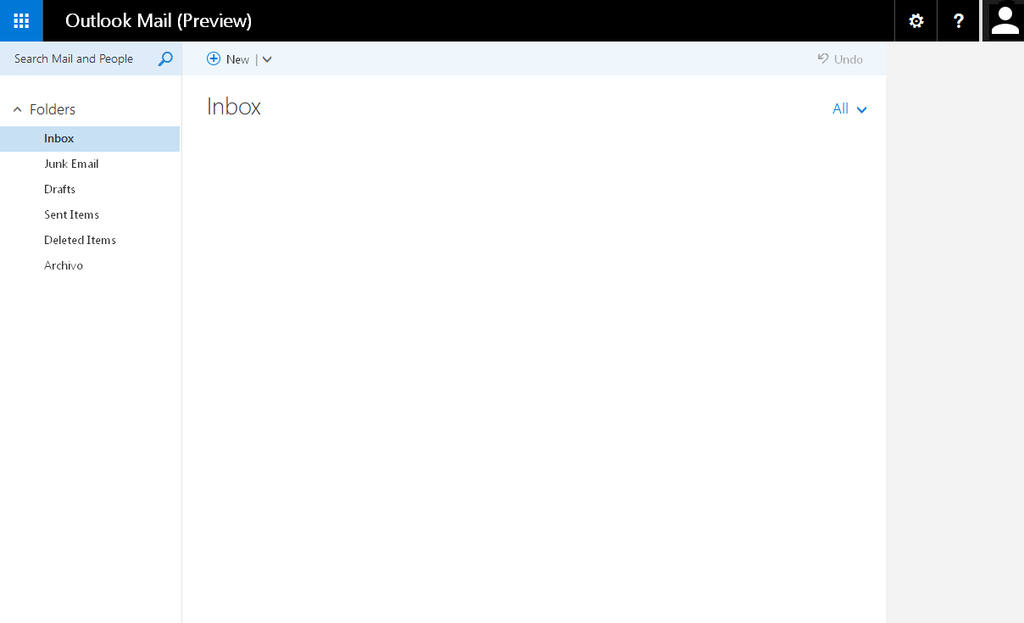
This 2015 empty inbox image from Wikimedia Commons is another public-domain historical reference. It is not a modern new Outlook screenshot, which is exactly the point: the Outlook name has outlived several interface eras.
Outlook PWA
The Outlook PWA is Outlook on the web installed like an app through a browser. It can appear in a dock, taskbar, or launcher, and it can feel app-like.
For rendering purposes, it is still web Outlook running in a browser context. That makes it useful, but it should not be confused with classic Outlook or new Outlook for Windows.
Why email teams care so much
For ordinary users, the differences are annoying but survivable. For email developers, QA engineers, and growth teams, the differences are operational.
The same email can pass in one Outlook and fail in another because the clients do not all render HTML the same way.
The big buckets are:
- Word rendering: classic Outlook for Windows. This is the strictest and strangest target for many HTML emails.
- Browser/web rendering: Outlook.com, Outlook on the web, Outlook PWA, and new Outlook for Windows.
- WebKit/Blink mobile rendering: Outlook for iOS and Android.
- Mac rendering: Outlook for Mac, usually closer to WebKit behavior than Windows Word behavior.
If you are testing signups, password resets, OTP codes, billing notices, or lifecycle emails, do not rely on a single Outlook screenshot. Use MailSlurp to create real inboxes, trigger real application flows, assert the message body, headers, links, and attachments, and keep those checks in CI. Then add visual checks in the Outlook variants your customers actually use.
Practical testing checklist
Use this checklist before you conclude "Outlook is broken":
- Identify the exact Outlook version: classic Windows, new Windows, web, Mac, iOS, Android, or retired Mail app.
- Capture the account type: Outlook.com consumer, Microsoft 365 work/school, Exchange, IMAP, or another provider.
- Test classic Outlook for Windows separately if your audience includes business users.
- Test Outlook on the web or new Outlook separately because they are not Word-rendered classic Outlook.
- Check mobile Outlook for dark mode, responsive layout, tap targets, and clipped content.
- Use real inbox testing for transactional flows so you catch broken links, missing OTPs, wrong headers, and delayed delivery before customers do.
Which Outlook should you support?
Most teams should think in terms of user base, not product names.
For business-to-business products, support at least:
- Classic Outlook for Windows
- New Outlook for Windows or Outlook on the web
- Outlook for Mac if Mac usage is meaningful
- Outlook mobile if the email contains urgent actions, OTPs, or responsive layout
For consumer products, support at least:
- Outlook.com in a modern browser
- Outlook mobile
- New Outlook for Windows if Windows desktop users are common
For email templates, the cautious approach is simple: build for modern clients, but do not forget classic Outlook. It may be old, but it still has a chair at the meeting.
Further reading
Sources for product dates, migration notes, and the historical images used above:
- Microsoft Learn: stages of migration to new Outlook for Windows
- Microsoft Support: Outlook for Windows and the future of Mail, Calendar, and People
- Microsoft: did Hotmail become Outlook?
- Microsoft blog: Microsoft acquires Acompli
- Microsoft Learn: WebView2 and Microsoft 365 Apps
- WIRED: Outlook 2007 adopts Microsoft Word rendering engine
- Wikimedia Commons: historical Outlook.com sign-in image
- Wikimedia Commons: historical empty Outlook inbox image

.PNG)
Final takeaway
There is no single "Outlook." There is a cluster of Outlook apps and services that share a name, a mailbox ecosystem, and a blue visual identity, but not always the same rendering engine.
For normal users, that is mildly absurd. For teams sending important email, it is a test matrix. Name the exact Outlook version, automate the inbox workflow with MailSlurp, and treat classic Outlook for Windows as its own special case until your customers stop using it.