










Get email render results in Microsoft Teams
Documentation navigation
Connect the MailSlurp Teams app to post email render results to a Teams chat or channel when renders start, finish or fail.
Overview
Teams that plan and approve email in Microsoft Teams need to know when a new version of an email has been checked, and whether any email client broke. Without a notification, someone has to keep the testing dashboard open and share results by hand.
MailSlurp renders your email on real email clients and devices and captures a screenshot of each. The MailSlurp Teams app posts the result to a Teams chat or channel, with a link to the full results.
Open the Teams setup in MailSlurp
What the Teams app posts
Each render message includes:
- the email subject and whether the render started, finished, partly finished or failed
- how many email clients are ready or failed, and how many screenshots were captured
- optionally, the main screenshot
- a button that opens the full results
Connect a chat or channel
- Open Device previews > Notifications > Teams in MailSlurp and choose Connect Teams.
- Sign in with a Microsoft work or school account if Teams asks.
- In Teams, press Send on the prefilled MailSlurp connect message.
- Return to MailSlurp and wait for it to confirm the Teams destination.
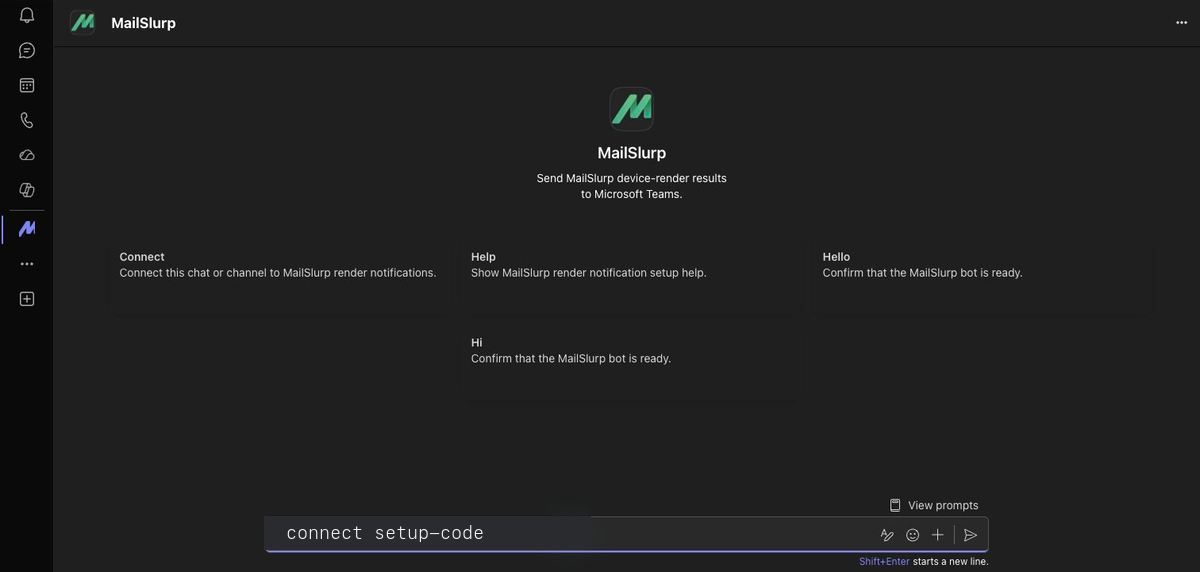
If your organization restricts Teams apps, a Teams administrator may need to allow MailSlurp before you can connect.
Choose what gets posted
Open Device previews > Notifications and create a rule for the Teams destination. Choose the events to send, such as Completed and Failed, and open Options to include the main screenshot. Use Test to send a sample message.
To share results with people outside your workspace, the message button opens a share link that works without a MailSlurp login. Reviewers can approve a render or request changes on the render page in MailSlurp, and you can send those decisions to Teams with a rule for the Approved and Changes requested events.
Troubleshooting
If a message does not arrive:
- check that the rule is enabled and the destination is active
- make sure the connect message was sent in the chat or channel you want to use
- ask a Teams administrator whether MailSlurp is allowed in your organization
- send a Test message from the rule
For other alert types, see notifications. To review renders in Slack instead, see Slack.
Running this code needs an API key. Get one free