
Entra SAML role mapping
Documentation navigation
Map Microsoft Entra groups or app roles to MailSlurp roles and environment access.
Enterprise teams often need one MailSlurp organization to support several isolated delivery or testing environments. A development user should be able to sign in and work in DEV without also gaining access to PTEST, STEST, or VTEST. At the same time, identity teams usually want Microsoft Entra ID to remain the source of truth for who belongs in each access group.
Entra SAML role mapping connects those two models. Entra authenticates the user and sends a SAML claim that identifies the user's group or app role. MailSlurp reads that claim during sign-in, assigns the matching MailSlurp organization role, and then uses role-restricted environment grants to decide which environments the user can enter.
Use this process when you want SSO onboarding, role assignment, and environment access to happen automatically from Entra group membership or app-role assignment.
This setup is useful when one enterprise identity tenant manages several teams or test environments and you want user access to stay governed from Entra.
Recommended model
For most teams, use one MailSlurp organization with multiple environments:
defaultfor organization administration and shared setupDEVfor development usersPTESTfor pre-production testingSTESTfor system testingVTESTfor validation testing
Create one MailSlurp role for each environment, then restrict each environment grant to the matching role. Entra decides which role a user receives by sending a SAML claim during sign-in.
Use separate MailSlurp organizations instead when you need separate SAML configurations, separate custom domains, or a stronger administrative boundary.
Before you start
You need:
- A MailSlurp plan with organizations, roles, environments, and SAML SSO.
- A MailSlurp organization and environment accounts.
- One MailSlurp role per environment access group.
- Microsoft Entra admin permissions to create and configure an enterprise application.
- Entra users or groups that represent each environment access level.
For the base SAML setup, start with SAML SSO setup. For environment access design, see Environments and Roles and permissions.
Create the MailSlurp roles and environments
In MailSlurp:
- Create the organization.
- Create environment accounts for each environment you want to isolate.
- Create roles such as
DEV user,PTEST user,STEST user, andVTEST user. - Grant the organization access to each environment.
- Restrict each environment grant to the matching role.
For example:
| Environment | MailSlurp role | Intended Entra assignment |
|---|---|---|
| DEV | DEV user |
mailslurp-dev-users group |
| PTEST | PTEST user |
mailslurp-ptest-users group |
| STEST | STEST user |
mailslurp-stest-users group |
| VTEST | VTEST user |
mailslurp-vtest-users group |
Create the Entra enterprise application
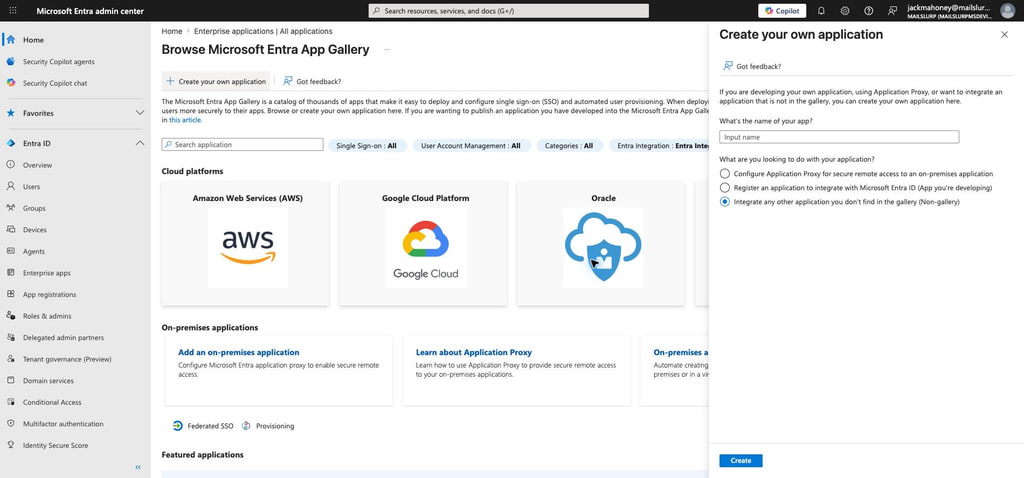
In the Microsoft Entra admin center, create a new enterprise application for MailSlurp. Use a non-gallery application when you are setting up a dedicated SAML integration for your organization.
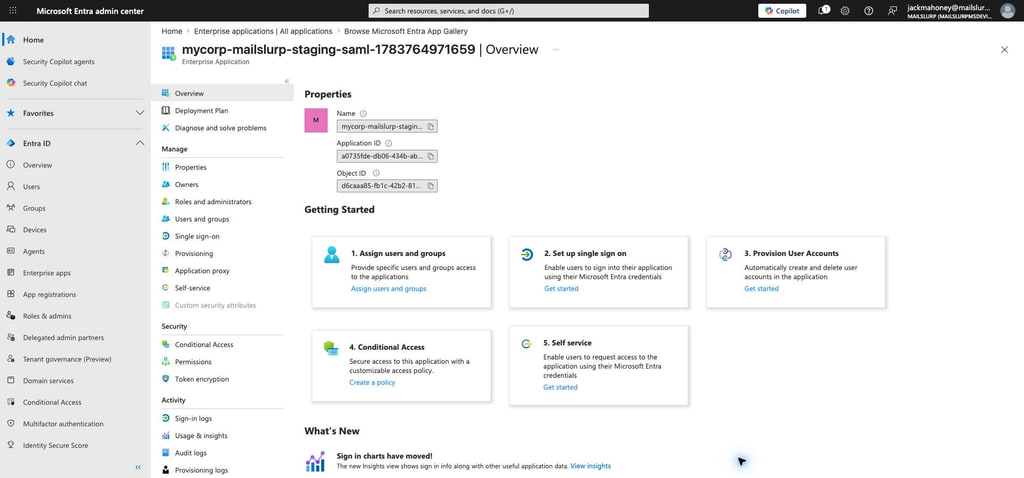
After the application is created, open it from Enterprise applications.
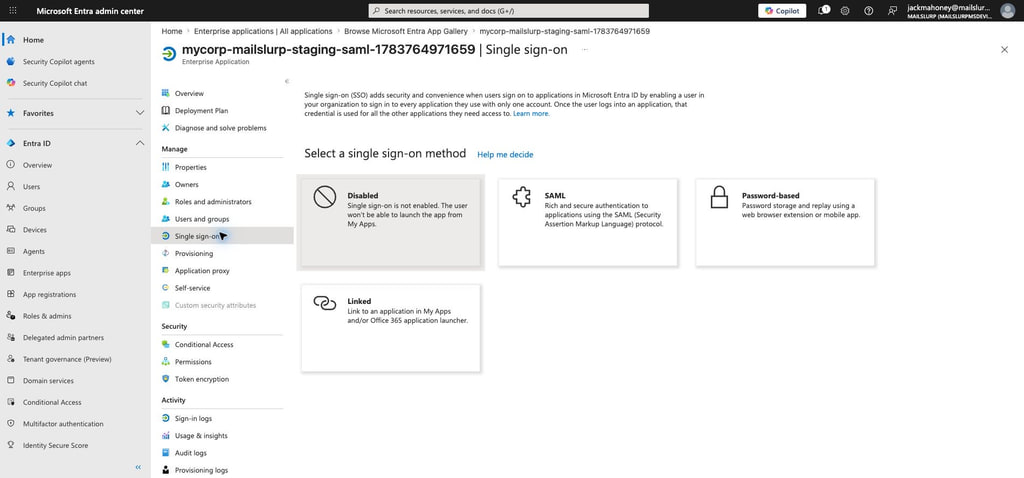
Choose SAML as the single sign-on method.
Configure the SAML service provider values
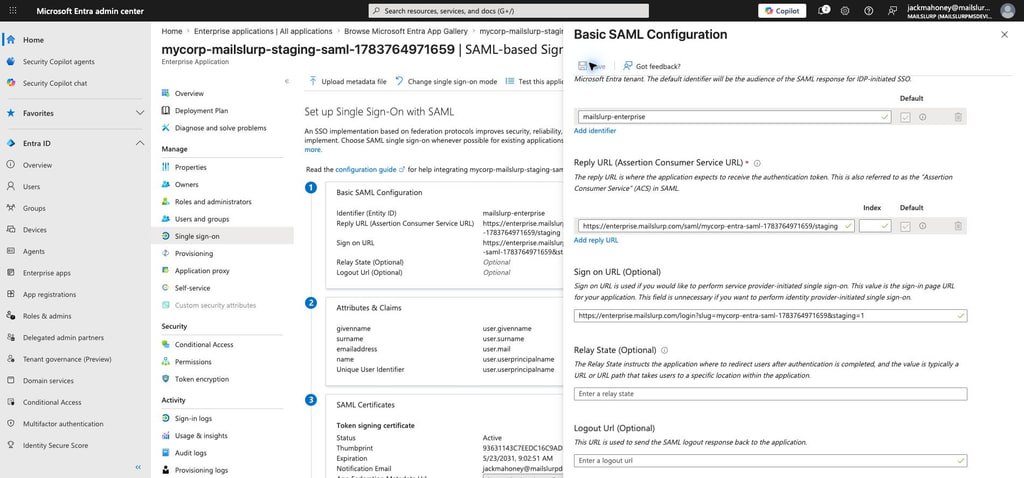
Use the MailSlurp SAML settings page to copy the service provider values into Entra:
| Entra field | MailSlurp value |
|---|---|
| Identifier (Entity ID) | Audience URI / service provider entity ID |
| Reply URL (Assertion Consumer Service URL) | MailSlurp ACS URL |
| Sign on URL | MailSlurp SAML login URL |
The ACS URL normally looks like:
https://enterprise.mailslurp.com/saml/<organization-slug>/
For staging or test-only setups, use the ACS URL shown in the MailSlurp SAML settings screen for that environment.
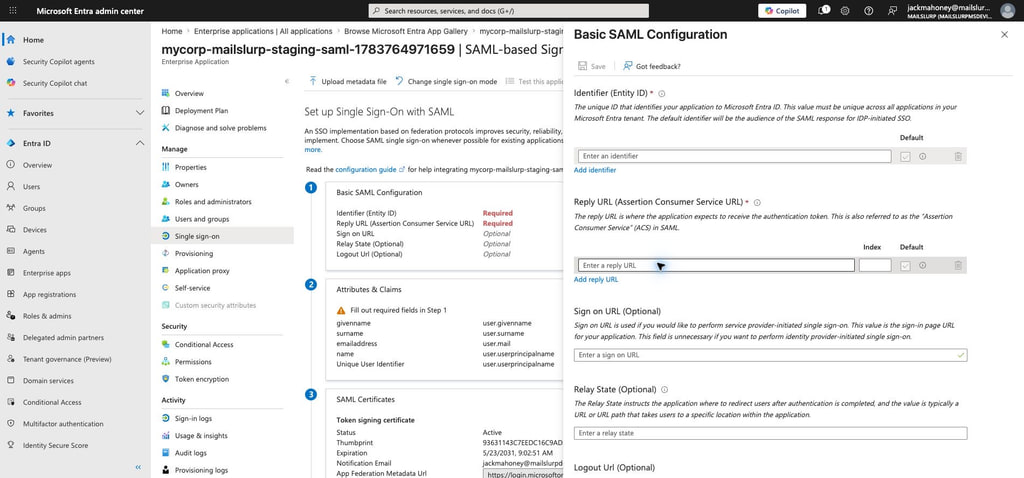
Save the basic SAML configuration before moving on.
Add an Entra groups claim
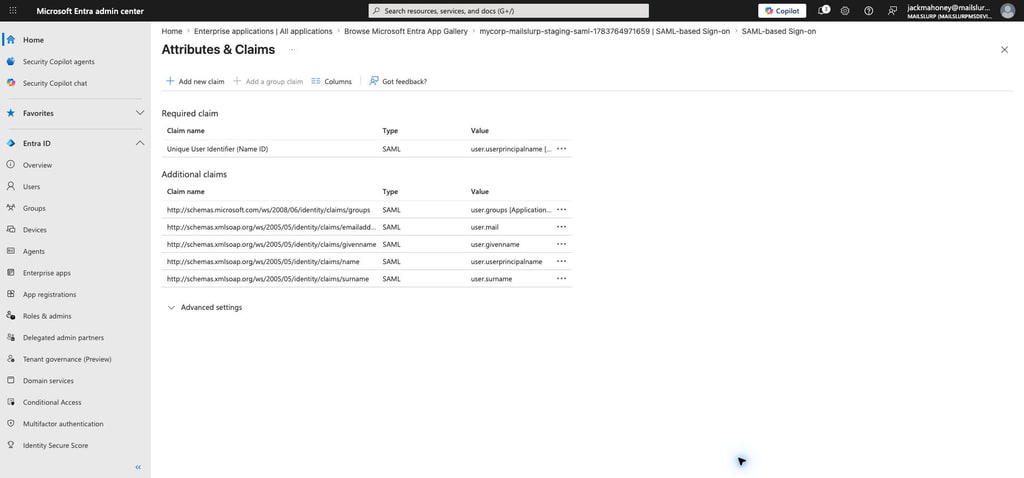
For group-based role mapping, configure Entra to emit assigned group IDs in the SAML assertion.
Recommended Entra claim settings:
| Setting | Value |
|---|---|
| Claim name | http://schemas.microsoft.com/ws/2008/06/identity/claims/groups |
| Groups returned in claim | Groups assigned to the application |
| Source attribute | Group ID |
Using groups assigned to the application keeps assertions smaller and avoids sending unrelated tenant group membership to MailSlurp.
Create and assign Entra groups
Create one Entra security group per MailSlurp environment role. Add users to the group that matches their intended MailSlurp environment access.
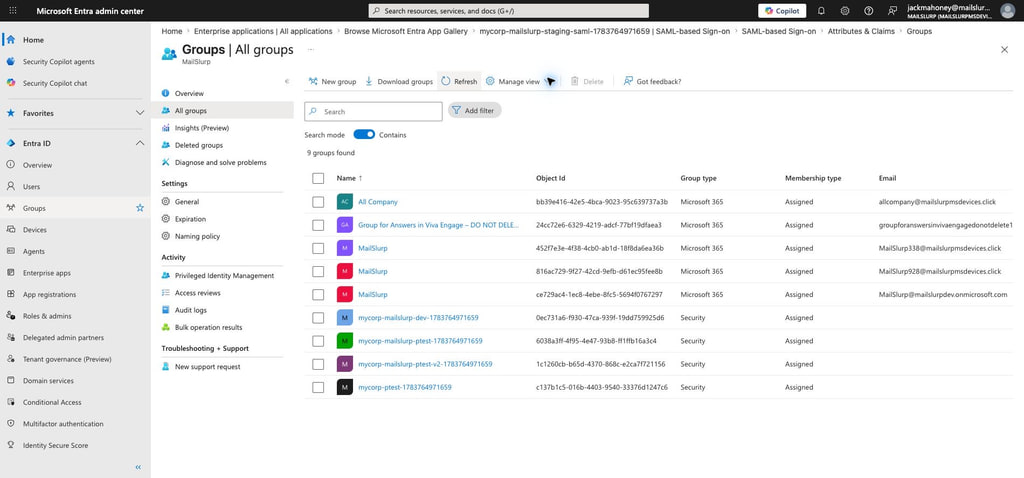
The important value for MailSlurp mapping is the Entra group object ID, not only the group display name. Copy the object ID for each group you want to map.
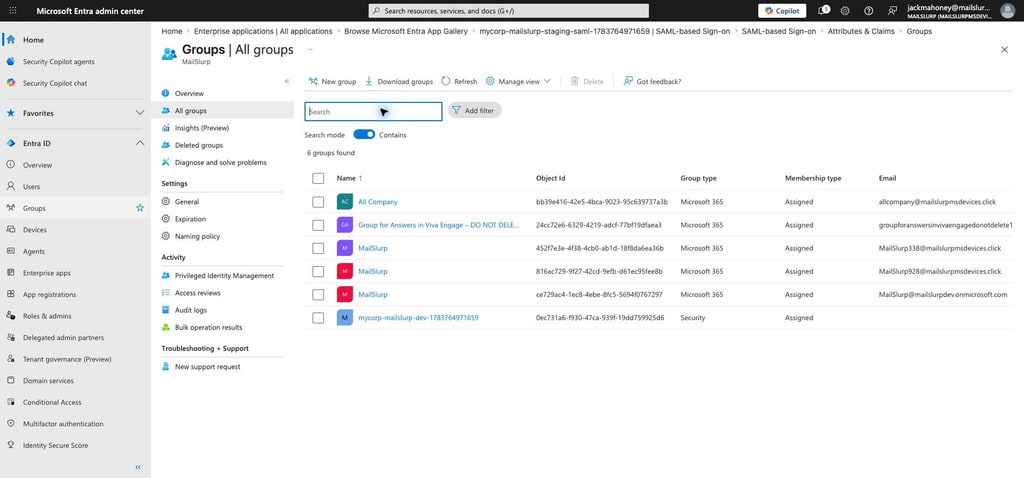
Assign those groups to the MailSlurp enterprise application in Entra. A user must be assigned to the application, directly or through a group, before Entra will allow the SAML login flow.
Map Entra group IDs to MailSlurp roles
In the MailSlurp organization SAML settings, create one SAML role mapping per group:
| MailSlurp field | Value |
|---|---|
| Provider preset | Microsoft Entra group |
| Claim name | http://schemas.microsoft.com/ws/2008/06/identity/claims/groups |
| Claim value | Entra group object ID |
| Role | Matching MailSlurp role |
Example mappings:
| Claim value | MailSlurp role |
|---|---|
| Entra DEV group object ID | DEV user |
| Entra PTEST group object ID | PTEST user |
| Entra STEST group object ID | STEST user |
| Entra VTEST group object ID | VTEST user |
Mappings use exact claim names and exact claim values. If a user signs in with multiple mapped groups, MailSlurp can grant the corresponding mapped roles.
Alternative: map Entra app roles
Some organizations prefer Entra app roles instead of group object IDs. App roles can be easier to read in audit trails and can avoid group-overage behavior in very large tenants.
For app-role mapping, configure Entra app roles such as:
MailSlurp.DEV.UserMailSlurp.PTEST.UserMailSlurp.STEST.UserMailSlurp.VTEST.User
Then map the app-role claim in MailSlurp:
| MailSlurp field | Value |
|---|---|
| Provider preset | Microsoft Entra app role |
| Claim name | http://schemas.microsoft.com/ws/2008/06/identity/claims/role |
| Claim value | App role value, for example MailSlurp.PTEST.User |
| Role | Matching MailSlurp role |
Both group mapping and app-role mapping are conventional Entra SAML patterns. Use group mapping when the customer's access model already lives in security groups. Use app roles when the MailSlurp application should own a smaller, application-specific role vocabulary.
Environment sign-in URLs
The recommended setup uses one MailSlurp organization-level SAML configuration and one Entra enterprise application. The SAML login URL sends users through the same identity provider, then MailSlurp applies role mappings from the SAML assertion.
Environment-specific access links are convenience entry points. The link can send a user toward a target environment after sign-in, but the role-restricted environment grant is what decides whether the user is allowed to enter that environment.
Do not create one Entra SAML application per MailSlurp environment unless each environment must have a separate SAML configuration, certificate, sign-on policy, or administrative boundary. If that level of separation is required, use separate MailSlurp organizations instead of only environment restrictions.
Login flow by account type
DEV user
- The user opens the MailSlurp SAML login URL for the organization.
- MailSlurp redirects the user to Entra.
- Entra authenticates the user and emits the DEV group or app-role claim.
- MailSlurp creates or pairs the SAML user in the organization.
- MailSlurp grants the DEV role.
- The user can access the default organization context and the DEV environment grant.
PTEST user
The PTEST flow is the same, except the SAML assertion contains the PTEST claim value. MailSlurp grants the PTEST role, and the user can access the default organization context and the PTEST environment grant.
User with no mapped claim
If a user is allowed to sign in but no mapping matches, MailSlurp uses the organization's SAML default-role behavior. Use a narrow default role when you want unmatched users to have baseline access only, or leave environment grants restricted so unmapped users cannot enter locked environments.
Existing users
When an existing organization user signs in through SAML, MailSlurp pairs the SAML identity to the user where possible and applies matching SAML role mappings during the sign-in flow. Keep role assignments in Entra as the source of truth for SAML-managed users.
Validation checklist
Before rolling out to the full team:
- Test one user assigned only to the DEV group or app role.
- Confirm that user receives the DEV MailSlurp role.
- Confirm that user can switch only into the intended environment grants.
- Repeat with PTEST, STEST, and VTEST users.
- Test an unmapped user if your organization allows a SAML default role.
- Disable email login only after SAML login has been verified.
Troubleshooting
- If Entra rejects the login, confirm the Identifier and Reply URL match the MailSlurp service provider values.
- If the user cannot launch the app, confirm they are assigned to the Entra enterprise application.
- If no role is granted, check the exact SAML claim name and claim value in the mapping.
- For group mapping, use the group object ID, not the display name.
- For app-role mapping, use the app-role value that Entra emits in the role claim.
- If users belong to many groups, prefer assigned-application groups or app roles so the SAML assertion contains the value MailSlurp needs.
- If an environment is visible to too many users, review the organization environment grant and restrict it to the intended role.