
Inbox connectors
Documentation navigation
Connect Google and Microsoft mailboxes to MailSlurp so existing email can use inbox search, routing, webhooks, extraction, and automation workflows.

Inbox connectors allow you to connect external mailboxes with MailSlurp inboxes. This means you can send and receive emails using MailSlurp APIs and dashboards by syncing with existing mail accounts over IMAP and SMTP. This feature supports popular providers like Google/Gmail, Outlook/Exchange, as well as custom IMAP and SMTP servers.

Terminology
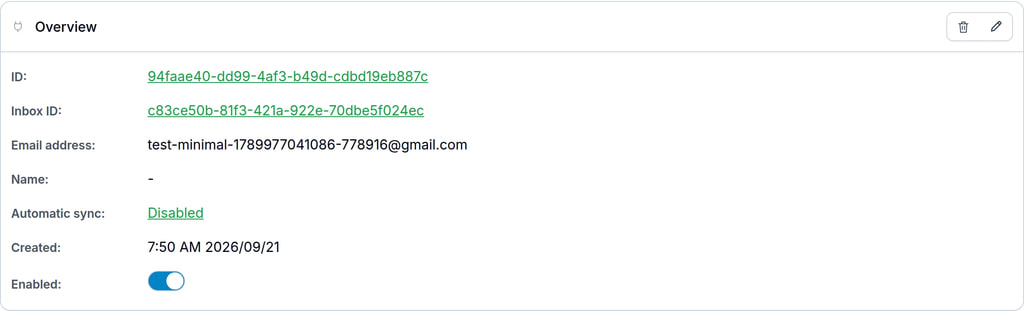
Connectors are a way to link external email accounts with MailSlurp inboxes. They are comprised of several components:
| Feature | Description |
|---|---|
| Connector | Main component with ID and email address |
| Connector inbox | The MailSlurp inbox for storing synced emails |
| External mailbox | External email account hosted by your provider |
| IMAP settings | Settings for reading emails from external mailbox |
| SMTP settings | Settings for sending emails via external mailbox |
| Sync settings | Settings for background automatic syncing |
| Connector events | Event and logs saved for each sync and send |
Creating a connector
You can create inbox connectors in the dashboard or using the API. In the dashboard you can choose between common providers like Google and Microsoft or use custom settings:
Using the Javascript SDK, here is an example:
const connector = await connectorController.createConnectorWithOptions({
  createConnectorWithOptions: {
    // configure email and name
    createConnectorOptions: {
      emailAddress: externalInbox.emailAddress,
      name: 'example-connector',
      enabled: true
    },
    // configure imap settings
    createConnectorImapConnectionOptions: {
      enabled: true,
      imapHost: externalMailServer.imapServerHost,
      imapPort: externalMailServer.imapServerPort,
      imapPassword: externalMailServer.imapPassword,
      imapUsername: externalMailServer.imapUsername,
      imapSsl: false,
      startTls: false
    },
    // configure smtp settings
    createConnectorSmtpConnectionOptions: {
      enabled: true,
      smtpHost: externalMailServer.smtpServerHost,
      smtpPort: externalMailServer.smtpServerPort,
      smtpPassword: externalMailServer.smtpPassword,
      smtpUsername: externalMailServer.smtpUsername,
      smtpSsl: false,
      startTls: false
    },
    // no automatic sync set
    createConnectorSyncSettingsOptions: undefined
  }
});
See the API reference for more connector options.
Connecting Google Accounts
To connect Gmail/Google workspace accounts you need to first create an app password for your google account.
- Go to your Google account settings
- Search for "app password" in the search bar
- Create a new app password for MailSlurp
- Copy the password into the MailSlurp connector SMTP and IMAP password settings
- Use your email account as the username for each setting.
Next, ensure you have enabled IMAP in Gmail settings.
- In Gmail, click
Settingsgear icon, then clickAll settings - Click the
Forwarding and POP/IMAPtab - In the IMAP section, select
Enable IMAP, then save changes.
Then configure the connector connection settings to use the Gmail mail servers:
| Setting | Value |
|---|---|
| Provider | |
| IMAP username | Your email |
| IMAP password | Your app password |
| IMAP server | imap.gmail.com |
| IMAP port | 993 |
| IMAP SSL | true |
| IMAP StartTLS | false |
| SMTP username | Your email |
| SMTP password | Your app password |
| SMTP server | smtp.gmail.com |
| SMTP port | 465 |
| SMTP SSL | true |
| SMTP StartTLS | true |
Connecting Microsoft Accounts
| Setting | Value |
|---|---|
| Provider | MICROSOFT |
| IMAP username | Your email |
| IMAP password | Your external password or app password |
| IMAP server | outlook.office365.com |
| IMAP port | 993 |
| IMAP SSL | true |
| IMAP StartTLS | false |
| SMTP username | Your email |
| SMTP password | Your external password or app password |
| SMTP server | smtp-mail.outlook.com |
| SMTP port | 587 |
| SMTP SSL | false |
| SMTP StartTLS | true |
Testing connections
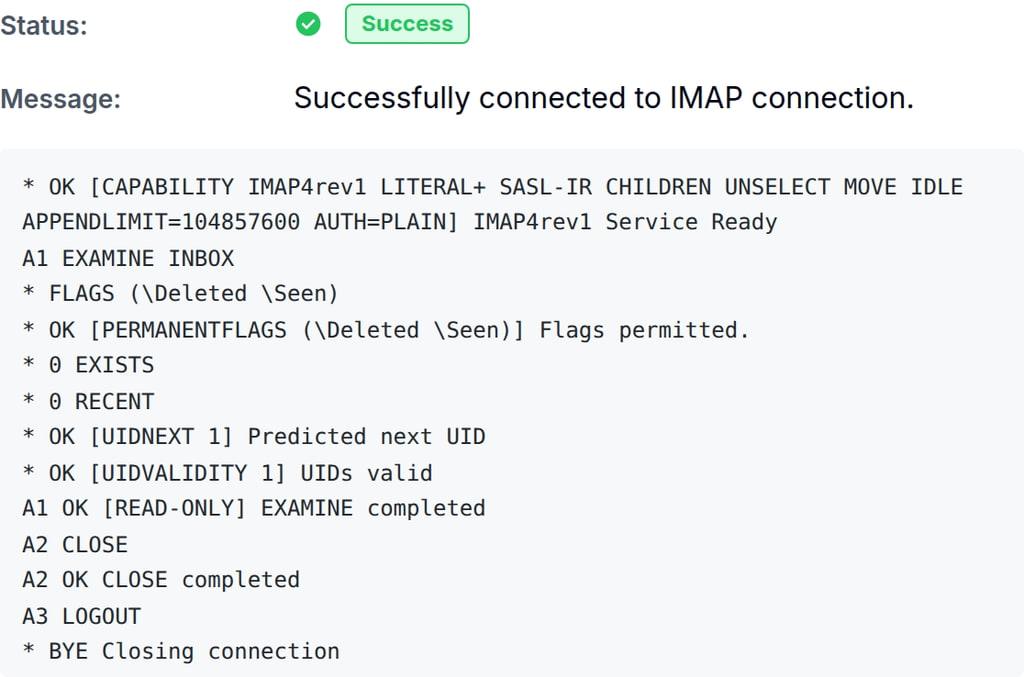
Once you add IMAP and SMTP connections you can see the status in the dashboard:

You can test connections against the servers using the test connection endpoints:
const testResult = await connectorController.testConnectorImapConnection({
  id: connector.id
})
expect(testResult.success).toBeTruthy();
You can also see the status and logs of the connection in the dashboard:
Syncing emails
Syncing is the process of fetching emails from an external mailbox and storing them in a MailSlurp inbox. Synchronizing emails between an external inbox and a MailSlurp connector is done via several mechanisms:
- Direct sync requests
- Scheduled background sync using sync settings
- Sync during waitFor commands
- Sync during email fetch commands
Direct sync example
const result: ConnectorSyncRequestResult = await connectorController.syncConnector({
  id: connector.id,
  // enable logging to debug
  logging: true
});
expect(result.syncResult?.emailIds?.length).toBeGreaterThan(0);
expect(result.syncResult?.emailSyncCount).toEqual(1);
// can view IMAP logs
expect(result.syncResult?.logs?.some(line => line.includes('CAPABILITY IMAP4rev1'))).toBeTruthy();
Sending emails
To send emails from a 3rd party account using MailSlurp inboxes and APIs either:
- use the existing send email methods with the connectors
inboxId. - use the connector
sendEmailFromConnectormethod.