
Google Workspace SAML role mapping
Documentation navigation
Map Google Workspace groups to MailSlurp roles and environment access.
Enterprise teams often want one MailSlurp organization to contain several locked-down environments. A DEV user should be able to sign in through Google Workspace and work only in DEV, while a PTEST user signs in through the same identity provider and can enter only PTEST. Without claim-to-role mapping, admins have to keep those MailSlurp roles in sync by hand after each SSO sign-in.
Google Workspace SAML role mapping lets Google remain the source of truth for environment access. Google authenticates the user and sends a groups attribute in the SAML assertion. MailSlurp reads that attribute during sign-in, assigns the matching organization role, and then applies the role-restricted environment grants configured in the organization.
Use this pattern when one Google Workspace tenant controls access to DEV, PTEST, STEST, VTEST, or similar MailSlurp environments.
Recommended model
For most teams, use one MailSlurp organization with multiple environments:
defaultfor organization administration and shared setupDEVfor development usersPTESTfor pre-production testingSTESTfor system testingVTESTfor validation testing
Create one MailSlurp role per environment and restrict each environment grant to the matching role. Google Workspace decides which role a user receives by sending the group value in the SAML assertion.
Use separate MailSlurp organizations instead when each environment needs its own SAML configuration, certificate, custom domains, or administrative boundary.
Before you start
You need:
- A MailSlurp plan with organizations, roles, environments, and SAML SSO.
- A MailSlurp organization and one environment account per isolated environment.
- One MailSlurp role per environment access group.
- Google Workspace admin permissions to create groups and a custom SAML app.
- Google users or groups that represent each MailSlurp environment.
For the base SAML setup, start with SAML SSO setup. For environment access design, see Environments and Roles and permissions.
Create the MailSlurp roles and environments
In MailSlurp:
- Create the organization.
- Create environment accounts for each environment you want to isolate.
- Create roles such as
DEV user,PTEST user,STEST user, andVTEST user. - Grant the organization access to each environment.
- Restrict each environment grant to the matching role.
For example:
| Environment | MailSlurp role | Intended Google assignment |
|---|---|---|
| DEV | DEV user |
MailSlurp DEV users group |
| PTEST | PTEST user |
MailSlurp PTEST users group |
| STEST | STEST user |
MailSlurp STEST users group |
| VTEST | VTEST user |
MailSlurp VTEST users group |
Give each SAML-managed role only the permissions those users need. If the role exists only to unlock an environment, keep the permission set narrow and let the environment grant provide the boundary.
Create Google Workspace groups
In Google Admin, create one group per MailSlurp environment. Use clear names that will remain stable, because the emitted SAML group value is what MailSlurp maps to a role.
Example groups:
| Google group | Example group email | MailSlurp role |
|---|---|---|
MailSlurp DEV users |
mailslurp-dev-users@example.com |
DEV user |
MailSlurp PTEST users |
mailslurp-ptest-users@example.com |
PTEST user |
MailSlurp STEST users |
mailslurp-stest-users@example.com |
STEST user |
MailSlurp VTEST users |
mailslurp-vtest-users@example.com |
VTEST user |
Add each user to the group for the environment they should access. A user who belongs to multiple mapped groups can receive multiple MailSlurp roles.
Create the Google SAML app
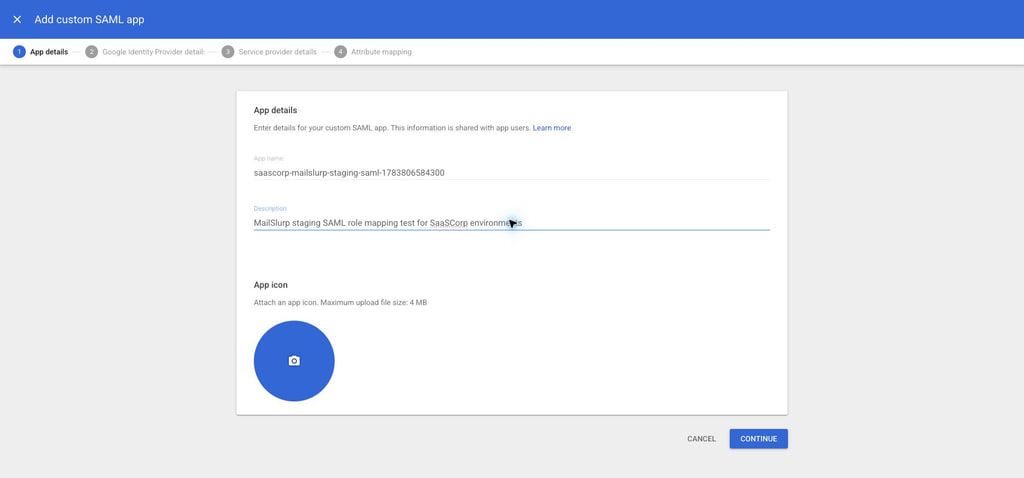
In Google Admin, go to Apps > Web and mobile apps and create a custom SAML app for MailSlurp.
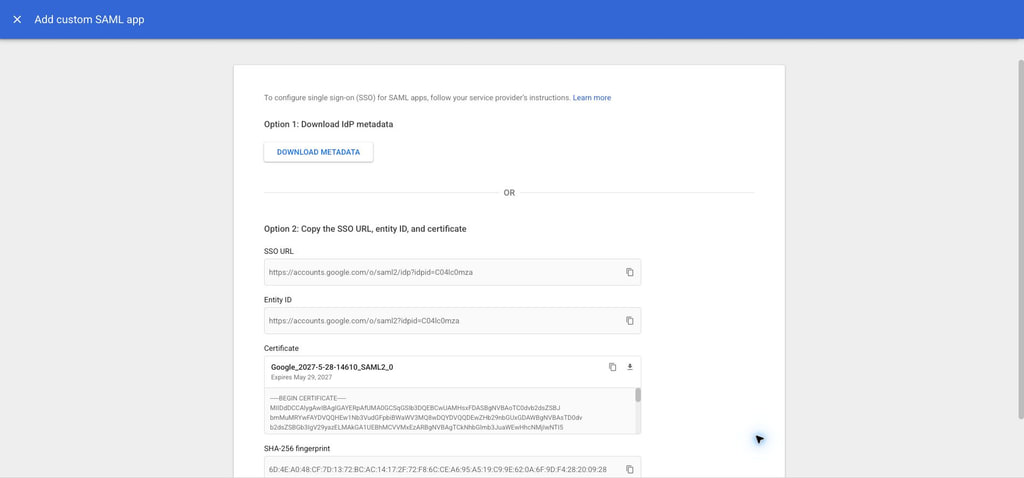
On the Google identity provider details step, copy or download:
SSO URLEntity IDCertificate
Configure the service provider values
Use the MailSlurp SAML settings page to copy the service provider values into Google:
| Google field | MailSlurp value |
|---|---|
| ACS URL | MailSlurp assertion consumer service URL |
| Entity ID | MailSlurp audience URI / service provider entity ID |
| Name ID format | Email address |
| Name ID | Basic information > Primary email |
The ACS URL normally looks like:
https://enterprise.mailslurp.com/saml/<organization-slug>/
For a staging or test-only setup, use the staging ACS URL shown in MailSlurp for that environment.
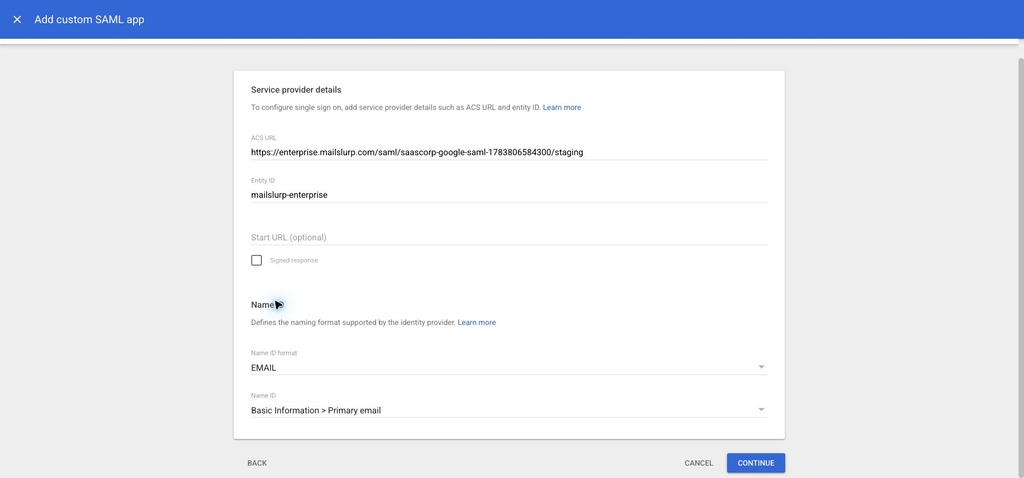
If Google reports that the Entity ID is already in use, choose a unique Entity ID for this Google app and set the same value as the MailSlurp SAML audience. The Entity ID in Google and the audience in MailSlurp must match.
Add the Google groups attribute
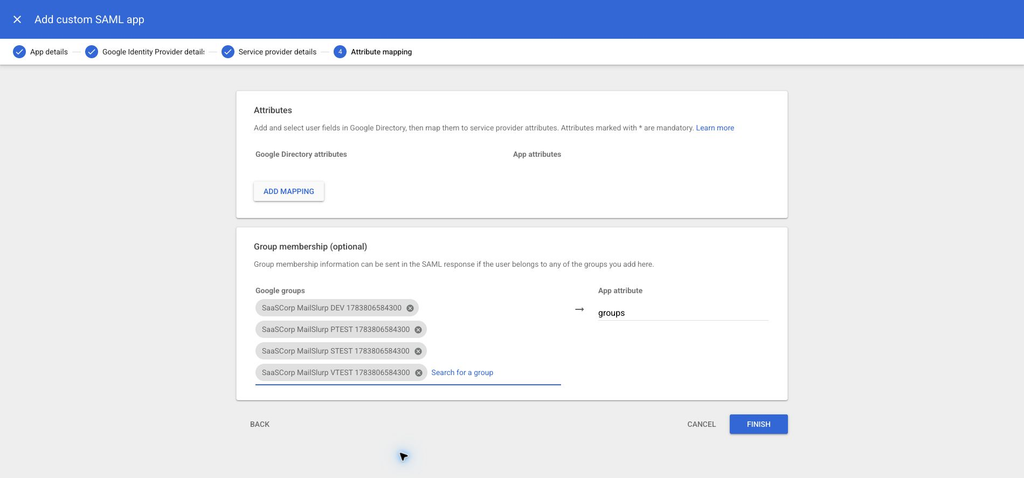
On the Google attribute mapping step, add a group membership mapping:
| Google source | App attribute |
|---|---|
| Group membership | groups |
Select only the Google groups that should affect MailSlurp access. This keeps the SAML assertion small and avoids sending unrelated group membership to MailSlurp.
Turn the app on for environment groups
Keep the app off for everyone by default, then turn it on only for the groups that should be able to launch MailSlurp SSO.
In Google Admin:
- Open the SAML app.
- Open
User access. - Keep broad organizational units off unless the whole unit should sign in.
- Add each environment group.
- Set the service status to
ONfor those groups. - Save the access changes.
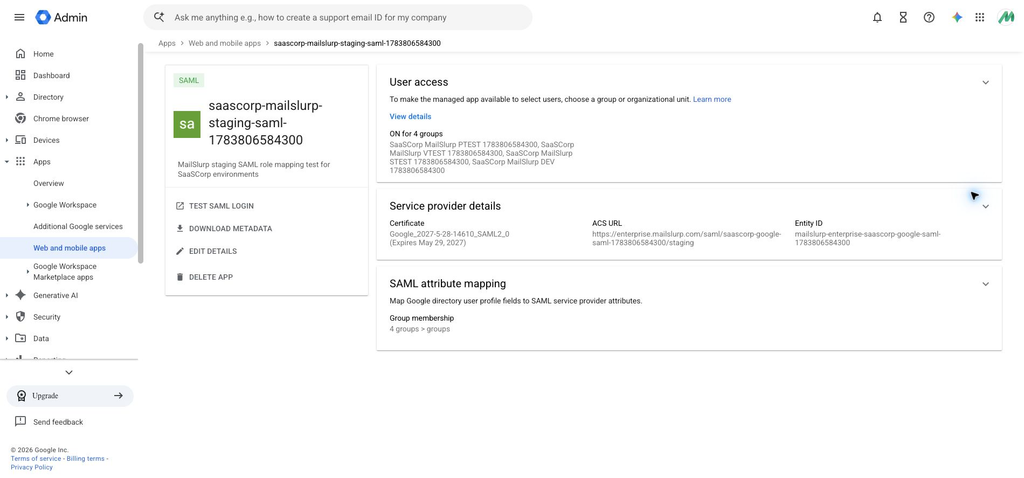
The app details page should show group-scoped access such as ON for 4 groups.
Map Google groups to MailSlurp roles
In the MailSlurp organization SAML settings, create one SAML role mapping per Google group:
| MailSlurp field | Value |
|---|---|
| Provider preset | Generic role |
| Claim name | groups |
| Claim value | Exact group value emitted by Google |
| Role | Matching MailSlurp role |
Example mappings:
| Claim name | Claim value | MailSlurp role |
|---|---|---|
groups |
MailSlurp DEV users |
DEV user |
groups |
MailSlurp PTEST users |
PTEST user |
groups |
MailSlurp STEST users |
STEST user |
groups |
MailSlurp VTEST users |
VTEST user |
Google Workspace can emit the selected group as a display name in the SAML assertion. Some tenants or configurations may emit a group email address instead. The reliable rule is to map the exact value seen in the assertion. When in doubt, test one assigned user and add a mapping for the emitted display name, group email, or both.
Configure MailSlurp SAML settings
Paste the Google identity provider values into MailSlurp:
| MailSlurp field | Google value |
|---|---|
| Entry point / SSO URL | Google SSO URL |
| Issuer | Google Entity ID |
| Certificate | Google certificate |
| Audience | Google app Entity ID |
| ACS URL | MailSlurp callback URL |
For Google Workspace, signed assertions and email NameID are the normal setup. Leave advanced compatibility fields at their defaults unless your Google tenant or MailSlurp support advises otherwise.
Expected login flows
DEV user
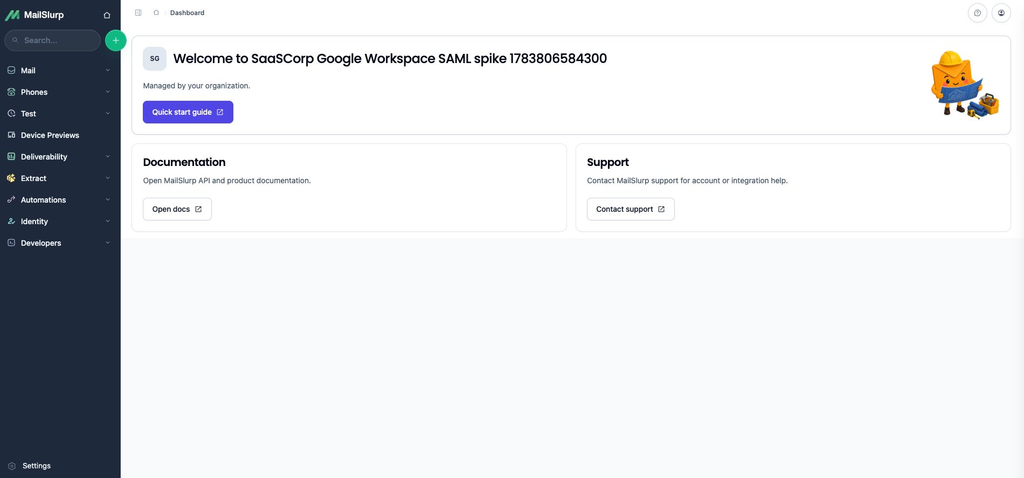
- The user opens the MailSlurp SAML login URL or launches the Google app.
- Google authenticates the user.
- Google emits the
groupsattribute containing the DEV group value. - MailSlurp creates or pairs the organization user.
- MailSlurp assigns the
DEV userrole. - The user can enter the default organization context and the DEV environment grant.
PTEST, STEST, and VTEST users
The flow is the same for each environment. Google emits the matching group value, MailSlurp assigns the matching role, and the user can enter the environment grant restricted to that role.
Multi-environment users
If a user belongs to more than one mapped Google group, MailSlurp can assign more than one mapped role during sign-in. The user can then enter each environment grant allowed by those roles.
Users with no mapped group
If a user can launch the Google app but no role mapping matches, MailSlurp uses the organization's SAML default-role behavior. For strict environment lockdown, avoid broad default roles and keep each environment grant restricted to a mapped role.
Users without Google app access
If the app is off for a user and none of their groups have app access, Google blocks the app launch before MailSlurp receives a SAML assertion.
Validation checklist
Before rollout:
- Confirm the Google app shows
ONonly for the intended groups. - Confirm the Google SAML attribute mapping sends selected groups to the
groupsattribute. - Create one MailSlurp SAML role mapping for each emitted group value.
- Test one user assigned only to the DEV group.
- Confirm that user receives the DEV MailSlurp role.
- Confirm that user can enter only the expected role-restricted environments.
- Repeat with PTEST, STEST, and VTEST users.
- Disable email login only after SAML login has been verified.
Troubleshooting
- If Google rejects the setup, confirm the ACS URL and Entity ID match the MailSlurp service provider values.
- If Google says the Entity ID is already used, set a unique Entity ID in Google and set the same value as the MailSlurp audience.
- If the user cannot launch the app, confirm the app is on for the user's Google group.
- If the user signs in but receives no MailSlurp role, check the exact
groupsclaim value emitted by Google and update the MailSlurp mapping. - If users see too many environments, review each environment grant and restrict it to the intended MailSlurp role.
- If users see too few environments, confirm they belong to the correct Google group and that the matching MailSlurp role mapping is enabled.