
SCIM user provisioning with MailSlurp
Documentation navigation
Provision and deprovision MailSlurp organization users with SCIM 2.0 from Microsoft Entra ID or another SCIM-capable identity provider.
Use SCIM 2.0 to create, update, deactivate, and group organization users from your identity provider. MailSlurp exposes an organization-specific SCIM tenant URL and bearer token so your IdP can own the user lifecycle while MailSlurp keeps inbox, phone, environment, and role access inside the organization boundary.
SCIM provisioning is available for enterprise organizations with the SCIM provisioning entitlement or an enabled SCIM enterprise add-on.
Supported providers
MailSlurp supports standards-based SCIM 2.0 user and group provisioning.
- Microsoft Entra ID works with the MailSlurp SCIM tenant URL, bearer token,
/Users, and/Groupsendpoints. - Okta and other SCIM-capable IdPs can connect with the same URL and bearer token model. For Okta OIDC tile launch with SCIM provisioning and MailSlurp environments, see Okta OIDC and SCIM environments.
- Google Workspace can use SAML SSO with MailSlurp today. Generic outbound SCIM provisioning to a custom SCIM endpoint depends on the Google Workspace app and provisioning options available in your Google Admin tenant. If your Google Workspace setup exposes a SCIM connector for MailSlurp or a custom SCIM app, use the MailSlurp tenant URL and bearer token; otherwise use SAML SSO plus role mappings.
Enable SCIM in MailSlurp
- Sign in as the organization owner or an admin with organization SAML management permission.
- Open the organization in the MailSlurp dashboard.
- Go to
SCIM provisioning. - Enable provisioning.
- Create a SCIM bearer token and copy it immediately. The full token is only shown once.
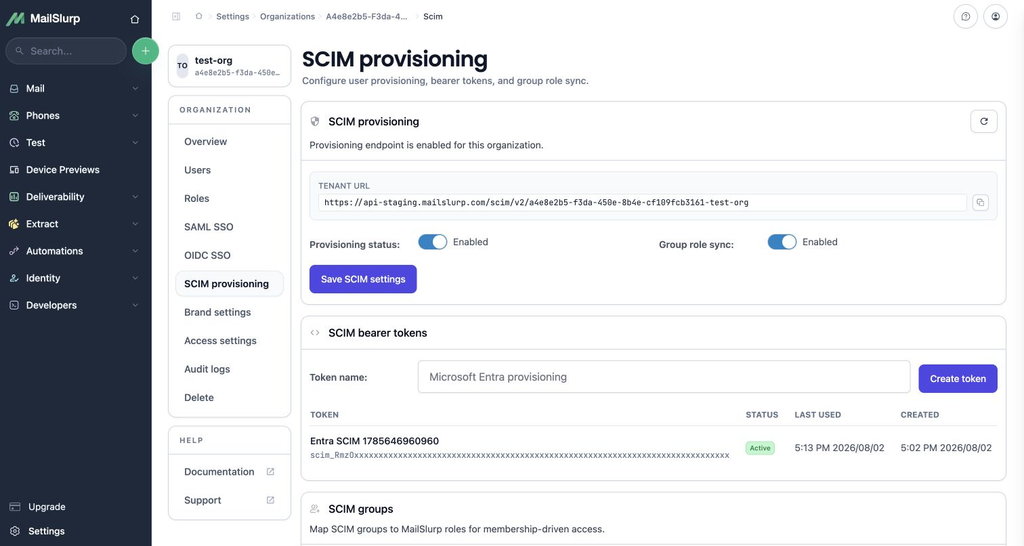
The tenant URL uses this format:
https://api.mailslurp.com/scim/v2/{organizationSlug}
For staging or private environments, use the URL shown in the MailSlurp dashboard. The SCIM protocol endpoints require Authorization: Bearer <token> and Content-Type: application/scim+json for request bodies.
Microsoft Entra ID setup
In Microsoft Entra admin center, configure MailSlurp as an enterprise application with automatic provisioning. If you already have a MailSlurp enterprise application, open it and start at the provisioning step.
Create the Entra enterprise application
- Open
Enterprise applications. - Click
New application. - Click
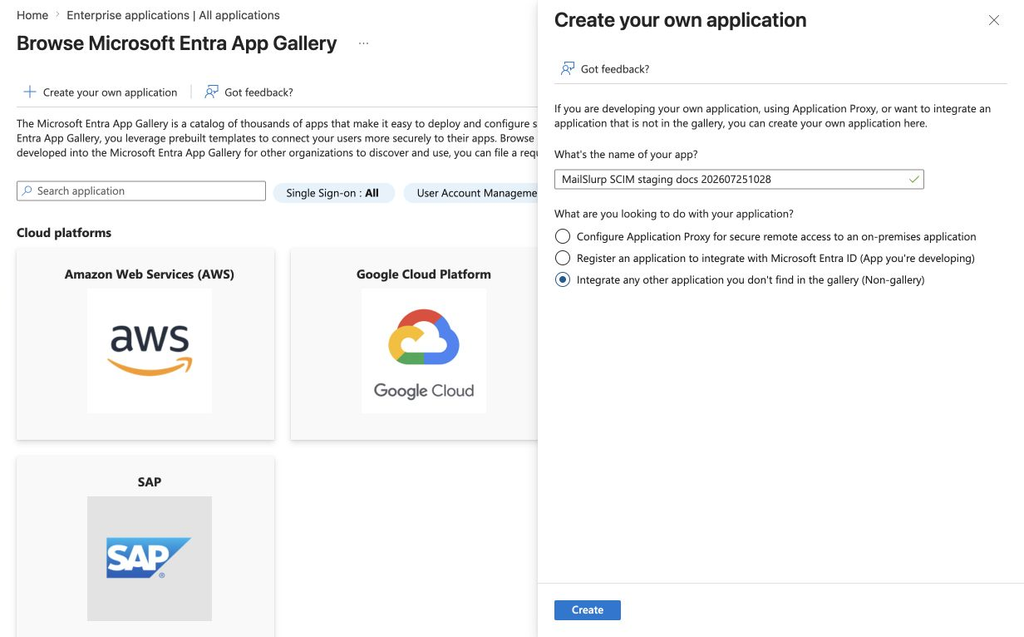
Create your own application. - Enter a name such as
MailSlurp SCIM. - Choose
Integrate any other application you don't find in the gallery (Non-gallery). - Click
Create.
Connect Entra to the MailSlurp SCIM endpoint
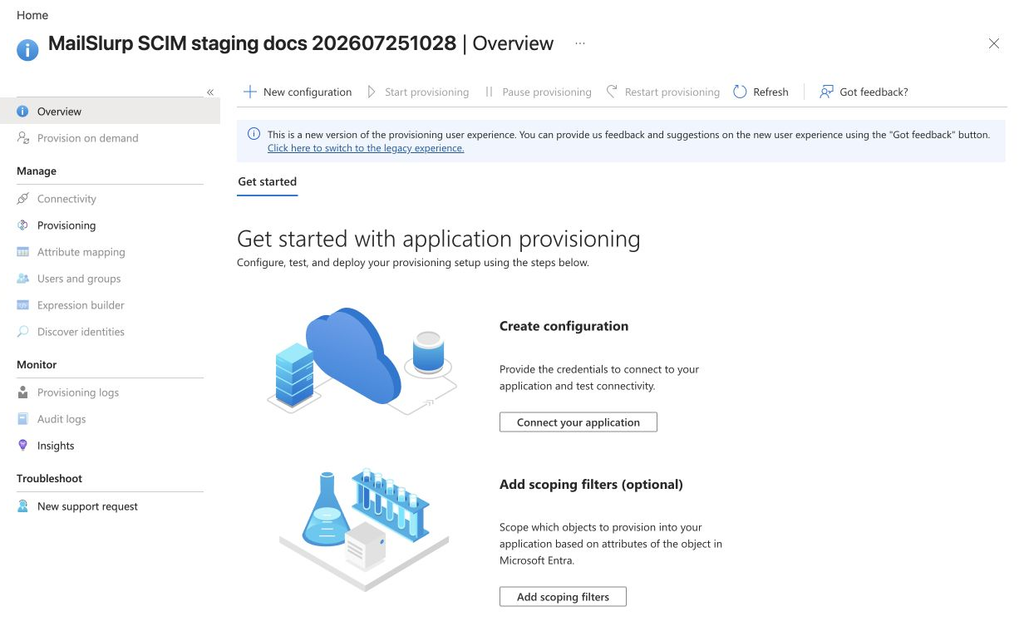
Open the new enterprise application, then open Provisioning. In the new Entra provisioning experience, click Connect your application or New configuration.
Select Bearer authentication, paste the MailSlurp tenant URL into Tenant URL, and paste the SCIM bearer token into Secret token.
For production, the tenant URL is:
https://api.mailslurp.com/scim/v2/{organizationSlug}
For staging or private environments, use the exact tenant URL shown in the MailSlurp dashboard.
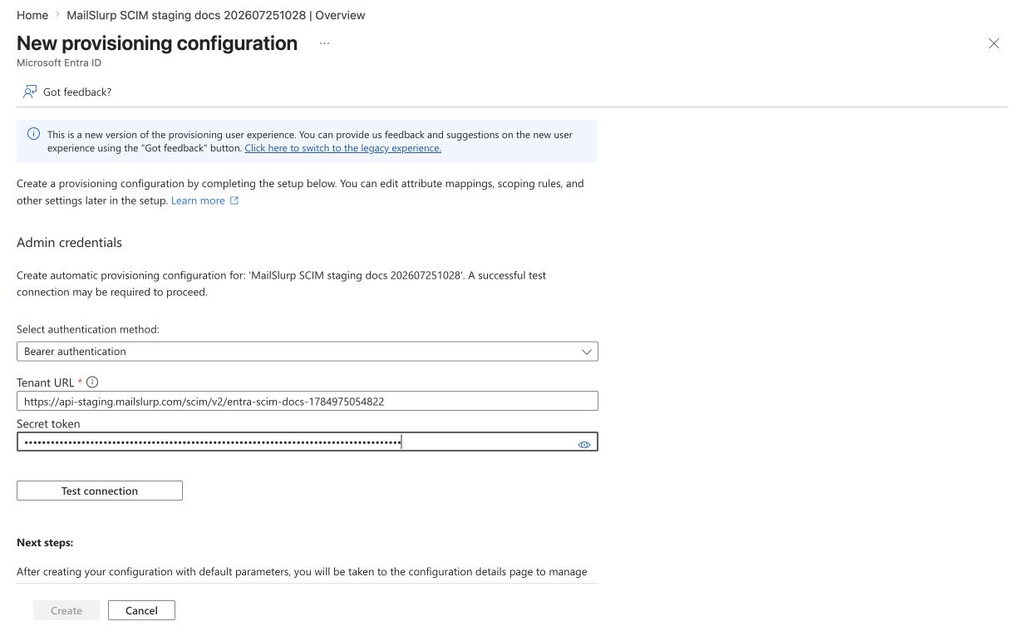
Click Test connection. When the connection succeeds, Entra enables Create.
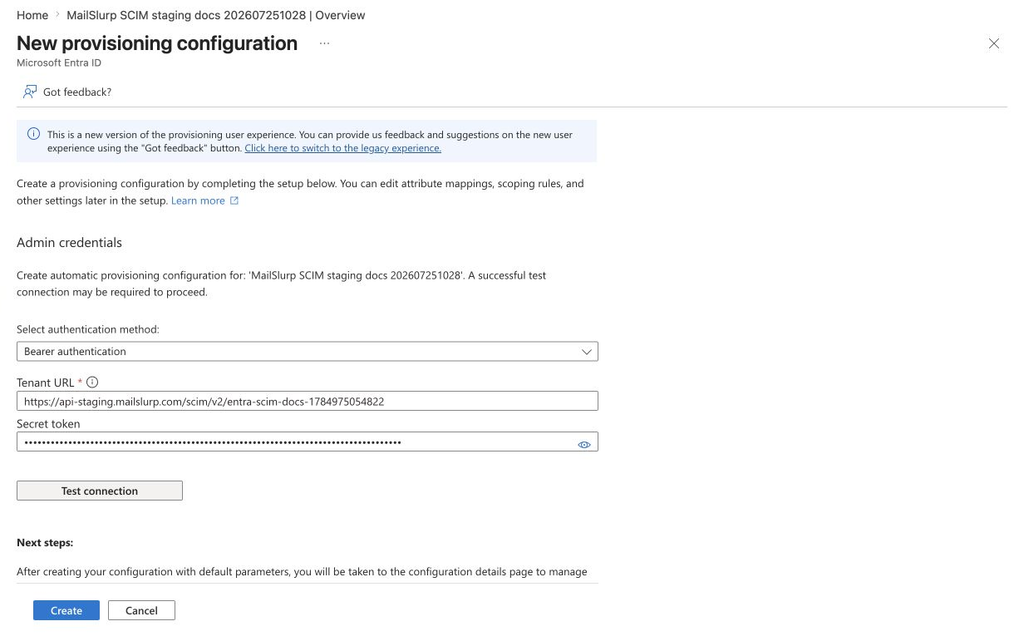
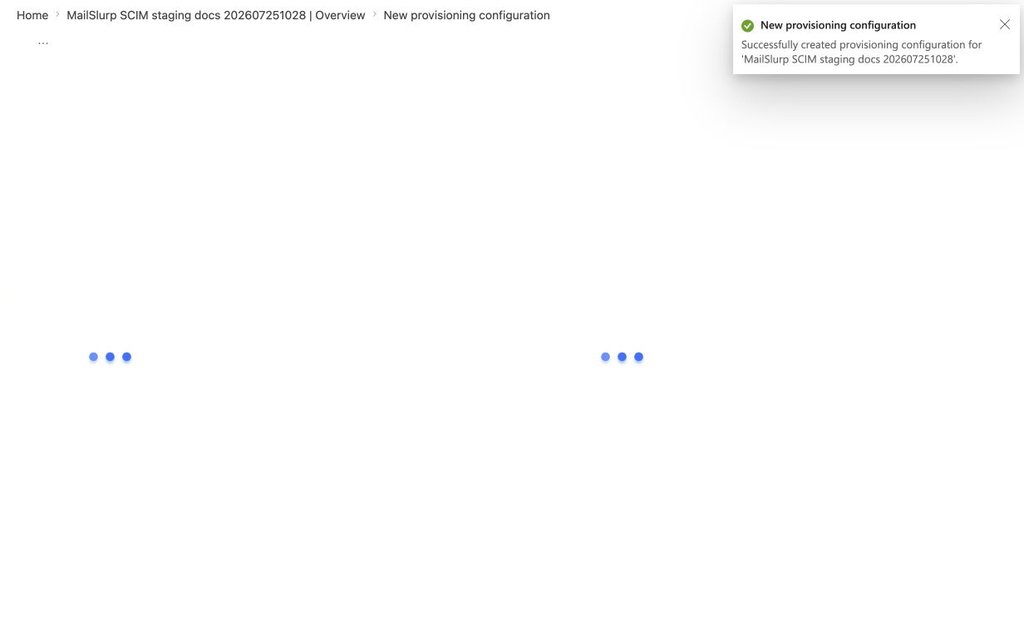
Click Create to save the provisioning configuration.
Review mappings and scoping
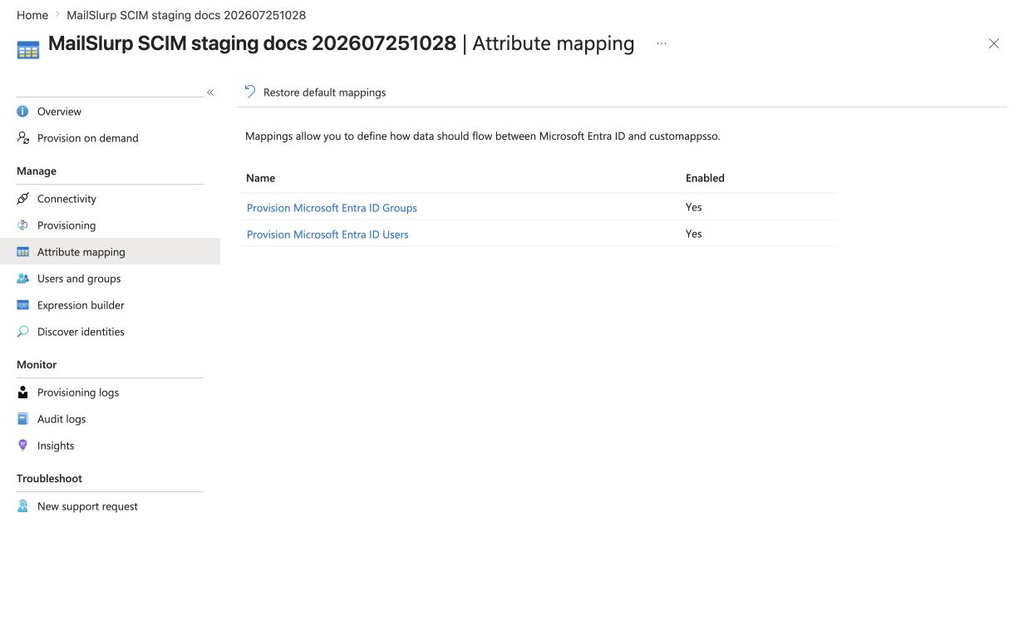
Open Attribute mapping and review the default user and group mappings. MailSlurp accepts Entra's standard SCIM user and group payloads, including userName, work email, display name, externalId, and active.
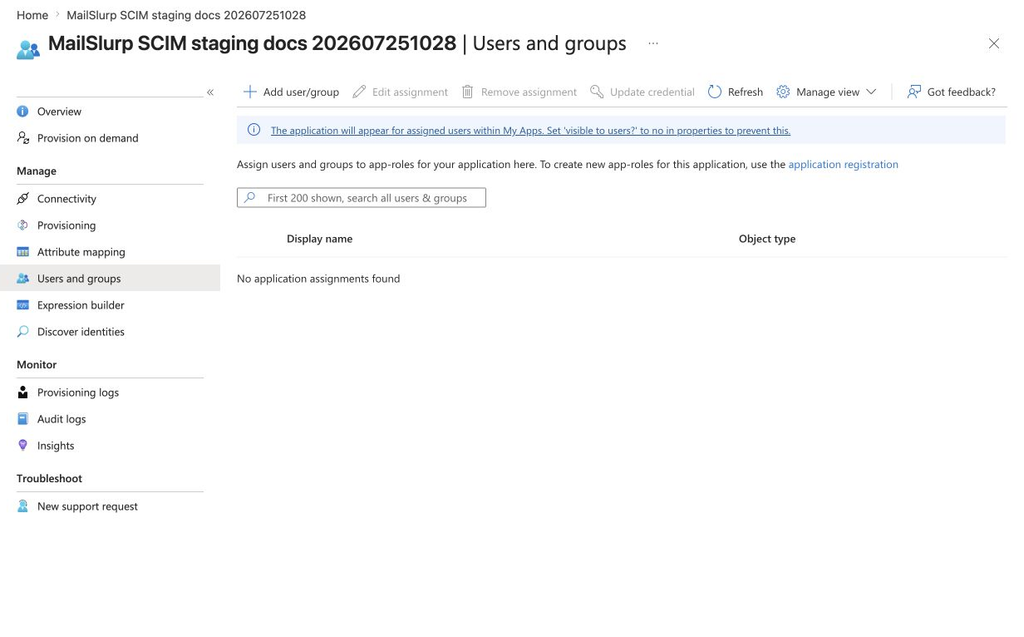
Open Users and groups, then click Add user/group and assign the users or groups Entra should provision into MailSlurp.
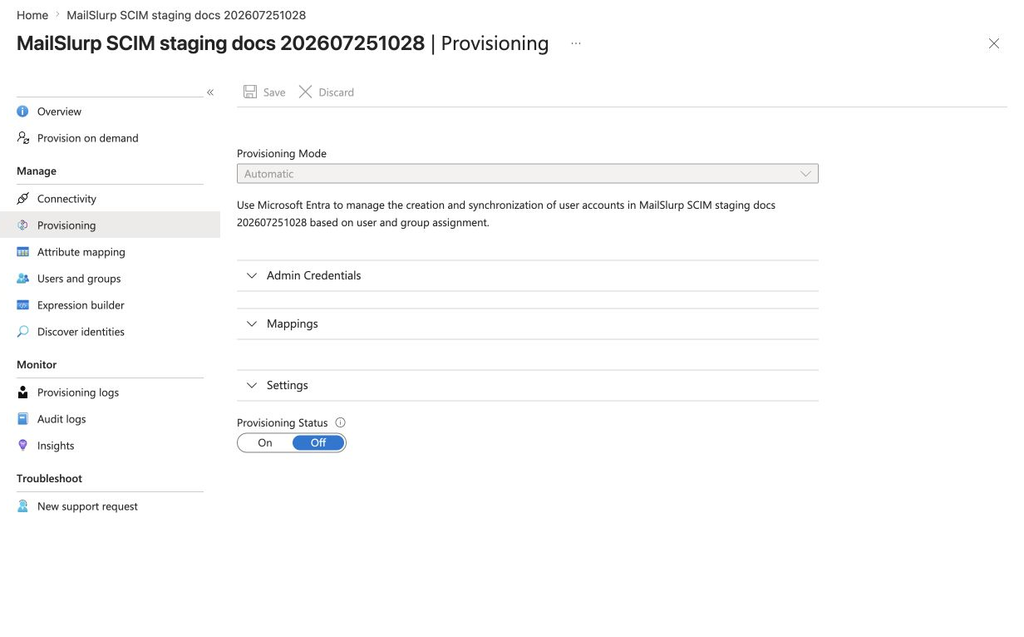
After assignments are ready, open Provisioning, set Provisioning Status to On, and click Save. Entra starts syncing assigned users and groups to the MailSlurp SCIM tenant URL.
Entra's connection test can query a random user with a SCIM filter. MailSlurp returns an empty SCIM ListResponse for users or groups that do not exist, so the test can pass before any users have been provisioned.
User provisioning behavior
MailSlurp maps SCIM users to organization child accounts.
| SCIM field | MailSlurp behavior |
|---|---|
id |
MailSlurp user ID after creation |
externalId |
Stored for IdP correlation |
userName |
User email address |
emails[type eq "work"].value or primary email |
User email address when userName is omitted |
displayName or name.formatted |
User display name |
active |
false disables the MailSlurp account; true reactivates it |
When an IdP deactivates a user, MailSlurp disables that organization user. Disabled users cannot authenticate with their API key or dashboard session.
Group provisioning and role sync
MailSlurp stores SCIM groups for the organization. Group role sync is optional and disabled by default.
To sync roles from IdP groups:
- Create MailSlurp organization roles first.
- Let your IdP provision groups into MailSlurp.
- In
SCIM provisioning, map each SCIM group to a MailSlurp role. - Enable
Group role sync.
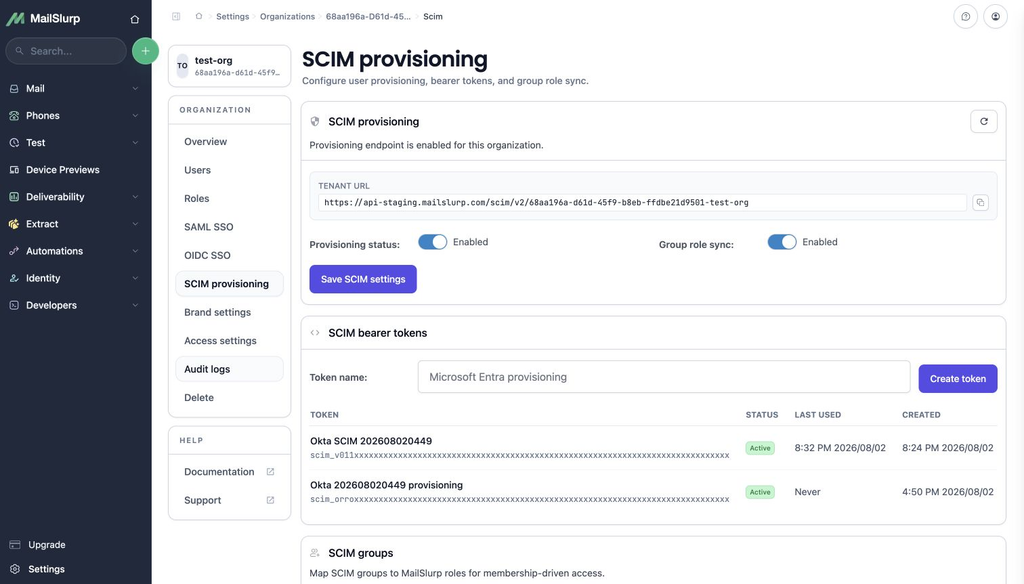
When role sync is enabled, group membership adds the mapped MailSlurp role to members of that SCIM group. When a user is removed from a SCIM group, MailSlurp removes the role assignment that SCIM created for that group.
SCIM endpoint reference
MailSlurp implements these SCIM resources under the organization tenant URL:
GET /ServiceProviderConfigGET /ResourceTypesGET /ResourceTypes/UserGET /ResourceTypes/GroupGET /SchemasGET /Schemas/{schemaId}GET /UsersPOST /UsersGET /Users/{id}PUT /Users/{id}PATCH /Users/{id}DELETE /Users/{id}GET /GroupsPOST /GroupsGET /Groups/{id}PUT /Groups/{id}PATCH /Groups/{id}DELETE /Groups/{id}
Supported filters:
- Users:
userName eq "name@example.com"andexternalId eq "id-from-idp" - Groups:
displayName eq "Engineering"andexternalId eq "id-from-idp"
Supported PATCH operations are case-insensitive for add, replace, and remove, matching IdPs that send operation names as Add, Replace, or Remove.