
guides
Microsoft Entra OIDC and SCIM setup for MailSlurp environments
Configure Microsoft Entra with a user-facing OIDC app tile and a hidden SCIM provisioning app for MailSlurp users, groups, roles, and environments.
Use with your tools
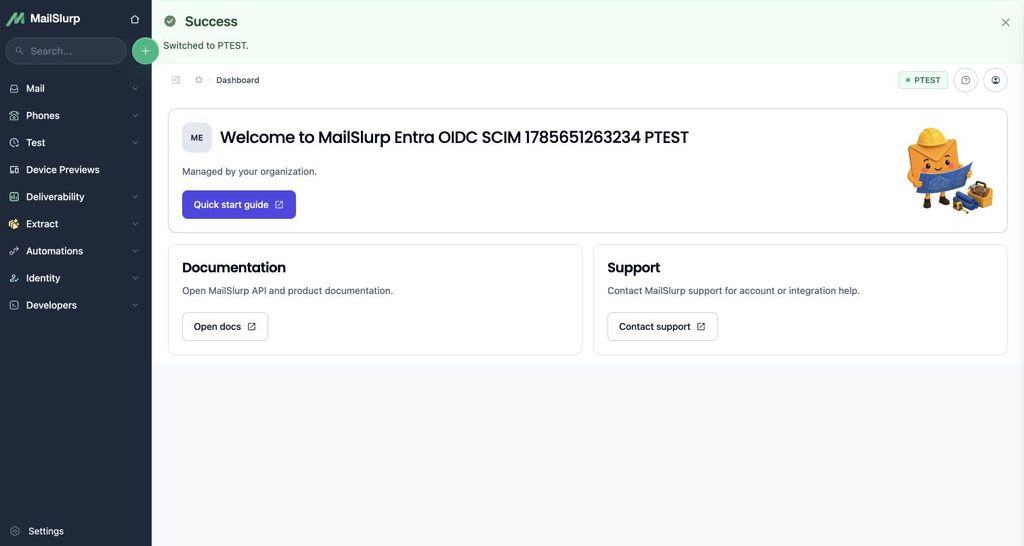
Use this guide to connect Microsoft Entra ID to MailSlurp with OIDC single sign-on, SCIM provisioning, and role-based access to separate MailSlurp environments such as PTEST, VTEST, or production.
The recommended Entra setup uses two Enterprise Applications:
- A user-facing OIDC application. This is the app tile users click in My Apps.
- A hidden SCIM provisioning application. This app creates, updates, disables, and groups MailSlurp organization users.
This two-app setup is the reliable pattern for custom Entra applications. A Microsoft gallery application can combine SSO and provisioning when the vendor-published gallery app supports both, but a custom OIDC app and a custom SCIM provisioning app should be configured separately. Do not put the SCIM credentials on the visible OIDC tile app unless you are using a vendor-published gallery app that explicitly supports both sign-in and provisioning.
The screenshots below use example app names and hidden values. Always copy the Tenant URL, redirect URI, login URL, client ID, client secret, and issuer URL from your own MailSlurp organization and Entra tenant.
The tested pattern in this guide uses Entra groups as the source of environment access. SCIM provisions those groups into MailSlurp, MailSlurp maps each SCIM group to a MailSlurp role, and MailSlurp environment grants decide which environment each role can enter. Entra app roles are optional in this pattern.
How the pieces fit together
MailSlurp stores OIDC and SCIM settings on one MailSlurp organization. That organization can manage access to multiple MailSlurp environments.
The flow is:
- Entra groups represent environment access, for example
MailSlurp PTESTandMailSlurp VTEST. - The SCIM app provisions those groups and users into the MailSlurp organization.
- MailSlurp maps each SCIM group to a MailSlurp role.
- MailSlurp environment grants map each role to the right environment account.
- The OIDC app tile sends users to the MailSlurp OIDC login URL with
returnTo=/environment-landing. - MailSlurp signs the user in and switches them to the assigned environment. If more than one environment is available, MailSlurp shows an environment chooser.
Requirements
Before starting, prepare:
- A MailSlurp Enterprise organization.
- MailSlurp owner or admin access for the organization.
- Microsoft Entra admin access.
- The MailSlurp environments that users should access.
- Entra security groups for each access set, such as
MailSlurp PTEST,MailSlurp VTEST, and optionallyMailSlurp All.
Use stable email addresses for Entra users. MailSlurp links the first OIDC login to the SCIM-provisioned user by email, then uses the OIDC issuer and stable sub subject for future logins.
Create MailSlurp environments and roles
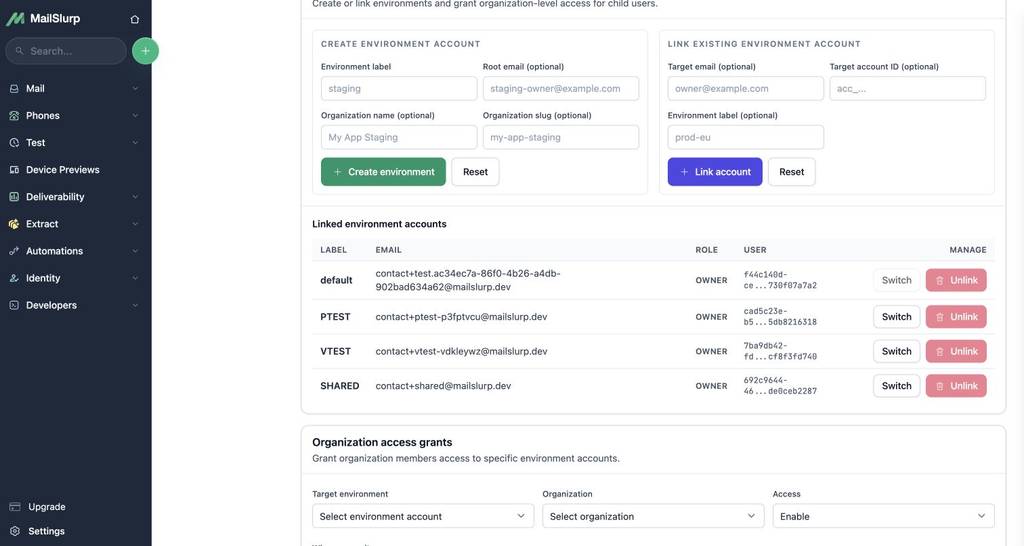
In MailSlurp, open Settings > Organizations > Environments.
Create one environment account for each isolated workspace. For example:
PTESTVTESTPROD
Create one MailSlurp organization role for each environment access set. For example:
PTEST accessVTEST accessAll environments access, if you want a role that can use every environment.
Create environment access grants from the managing organization to each environment account. Scope each grant to the matching MailSlurp role. If you have an all-environments role, add that role to every environment grant.
After the grants are saved, the current grants table should show each environment restricted to the intended roles.
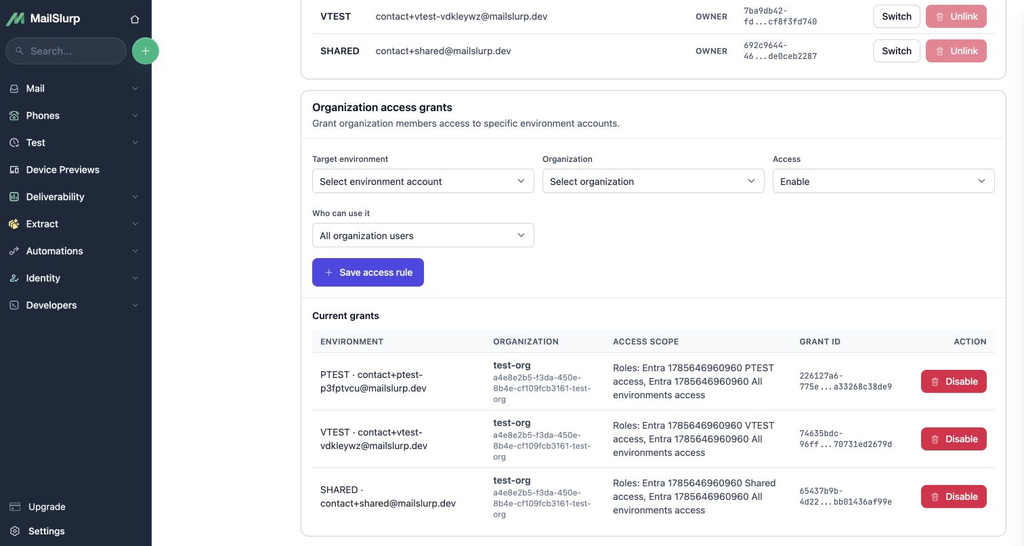
For strict segregation, grant users only the roles for the environments they should enter. Users can still see the managing organization context if they are allowed to use it, but the linked environment accounts are controlled by these explicit grants.
Enable SCIM in MailSlurp
Open Settings > Organizations > your organization > SCIM provisioning.
Enable:
- Provisioning status
- Group role sync
Copy the Tenant URL and create a SCIM bearer token. Store the token securely because Entra needs it only once when configuring provisioning.
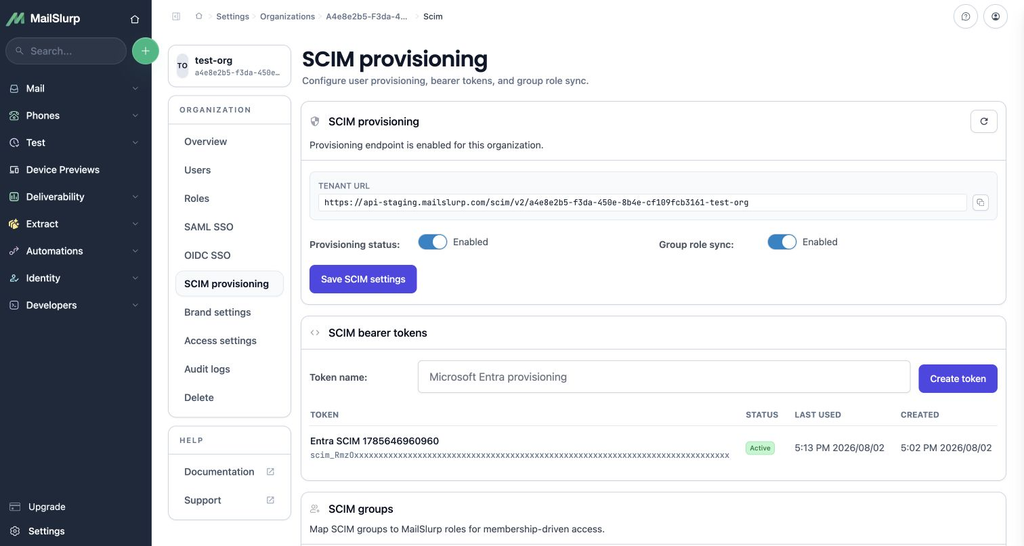
After Entra provisions groups for the first time, return to this page and map each SCIM group to a MailSlurp role. In the example above:
MailSlurp PTESTmaps toPTEST accessMailSlurp VTESTmaps toVTEST accessMailSlurp Allmaps toAll environments access
After saving group-role mappings, run provisioning again or wait for the next provisioning cycle so Entra exports group memberships after the MailSlurp role mapping exists.
Create the Entra OIDC app
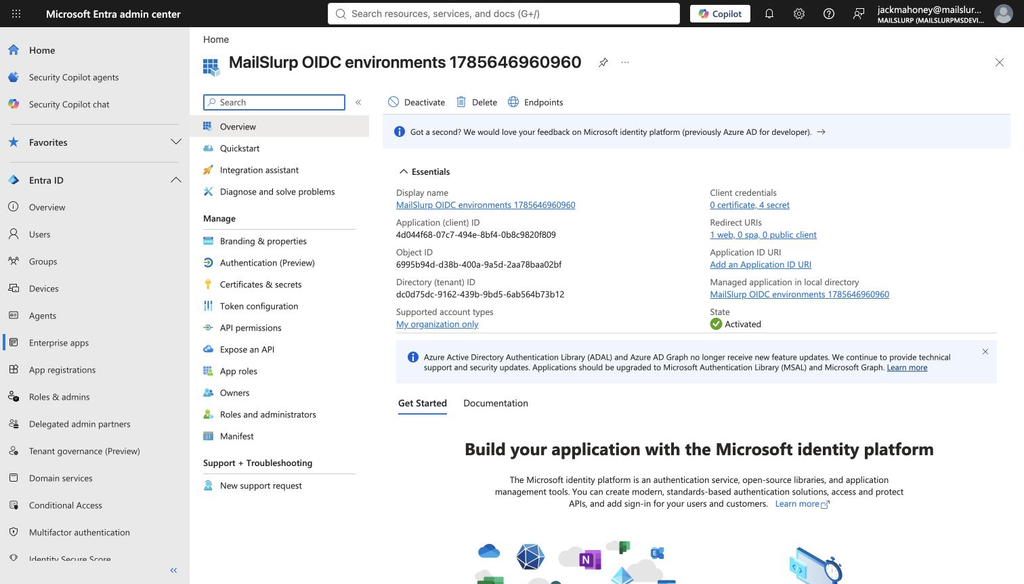
In Microsoft Entra admin center, open App registrations and create a new registration for the user-facing MailSlurp app.
Use:
- Supported account types: Accounts in this organizational directory only, unless your Entra tenant needs a broader model.
- Platform: Web.
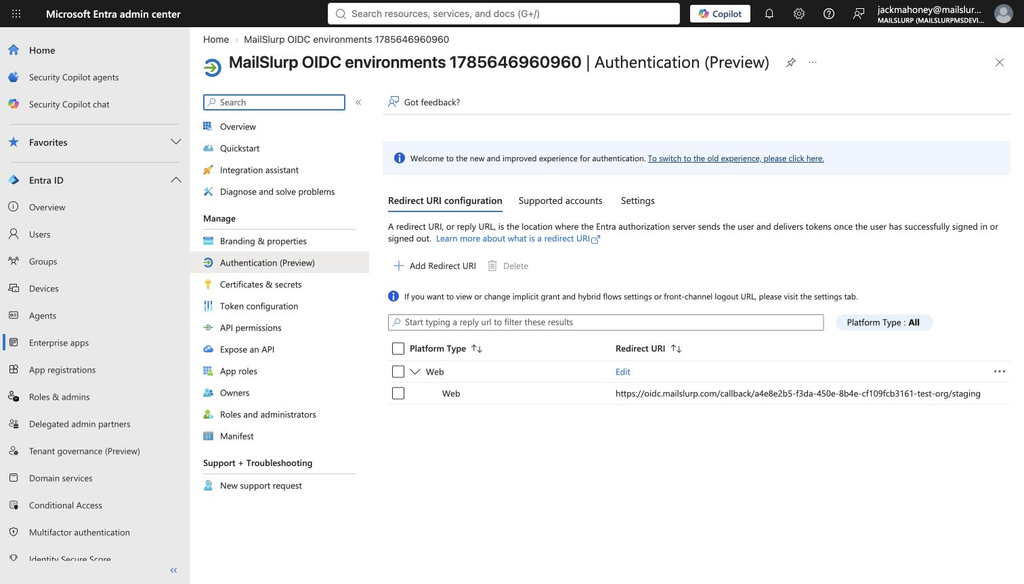
- Redirect URI: the MailSlurp OIDC redirect URI from the MailSlurp OIDC settings page.
In Authentication, confirm the web redirect URI exactly matches the MailSlurp redirect URI.
Create a client secret in Certificates & secrets. Copy the secret value immediately and save it in MailSlurp OIDC settings.
In API permissions, keep or add Microsoft Graph delegated User.Read, then grant admin consent for the tenant. Entra apps created in the portal usually include this default permission; apps created through automation can miss it.
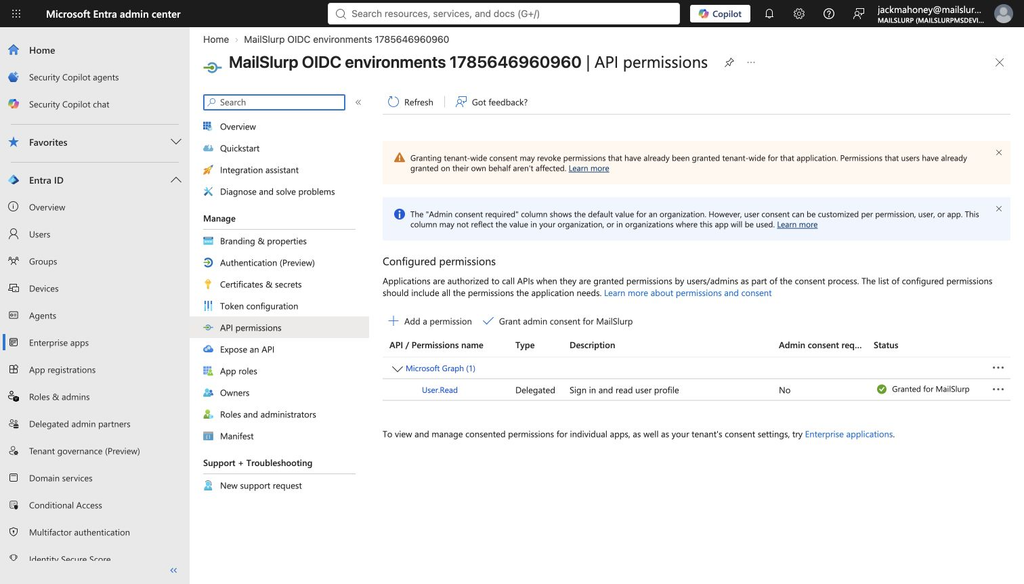
If users see Need admin approval during login, verify that User.Read exists and admin consent has been granted.
Assign the Entra OIDC app
Open the OIDC Enterprise Application that Entra created for the app registration. This is the user-facing app.
In Properties:
- Set Enabled for users to sign-in? to Yes.
- Set Assignment required? to Yes.
- Set the homepage or sign-on URL to the MailSlurp OIDC login URL.
- Include
returnTo=/environment-landingin that URL so My Apps tile launches route users into the right environment. - Save.
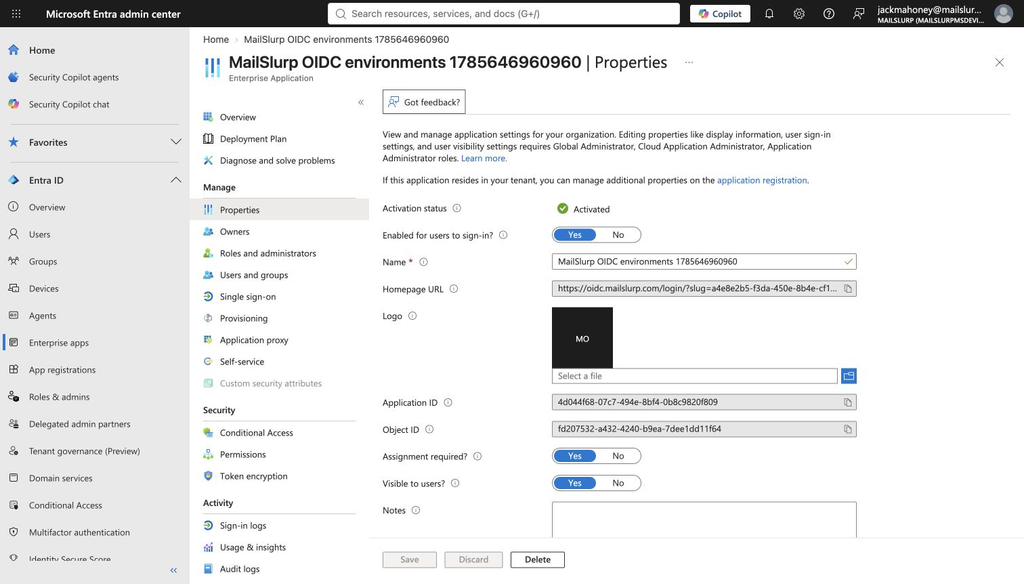
In Users and groups, assign the Entra groups that should be allowed to launch MailSlurp. Use the same groups that will be provisioned through SCIM.
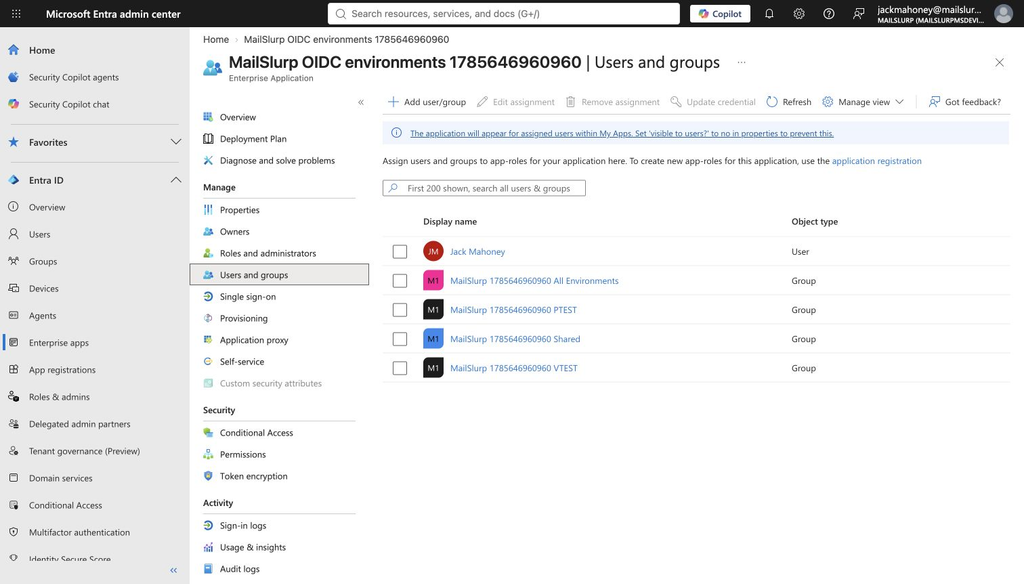
For the SCIM-first environment model, these OIDC assignments control who can click the tile and sign in. They do not need to assign app roles because MailSlurp gets the environment roles from SCIM group role sync.
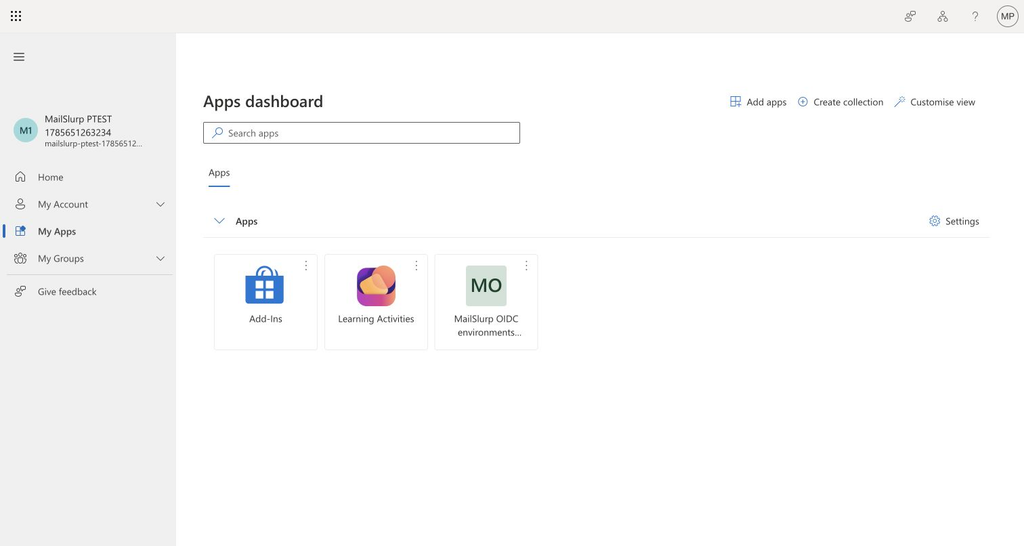
This is the tile users click from My Apps.
Optional: add Entra app roles
Only add Entra app roles if you want MailSlurp to receive role values in the OIDC roles claim, or if you are not using SCIM group role sync.
Example app roles:
| Display name | Value |
|---|---|
| MailSlurp access | MailSlurp.Access |
| MailSlurp PTEST access | MailSlurp.PTEST |
| MailSlurp VTEST access | MailSlurp.VTEST |
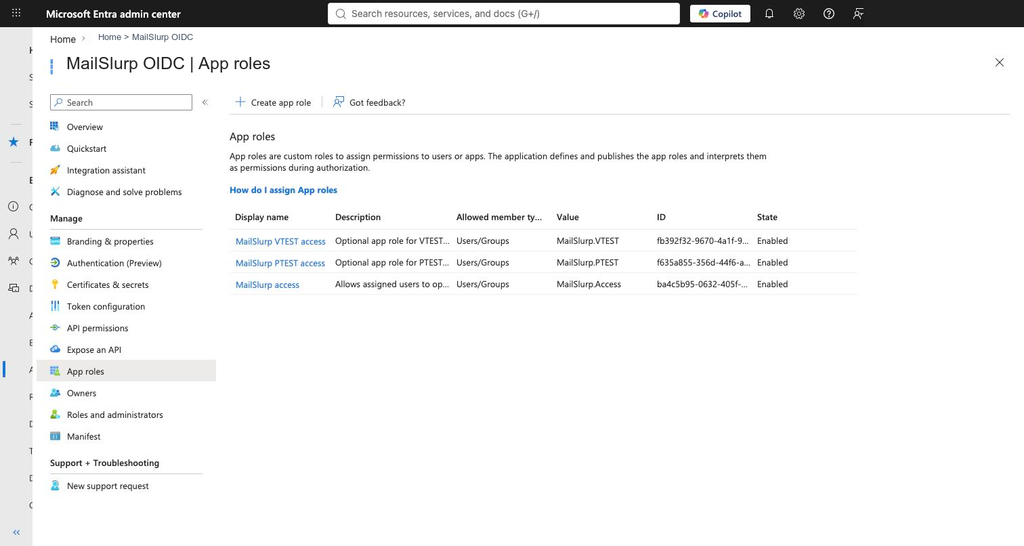
If you use this optional OIDC role-claim model, assign Entra groups to the matching app roles on the OIDC Enterprise Application:
- Assign the
MailSlurp PTESTgroup to theMailSlurp.PTESTapp role. - Assign the
MailSlurp VTESTgroup to theMailSlurp.VTESTapp role. - Assign an all-environments group to both app roles, or to app roles that map to roles with access to every environment.
Save OIDC settings in MailSlurp
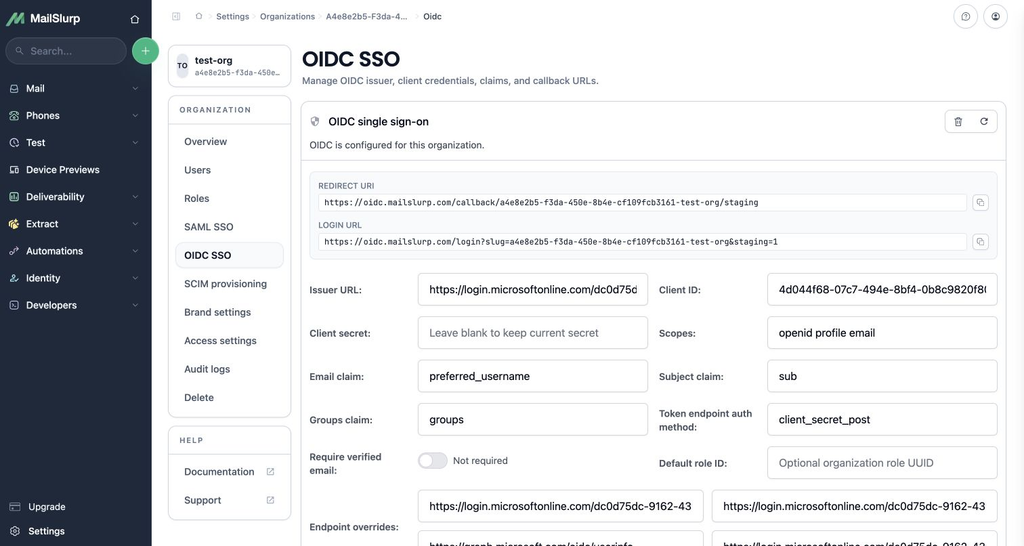
Back in MailSlurp, open OIDC SSO for the organization and enter the Entra values:
| MailSlurp field | Entra value |
|---|---|
| Issuer URL | https://login.microsoftonline.com/{tenant-id}/v2.0 |
| Client ID | Application client ID from the OIDC app registration |
| Client secret | Client secret value from Entra |
| Scopes | openid profile email |
| Email claim | preferred_username for Entra UPN-based users |
| Subject claim | sub |
| Groups claim | groups for OIDC group mappings, or roles when using Entra app roles |
| Token endpoint auth method | client_secret_post |
| Require verified email | Usually off for Entra unless your tenant emits email_verified reliably |
Save the OIDC settings.
For Entra, preferred_username usually matches the user principal name that SCIM provisions as userName. If your SCIM mapping uses the user's email address instead, set the MailSlurp OIDC email claim to the matching claim value. The OIDC email claim and the SCIM-created user identity must point to the same user.
If you use SCIM group role sync, MailSlurp assigns organization roles from SCIM group membership before OIDC login. In that setup, OIDC role mappings are optional for environment access.
If you do not use SCIM group role sync, add OIDC role mappings so MailSlurp can map Entra roles claim values directly to MailSlurp roles during login.
Create the Entra SCIM provisioning app
Create a second Entra Enterprise Application for SCIM provisioning. Use a non-gallery application unless MailSlurp provides a gallery app for your tenant.
Assign the same Entra groups to the SCIM app that should be provisioned into MailSlurp.
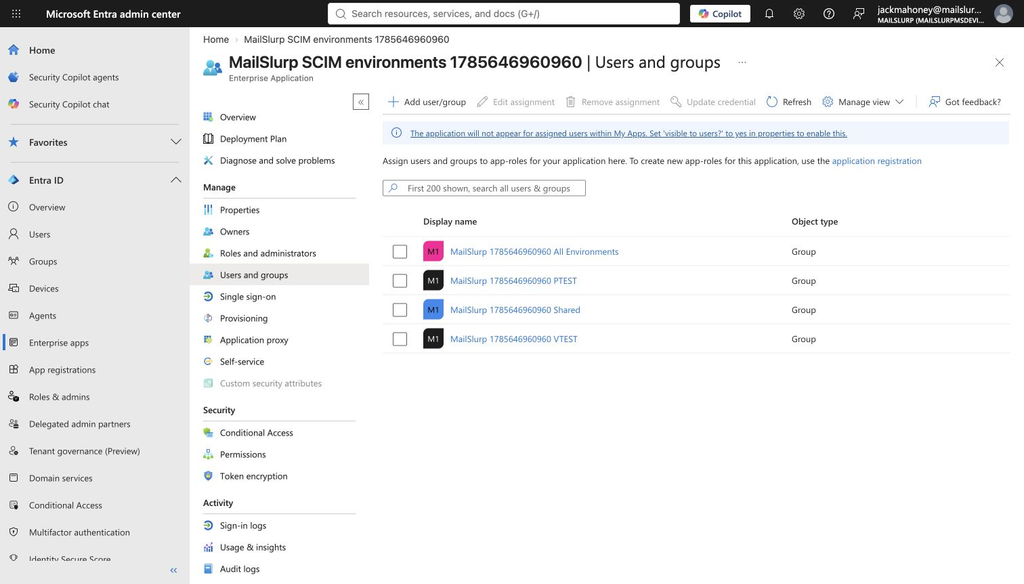
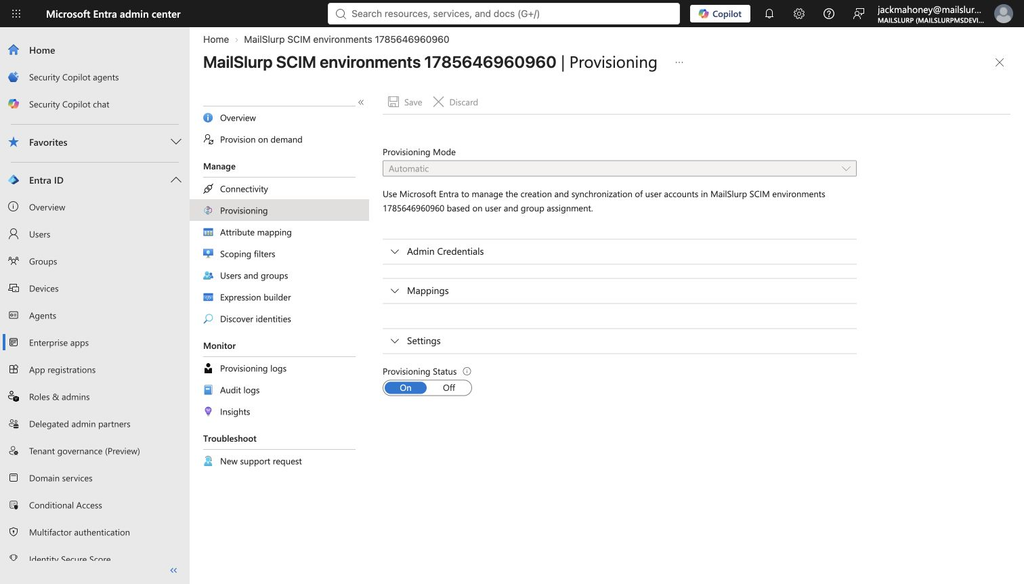
Open Provisioning for the SCIM app and set Provisioning Mode to Automatic.
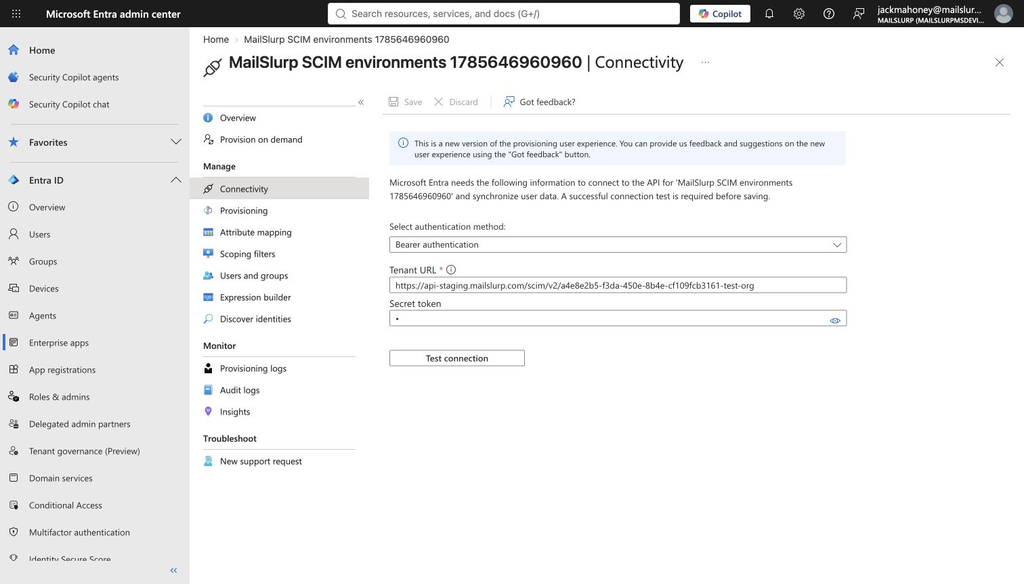
In the provisioning connection settings, enter:
| Entra field | MailSlurp value |
|---|---|
| Tenant URL | The MailSlurp SCIM Tenant URL |
| Secret Token | The MailSlurp SCIM bearer token |
Use Test Connection before saving. Then set Provisioning Status to On.
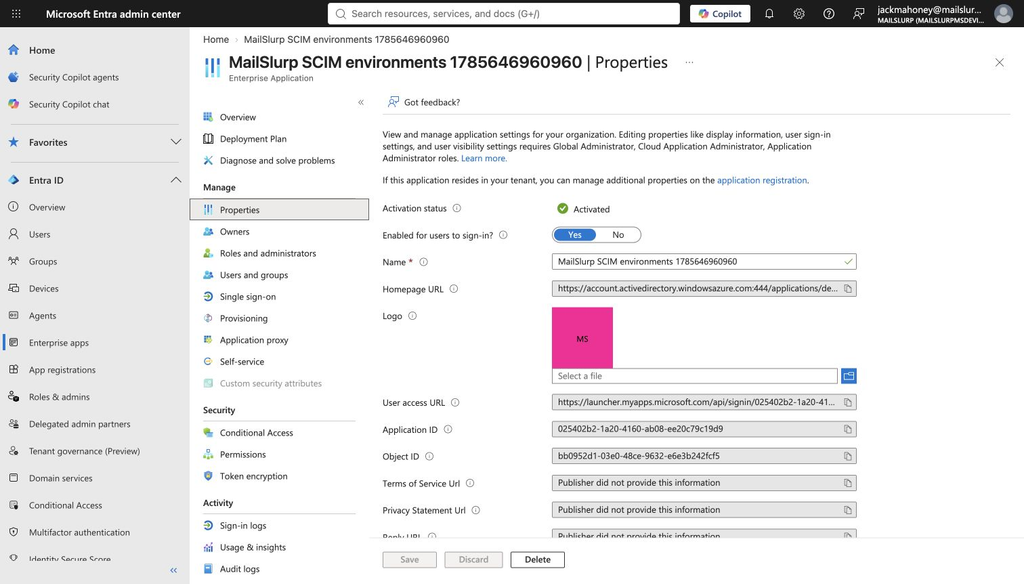
Because this app is for provisioning only, hide it from users:
- Open the SCIM Enterprise Application Properties.
- Set Visible to users? to No.
- Save.
Microsoft also supports hiding an Enterprise Application from My Apps by adding the HideApp tag to the service principal. See Microsoft Learn: Hide an enterprise application.
Provision users and groups
Provision users and groups with Entra's normal provisioning cycle or Provision on demand.
For a fast test, provision:
- The environment-specific groups, such as
MailSlurp PTESTandMailSlurp VTEST. - One user in only
PTEST. - One user in only
VTEST. - One user in the all-environments group.
Provisioning order matters for a fast test:
- Provision the Entra groups so they appear in MailSlurp SCIM settings.
- Map each MailSlurp SCIM group to the correct MailSlurp role.
- Provision the users.
- Provision the groups again, or wait for the next scheduled provisioning cycle, so group memberships are exported after role mappings exist.
When using Entra provision-on-demand for groups, include the group and its members in the workflow. A group object without members is not enough for MailSlurp group role sync; MailSlurp needs the SCIM members values to assign roles.
After provisioning, confirm in MailSlurp that:
- SCIM users exist in the organization.
- SCIM groups exist.
- Group member counts match Entra group membership.
- Each SCIM group is mapped to the intended MailSlurp role.
- Each SCIM-provisioned user has the MailSlurp role that matches their Entra group.
Test the app tile
Open Microsoft My Apps as an assigned user and click the MailSlurp OIDC tile.
MailSlurp should route the user through:
- Entra authentication.
- The MailSlurp OIDC callback.
- MailSlurp environment landing.
- The assigned environment dashboard, or the environment chooser if the user has more than one assigned environment.
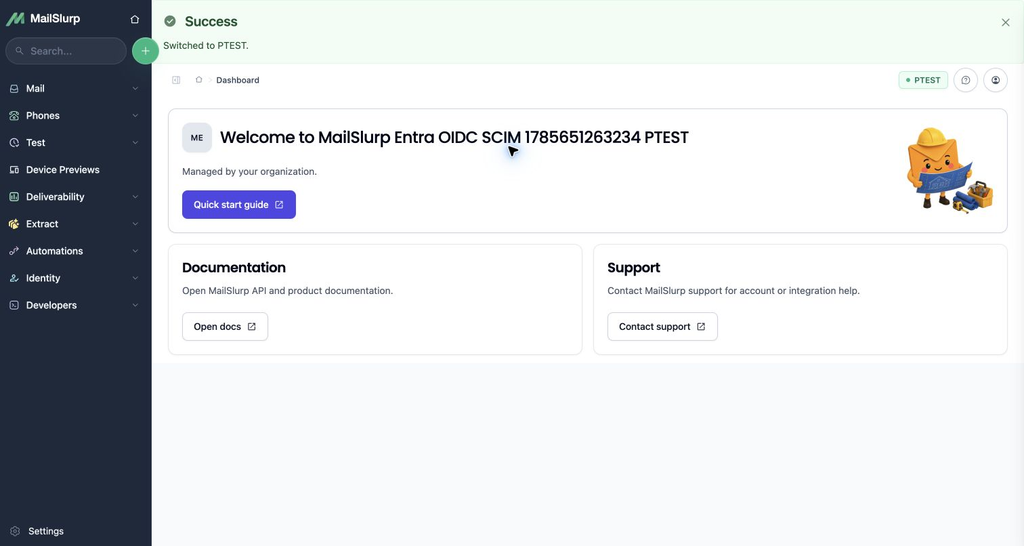
For a user assigned only to PTEST, MailSlurp switches directly into the PTEST environment.
The same result should occur when the user launches from the My Apps tile.
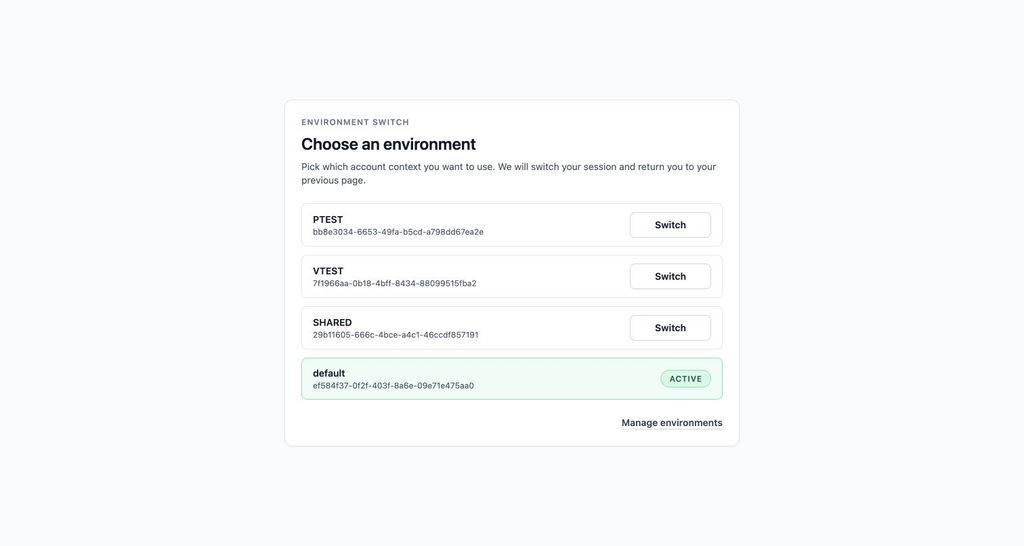
For a user assigned to more than one environment, MailSlurp shows the environment chooser with the default account and the environments allowed by the user's MailSlurp roles.
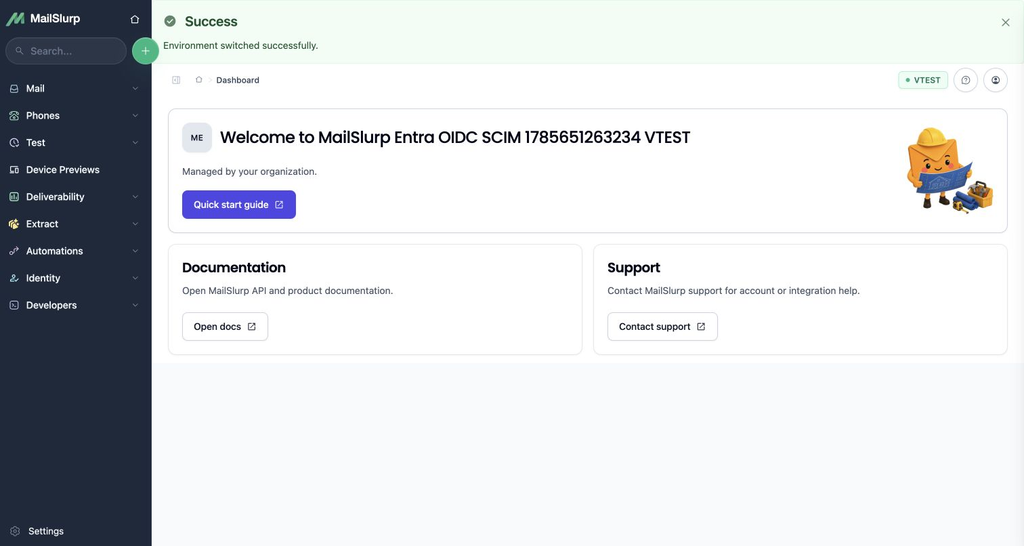
After the user chooses an environment, MailSlurp switches the dashboard context.
Troubleshooting
No OIDC settings found
Confirm the tile or login URL uses the MailSlurp OIDC login URL for the same organization slug that has OIDC configured.
Need admin approval
Add Microsoft Graph delegated User.Read to the OIDC app registration and grant admin consent for the tenant.
User is not assigned
When Assignment required? is on, the user must be assigned directly or through a group on the OIDC Enterprise Application. If using optional app roles, the group must be assigned to the matching app role.
SCIM users appear but groups have no members
Confirm group membership exists in Entra and that the SCIM app is assigned to the groups. If using provision-on-demand for a group, include the members in the provision-on-demand request. If the group was provisioned before users existed in MailSlurp, provision the users, then provision the group again or wait for the next scheduled cycle. Scheduled provisioning should export assigned group memberships automatically.
The SCIM app appears in My Apps
Set Visible to users? to No on the SCIM Enterprise Application properties page. If managing the app through Microsoft Graph, include the existing service-principal tags and add HideApp.
A user can see the wrong environment
Check the MailSlurp environment access grants and SCIM group role mappings. The user should only be in Entra groups that map to roles with access to the intended environments.
A user sees the environment chooser instead of being switched automatically
MailSlurp switches automatically only when exactly one non-default linked environment is available. If the user can access several environments, MailSlurp shows the chooser. Remove extra Entra group membership or remove broader roles from the environment grants if the user should enter only one environment.
A user signs in as the wrong MailSlurp account after an email change
MailSlurp links the OIDC issuer and subject after the first successful login. Keep the subject claim set to Entra sub. If you intentionally recreate the Entra app or change the subject claim, ask a MailSlurp organization admin or MailSlurp support to reset the affected user's OIDC link.