










Review email renders in Slack
Documentation navigation
Install the MailSlurp Slack app to post email render results to a channel, see each email client's status and screenshots, and approve renders or request changes from Slack.
Overview
Before a campaign or account email goes out, someone usually has to check it in Gmail, Outlook, Apple Mail and on a phone. The people who sign it off, such as the marketer, the designer and the developer, often work in Slack rather than in a testing dashboard. Copying screenshots into a channel by hand makes it easy to review an old version or miss the one client that broke.
MailSlurp renders your email on real email clients and devices and captures a screenshot of each. The MailSlurp Slack app posts those results to the channel you choose, so the team sees which clients passed and can approve the email or ask for changes without leaving Slack.

The button opens the Slack setup page in MailSlurp, which connects your workspace to your MailSlurp account. Sign in or create a free account first if you do not have one.
What the Slack app posts
Each render message names the email and shows how the render went:
- a message when a render starts, finishes, partly finishes or fails
- a line for every email client, such as “Gmail on Android: ready” or “Classic Outlook on Windows: failed”, with the reason when a client fails
- a View render button that opens the full results
- optionally, one screenshot per email client as a reply in the message thread
- optionally, Approve and Request changes buttons for reviewers
Screenshots and the View render button use a share link, so people in the channel can open the results without a MailSlurp login.
Connect a workspace
- Open Device previews > Notifications > Slack in MailSlurp, or use the button above.
- Choose Connect Slack, pick your Slack workspace and review the permissions.
- Choose Allow to return to MailSlurp.
- Load your channels and add the channel that should receive render results.
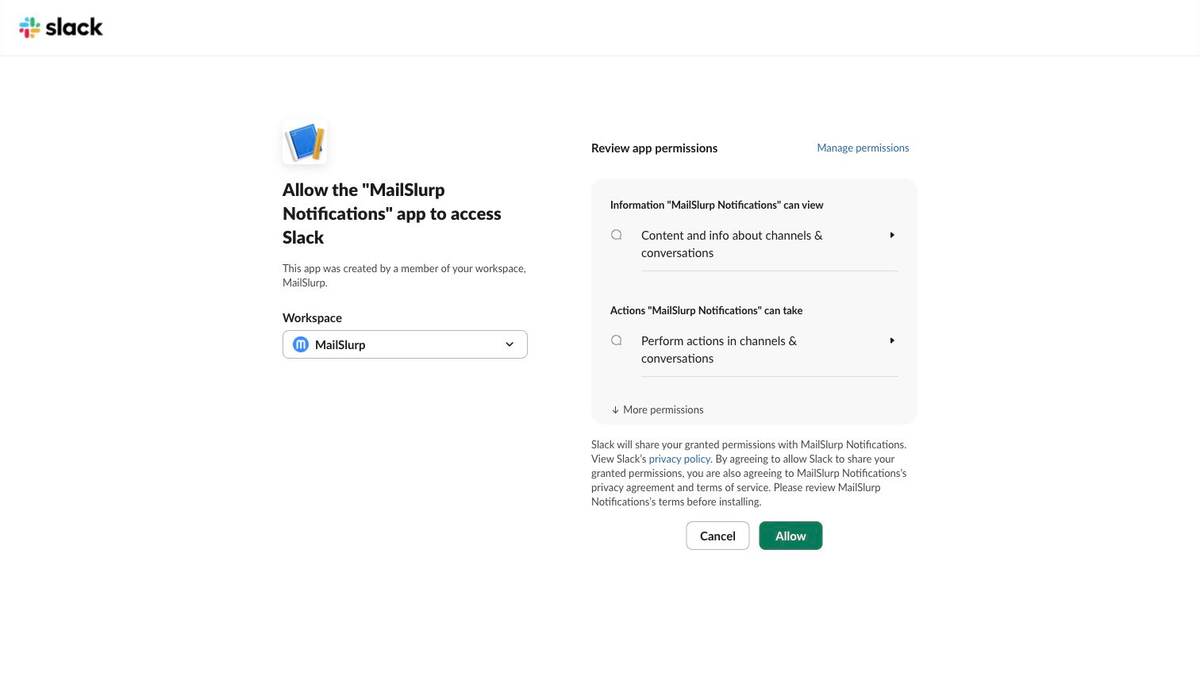
The app asks to post messages, including to public channels it has not joined, and to list your public and private channels so you can choose one. To post to a private channel, invite the MailSlurp Notifications app to that channel first.
Choose what gets posted
Open Device previews > Notifications and create a rule for the Slack channel. Choose the events to send, for example Completed and Failed, then open Options to turn on:
- Include thumbnails to show the main screenshot in the message
- Post screenshots by client to reply in the thread with a screenshot for each email client
- Ask for approval in Slack to add the Approve and Request changes buttons
Use Test to send a sample message and check that it arrives in the right channel.
Approve or request changes
When a render finishes, anyone in the channel can review it:
- Approve records the approval and updates the message to show who approved it.
- Request changes opens a short form. Pick the email client that needs work, if it is specific to one, and describe the problem, for example “The logo disappears in Outlook dark mode”. The comment is saved on the render, and the message updates to show the request.
Reviewers can change their decision later, for example approving after a fix. The full review history appears on the render page in MailSlurp, where teammates can also approve or request changes directly.
To tell the email’s owner when a decision is made, create a second rule with the Approved and Changes requested events, sent to their channel or another destination.
Troubleshooting
If a message does not arrive:
- check that the rule is enabled and the destination is active
- invite the app to the channel if it is private
- send a Test message from the rule
- reconnect the workspace if the Slack app was removed
For other alert types, such as quota and billing alerts, see notifications. To learn more about rendering, see device renders.
Running this code needs an API key. Get one free