










Classic Outlook for Windows email support: what HTML and CSS work (tested 2026)
Does classic Outlook support border-radius, media queries, WebP or the button element? Test emails rendered in Outlook for Windows, with workarounds.
Use with your tools
Ask anyone who builds HTML email which app gives them the most trouble, and you will usually hear the same answer before you finish the question: Outlook. More precisely, classic Outlook for Windows, the desktop app that has shipped with Microsoft Office for decades and still sits on a great many office computers.
Classic Outlook has a reputation, and it has earned it. Buttons you designed with soft rounded corners arrive square. Two neat columns slide into one long one. A colour you picked carefully is quietly swapped for something else. None of this shows up in your email builder's preview, which is exactly why it is so frustrating: the email looks finished right up until a colleague forwards you a screenshot from their work laptop.
This guide explains why classic Outlook behaves the way it does, shows exactly which CSS and HTML it supports in our tests, and walks through the workarounds that keep an email looking intentional there.
Why classic Outlook renders email differently
It uses Microsoft Word to lay out your email
Most email apps display HTML email much as a web browser would. Classic Outlook doesn't. Since Outlook 2007, the Windows desktop app has used Microsoft Word's layout engine to display email. Word was built to lay out documents, not web pages, so it understands tables, fonts and basic colours well, and much of modern CSS not at all.
That one decision explains most of the oddities in this guide. When Word meets a CSS property it doesn't know, it doesn't raise an error. It simply ignores the rule and carries on, and whatever sits underneath that rule is what your reader sees.
Classic or new: which Outlook do your readers use?
Microsoft now offers a second Windows app, new Outlook for Windows, which renders email much more like a browser. The two apps look similar, share a name and often sit on the same company's computers, but they handle the same email very differently. This page covers classic Outlook only. If your list is mostly business readers, assume you have some of each until you know otherwise.
How we tested classic Outlook
Support tables that list which CSS each email app supports are a good starting point, but many of their results were recorded years ago. We wanted to see current behaviour, so we sent classic Outlook our own test emails and looked at what actually arrived.
The test emails
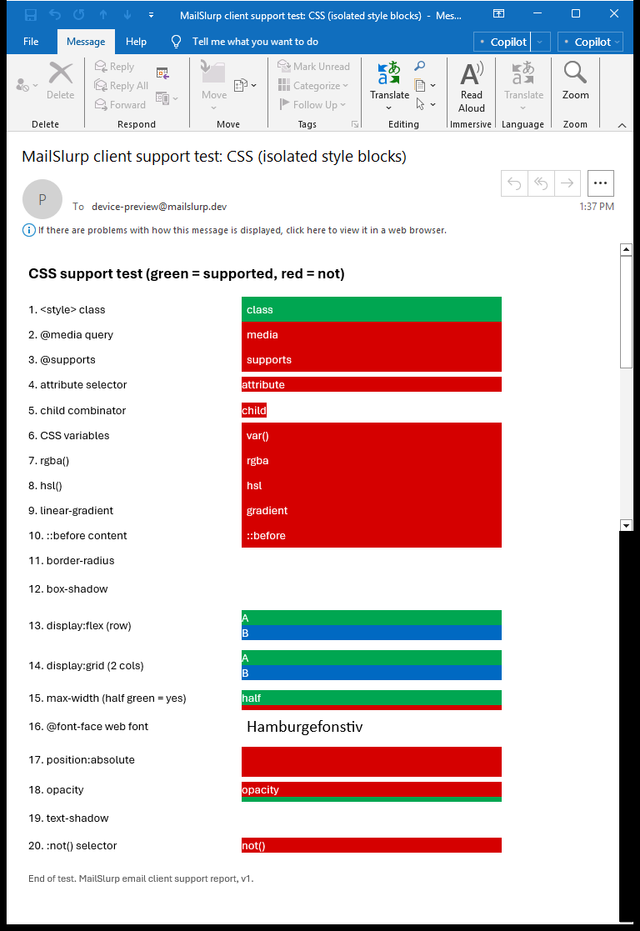
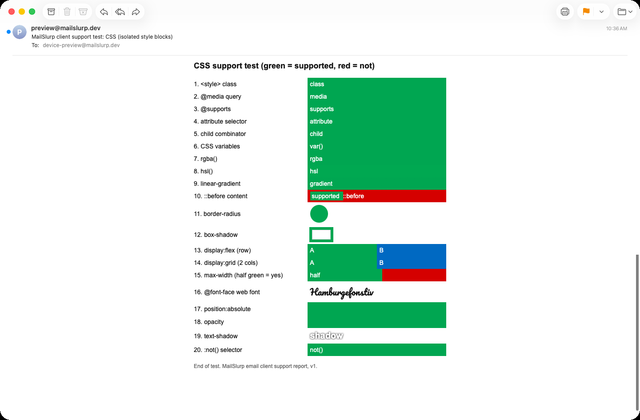
The CSS test email is a simple two-column table with 20 lines. The left column names a feature, such as rounded corners, a media query or a custom font. The right column holds a block that turns green only if the app applies that feature. If the app ignores it, the block stays red.
A second test email checks image formats and HTML elements: WebP and AVIF images, inline SVG, a video, a <button> element, a background image, and a block that only classic Outlook should show.
How to read the screenshots
Green means the feature worked. Red, or a missing shape, means classic Outlook ignored it. We read each line from a screenshot of the delivered email, not from documentation, and these results come from our November 2026 tests.
Setting this up yourself means keeping a Windows computer with classic Outlook installed, sending it every revision of your email and taking screenshots by hand. We used MailSlurp, an email testing platform, to send the test emails and capture classic Outlook automatically, next to the other email apps we tested.
How automated device rendering works
Choose the devices and email services you want to test, and MailSlurp gives you a special email address. Send your campaign to that address. MailSlurp opens the email in the selected apps and webmail services, then captures screenshots automatically.
The screenshots come back together, ready to compare across phones, tablets and computers. Check the layout, images and buttons, then share a result link so your team can review the same version of the email.
What CSS works in classic Outlook
The short version is: very little. Classic Outlook applied just 1 of the 20 CSS features in our test, plain class selectors in a <style> block. Here is the CSS test email in classic Outlook, next to Apple Mail on a Mac, which applied every feature.
Outlook for Windows (classic)
Apple Mail (macOS)
| CSS feature | Classic Outlook for Windows |
|---|---|
<style> class selector |
Yes |
@media query |
No |
border-radius |
No |
rgba() and hsl() colours |
No |
max-width |
No |
display: flex and display: grid |
No |
linear-gradient |
No |
box-shadow and text-shadow |
No |
@font-face web font |
No |
opacity |
No |
position: absolute |
No |
CSS variables, attribute selectors, :not(), @supports, ::before |
No |
That table is a little bleak, so here is what each gap means for a real email and what to do about it.
Layout: build columns with tables
Flexbox and grid both failed: the items that should have sat side by side stacked on top of each other. Classic Outlook also ignored max-width, so a container that relies on it can stretch across the whole reading pane.
Tables are the layout tool classic Outlook understands best. Build columns as table cells and give them explicit widths:
<table role="presentation" width="600" cellpadding="0" cellspacing="0" border="0">
  <tr>
    <td width="300" valign="top">Left column</td>
    <td width="300" valign="top">Right column</td>
  </tr>
</table>
If you want columns that stack on phones as well, the two-column pattern in our tested code patterns does both: it wraps on narrow screens and uses a table only classic Outlook reads to keep the columns side by side there.
Rounded corners and shadows
border-radius was ignored, so buttons, cards and photos all come out with square corners. Shadows from box-shadow and text-shadow disappeared too.
Usually that is fine: a square button still works. Two cases need more care:
- A button whose rounded shape matters to your brand. Classic Outlook can draw a rounded shape with VML, Microsoft's old vector graphics format, inside a block only Outlook reads. The bulletproof email buttons guide shows how.
- A card that is only visible because of its shadow. Without the shadow, a white card on a white page has no edge at all. Give it a thin border instead, which classic Outlook does draw.
Colours: use plain hex values
rgba() and hsl() colours were dropped, and when that happens classic Outlook falls back to whatever colour was set before, or to no colour at all. Write colours as six-digit hex values, such as #00a651. If you want a semi-transparent look, pick the solid colour it would blend to on your background and use that.
Responsive layouts and media queries
Classic Outlook kept our <style> block but ignored the @media rule inside it, so a layout that rearranges itself with media queries doesn't change at all. That is less of a problem than it sounds, because classic Outlook runs on desktop screens. The thing to check is that your desktop layout, the version without media queries, is the one you want Outlook readers to see. The media queries guide covers the apps that do apply them.
Fonts
Classic Outlook didn't load our custom @font-face font and showed the next font in the list instead. Text with no font set at all appeared in Aptos, Microsoft's current default. Always end your font list with a generic family such as sans-serif; the default fonts guide shows what each app picks.
Images and HTML elements in classic Outlook
The second test email checks what classic Outlook does with different image formats and HTML elements. Here it is as delivered.
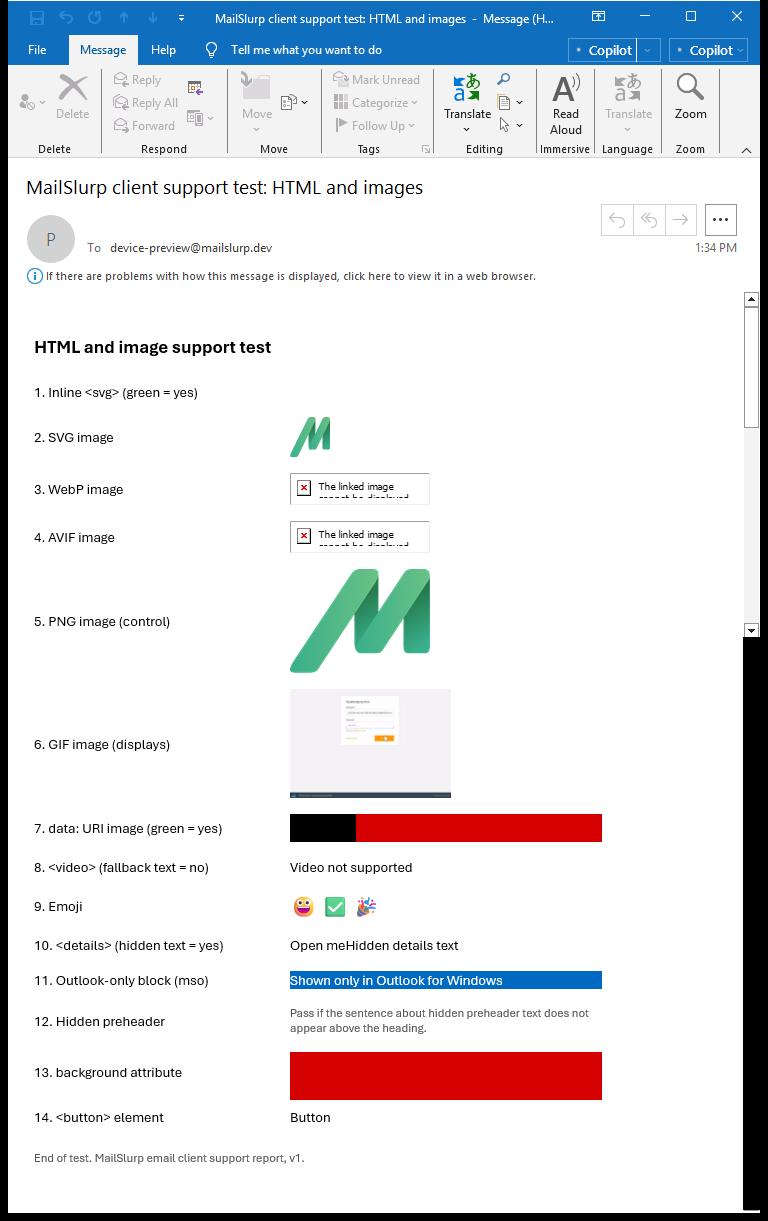
| Element | Classic Outlook for Windows |
|---|---|
PNG, GIF and SVG in <img> |
Displayed |
| WebP and AVIF | Not displayed |
Inline <svg> |
Not displayed |
<video> |
Fallback text |
<details> collapses |
No |
<button> element |
Plain text |
Table background image |
Ignored |
[if mso] conditional block |
Shown |
| Hidden preheader stays hidden | Yes |
WebP and AVIF images
These newer formats are smaller than PNG and JPEG, which makes them tempting. Classic Outlook can't display either of them. In their place it showed an empty box with the message "The linked image cannot be displayed". If anyone on your list might use classic Outlook, send PNG or JPEG images.
Buttons
An HTML <button> element came through as plain text, with none of its styling. The reliable alternative is a link styled to look like a button and placed inside a coloured table cell. It works in every app we tested; our tested code patterns include one with a VML version for classic Outlook.
Background images
Classic Outlook ignored the background attribute on our table cell, so text that was meant to sit over a photo sat on a plain background instead. The usual fix is a VML fill inside an Outlook-only block. The background image fallbacks guide walks through the pattern and shows it working.
Conditional comments: markup only Outlook sees
Classic Outlook was the only app in our tests that displayed the content of an [if mso] block. These conditional comments look like HTML comments to every other app, so they are hidden there:
<!--[if mso]>
  <p>Only classic Outlook for Windows shows this.</p>
<![endif]-->
That makes them the safest way to give classic Outlook its own fixed-width tables, VML buttons and backgrounds without affecting anyone else. One catch: new Outlook for Windows ignores them, so whatever you put inside only reaches classic Outlook readers.
Other things that change in classic Outlook
A few smaller differences turned up in our other tests:
- Round photos come out square. A headshot shaped with
border-radiusin an email signature appeared square; the email signatures guide shows it. - Flag emoji appear as letters. Windows has no flag emoji, so 🇬🇧 shows as "GB". The emoji guide has the details.
- Email frameworks mostly cope. MJML, React Email and Foundation for Emails all looked right in classic Outlook, while one Maizzle layout clipped text in its columns. See the framework comparison.
What these tests don't cover
- Dark mode in classic Outlook. So far we have measured dark mode on Android and the web only.
- GIF animation. Our screenshots show that the GIF displayed, not which frames played.
- Older versions. We tested the current classic Outlook for Windows, not Outlook 2016 or earlier releases.
The full results are in the November 2026 report, and the test emails are free to download from the email client support hub. For a broader look at Outlook's rendering problems, see Outlook email rendering.
Frequently asked questions
Does Outlook support border-radius?
Classic Outlook for Windows doesn't. New Outlook for Windows, Outlook on the web, Outlook for Android and Outlook for iOS all applied border-radius in our tests.
Does Outlook support media queries?
Classic Outlook ignored our @media rule. The other Outlook apps applied it.
Why does my button look like plain text in Outlook?
Classic Outlook showed our <button> element as text. Use a link styled as a button inside a table cell, with a VML version for classic Outlook if you need rounded corners.
Can I use WebP images in Outlook emails?
Not in classic Outlook for Windows, which couldn't display WebP or AVIF. Every other app we tested displayed both.