










How to send an HTML email in Outlook, and what recipients will see
Send an HTML file as an email from classic Outlook, what to do in new Outlook and Outlook on the web, and how each Outlook renders the result, from our tests.
Use with your tools
Sooner or later most people who work with email end up holding an HTML file: a newsletter a designer built, a template exported from an email builder, or something you coded yourself. The natural next thought is "I'll just send it from Outlook". And then you go looking for the button that lets you paste in HTML, and it isn't there.
It isn't you. Outlook really doesn't make this obvious. There is no "paste HTML" box in any version. Classic Outlook for Windows has an option that does the job, but it is tucked away behind a button Microsoft removed from the ribbon. New Outlook for Windows and Outlook on the web don't have an equivalent at all.
This guide walks through each version: how to get your HTML into a message, what to do when Outlook won't let you, and how to check that the email still looks right when it reaches your recipients, who may be using a very different Outlook from yours.
Before you start: which Outlook do you have?
The method depends entirely on which app you use, so check that first.
- Classic Outlook for Windows has a File tab at the top left, with Options inside it. This is the long-standing desktop app that comes with Microsoft Office.
- New Outlook for Windows looks much more like the browser version, with settings behind a gear icon rather than a File tab.
- Outlook on the web runs in your browser at outlook.com or your organisation's Microsoft 365 address.
If you have classic Outlook, the next section is for you. If you have either of the others, skip to sending HTML from new Outlook and Outlook on the web.
Send an HTML file from classic Outlook for Windows
Classic Outlook can turn an .html file into the body of a message with an option called Insert as Text. The Attach File button on the current ribbon doesn't offer it any more, but the older Attach File command still does, and you can add that to the Quick Access Toolbar.
Step by step
- Add the classic Attach File command. Open a new email, then go to File > Options > Quick Access Toolbar. Choose All Commands, select Attach File, click Add and then OK.
- Set the message format to HTML. In the new email, open Format Text and choose HTML.
- Insert the file as the body. Click the Attach File button you added to the Quick Access Toolbar, select your
.htmlfile, then open the arrow on the Insert button and choose Insert as Text. - Check the draft, then send a test to yourself before sending it to anyone else.
You only need to do step 1 once. After that, the button stays in your Quick Access Toolbar.
Make sure your images will load
Images in the file must use full https:// addresses, such as https://example.com/images/logo.png. Relative paths such as images/logo.png work when you open the file on your own computer, but they point nowhere once the HTML is inside an email, so your recipients see empty boxes.
What Outlook does to your HTML on the way in
When you insert the file, classic Outlook converts it using Microsoft Word's layout engine, the same engine it uses to display email. Features Word doesn't understand, such as rounded corners or flexible layouts, can be lost at this point, before the email has even left your outbox. That is one more reason to send yourself a test and look at it before it goes anywhere else.
Send HTML from new Outlook and Outlook on the web
Neither new Outlook for Windows nor Outlook on the web lets you paste or import HTML source code into a message. You have three practical options.
Option 1: paste the email from a browser
Open the HTML file in your web browser, select everything on the page, copy it and paste it into a new message. Outlook converts what it can. Simple emails usually survive well, but layouts and some styling can change, so check the result carefully before sending.
Option 2: use an add-in
Several Outlook add-ins can insert HTML into a message. If you go this way, check that the one you choose supports new Outlook before relying on it, since not every add-in written for classic Outlook does.
Option 3: send from an email platform or an API
For newsletters, receipts or anything you send more than once, an email sending platform or an email API is the reliable route, because it sends your HTML exactly as written. Outlook is fine for a one-off, but it was never designed as a way to send hand-built HTML at scale.
Check what your recipients will see
Getting the HTML into Outlook is only half the job. How the email looks is decided by each recipient's email app, and the four Outlook apps disagree a lot about HTML and CSS.
Why the same email looks different in each Outlook
Classic Outlook for Windows lays out email with Word, so it ignores most modern CSS. New Outlook for Windows, Outlook on the web and the Outlook mobile apps behave much more like a browser, but not identically to each other. An email that looks perfect in your own Outlook can look quite different in a colleague's.
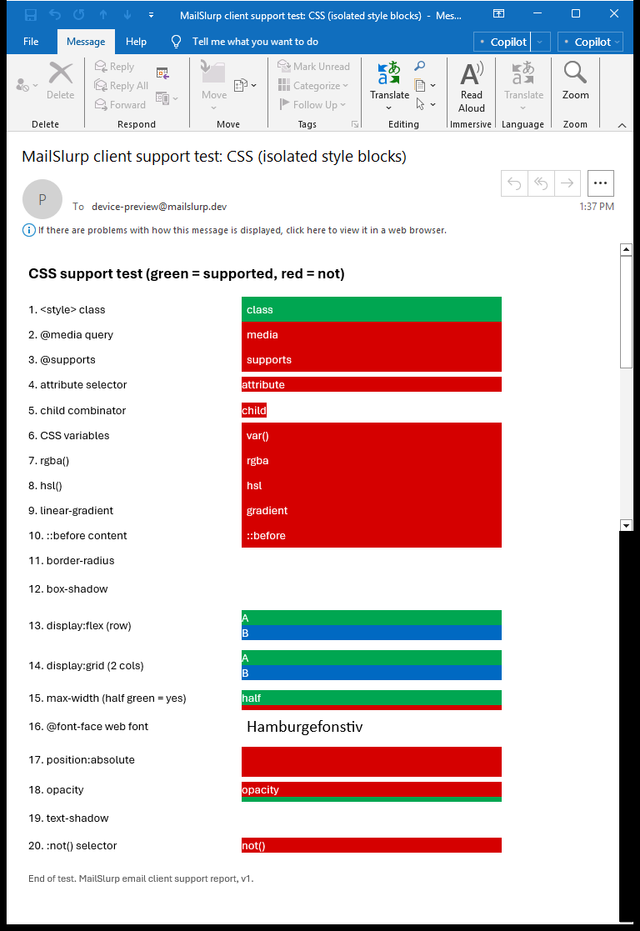
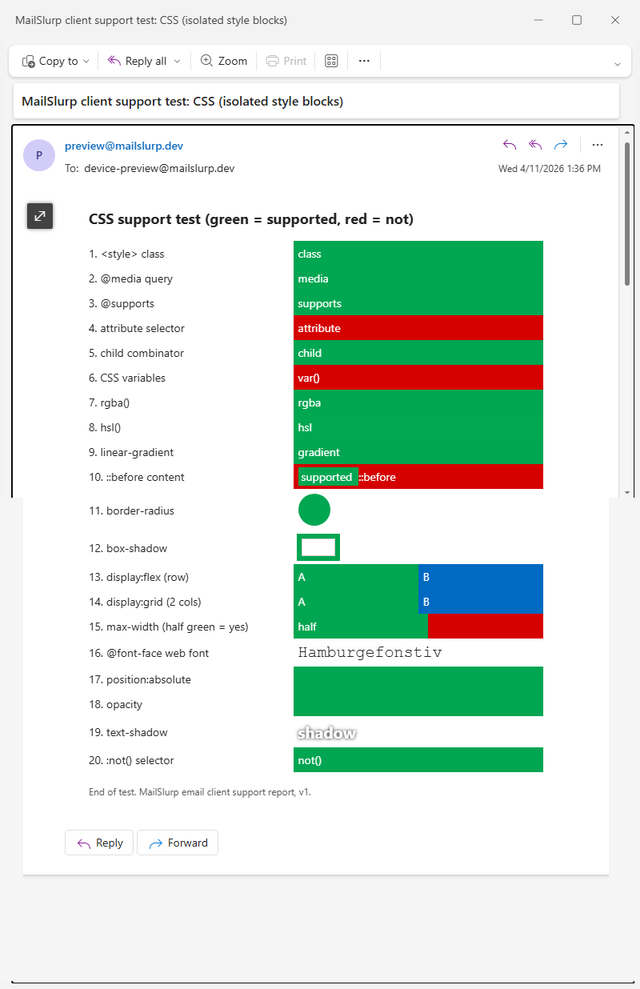
To show how much, we sent the same CSS test email to each of them. The email has one line for each of 20 common CSS features, such as rounded corners and media queries (rules that rearrange a layout on small screens). A line turns green when the app applies its feature and stays red when it doesn't.
Checking that by hand would mean a Windows PC with both Outlook apps, a browser, and an iPhone and Android phone with the Outlook app. We used MailSlurp, an email testing platform, to send the test email and capture every Outlook automatically.
How automated device rendering works
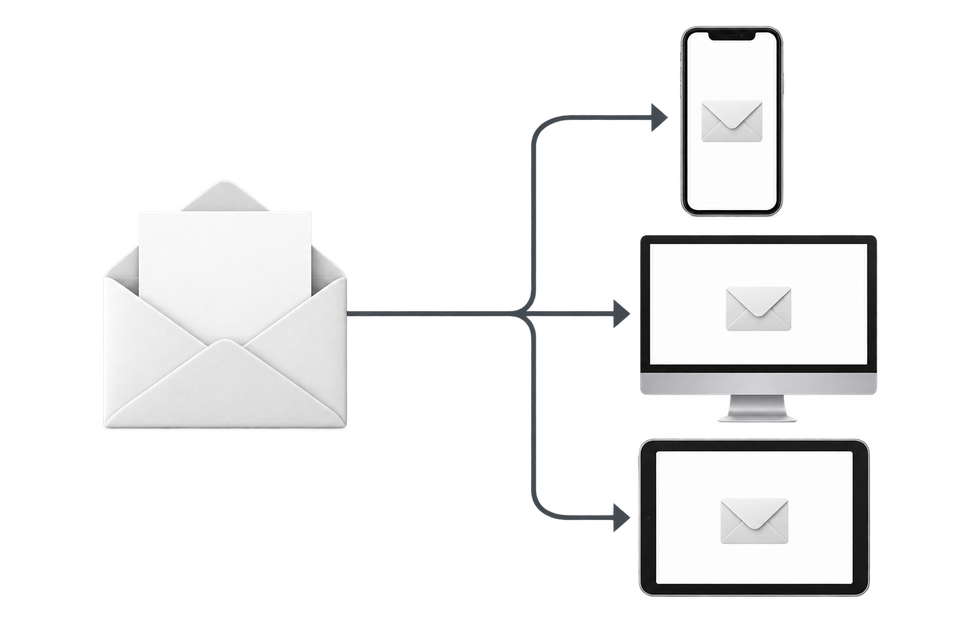
Choose the devices and email services you want to test, and MailSlurp gives you a special email address. Send your campaign to that address. MailSlurp opens the email in the selected apps and webmail services, then captures screenshots automatically.
The screenshots come back together, ready to compare across phones, tablets and computers. Check the layout, images and buttons, then share a result link so your team can review the same version of the email.
Classic and new Outlook side by side
Here is the CSS test email in classic Outlook for Windows and new Outlook for Windows. In our November 2026 tests, classic Outlook applied 1 of the 20 features and new Outlook applied 17.
Outlook for Windows (classic)
New Outlook for Windows
All four Outlooks at a glance
| Outlook app | CSS features applied (of 20) | What to watch for |
|---|---|---|
| Classic Outlook for Windows | 1 | No media queries, rounded corners, max-width, flexbox or WebP images. Uses Word's layout engine |
| New Outlook for Windows | 17 | Ignores [if mso] blocks, so classic-only fixes don't reach it |
| Outlook on the web | 9 | No grid, gradients or text-shadow |
| Outlook for iOS and Android | 10 | Media queries and flexbox work; gradients don't |
The full results are on the classic Outlook, new Outlook and Outlook mobile pages.
Write HTML that survives every Outlook
If you are building the HTML yourself, these choices held up across all four Outlook apps in our tests.
Lay out the email with tables
Tables are the one layout tool every Outlook understands. Give cells explicit widths, and put any fixed widths that only classic Outlook needs inside an [if mso] comment, which other apps ignore.
Put styles inline
Classic Outlook read simple class selectors from a <style> block, but almost nothing else in it. Styles written directly on each element are the safest. Most email platforms can inline your CSS for you when they send.
Use hex colours
Classic Outlook dropped rgba() and hsl() colours. Six-digit hex values such as #0069c2 worked everywhere.
Use PNG or JPEG images
Classic Outlook couldn't display WebP or AVIF, and showed an error box instead.
Build buttons from links, not button elements
Classic Outlook showed an HTML <button> element as plain text. A link styled as a button inside a coloured table cell works in every Outlook, with a VML version for classic Outlook if rounded corners matter.
The tested code patterns and free transactional email templates use all of these and were rendered in every Outlook app.
Frequently asked questions
Why is Insert as Text missing in Outlook?
The Attach File button on the current ribbon doesn't offer it. Add the older Attach File command to the Quick Access Toolbar through File > Options > Quick Access Toolbar, and the Insert as Text option appears under the Insert button's arrow.
Can I send HTML email from new Outlook?
Not by pasting HTML source code. You can paste the email after opening it in a browser, use an add-in, or send it from an email platform or API.
Why does my HTML email look different after I send it from Outlook?
Classic Outlook converts the message with Word's layout engine when you insert it, and each recipient's email app then applies its own CSS support. Test the sent email in the apps your recipients use, not only in your own Outlook.
How do I send HTML email from Gmail instead?
See how to send HTML email in Gmail, and check what Gmail supports before you design the email.