










What is the default font in iPhone Mail, Gmail and Outlook? Tested on 12 email apps (2026)
The default font in iPhone Mail, Gmail and Outlook, and what happens when a named font is missing. Tested on 12 email apps, with screenshots.
Use with your tools
Fonts are one of those details you only notice when they go wrong. You design an email in a clean, modern sans-serif, send it, and a colleague replies with a screenshot where your headline is set in something that looks like it came from a 1990s word processor.
What happened is that the email app picked a font for you. That happens in two situations: when a piece of text has no font set at all, and when you name a font that isn't installed on the reader's device and give no backup. Each email app picks differently, so the same email can appear in Aptos in Outlook, Helvetica on a Mac and Roboto on an Android phone.
This guide shows which font each of 12 email apps chose in our tests, explains the rather surprising thing that happens when a font is missing, and shows how to write a font list that gives every reader the font you intended.
How email apps choose a font
Text with no font set
If your HTML doesn't give a piece of text a font-family, the email app uses its own default. That is usually the system font of the device or a font the app's designers chose, and it varies a lot between apps.
A named font that isn't installed
Email can only use fonts that are already on the reader's device, unless the app loads a custom web font, which almost none do. If you name a font the device doesn't have, the app moves on to the next font in your list. If there is no next font, it falls back to its own choice, and as you will see, that choice is often a serif.
What a font stack is
A font stack is the list of fonts in your font-family rule, tried in order:
font-family: Aptos, Calibri, Arial, sans-serif;
The last entry, sans-serif, isn't a font but a generic family. It tells the app "if none of the above are available, use any sans-serif you have". That one word does most of the work in this guide.
How we tested default fonts
The test email
We sent a font test email to 12 email apps. It has one line of text with no font set at all, followed by the same text in nine named fonts, from Arial and Aptos to Roboto and the system font. Each named font was listed on its own, with no backup.
Reading the results
By matching the letter shapes of the unstyled line to the named lines, we could tell which font each app chose as its default. The named lines also show what happens when a font isn't available. These results are from our November 2026 tests.
We used MailSlurp, an email testing platform, to send the test email and capture all 12 apps, so the font differences are visible side by side.
How automated device rendering works
Choose the devices and email services you want to test, and MailSlurp gives you a special email address. Send your campaign to that address. MailSlurp opens the email in the selected apps and webmail services, then captures screenshots automatically.
The screenshots come back together, ready to compare across phones, tablets and computers. Check the layout, images and buttons, then share a result link so your team can review the same version of the email.
The default font in each email app
Text with no font set looked different in almost every app. The Outlook apps used Microsoft fonts, Apple Mail and the Gmail app on iPhone used Apple's system fonts, the Gmail app on Android used Roboto, and Gmail and Yahoo on the web used Arial.
| Email app | Default font for text with no font set |
|---|---|
| Classic Outlook for Windows | Aptos |
| New Outlook for Windows | Segoe UI |
| Outlook for iOS | Aptos |
| Outlook for Android | Aptos |
| Outlook on the web | A sans-serif font that didn't match any named line |
| Apple Mail (macOS) | Helvetica |
| Apple Mail (iPhone and iPad) | San Francisco, Apple's system font |
| Gmail (web) | Arial |
| Gmail for Android (IMAP account) | Roboto |
| Gmail for iOS (IMAP account) | San Francisco |
| Yahoo Mail (web) | Arial |
In webmail, the default also depends on the fonts installed on the reader's computer, so treat the web results as typical rather than fixed.
When the font you named isn't available
This is the bigger surprise. When the email named a font the device didn't have and gave no backup, most apps didn't choose a similar sans-serif. They chose a Times-style serif.
The same fonts on Windows and iPhone
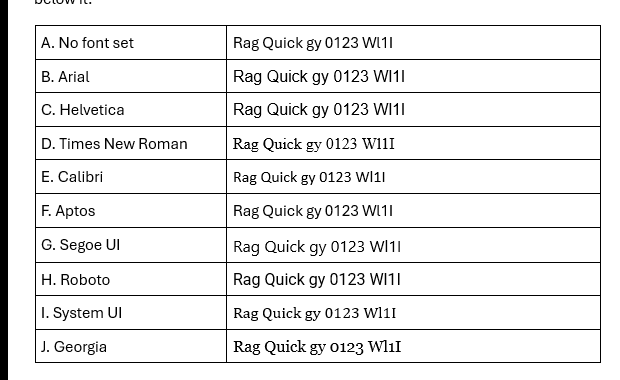
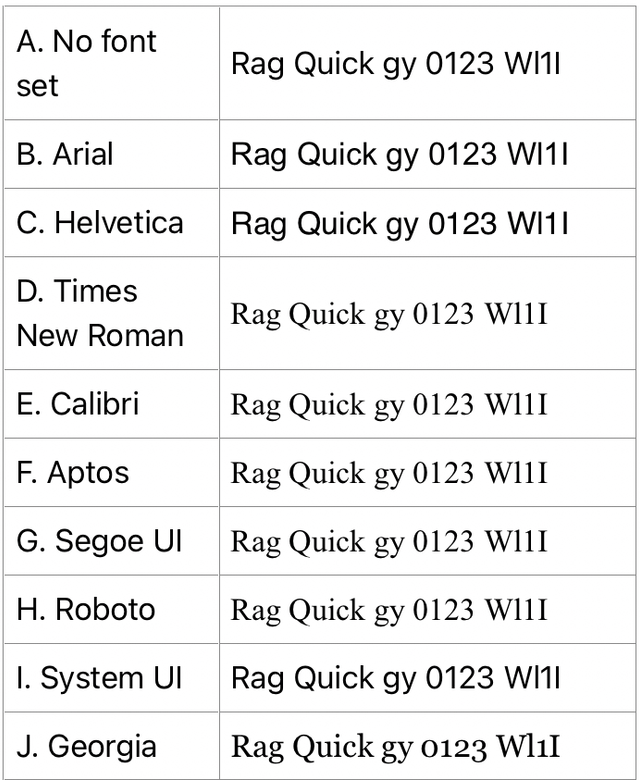
Here is the test email in classic Outlook for Windows and in iPhone Mail. On the iPhone, Calibri, Aptos, Segoe UI and Roboto, each named with no backup font, all turned into a serif.
Outlook for Windows (classic)
Apple Mail (iPhone)
Which apps fell back to a serif
| Email app | Font named but not available, with no backup |
|---|---|
| Apple Mail (macOS, iPhone and iPad) | Serif |
| Gmail for iOS (IMAP account) | Serif |
| Gmail (web) | Serif |
| Yahoo Mail (web) | Serif |
| Outlook on the web | Serif |
| Classic Outlook for Windows | Serif, for system-ui only; the Windows fonts were installed |
| Gmail for Android and Outlook for Android | Sans-serif |
So a font list like font-family: Aptos;, which looks fine on a Windows PC, turns into a serif for anyone reading on an iPhone or a Mac.
How to set fonts so every app shows what you intended
Always end the font stack with a generic family
font-family: Aptos, Calibri, Arial, sans-serif gives every app a sans-serif even when the first fonts are missing. Without sans-serif at the end, a missing font turned into a serif on Apple devices and in webmail. If your brand uses a serif, end with serif instead.
Set a font on every text element
Unstyled text took the app's own default, which ranged from Aptos to Helvetica to Roboto in our test. Set font-family on every table cell, heading and paragraph, not only on the <body>, because some apps don't pass the body's font down to the content inside tables.
Expect your web font to fall back
Only Apple Mail loaded our @font-face font, so the next font in your stack is what most readers see. Choose that second font so it has similar proportions to your web font, otherwise headlines and buttons can wrap differently. The font fallback guide shows how to check that the fallback still fits your layout.
Don't rely on system-ui
The system-ui keyword is meant to pick the device's own interface font. Classic Outlook for Windows showed it as a serif.
What these tests don't cover
- Default font size. This test compared font families, not sizes.
- Reader settings. Some apps let readers choose their own default font; our test devices use each app's standard settings.
- Gmail apps signed in to a Google account. Our Gmail app test devices read IMAP accounts.
The test email is free to download: default font and background image test (HTML). More results by app are on the email client support hub, and the best email fonts guide covers which fonts to choose.
Frequently asked questions
What is the default font on iPhone email?
San Francisco, Apple's system font. Text with no font set in iPhone Mail matched our System UI line. The Gmail app on iPhone used it too.
What is the default font in Outlook?
Aptos in classic Outlook for Windows and the Outlook mobile apps, and Segoe UI in new Outlook for Windows.
What is the default font in Gmail?
Arial in Gmail on the web. The Gmail app on Android used Roboto and the Gmail app on iPhone used San Francisco, with the IMAP accounts on our devices.
Why does my email show in Times New Roman?
The email probably names a font the device doesn't have, without a generic family such as sans-serif at the end. iPhone Mail, Apple Mail, Gmail and Yahoo all showed missing fonts as a serif in our test.