










New Outlook for Windows email support: how it differs from classic Outlook (tested 2026)
Does new Outlook still render email like Word? Test emails in new Outlook, classic Outlook and Outlook on the web show what changed, with screenshots.
Use with your tools
For years, "make it work in Outlook" meant one thing: wrestle with the classic Outlook desktop app on Windows, with its square buttons, broken columns and special code that only Outlook reads. Then Microsoft introduced a new Outlook for Windows, and the old rules stopped being the whole story.
New Outlook looks like a fresh coat of paint on the same app. It isn't. Under the surface it displays email in a completely different way, and that catches out senders in both directions. Fixes written for classic Outlook don't reach it, and designs that assume classic Outlook's limits can look different in the new app.
This guide explains what changed, shows which CSS and HTML new Outlook supports in our tests, compares it with classic Outlook and Outlook on the web, and covers how to design one email that works in both Windows apps.
What new Outlook for Windows is
A new app, not an update
New Outlook for Windows is a separate app that Microsoft is moving Windows users to, alongside the classic Outlook that comes with Microsoft Office. It shares its design with Outlook on the web, and it displays email with web technology rather than with Microsoft Word, which is what classic Outlook uses.
Why it matters if you send email
During the move, many organisations have people on both apps, sometimes in the same team. That means your email has to look right in two Windows apps that handle HTML very differently. If you have only ever checked classic Outlook, you have only checked half of your Windows readers.
How we tested new Outlook
The test emails
We sent new Outlook the same two test emails we sent to 11 other email apps. The first checks 20 CSS features, one per line: rounded corners, media queries (rules that rearrange a layout on small screens), custom fonts, flexbox and so on. Each line has a block that turns green only if the app applies the feature and stays red if it doesn't. The second email checks image formats, video and other HTML elements, including a block that only classic Outlook should display.
Comparing three Outlooks
Because "Outlook" now covers several apps, we compared new Outlook with classic Outlook for Windows and with Outlook on the web. The results below come from screenshots of the delivered emails in our November 2026 tests.
Keeping two Windows machines set up with different Outlook apps, plus a browser, just to check one email is a lot of effort. We used MailSlurp, an email testing platform, to send the test emails and capture all three Outlooks side by side.
How automated device rendering works
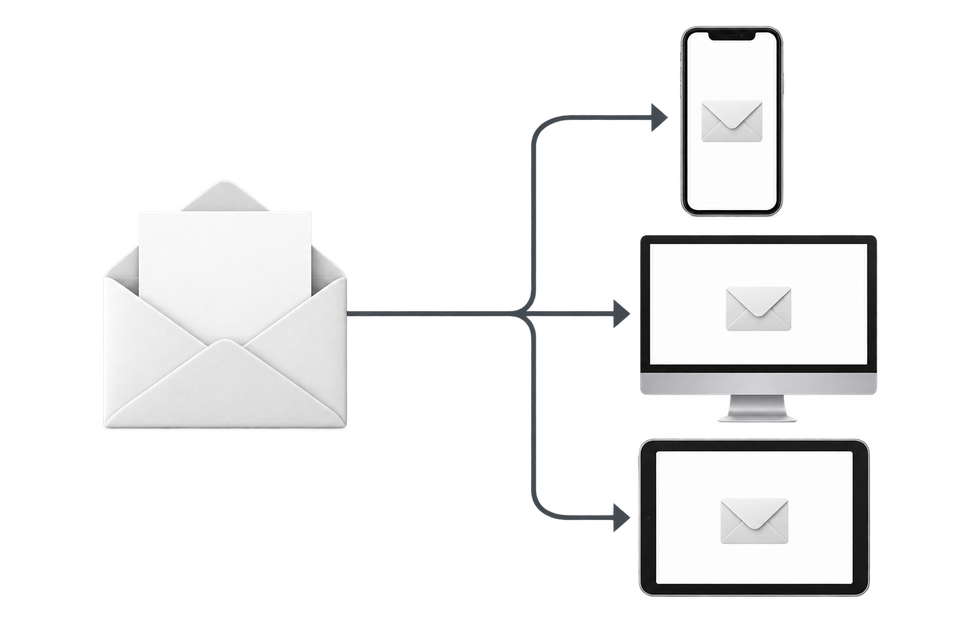
Choose the devices and email services you want to test, and MailSlurp gives you a special email address. Send your campaign to that address. MailSlurp opens the email in the selected apps and webmail services, then captures screenshots automatically.
The screenshots come back together, ready to compare across phones, tablets and computers. Check the layout, images and buttons, then share a result link so your team can review the same version of the email.
What CSS works in new Outlook
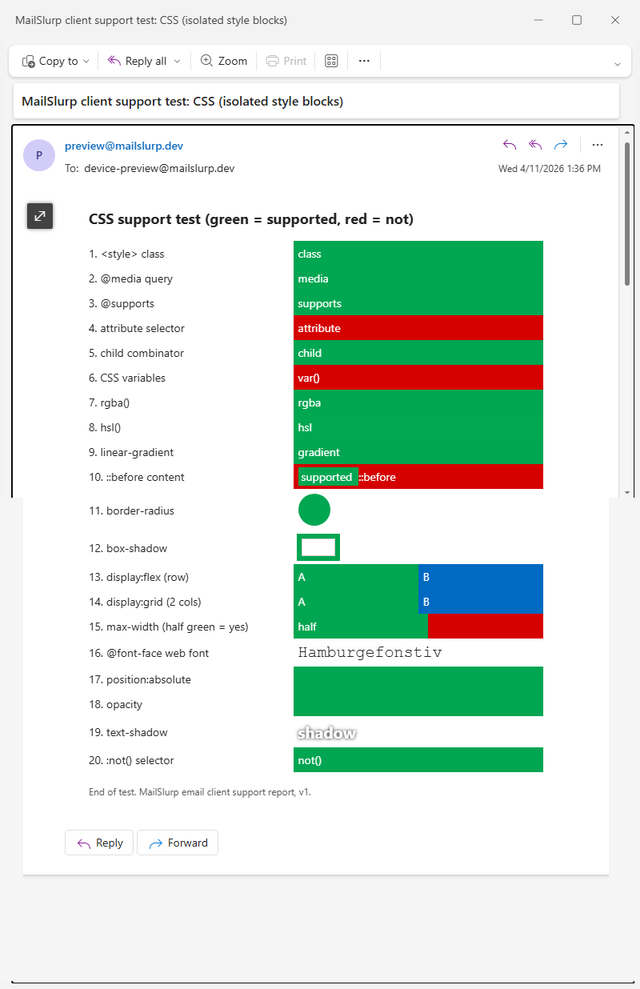
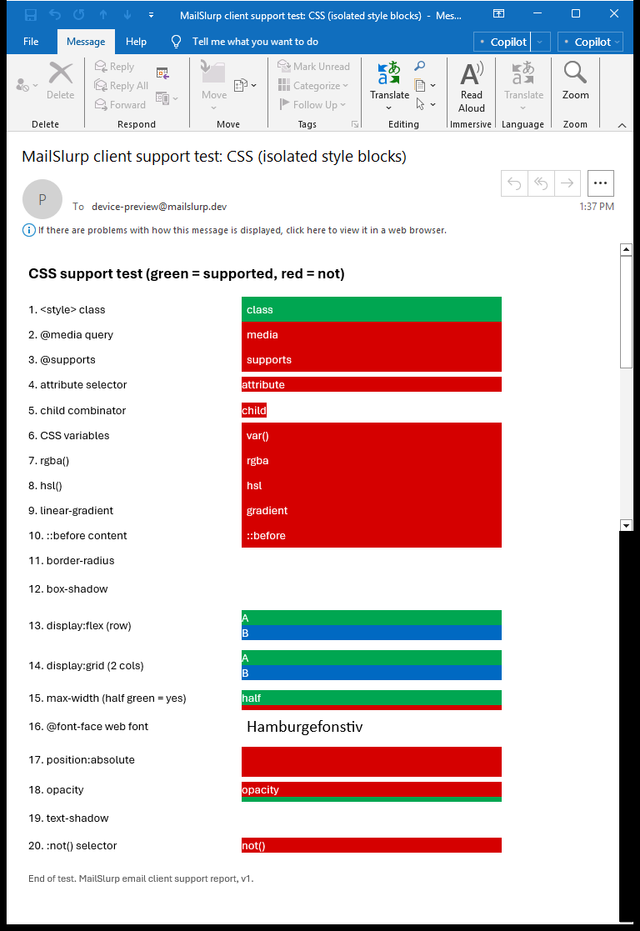
New Outlook applied 17 of the 20 CSS features, compared with 1 in classic Outlook. Here is the same CSS test email in both Windows apps. Almost every line is green in new Outlook; almost every line is red in classic Outlook.
New Outlook for Windows
Outlook for Windows (classic)
New Outlook, Outlook on the web and classic Outlook compared
You might expect new Outlook to match Outlook on the web exactly, since they look so alike. In our tests they didn't. New Outlook supported several features that the browser version ignored:
| CSS feature | New Outlook for Windows | Outlook on the web | Classic Outlook for Windows |
|---|---|---|---|
<style> class selector |
Yes | Yes | Yes |
@media query |
Yes | Yes | No |
border-radius |
Yes | Yes | No |
box-shadow |
Yes | Yes | No |
display: flex |
Yes | Yes | No |
display: grid |
Yes | No | No |
linear-gradient |
Yes | No | No |
hsl() colours |
Yes | No | No |
::before content |
Yes | No | No |
position: absolute |
Yes | No | No |
text-shadow |
Yes | No | No |
@supports and :not() |
Yes | No | No |
@font-face web font |
No | No | No |
| CSS variables | No | No | No |
| Attribute selectors | No | No | No |
| Total of 20 features | 17 | 9 | 1 |
So the same person can see your gradient banner on their Windows PC and a flat fallback when they open the same email in a browser. Treat the two as separate apps when you test.
What new Outlook still ignores
Three lines stayed red in new Outlook:
- Custom web fonts. New Outlook didn't load our
@font-facefont and showed the next font in the list. Text with no font set appeared in Segoe UI. - CSS variables. A colour written as
var(--brand)never appeared, so write colours as plain values. - Attribute selectors, such as
[data-type="note"]. Use ordinary class names instead.
Images and HTML elements in new Outlook
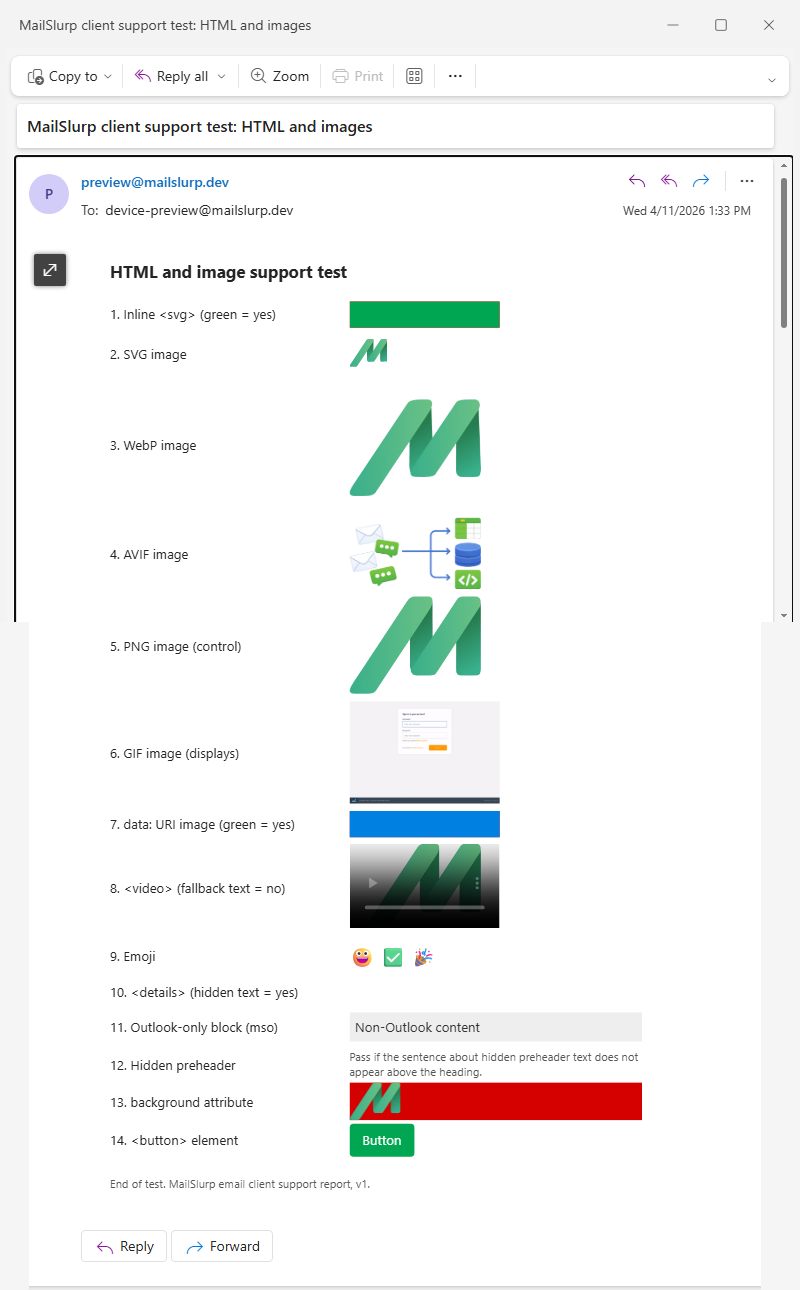
The second test email checks images, video and other HTML elements. New Outlook handled almost everything classic Outlook couldn't.
| Element | New Outlook for Windows | Classic Outlook for Windows |
|---|---|---|
| WebP and AVIF | Displayed | Not displayed |
Inline <svg> (a simple shape) |
Displayed | Not displayed |
<video> player shown |
Yes | No, fallback text |
<button> element |
Styled button | Plain text |
Table background image |
Shown | Ignored |
[if mso] conditional block |
Not shown | Shown |
<details> collapses |
No | No |
Image formats and video
New Outlook displayed WebP and AVIF images and showed a video player for our <video> tag. Neither works in classic Outlook, so if your list includes both apps, keep using PNG or JPEG and treat video as a bonus. The video in email guide covers what everyone else sees.
Inline SVG needs care
Our simple inline SVG shape displayed in new Outlook, but an inline SVG logo in our earlier logo format test didn't appear there. We haven't pinned down why the two differ, so for logos, a PNG or a linked SVG file is the safer choice.
Conditional comments are skipped
This is the result that matters most if you already design for classic Outlook. New Outlook didn't show the content of our [if mso] block. Anything you put inside those comments, such as a VML button, a fixed-width table or a VML background image, reaches classic Outlook readers only. New Outlook readers see your regular HTML instead.
How to design for new and classic Outlook together
Keep your classic Outlook fixes, and make the regular HTML complete
Don't delete your conditional comments: classic Outlook still needs them. But check the version outside them too, because that is what new Outlook shows. A rounded VML button for classic Outlook should sit next to a normal styled link that looks finished on its own. The tested code patterns are built this way.
Test new Outlook as its own app
New Outlook applied features that Outlook on the web didn't, and it skipped the blocks that classic Outlook reads. A check in either of the other two doesn't tell you how it looks here.
Still pick a fallback font
New Outlook didn't load our web font, so the second font in your list is what its readers see. Choose it on purpose and end the list with a generic family such as sans-serif.
What these tests don't cover
- Dark mode in new Outlook. So far we have measured dark mode on Android and the web only.
- Outlook for Mac.
The full results are in the November 2026 report, and the test emails are free to download from the email client support hub. To preview your own email in the Windows app, see how to preview email in new Outlook for Windows. For the differences between Outlook versions, see Outlook versions explained, and for the older app, our classic Outlook for Windows guide.
Frequently asked questions
Does new Outlook use the Word rendering engine?
Our results don't look like Word rendering. New Outlook applied media queries, border-radius, flexbox and grid, which classic Outlook ignored, and it skipped the [if mso] blocks that classic Outlook reads.
Do I still need VML and conditional comments?
Yes, while your readers still use classic Outlook. New Outlook ignores them and shows your regular HTML, so make sure both versions look right.
Is new Outlook the same as Outlook on the web?
Not in our tests. New Outlook applied 17 of our 20 CSS features and Outlook on the web applied 9. Grid, gradients and text-shadow worked in new Outlook but not in the browser.