










Render Outlook drafts on real devices
Documentation navigation
Add the MailSlurp Outlook add-in, then render the email you are writing on Outlook, Gmail, Apple Mail and phones before you send it.
Overview
An email that looks right in your Outlook compose window can still break for the people who receive it. Gmail on a phone narrows the layout, Classic Outlook on Windows uses a different rendering engine, and Apple Mail handles fonts and spacing its own way. Checking each one usually means sending test emails to several accounts and devices, then opening them one by one.
MailSlurp renders an email on real email clients and devices and captures a screenshot of each. The MailSlurp add-in for Outlook does this for the draft you are writing: choose the email clients, render, and look through the screenshots in a pane next to your draft. Nothing is sent to your recipients.
The add-in works in Outlook on the web and new Outlook for Windows, for work and school accounts in Microsoft 365.
Add MailSlurp to Outlook
A Microsoft 365 administrator adds MailSlurp once for the people who need it. The same app also adds MailSlurp for Microsoft Teams.
Download the MailSlurp app package
- Download the MailSlurp app package above.
- Sign in to the Microsoft 365 admin center and open Settings > Integrated apps.
- Choose Upload custom apps and upload the package file in the Deploy New App dialog.
- Choose who gets MailSlurp: yourself, specific users or groups, or the whole organization.
- Review the permissions and finish the deployment.
The Render on devices button can take a few hours to appear in Outlook after deployment. To install only the Teams part, upload the same package in the Teams admin center under Manage apps.
Render a draft
- In Outlook, write a new email or open a draft, including its subject.
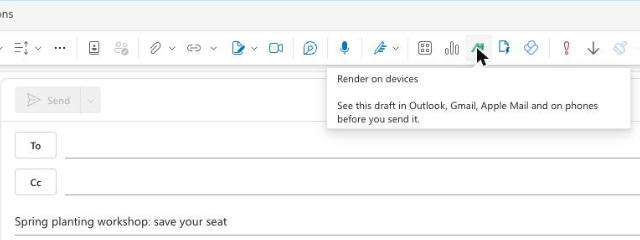
- On the Message tab, choose Render on devices. If the ribbon is collapsed, open Apps or the … menu to find MailSlurp.
- The first time, choose Sign in to MailSlurp. Sign in or create a free account, check that Email quality tools is selected and choose Connect. The pane remembers your sign-in.
- Choose the email clients to check. Popular clients start selected: Mail and Gmail on iPhone, Classic Outlook, Gmail and Outlook.com. Tick Phones and tablets, Desktop apps or Webmail to choose a whole group, or open a group to pick single clients. All and Clear change everything at once, and the pane remembers your choice next time.
- Choose Render draft at the bottom of the pane, next to the number of render credits it uses.
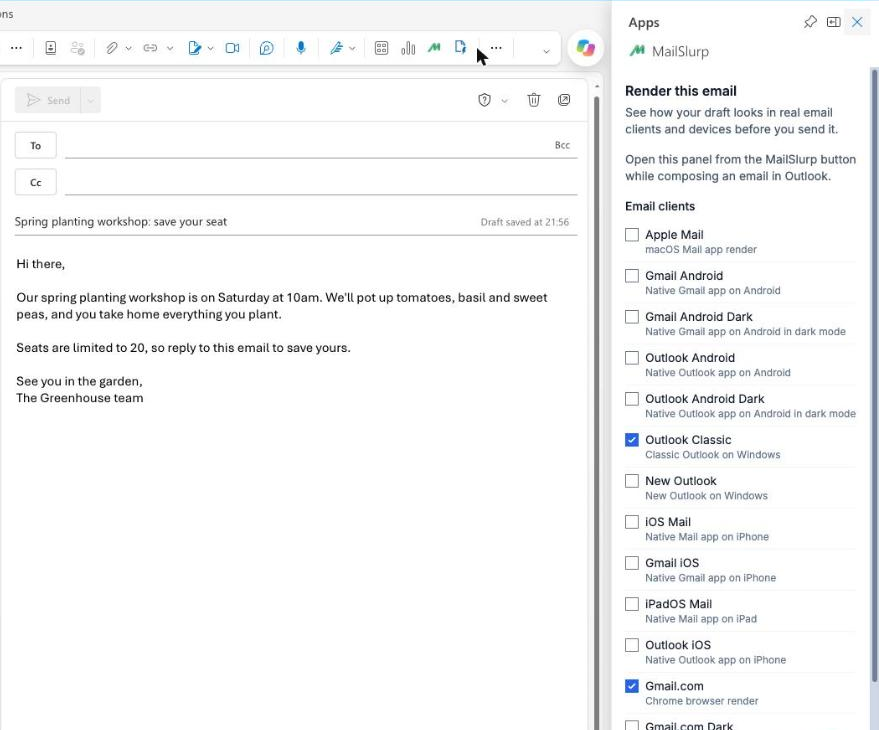
The add-in renders the draft as it is when you choose Render draft, including its subject, HTML and images. Your recipients, Cc and Bcc are not used, and the draft stays in Outlook.
Read the results
Renders usually finish within a minute. The pane then shows the email’s subject and a screenshot from each email client you chose, phones first, so you can scroll through them next to the draft.
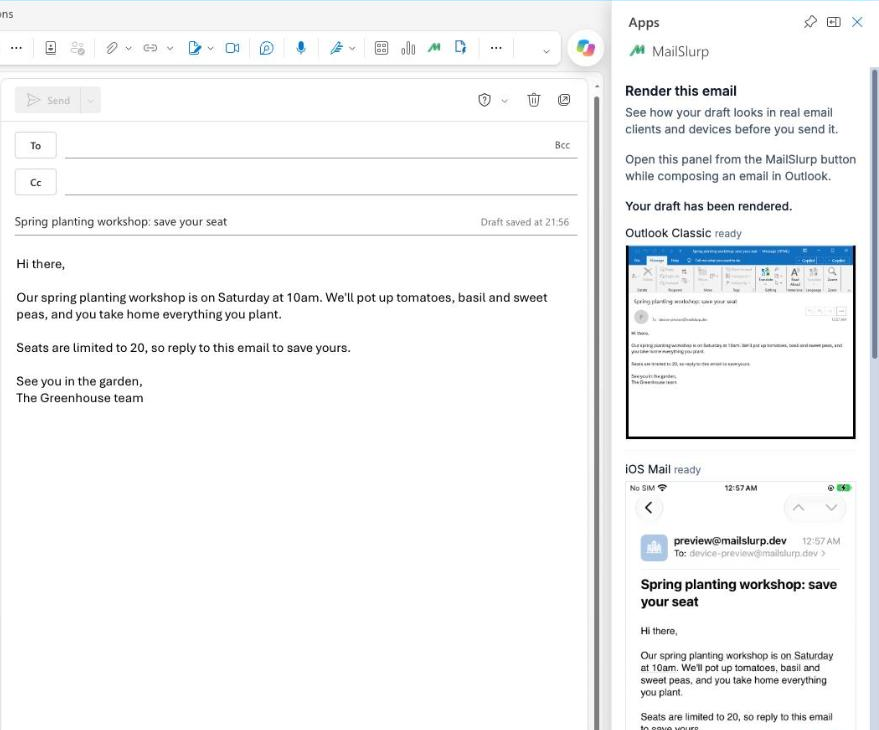
- Choose a screenshot to open it full size.
- Choose Open full report to see every client in MailSlurp, compare them side by side, share a link or leave comments for your team.
- After you edit the draft, choose Render again, then Render draft, to check the new version.
If one email client could not be captured, the pane still shows the others, and the full report lists which client is missing. Renders started from Outlook also appear under Device previews in MailSlurp, and your Slack or Teams rules post them like any other render.
Troubleshooting
Render on devices is missing
Check that an administrator deployed MailSlurp to your account, then allow a few hours and restart Outlook. In Outlook on the web, open a new email and look under Apps in the ribbon. The button only appears while you are writing an email, not while reading one.
Sign-in does not finish
Allow pop-ups for Outlook, then choose Sign in to MailSlurp again. If the sign-in window says the request expired, close it and start again from the pane. Sign-in requests last ten minutes.
The render needs more credits
Each email client uses one render credit. Choose fewer clients, or add credits from Upgrade in MailSlurp.
For render settings, saved client lists and other ways to start a render, see device renders.
Running this code needs an API key. Get one free