














How to Preview and Test Email Campaigns in Outlook.com
Catch email layout problems in Outlook.com before you send. Preview your campaign with MailSlurp and compare browser, desktop and phone results.
Use with your tools
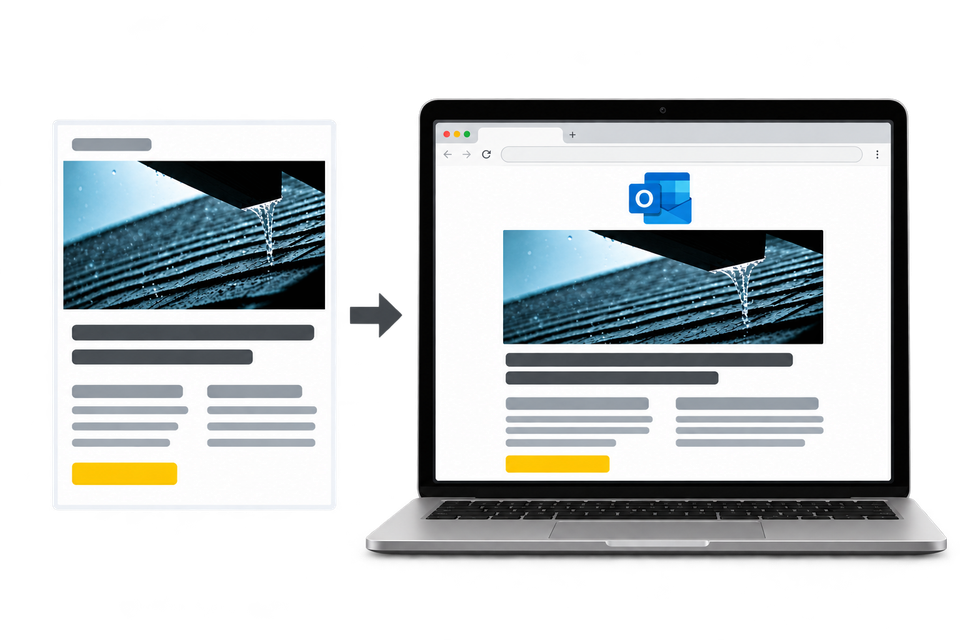
Testing an HTML email in Outlook.com helps you check that its layout, images and footer display properly inside the browser's webmail window. If your readers also use Outlook on Windows or a phone, compare those apps too: the browser result answers only the Outlook.com part of the review.
You can send yourself a test email, open it in an Outlook.com account and click its links. A wider manual review means getting that same message into the other apps, having the relevant devices available and saving screenshots to compare. Change the campaign and that collection needs updating.
When you share the results with a colleague, keep the app name and email revision with each screenshot. A browser view and a phone view can both be useful, provided everyone knows which version of the campaign they're looking at.
MailSlurp is an email testing platform with automated device previews. It puts the selected webmail, desktop and phone results together for comparison and team review, so you can repeat those checks without gathering the screenshots one by one.
How automated device rendering works
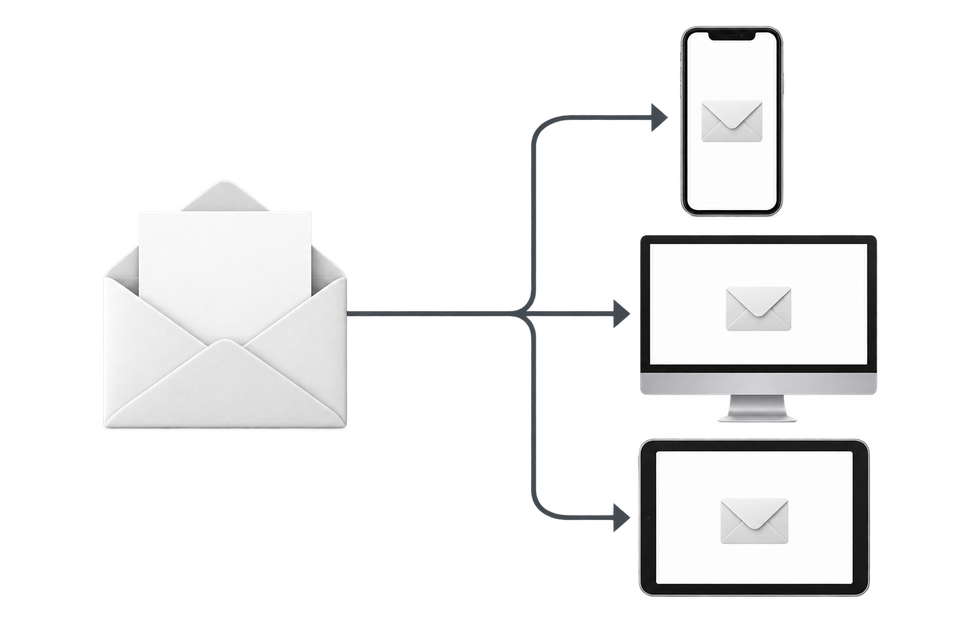
Choose the devices and email services you want to test, and MailSlurp gives you a special email address. Send your campaign to that address. MailSlurp opens the email in the selected apps and webmail services, then captures screenshots automatically.
The screenshots come back together, ready to compare across phones, tablets and computers. Check the layout, images and buttons, then share a result link so your team can review the same version of the email.
Let's test an example campaign
We'll use a fictional gutter-care email from ClearRoof. It has a photograph, two service descriptions side by side, a price and a booking button. The white email body sits against a pale background in the editor's desktop preview.
Our Outlook.com test will check whether that layout holds together in the webmail window, with readable text, a visible photograph and a complete footer.
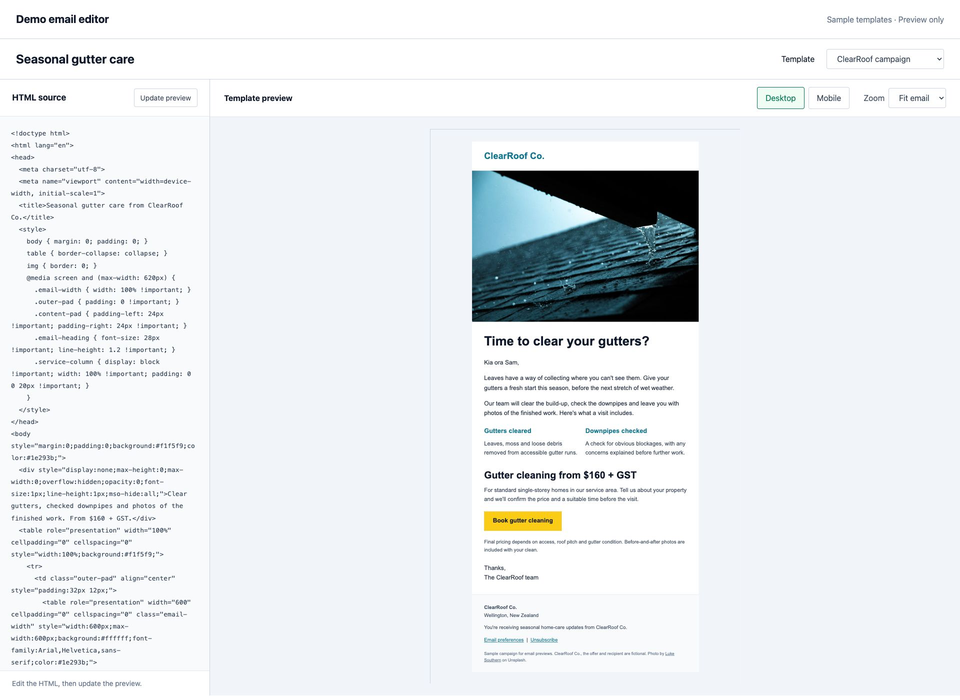
Use your own campaign for the walkthrough or download the sample email to examine its design. The sample's links are examples.
Send your campaign to Outlook.com
You'll need a MailSlurp workspace with device previews available and enough preview credits for your selection.
Outlook.com is a separate target from New Outlook, Outlook Classic and the phone apps. If a report only names "Outlook," Microsoft's version guide and our Outlook versions guide help identify where the person opens their email.
1. Choose Outlook.com
Open the new device preview form, or choose Start new render from Device previews.
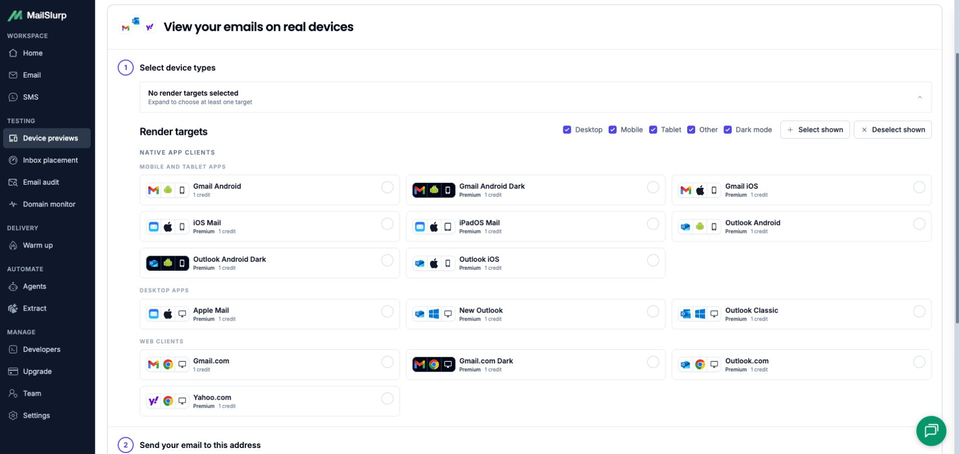
Expand Custom target set and select Outlook.com. For this individual check, confirm 1 target selected. Check that a saved profile hasn't added Windows or mobile Outlook targets, then review the credits shown.
2. Copy the current render address
With Outlook.com selected, choose Send email and copy the address under Send your email to this address into your sending tool's recipient field. Use this current address; a previous preview address may use a different target set.
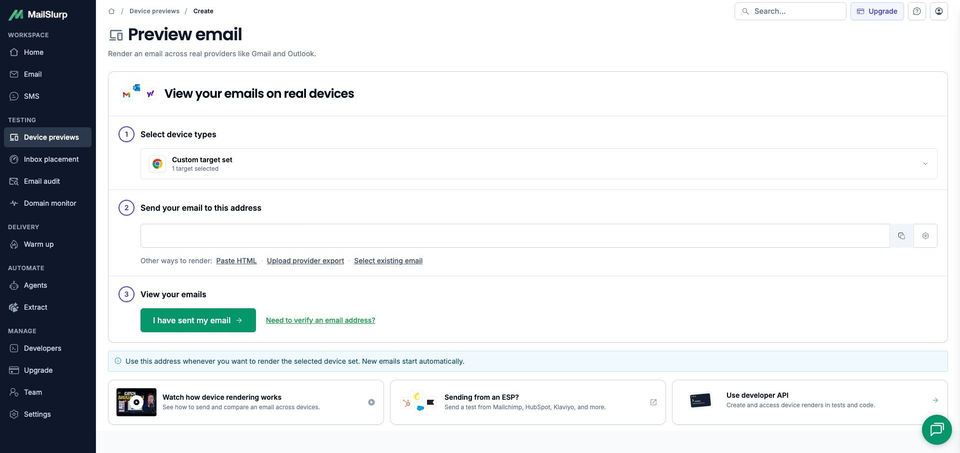
3. Send the campaign and follow the matching result
Send your campaign or test message to that address. If you use an email platform's test-send option, check whether it changes personalization or links.
Choose I have sent my email to open the waiting view. Receipt starts the render automatically. When the matching campaign shows RUN CREATED, choose View results to open the run.
Wait for COMPLETE and a READY Outlook.com result. If the message has arrived and rendering is still in progress, follow that run before sending it again.
4. Inspect the message inside the webmail window
Open the completed screenshot and confirm Outlook.com and Chrome browser render in the viewer. Use the zoom controls for small text, or Open to inspect the full image separately.
Check the campaign's width and the space between its columns, then continue to the button and footer.
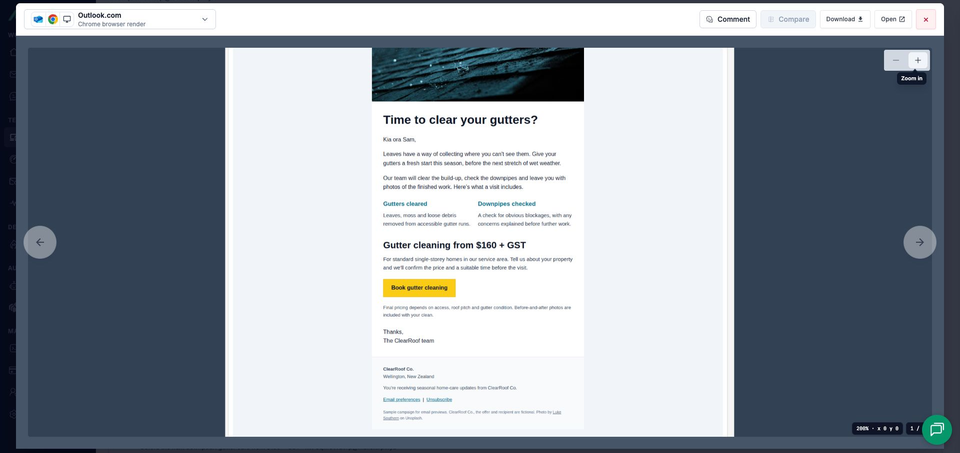
In the completed result, Outlook.com keeps the example's intended desktop layout. The photograph fills the email's width, the headline fits on one line and the service descriptions stay side by side beneath their headings.
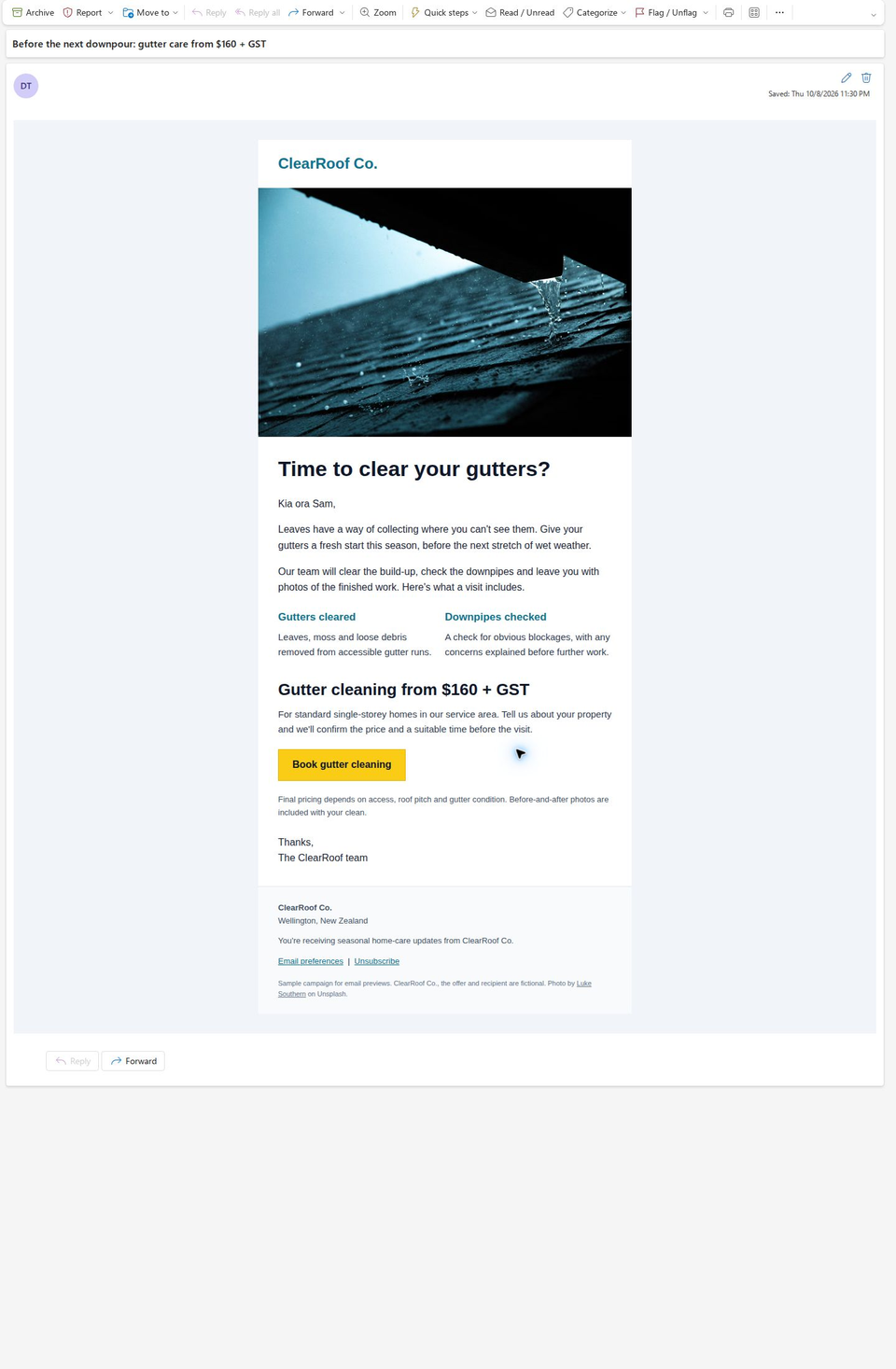
The price also fits on one line, and the yellow booking button keeps its dark label. The footer includes preferences and unsubscribe links. To test those destinations, open your own received email and click them.
Compare the same campaign in New Outlook and on a phone
Keep the campaign unchanged when you compare clients. The New Outlook for Windows preview shows this example in a narrower message window, but it still preserves the desktop design.
On a phone, check how the design adapts to the smaller screen. In the Outlook Android example, the services stack and the headline and price wrap onto two lines. After editing your campaign, repeat the desktop and phone checks to see how the revised text fits.
Keep desktop and mobile in your regular preview selection
In September 2026, Statcounter recorded mobile at 55.41% in Europe and 49.10% in the United States, with desktop at 42.32% and 48.47%. Tablets accounted for 2.27% and 2.42%, and desktop includes laptops. These are web pageviews, not Outlook opens; use your own audience information to select the apps.
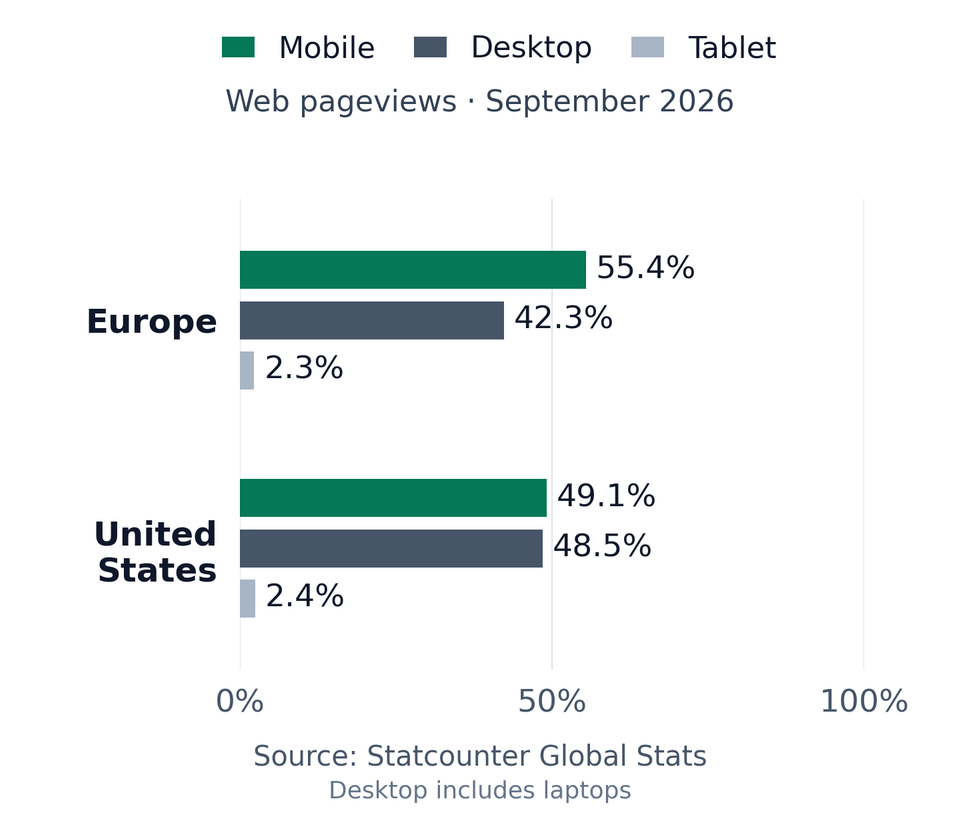
Source: Statcounter Global Stats, Europe and United States, September 2026. Chart redrawn under CC BY-SA 3.0.
Keep Outlook.com and the relevant phone apps in a saved target profile so you can repeat that comparison after an edit. Gmail and Yahoo Mail can join the webmail checks where your audience uses them. The Outlook family guide explains the separate Outlook selections, and the current picker shows the available targets.
| Device | Email app | Appearance |
|---|---|---|
| Android phones | Gmail, Outlook | Light and dark |
| iPhone | Gmail, Apple Mail, Outlook | Default |
| iPad | Apple Mail | Default |
| Mac | Apple Mail | Default |
| Windows | New Outlook, Outlook Classic | Default |
| Webmail | Gmail | Light and dark |
| Webmail | Outlook.com, Yahoo Mail | Default |
Choose the available clients and modes in your workspace when starting a preview. Test the apps your customers use, including dark mode where it is offered.