
Preview Outlook Email on Android
Send a campaign to MailSlurp and preview it in Outlook's Android app. Inspect the photo, stacked service details, price and booking action in a complete result.
If the team says "we checked Outlook", ask which one. That name can mean a Windows app, a browser tab or the app on somebody's phone. A desktop approval leaves an important question open: can an Android customer comfortably read the offer and find the next step?
MailSlurp's Outlook Android target previews the message in the native Android app. We'll send a fictional ClearRoof gutter-care campaign to a render address, open its completed screenshot and follow the service details down to the booking action. The two services stack in this result, giving us a different reading sequence from Gmail on Android.
Which Outlook app should you preview?
Choose Outlook Android for the Android application. Outlook iOS, Outlook Classic, New Outlook and Outlook.com are separate targets. The Outlook versions guide helps clarify a report that names only the brand.
Keep the app name with the screenshot when discussing a problem. A heading that wraps awkwardly on a phone needs to be inspected in that app; a Windows result answers a different question. The Outlook family preview guide explains the wider client choices.
Why repeat the phone check after a campaign edit?
A colleague can open one test email and send a screenshot. The coordination gets harder after the copy changes, the photo is replaced and a second reviewer checks a different app. You need to know which message each image belongs to before comparing them.
MailSlurp runs the selected client previews from the email you supply and keeps the results together. That saves the work of collecting each view separately. The team's task is to read the current campaign and decide whether the offer and action make sense in each app.
Step-by-step guide: preview email in Outlook on Android
You'll need a MailSlurp workspace with device previews available and enough preview credits for the selected target. We tested Outlook Android, the native Outlook app running in an Android emulator, on October 9, 2026. This is the light target; Outlook Android Dark is a separate selection.
Our fictional ClearRoof campaign includes a hosted gutter photograph, gutter-clearing and downpipe-check descriptions, a starting price of $160 + GST and a booking button. Its conditions and footer are part of the review too.
1. Select Outlook Android
Open the new device preview form, or choose Start new render from Device previews.
Expand Custom target set and select Outlook Android. Keep only that target selected for this individual check and confirm 1 target selected. Check that a saved profile has not added other clients or the dark variant.
2. Copy the address for this preview
Choose Send email, then copy the current address under Send your email to this address. Check it against the recipient field in your sending tool before sending.
Take the address after selecting Outlook Android. Use the one in your own workspace for the intended target set, rather than an address from an earlier test.
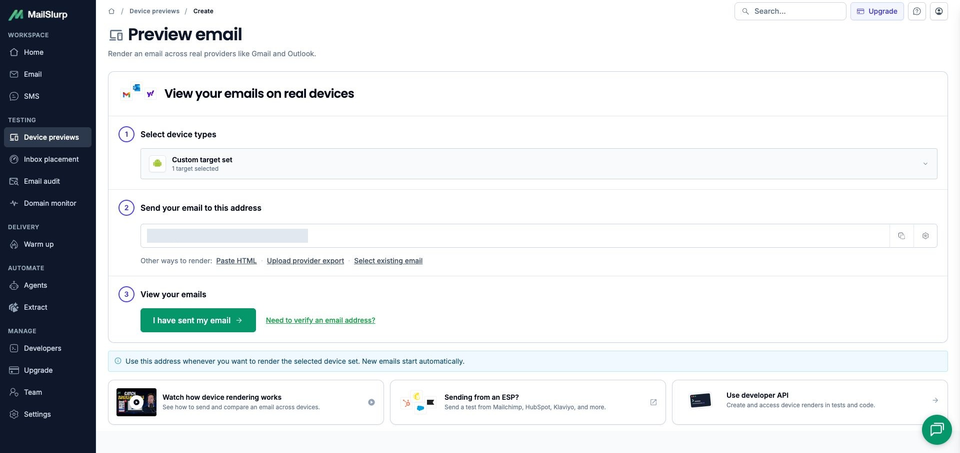
3. Send the campaign and wait for Outlook Android
Send the campaign or test email to that address. If you use an email platform, its test-send option lets you review the message it produces, including any personalization or link changes.
The sample subject is Before the next downpour: gutter care from $160 + GST. You can download the sample email to inspect its design, photograph URL and example links. Keep the campaign unchanged when comparing it with another app.
Return to MailSlurp and choose I have sent my email. The button opens the waiting view; receipt starts the render automatically. The matching campaign appeared with RUN CREATED, then View results opened the run.
Wait for COMPLETE and a READY Outlook Android result. This run finished with one ready screenshot. If the detail page is still loading or the target is pending, check the existing message and run before sending another copy.
4. Open the result and follow the offer
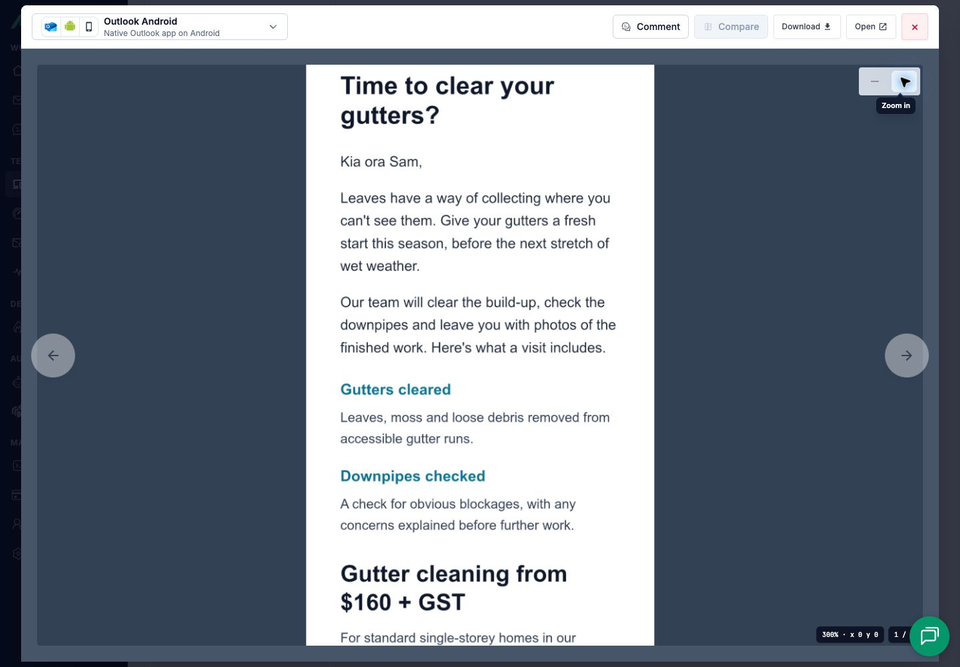
Open the completed screenshot. The viewer names Outlook Android and Native Outlook app on Android. Use the zoom controls for smaller text, or Open to view the full image separately.
Read the headline and introduction, then follow Gutters cleared and Downpipes checked to the price. Check the spacing between those blocks and keep going through the booking action and conditions. A photo and a visible button are only part of what the customer needs to decide.

What did Outlook Android show?
The gutter photograph appears beneath ClearRoof Co., with the white campaign inside Outlook's blue app interface. The main heading breaks into Time to clear your and gutters?, followed by the greeting and introduction.
The service descriptions stack vertically: Gutters cleared comes first, then Downpipes checked. Each heading stays with its explanation, and the starting price follows both services. This lets the reader work through what the visit includes before reaching the offer.
The price heading takes two lines: Gutter cleaning from, then $160 + GST. Book gutter cleaning keeps its yellow fill and dark label. The service-area explanation, final-pricing conditions and signoff remain visible, along with company details, preferences, unsubscribe, the sample notice and photo credit.
Read the conditions after the button as part of the offer. They explain that access, roof pitch and gutter condition affect the final price. If you lengthen either service description, repeat the preview and check that the price and conditions still feel connected to the explanation.
How does the same email look in Gmail on Android?
The Gmail Android walkthrough uses this same ClearRoof campaign and photograph, rendered on the same day. Gmail keeps Gutters cleared and Downpipes checked side by side; Outlook places them one beneath the other.
The difference changes the line lengths within the service descriptions. Read both arrangements, particularly if you add longer service names or more explanation. The phone platform alone does not tell you whether those blocks will share a row.
Both results show the photograph and the yellow action with a dark label. If you adjust the layout for one app, check the revised message in the other before approving it. Use the visible result to guide that decision rather than assuming a difference needs a repair.
How should you investigate a text-size report?
Ask which text looks wrong and which device text-size setting the reader uses. Microsoft says Outlook mobile adjusts to the device's font-size setting. Include that context when comparing a customer's report with a preview.
If a customer's heading occupies three lines while this one occupies two, compare the exact copy and reading context first. A note identifying that extra line gives a designer a specific question to investigate.
Render the edited source again before treating an adjustment as a fix. The result here shows this campaign in the captured view; a different text-size setting needs its own check.
MailSlurp features for repeated Outlook checks
Send the campaign to a render address when you want to inspect the final message from your email platform. MailSlurp also supports template HTML, exported emails and messages already received in a MailSlurp inbox. The email source guide explains those options for campaign and application tests.
Keep a regular client set in a saved target profile. A share link or target comment helps a designer find the Android result and the specific block that needs attention. Use the complete image to check what comes before and after that block.
For application-generated messages, the rendering API and CI workflow can preserve screenshots with the email produced by a test. Keep the reviewed result with that revision, then check the replacement screenshot after the next edit.
Which other Outlook apps should you include?
Select Outlook Android Dark for its separate appearance check and Outlook iOS for the iPhone app. Add Outlook Classic, New Outlook or Outlook.com when those clients belong in your audience. Keep each named result with the campaign version it shows.
| Device | Email app | Appearance |
|---|---|---|
| Android phones | Gmail, Outlook | Light and dark |
| iPhone | Gmail, Apple Mail, Outlook | Default |
| iPad | Apple Mail | Default |
| Mac | Apple Mail | Default |
| Windows | New Outlook, Outlook Classic | Default |
| Webmail | Gmail | Light and dark |
| Webmail | Outlook.com, Yahoo Mail | Default |
Choose the available clients and modes in your workspace when starting a preview. Test the apps your customers use, including dark mode where it is offered.
Gmail Android is another useful phone check, while the Outlook family guide helps choose between the desktop, web and mobile targets. Use the current picker to confirm the selections available in your workspace.
Does the booking button have enough context?
The customer needs to know what they are booking before the action can do its job. In this campaign, the two services explain the visit, while the starting price and conditions help someone decide whether to enquire. Read that whole sequence, including the small text after the button.
Clear details reduce the work of deciding what to do next. Finish by checking the real campaign's booking destination from a controlled message; this sample uses example links. Reviewing the mobile presentation and the next page together helps an interested reader continue without an avoidable interruption.