
Preview Outlook Android in Dark Mode
Compare a campaign in Outlook Android light and dark modes with MailSlurp. Check the photo, service text, price and booking button in the same email.
The campaign is ready, the button is bright, and the price is easy to find. Then someone opens it in Outlook's dark appearance. Can they still read the button label and the conditions below it? Those quieter details deserve a look before the email reaches customers.
This guide walks through sending a campaign to MailSlurp's Outlook Android Dark target and comparing it with the light result. Our fictional ClearRoof gutter-care offer keeps its photograph and stacked service descriptions in both views, while the yellow booking button becomes a muted ochre with light lettering in the dark result.
Why check Outlook Android in both appearances?
Color choices work together. A heading needs to stand apart from its background, the price needs to remain easy to find, and the button lettering needs to stay clear against the button itself. Approving the light version leaves the dark view to check.
Keep the comparison within the same app first. The Outlook Android light walkthrough shows this campaign in that target. Gmail Android and Outlook on iPhone are separate checks, even when the account or phone platform sounds familiar.
Manually collecting both appearances becomes awkward after several edits: a teammate may be looking at yesterday's price while you review today's copy. MailSlurp can render the same message in the selected targets and keep the results together. The team can then discuss the actual campaign instead of asking everyone for another phone screenshot.
Step-by-step guide: preview Outlook Android dark mode
You'll need device previews available in your MailSlurp workspace and enough preview credits for the selected target. We tested Outlook Android Dark, the native Outlook app running in an Android emulator in dark mode, on October 9, 2026.
The ClearRoof sample contains a hosted gutter photograph, gutter-clearing and downpipe-check descriptions, a starting price of $160 + GST and a booking action. We used the same campaign for the light and dark results below.
1. Select Outlook Android Dark
Open the new device preview form, or choose Start new render from Device previews.
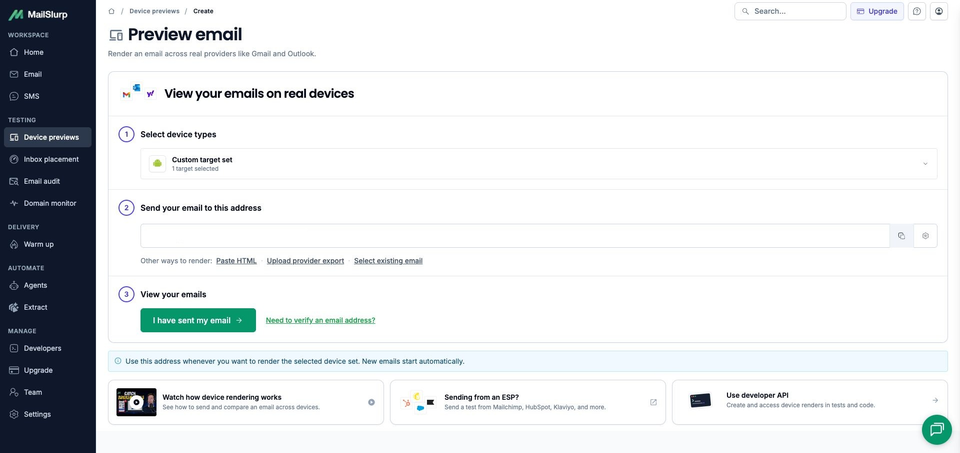
Expand Custom target set, choose Outlook Android Dark, and confirm 1 target selected for this individual check. Check that a saved profile has not added other clients. Outlook Android is the separate light selection.
2. Copy the current render address
Choose Send email and copy the address under Send your email to this address. Compare it with the recipient in your sending tool before sending.
Take the address after selecting the target, from your own current workspace. An address copied for an earlier preview may belong to a different selection.
3. Send the campaign and wait for its result
Send your campaign or test email to that address. If you use an email platform, send the version you intend to approve, including the current offer, personalization and footer.
The example subject is Before the next downpour: gutter care from $160 + GST. You can download the sample email to inspect its source and photograph URL. Keep the message unchanged when comparing light and dark appearances.
Choose I have sent my email to open the waiting view. Receipt starts the render automatically. Our matching campaign appeared with RUN CREATED, and View results opened the run.
Wait for COMPLETE and a READY Outlook Android Dark result. This run finished with one ready screenshot. If rendering is still in progress, check the existing message and run before sending another copy.
4. Inspect the text and action at full size
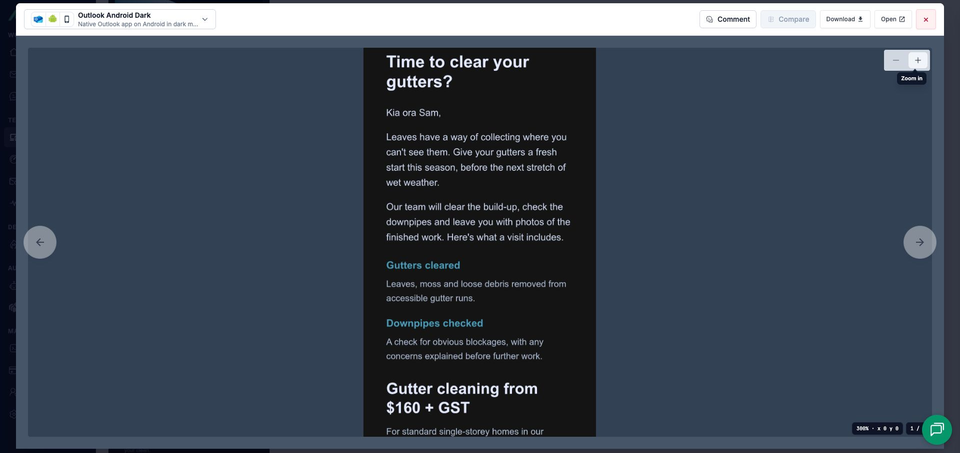
Open the completed screenshot. The viewer identifies Outlook Android Dark. Use its zoom controls for the service descriptions and smaller text, or Open to view the full image separately.
Read the brand, headline and service descriptions before moving to the price. Then inspect Book gutter cleaning, including its lettering, and continue through the conditions, preferences and unsubscribe links.
Compare the light and dark campaign
Both results use the same ClearRoof campaign and hosted photograph, rendered on October 9, 2026. Follow one element at a time down the two images. Open them at full size to inspect the button and footer closely.
Outlook Android light

Outlook Android dark

What changed in Outlook Android Dark?
The blue app header becomes dark, and the white campaign body becomes near black. The main headings and prose turn light, while the ClearRoof name and service labels appear blue/teal. The gutter photograph is visible in both results.
The reading order stays the same. Gutters cleared comes before Downpipes checked, with the services stacked vertically. Time to clear your gutters? takes two lines, as does the price: Gutter cleaning from, then $160 + GST.
The booking action changes more noticeably. Its bright yellow fill in the light result becomes a muted ochre in the dark result, and the dark label becomes light. The words Book gutter cleaning remain visible inside the action.
The footer also changes from a pale surface to grey. Company information, email preferences, unsubscribe, the sample notice and photo credit are all present. Read that smaller text at full size; the review should extend beyond the headline and button.
How to decide whether the button needs an edit
Start with the visible change: the fill and lettering both differ from the light version. Decide whether the action is easy enough to read and find after the price, and whether its appearance is acceptable for the campaign. The screenshots show the result for this email; they do not identify the styling rule or client transformation behind it.
If you change the button, render the revised message in both appearances before approving it. A note naming the brown fill and light label gives a designer a much clearer task than "dark mode looks different".
Check any transparent logo separately against its surrounding surface. ClearRoof's brand name is live text, so this result does not test a transparent wordmark. The dark-mode preview guide covers that image check.
MailSlurp features for reviewing both appearances
A saved target profile can keep your regular light and dark selections together. Send the finished campaign to its render address, then use the viewer to inspect the same part of the message in each result. For earlier design work, MailSlurp also accepts template HTML, exported emails and stored messages.
When a colleague needs to inspect the action, comments and share links help direct them to the relevant target. Keep the complete image available so they can read the price and conditions around it. Application teams can also retain the screenshots with the email produced by a CI test, then review the replacement results after a template change.
Which other clients need their own check?
Outlook iOS, New Outlook, Outlook Classic and Outlook.com are separate selections. Add the apps your customers use, and choose an explicitly named dark variant where one is available. The Outlook family guide explains those choices.
| Device | Email app | Appearance |
|---|---|---|
| Android phones | Gmail, Outlook | Light and dark |
| iPhone | Gmail, Apple Mail, Outlook | Default |
| iPad | Apple Mail | Default |
| Mac | Apple Mail | Default |
| Windows | New Outlook, Outlook Classic | Default |
| Webmail | Gmail | Light and dark |
| Webmail | Outlook.com, Yahoo Mail | Default |
Choose the available clients and modes in your workspace when starting a preview. Test the apps your customers use, including dark mode where it is offered.
Gmail Android Dark is another useful phone appearance check. Keep its result tied to that app rather than assuming every dark target will make the same color changes.
Read the conditions as part of the offer
The starting price is only part of ClearRoof's offer. The conditions explain that access, roof pitch and gutter condition affect the final price. A customer deciding whether to book needs those details as well as an obvious action.
Read the smaller text and the footer links once more before approving the dark version. Then check your real campaign's booking destination from a controlled message; the sample uses example links.