
Preview and Test Email Campaign Rendering on Gmail.com in Dark Mode
Compare the same campaign in Gmail web light and dark views with MailSlurp. Inspect the message colors, photograph and booking action inside the dark interface.
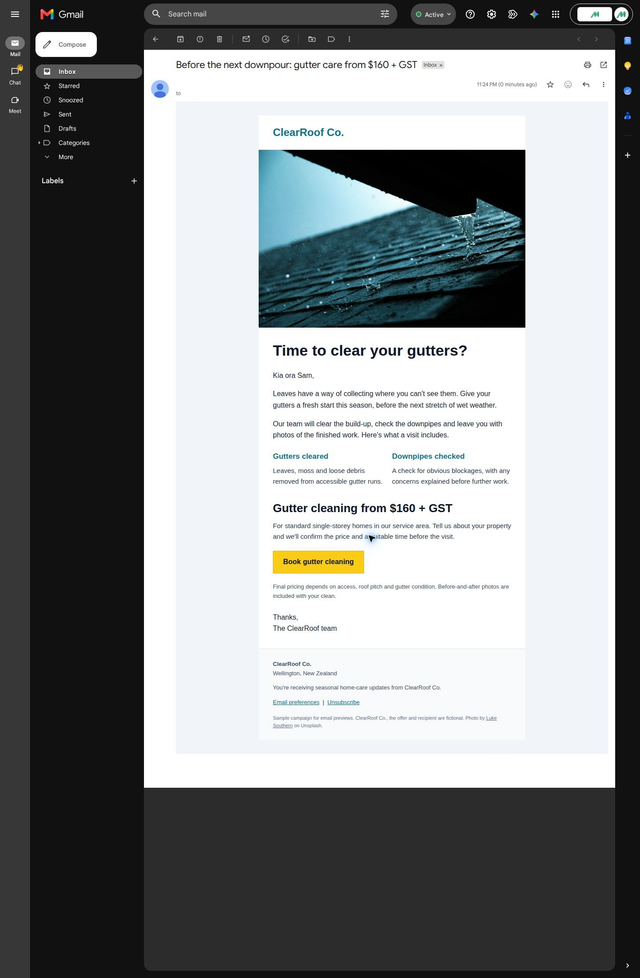
A dark Gmail window can draw your eye to the surrounding interface before you've looked closely at the email. In the preview below, the sidebar and toolbar turn dark while the campaign stays white. The text and booking button still need their own inspection.
This walkthrough uses MailSlurp's Gmail.com Dark target and a matching light preview. We'll send a fictional ClearRoof gutter-care offer, open the completed result and compare the photograph, service descriptions, price and final links. The Android comparison later in the guide shows why a browser check alone would leave another appearance unreviewed.
Why check the email separately from Gmail's background?
The app's appearance tells you where to start looking. Follow the message itself: the brand name, heading, body text, button label and quieter footer copy. Each element sits against a background that affects how easily someone can read it.
Keep the same campaign for the light and dark views. Otherwise, a copy or styling edit can look like a change caused by the appearance setting. The Gmail family guide helps choose between the browser and phone apps; this guide tests the browser's dark target.
Changing your own appearance setting is useful for a quick check. Repeating the exercise after several edits, with colleagues collecting phone screenshots as well, takes more coordination. MailSlurp collects the selected client results for the campaign so the team can review the same revision together.
Step-by-step guide: preview Gmail web in dark mode
You'll need device previews available in your MailSlurp workspace and enough preview credits for the selected target. We tested Gmail.com Dark, the Chrome browser target in dark mode, on October 9, 2026 (NZDT).
The ClearRoof example includes a hosted gutter photograph, two service descriptions, a starting price of $160 + GST, a booking action and pricing conditions. We sent the unchanged campaign separately to the light and dark web targets. The Gmail web light tutorial covers the matching light result.
1. Select Gmail.com Dark
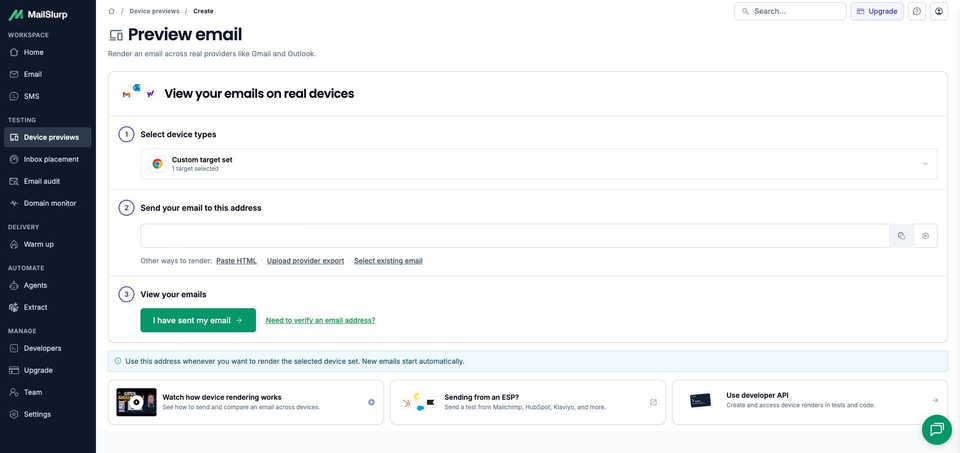
Open the new device preview form, or choose Start new render from Device previews.
Expand Custom target set and select Gmail.com Dark. Confirm 1 target selected for this check and make sure a saved profile has not added other clients. Gmail.com is the separate light target; Gmail Android Dark opens the Android app instead.
2. Copy the address after selecting the dark target
Choose Send email and copy the address under Send your email to this address. Compare it with the recipient in your sending tool before sending.
Copy the current address after selecting the intended target. Reusing an address from a previous light or phone check can send the campaign to a different client set.
3. Send the campaign and wait for completion
Send your campaign or test email to that address. Your email platform's test-send path lets you inspect the message it produces, including the latest personalization, links and footer.
The subject here is Before the next downpour: gutter care from $160 + GST. You can download the sample email to inspect the source, hosted photograph and example links. Keep that source unchanged for a light/dark comparison.
Choose I have sent my email to open the waiting view. Receipt starts the run automatically. Our matching subject appeared with RUN CREATED, then View results opened the run.
Wait for COMPLETE and a READY Gmail.com Dark result. This run finished with one ready screenshot. If your result is still pending, inspect the existing message and run before sending another copy.
4. Open the campaign and inspect its colors
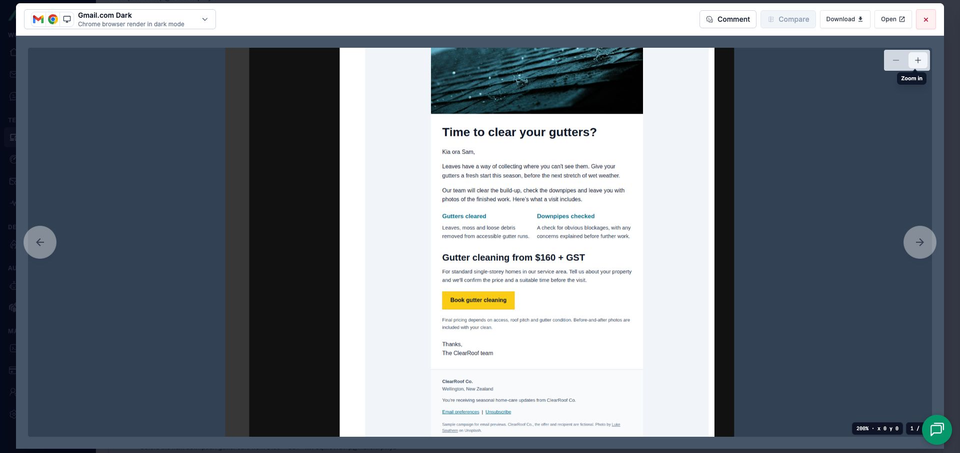
Open the completed screenshot. The viewer identifies Gmail.com Dark and Chrome browser render in dark mode. Use the zoom controls for smaller text, or Open to view the complete image separately.
Look at the Gmail interface around the message, then move into the email itself. Read the service descriptions and button label, and continue through the conditions and footer.
Compare the same campaign in light and dark
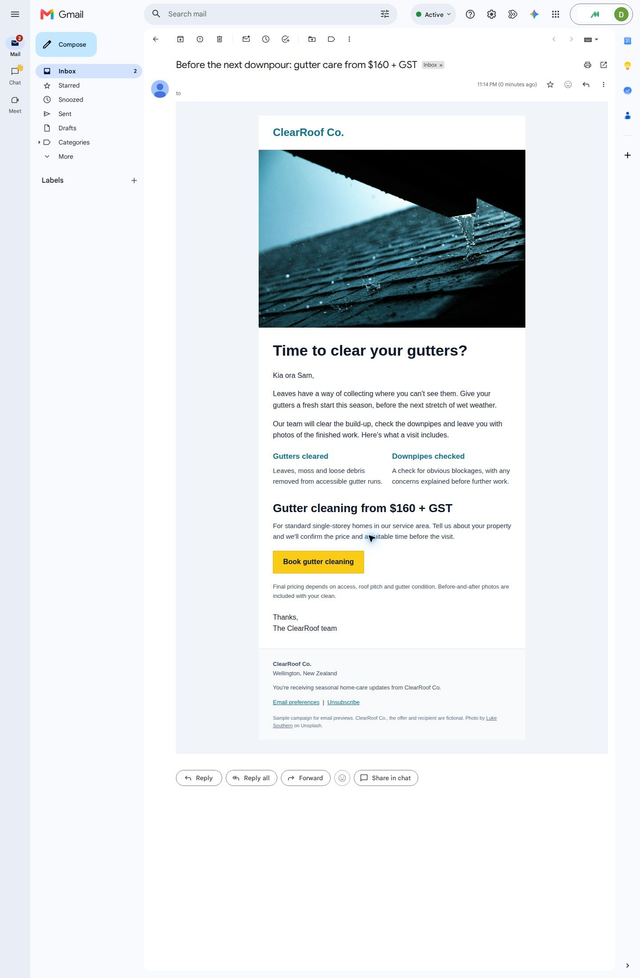
Both images use the same ClearRoof source and were captured on October 9, 2026. Start with the sidebar and toolbar, then compare the message surfaces and text. Open the full-size images when reading the smaller conditions and links.
Gmail web light
Gmail web dark
What changed in Gmail web's dark view?
Gmail's sidebar, search area and toolbar are dark. Inside that interface, the campaign remains white on its pale surround. The ClearRoof brand and service headings stay teal, with dark prose below them. The hosted gutter photograph appears in both results.
The layout is also similar: Time to clear your gutters? and Gutter cleaning from $160 + GST each fit on one line. Gutters cleared and Downpipes checked share a row. Book gutter cleaning keeps its yellow fill and dark label.
The conditions, signoff and full footer are present, including preferences, unsubscribe, the sample notice and photo credit. No clipping notice or separate exposed preheader text appears in this result.
If your first reaction is "the email is still white", identify which surface you mean before editing the template. Here, the dark target is visible in Gmail's interface and the message keeps its light treatment. The screenshots show that outcome for this campaign; they don't identify which styling rule determined it.
How does this differ from Gmail Android dark mode?
The Gmail Android dark-mode walkthrough uses the same ClearRoof campaign. There, the body becomes near black with light text. The yellow booking action remains yellow, but its label becomes white.
In this web result, the body remains white and the button label remains dark. Those are different reading conditions for the same offer. Keep the app name with any review note: "Gmail web dark" and "Gmail Android dark" point a colleague to different results.
If you change a text or button color after reviewing Android, send the revised campaign to both web appearances too. Inspect the label and its background together in each result before approving the change.
How to check the smaller text and images
Read the action label against its fill, then the price conditions against their own background. The main heading can look clear while quieter text needs closer attention. Use the full-size result for the footer links as well as the offer.
ClearRoof uses text for its brand name. If your campaign has a transparent logo, look for letters or details that fade into the background in each result. The dark-mode email preview guide covers that image and color review.
Describe a problem by the visible element and target before changing the design. Then render the revised campaign in both appearances and check it again.
MailSlurp features for repeated appearance checks
A saved target profile can keep web light/dark and phone selections together for regular campaign reviews. Send your platform's finished test message to the render address, or use HTML, exported files or stored messages while developing the template.
The viewer's zoom and full-image access let a reviewer move between a small color detail and the whole offer. Use comments and share links to draw a colleague's attention to a particular label or line of text. Application teams can retain these results with the message produced by a CI test.
Which other apps should you include?
Use Gmail's Android and iPhone targets when those apps matter to your audience. Outlook Android Dark is another distinct appearance check, alongside its light counterpart. Add desktop Outlook, Apple Mail and other webmail selections as needed.
| Device | Email app | Appearance |
|---|---|---|
| Android phones | Gmail, Outlook | Light and dark |
| iPhone | Gmail, Apple Mail, Outlook | Default |
| iPad | Apple Mail | Default |
| Mac | Apple Mail | Default |
| Windows | New Outlook, Outlook Classic | Default |
| Webmail | Gmail | Light and dark |
| Webmail | Outlook.com, Yahoo Mail | Default |
Choose the available clients and modes in your workspace when starting a preview. Test the apps your customers use, including dark mode where it is offered.
Keep the campaign revision fixed while comparing clients, then repeat the affected checks after an edit.
Can the customer read the conditions?
A reader needs to see what the service includes, what the starting price means and how the final price will be confirmed. Give those smaller details time in the review; they help someone decide whether to continue.
Finish by reading from the price to the last footer link, then check your actual booking destination from a controlled campaign email. The sample's links are examples. Your customer's next step should be as clear as the offer.