
blog
Why Your Email Logo or Button Disappears in Dark Mode
See a real Gmail Android dark-mode logo failure, choose a usable asset, and test logos, text, and campaign buttons before the next send.

The campaign looks ready in light mode. Then someone opens it on a dark screen and the wordmark almost disappears. The message arrived, but the customer may struggle to recognize the sender or find the button.
Dark mode email testing should begin with the unreadable part of the message. Check the logo, text, button, links, and image-contained copy separately, then rerender the finished email after the asset or template change.
The same email in light and dark mode
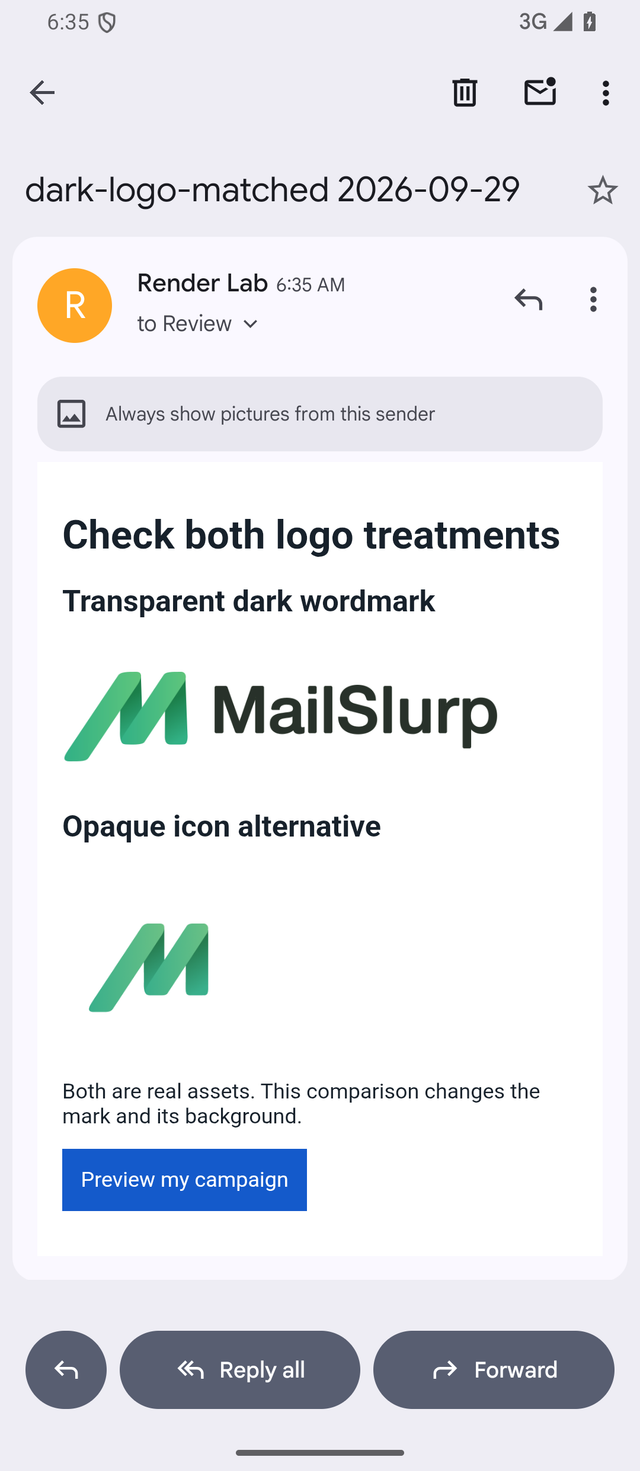
We imported one saved email into MailSlurp and rendered it in Gmail Android light and dark modes. It contained a transparent MailSlurp wordmark, a separate opaque icon on white, and a blue button. Both client targets received the same source.
Light mode: both marks visible
Dark mode: wordmark loses contrast
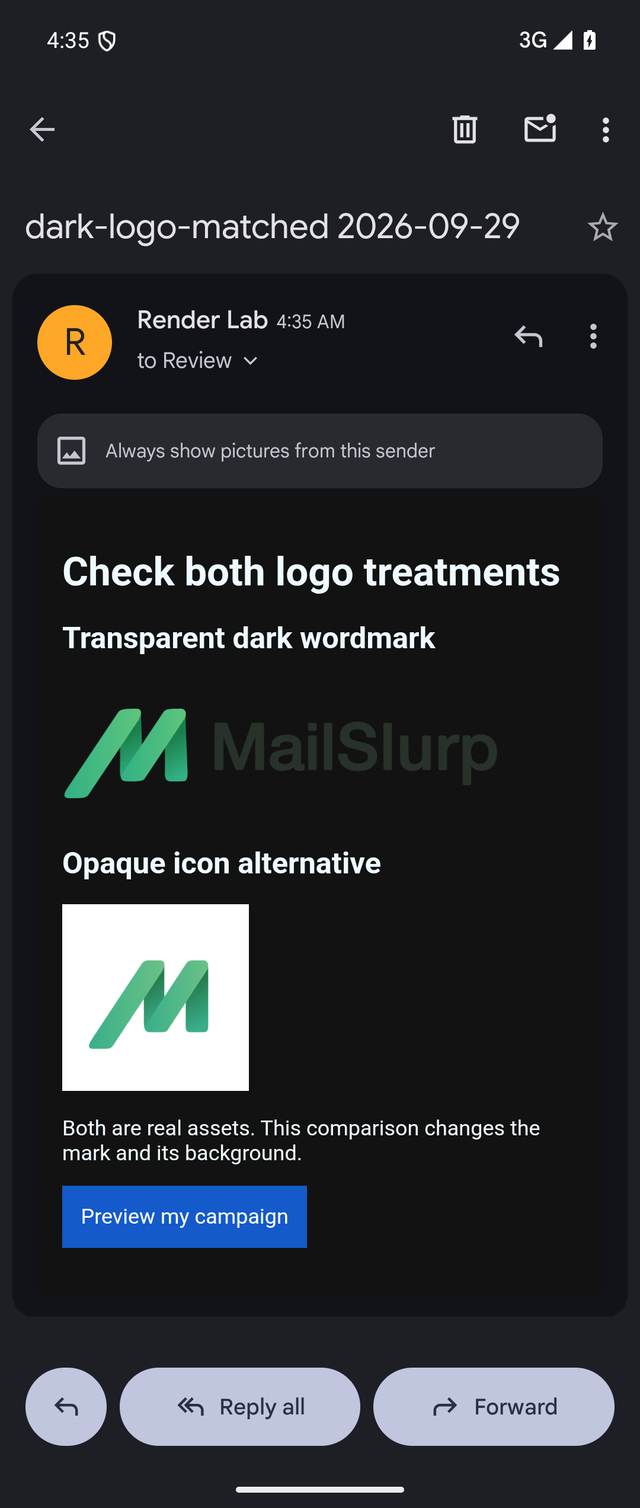
The button remains readable in both captures. That matters because "dark mode failed" is too broad. The observed defect belongs to the transparent wordmark, while the solid blue action still has useful contrast.
Download the comparison email to inspect or reuse the test. EML is a saved-email file containing the message and its HTML. This example was imported directly into MailSlurp; it was not sent through an ESP. The captures establish a Gmail Android result, not an iPhone or Outlook result.
Why email apps change colors differently
Dark mode is not one transformation shared by every inbox. A client may:
- leave the email colors largely unchanged
- invert only light backgrounds and adjust nearby text
- apply a more extensive inversion across backgrounds and foreground colors
The behavior can also differ between the same brand's iOS, Android, web, and desktop apps. Mailchimp's dark-mode guidance groups clients into unchanged, partial-inversion, and fuller-inversion behavior and recommends testing the actual design before sending.
Treat those groups as a reason to test, not as a substitute for the result. A client can change over time, and knowing its broad scheme does not prove that one particular logo or CTA passes.
Check logos, text, and buttons separately
Logos and images
A transparent background lets the surrounding email surface show through. That can work well, but transparency alone does not guarantee contrast. A dark wordmark may still blend into a darkened background, as the Gmail Android capture shows.
Ask:
- Does the essential mark remain recognizable on both light and dark surfaces?
- Is the wordmark itself light, dark, or multicolored?
- Does the image contain text that cannot adapt?
- Is there approved artwork with its own controlled background?
- Does a high-contrast icon work when the full wordmark does not?
Text and links
Check body copy, secondary text, offer conditions, preference links, and unsubscribe content. A heading can remain visible while lighter supporting text becomes difficult to read.
Links should be recognizable without relying on a subtle color difference alone. If the client transforms link color, an underline and clear wording can preserve the action.
Buttons
Inspect the button fill, label, border, and nearby background as separate elements. A border-only button can disappear when its border changes or the surrounding surface becomes similar. A solid button with a high-contrast label usually gives the client less ambiguity, but it still needs a real render.
Open the link from a safe test message too. A rendering capture proves visibility, not that the destination works.
Choose a logo treatment that survives the background change
The opaque icon in the comparison stays recognizable because the image brings its own white surface. That is a usable alternative when the brand permits an icon in place of the full wordmark.
It is not a controlled repair of the original wordmark: the mark, its shape and its background all differ. The visible white square is also a design tradeoff. Before asking a designer to add one to every logo, show them the two captures and explain which brand elements the campaign must retain.
If the full name is essential, ask for an approved wordmark treatment that works against both surfaces, then test that exact file. If the image is absent rather than hard to see, investigate SVG versus PNG and how the logo is embedded before treating it as a color problem.
Ask for a usable asset, then render it again
Give the designer or brand owner the evidence and the required behavior:
- exact client target and dark-mode state
- full capture plus the affected section
- original asset filename and intended use
- what remains visible and what disappears
- whether the full wordmark is required or an approved icon is acceptable
- light-mode and dark-mode acceptance targets
Ask for an asset that keeps the essential mark distinguishable on the relevant surfaces. Depending on the brand system, that might be a light wordmark, an outlined version, a logo with controlled backing, or a compact icon. Do not add an improvised glow, outline, or white box without brand approval.
After replacing the asset:
- Send the complete campaign through the same ESP path.
- Render the same client that showed the failure.
- Compare the original and revised captures.
- Check the corresponding light-mode result.
- Check another high-priority client for a regression.
- Save the tested campaign revision and result link.
Recheck the revised asset in each important client. A change that helps Gmail may look different in Outlook.
Add dark mode to campaign sign-off
Use a focused checklist rather than approving from memory:
- The final ESP revision was sent.
- Required light- and dark-mode targets completed.
- The logo and essential brand mark are recognizable.
- Headline, body, offer conditions, and footer are readable.
- The primary CTA has a visible fill and label, and its destination was opened separately.
- Links remain recognizable.
- Image-contained text remains readable.
- Dividers and status colors still communicate their purpose.
- The revised asset was checked in light mode too.
- The campaign was rerendered after the last material change.
To repeat the check with your own delivered campaign, follow the send instructions for Mailchimp, Klaviyo or Brevo. Those workflows include the provider's processing of the message; the imported example above isolates the Gmail Android contrast check. The dark mode email testing guide covers the deeper template workflow.
Frequently asked questions
Why does a transparent logo disappear in dark mode?
Transparency exposes the surrounding surface. If the wordmark is dark and the client transforms that surface to a similar dark color, the mark can lose contrast. Transparency is useful, but the foreground still needs to work against the rendered background.
Should I put every logo on a white box?
No. The opaque icon in this Gmail Android fixture is one observed alternative, not a universal design rule. Use an approved asset that fits the brand and verify it in the required light and dark clients.
Can CSS force the same dark-mode result everywhere?
No single CSS treatment is dependable across every email client. Client support and color transformations differ. Use supported template techniques, then test the delivered email.
Does this Gmail Android result prove the logo works on iPhone?
No. Test iOS Mail, Gmail iOS, or Outlook iOS separately when those paths matter to your audience.
What if the button is visible but the logo fails?
Treat them as separate checks. Keep the passing button, replace or adjust the approved logo asset, and rerender. Changing the whole template can hide which repair worked.