
Preview Outlook Email on iPhone
Preview a campaign in Outlook's iPhone app with MailSlurp. Follow the photograph, service details, price and booking action through a complete result.

It's a short price, yet three iPhone apps find three ways to wrap it. In our ClearRoof previews, Outlook, Gmail and Apple's Mail all use two lines, with a different break in each. Before trimming the offer to fit one app, read it in the others too.
This walkthrough shows how to send a campaign to MailSlurp's Outlook iOS target and inspect the offer in Outlook on iPhone. Our fictional ClearRoof example stacks its two service descriptions and puts $160 + GST on the second line of the price heading. The same price wraps differently in the other two iPhone apps.
Why does the iPhone app matter?
An iPhone check needs an app name beside it. Keep an Outlook screenshot with the Outlook review, and a Mail screenshot with the Mail review. That makes a report about line breaks or a crowded service description much easier to investigate.
The Outlook family guide explains the mobile, Windows and web selections. For this task, choose Outlook iOS. iOS Mail selects Apple's Mail app, while Gmail iOS selects Gmail.
As the campaign changes, passing phones around also creates a version problem. One person may still have the first test while another has the revised price. MailSlurp can render the same message in the selected apps, giving the team named results to review after each edit.
Step-by-step guide: preview email in Outlook on iPhone
You'll need a MailSlurp workspace with device previews available and enough preview credits for the selected target. We tested Outlook iOS, the native Outlook app on iPhone, on October 9, 2026 (NZDT).
The sample campaign advertises a gutter-care visit for fictional company ClearRoof. It includes a hosted photograph, two service descriptions, a starting price and a booking action. The conditions and footer are part of the message we review.
1. Select Outlook iOS
Open the new device preview form, or choose Start new render from Device previews.
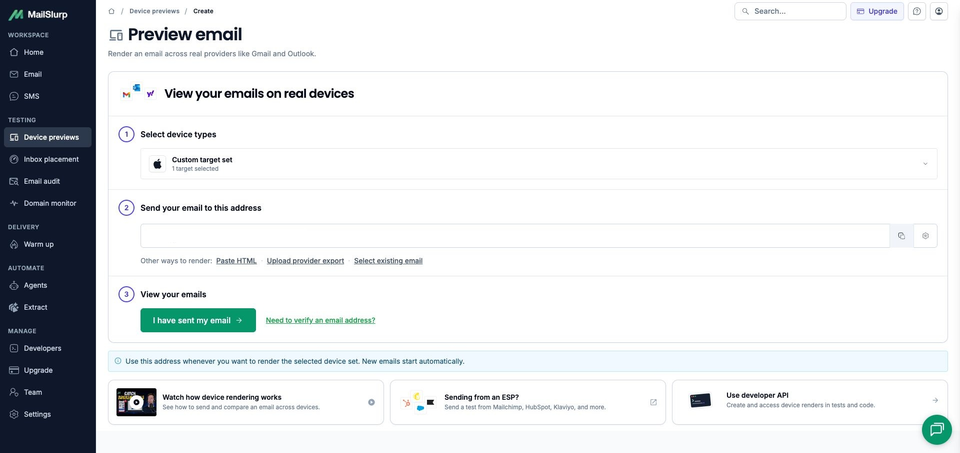
Expand Custom target set and choose Outlook iOS. Keep only that target selected for this individual check and confirm 1 target selected. Check that a saved profile has not added other apps.
2. Copy the address for this target
Choose Send email, then copy the current address under Send your email to this address. Compare it with the recipient in your sending tool before sending the campaign.
Copy the address after selecting Outlook iOS. Use your own current address rather than one from a previous preview.
3. Send the campaign and follow its progress
Send your campaign or test email to that address. If you use an email platform, send the version you want to approve so the preview includes the current offer, personalization and footer.
The sample subject is Before the next downpour: gutter care from $160 + GST. You can download the sample email to inspect its source, photograph URL and example links. Keep it unchanged when comparing apps.
Return to MailSlurp and choose I have sent my email. This opens the waiting view; receipt starts the render automatically. Our matching campaign appeared with RUN CREATED, then View results opened its run.
Wait for COMPLETE and a READY Outlook iOS result. This run finished with one ready screenshot. If the result is still pending, check the existing message and run before sending another copy.
4. Open the result and read the service details
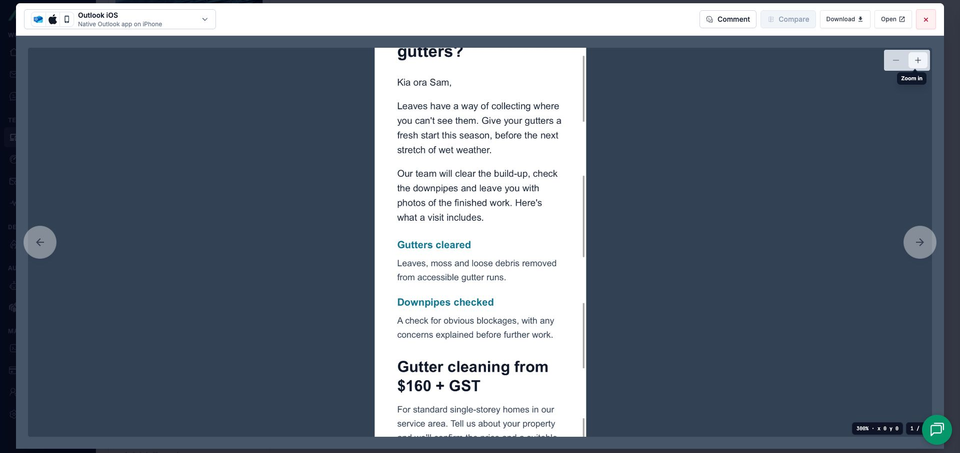
Open the completed screenshot. The viewer identifies Outlook iOS and Native Outlook app on iPhone. Use the zoom controls for smaller text, or Open to view the full image separately.
Follow Gutters cleared and Downpipes checked down to the price. Read each explanation with its heading, then inspect the space between the last service and the offer. Continue through the action and conditions before deciding whether the message is ready.

What did Outlook show on iPhone?
The gutter photograph appears below ClearRoof Co. inside the white campaign. The main heading takes two lines: Time to clear your, then gutters? The greeting and introduction lead into the two service descriptions.
Gutters cleared and its explanation come first, followed by Downpipes checked and its explanation. The blocks stack vertically, as they do in the matching Outlook Android result. Each service is presented before the price.
The price reads Gutter cleaning from on one line and $160 + GST on the next. The service-area paragraph explains that the customer can describe their property before the price and a suitable time are confirmed. Book gutter cleaning retains its yellow fill and dark label.
The final-pricing conditions, thanks and signoff remain visible. The complete footer includes company details, email preferences, unsubscribe, the fictional-sample notice and photo credit. Read those parts too, particularly when a later edit lengthens the message.
How do iPhone mail apps wrap the same price?
The three iPhone previews use the same ClearRoof campaign and photograph, rendered on October 9. Each app presents the price in two lines, but the break falls in a different place.
| iPhone app | First price line | Second price line |
|---|---|---|
| Outlook | Gutter cleaning from | $160 + GST |
| Apple Mail | Gutter cleaning from $160 | + GST |
| Gmail | Gutter cleaning | from $160 + GST |
The service layout differs too: Outlook and Apple Mail stack the descriptions, while Gmail keeps them side by side. The app name gives you more useful context than "iPhone" when discussing these details.
These differences do not automatically call for a redesign. Read the price as a whole and check whether its wording remains clear. If you change the copy or spacing, repeat the preview in the apps you need to support before approving the revision.
MailSlurp features for following up on a screenshot report
Start from the message that needs reviewing. Send a campaign to its render address, or use an exported email, template HTML or stored MailSlurp message when reproducing an existing example. That helps keep the discussion tied to the content the reader actually received.
A saved target profile lets you repeat your regular app selection after an edit. For application-generated messages, the rendering API and CI workflow can retain the screenshots with the email produced by the test.
Use a target comment or share link to help a colleague find the relevant result. A note naming the price's second line is more useful than "the layout is off". Keep the whole image available so the reviewer can see the service text and action around it.
Which phone and desktop previews should you add?
Include Outlook Android for the other Outlook phone app, and its explicitly named dark target when that appearance matters. Gmail iOS and iOS Mail cover the other iPhone apps shown in the comparison.
| Device | Email app | Appearance |
|---|---|---|
| Android phones | Gmail, Outlook | Light and dark |
| iPhone | Gmail, Apple Mail, Outlook | Default |
| iPad | Apple Mail | Default |
| Mac | Apple Mail | Default |
| Windows | New Outlook, Outlook Classic | Default |
| Webmail | Gmail | Light and dark |
| Webmail | Outlook.com, Yahoo Mail | Default |
Choose the available clients and modes in your workspace when starting a preview. Test the apps your customers use, including dark mode where it is offered.
Add New Outlook, Outlook Classic or Outlook.com when those clients belong in your audience. The Outlook family guide keeps the desktop, browser and mobile choices distinct.
What should you ask when an iPhone screenshot looks different?
Ask for the app name, the campaign being viewed and the exact detail that looks wrong. Keep enough of the screenshot to see the surrounding content. "The price has moved to three lines in Outlook" gives you a focused check to reproduce.
For an offer like ClearRoof's, judge the change by whether the customer can understand the work, starting price and next step. If a revision makes those details clearer, verify it in a fresh Outlook result and check the real booking destination from a controlled email. The sample uses example links; the customer's next page needs its own review.