
Preview Email in iPhone Mail
Preview a campaign in Apple's Mail app on iPhone with MailSlurp. Check how service details stack and follow the offer through to its price and booking action.
A two-column offer asks the reader to look across the page. On a phone, those details may become a vertical sequence. If the order is muddled, the price can arrive before the customer understands what they are buying.
MailSlurp's iOS Mail target lets you preview the campaign in Apple's Mail app on iPhone. In our ClearRoof example, the service descriptions appear one beneath the other. The same email in Gmail on iPhone keeps them side by side. Here, we'll send the campaign to a render address and check how the photo, services, price and booking action read in Apple Mail.
Why check the order of an offer on iPhone?
The reader needs to connect four things: what needs doing, what the visit includes, what the starting price covers and how to book. A layout can contain every word and still make that sequence difficult to follow. Check the spaces between sections as well as the sections themselves.
Choose iOS Mail when you need Apple's phone app. Gmail iOS and Outlook iOS are separate apps on the same platform. The Apple Mail family guide explains the wider Mac, iPhone and iPad choices; an approval on a wide desktop does not answer every phone-layout question.
Checking one message on your own phone is manageable. Repeating it after a copy edit across several apps means collecting more devices and matching more screenshots to revisions. MailSlurp runs the selected previews from the campaign you supply and brings the results together. You can spend the review reading the offer instead of finding the latest screenshot in a conversation.
Step-by-step guide: preview email in iPhone Mail
You'll need a MailSlurp workspace with device previews available and enough preview credits for the selected target. We tested iOS Mail, the native Mail app on iPhone, on October 9, 2026.
The example is a fictional ClearRoof gutter-care campaign. It greets Sam, shows a gutter photograph, describes the work and offers a visit from $160 + GST. The offer, recipient and company are sample content.
1. Select iOS Mail
Open the new device preview form, or choose Start new render from Device previews.
Expand Custom target set and select iOS Mail. For this individual check, keep only that target selected and confirm 1 target selected. Check that a saved profile has not added other clients.
The app name is the useful distinction: iOS Mail selects Apple's Mail app on iPhone; iPadOS Mail is the separate tablet target.
2. Copy the address for the iPhone Mail preview
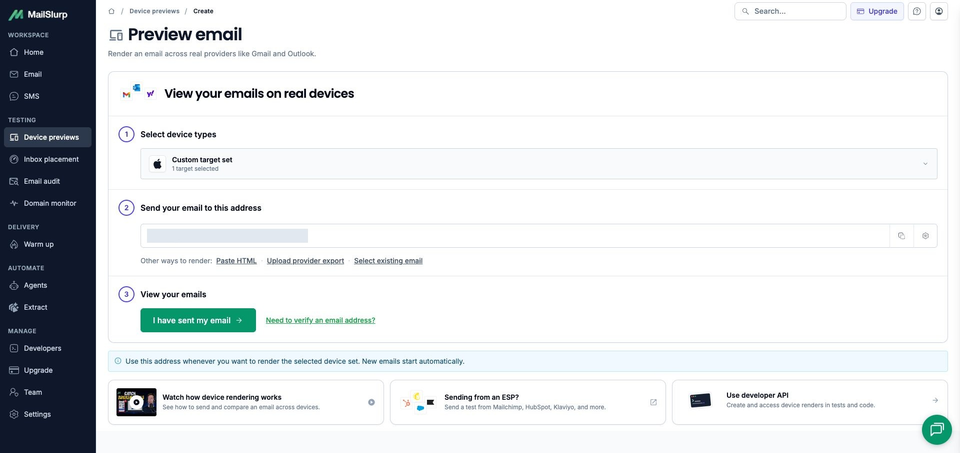
Choose Send email and copy the current address under Send your email to this address. Compare it with the recipient field in your sending tool before sending.
Copy the address after selecting the intended target set. Use the one in your own workspace, so the campaign reaches the preview you just configured.
3. Send the campaign and wait for iOS Mail
Send the campaign or test email to that address. For a campaign in an email platform, use its test-send option to inspect the message the platform produces, including any personalization or link changes.
The sample subject is Before the next downpour: gutter care from $160 + GST. You can download the sample email to inspect the design, photograph URL and example links. Keep this complete message unchanged when comparing apps.
Back in MailSlurp, choose I have sent my email. The control opens the waiting view; receipt triggers the render automatically. Our matching campaign appeared with RUN CREATED. Choose View results to follow its run.
Wait for COMPLETE and a READY iOS Mail result. This run finished with one ready screenshot. If the result is taking time, check the existing message and run before sending another copy.
4. Read the service blocks and price in the viewer
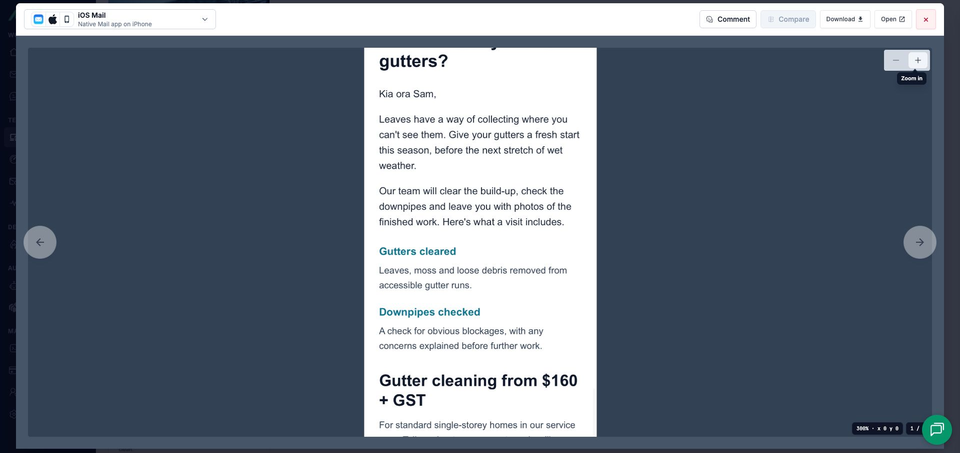
Open the completed image. The viewer identifies iOS Mail and Native Mail app on iPhone. Use the zoom controls to read smaller text, or Open to view the full image separately.
Read Gutters cleared, then Downpipes checked, then the starting price. The stacked blocks give each description a wider line than it has in the matching Gmail iPhone result. Check that the second service still feels like part of the offer, and keep going to the conditions below the button.

What did Apple Mail show on iPhone?
The photograph fills the email body's width below ClearRoof Co. The main heading takes two lines: Time to clear your, then gutters? The greeting and introduction lead into the two service descriptions.
Gutters cleared appears first, followed by its description, then Downpipes checked and its description. Each description has the content width to itself in this capture. Finish reading the first service before moving to the second, then check that the transition into the price still makes sense.
The price also takes two lines, with + GST on the second. Book gutter cleaning retains a yellow fill and dark label. The service-area explanation, final-pricing conditions and signoff remain visible, followed by company details, preferences, unsubscribe, the sample notice and photo credit.
Read the smaller conditions with the price. They explain that access, roof pitch and gutter condition affect the final quote. If a future edit lengthens either service description, inspect this whole section again so the conditions and action still follow the offer clearly.
Why compare Apple Mail with Gmail on iPhone?
The Gmail iPhone walkthrough uses the same ClearRoof campaign and hosted photograph, rendered on the same day. Gmail keeps the two service descriptions side by side. Apple Mail shows them one after the other, giving each description more horizontal room.
The price wraps differently too. Gmail puts Gutter cleaning on its first line and from $160 + GST on the second. Apple Mail keeps Gutter cleaning from $160 together, with + GST below. Both contain the offer, but the app changes how the reader encounters it.
If you shorten the copy or change the spacing, repeat the preview in both apps. Check the service order and the space around the price in each result before approving the revision.
MailSlurp features for reviewing campaign revisions
Send a campaign to its render address when you want to review the message from your email platform. MailSlurp also supports exported emails, template HTML and messages already received in a MailSlurp inbox. The source guide helps you choose the version that matches the question you are checking.
For regular reviews, save the client set as a target profile. The CI rendering workflow lets application tests retain screenshots with the email they produced. That keeps the next template revision attached to a known message and app selection.
Use target comments and share links to bring another reviewer to the result. A comment naming the gap between Downpipes checked and the price is easier to discuss than a request to "fix the spacing". Use the full image to check the surrounding content before agreeing on a change.
Which other Apple devices should you preview?
Check iPadOS Mail when customers also read the campaign on an iPad and Apple Mail on macOS for the desktop app. A wider reading area can change the composition, so keep the same campaign when comparing it with the phone result.
| Device | Email app | Appearance |
|---|---|---|
| Android phones | Gmail, Outlook | Light and dark |
| iPhone | Gmail, Apple Mail, Outlook | Default |
| iPad | Apple Mail | Default |
| Mac | Apple Mail | Default |
| Windows | New Outlook, Outlook Classic | Default |
| Webmail | Gmail | Light and dark |
| Webmail | Outlook.com, Yahoo Mail | Default |
Choose the available clients and modes in your workspace when starting a preview. Test the apps your customers use, including dark mode where it is offered.
Include Gmail iOS and Outlook iOS for those phone apps, and the Android or webmail targets your customers use. The Apple Mail family guide supplies the wider device-selection context. This iPhone result is the place to return when a later revision changes the stacked layout.
Can a reader explain the offer after one pass?
For this campaign, someone should be able to say what the visit includes, find the starting price and understand how the final quote will be confirmed. Read the preview without looking back at the source. If you have to reconstruct the offer from scattered details, the customer has more work to do before booking.
Clear service details and conditions give an interested reader a better basis for continuing. Finish by checking the real campaign's booking and preference links from a controlled message. The sample uses example URLs; review those destinations separately from the screenshot's appearance.