
guides
Email Images Not Showing? Keep Your Offer and CTA Readable
Tell blocked pictures from broken image links, see a real missing-image test, and make your campaign understandable before customers download the artwork.
Your newsletter may arrive before its pictures do. A customer opens it, sees blank spaces and has to decide whether there is anything worth reading. If the headline, price and button are all inside one image, you have made that decision difficult.
When email images are not showing, diagnose the cause and check what the reader can still understand. Put the essential offer and a clear call to action (CTA) in real text, add useful image descriptions, and test the campaign with pictures available and unavailable.
A download notice and a broken image need different fixes
An email app can withhold remote pictures as a privacy or security choice. Separately, the image itself may be unavailable: the URL is wrong, the file was removed, access requires a login, or the format is unsuitable for that client.
Microsoft's Classic Outlook guidance explains its automatic picture-download controls and how a recipient can choose to download pictures for a trusted message. Respect that choice when designing a campaign. The message should still be useful before the customer changes anything.
Use the symptom to decide what to investigate:
- Most remote pictures disappear behind a download notice: inspect the client's image setting in your controlled test account.
- One picture fails while neighboring pictures load: check that asset's URL, access and format.
- The image opens for a logged-in colleague only: check whether the asset is publicly accessible as intended.
- The picture appears but looks blank: check for white artwork on a light surface or a dark logo in dark mode.
For the last case, the dark-mode logo guide will be more useful than repeatedly uploading the same file.
What our unavailable-image test showed
We imported a small workshop email into MailSlurp on September 29, 2026. Both sections requested an image at a deliberately unavailable URL. The first section relied entirely on that image. The second also contained the workshop offer, date, price and action as ordinary email text.
In Gmail web and Outlook Classic, the image did not appear. The second section still communicated the workshop details and displayed a link. Outlook showed its own broken-image explanation in the image area; Gmail displayed the second image's alternative text.
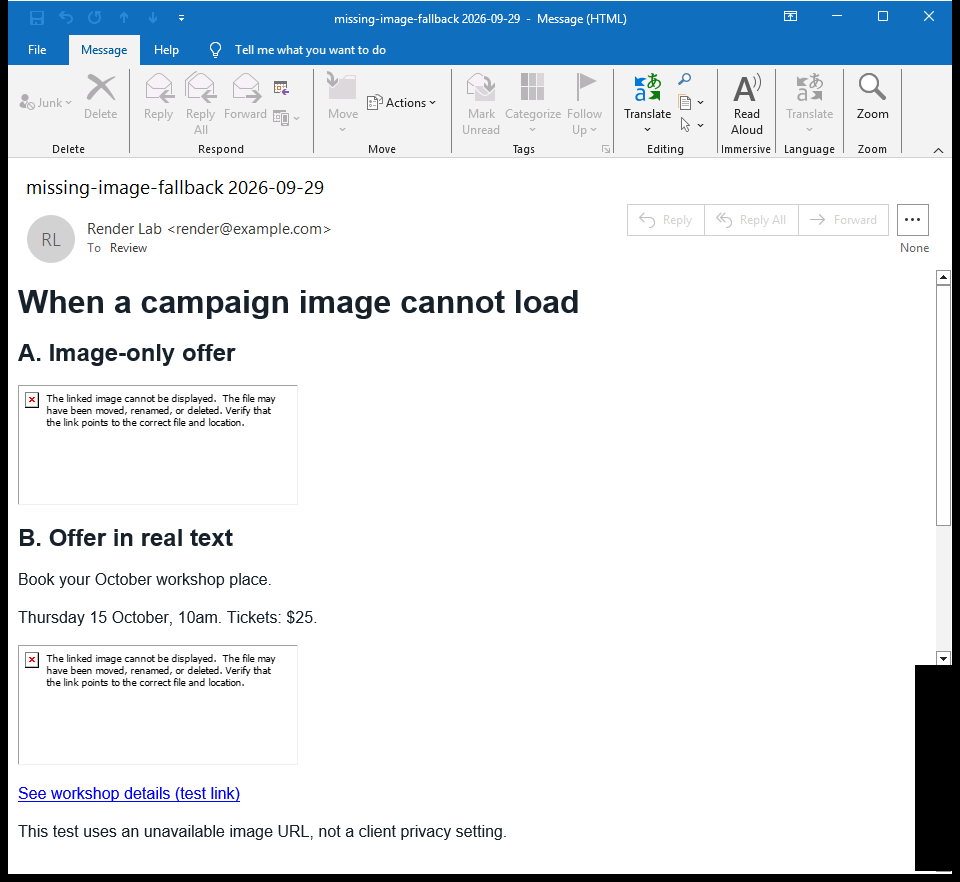
You can download the test email as an EML file. The important finding is the readable second section. The screenshot establishes that the action is visible; checking where that link goes is a separate task.
A failed URL and a blocked download are different mechanisms, so do not use this result to predict every blocked-image placeholder. Test the real blocked state in a controlled client as well. The design principle is useful in either case: the essential message should not depend on the picture arriving.
Move the offer out of the artwork
Imagine an event banner containing "October workshop, Thursday 15 October, $25, book now." Keep the illustration, but place those details in the email's text blocks too. A reader should be able to answer three questions without the image: what is this, why might I want it, and what do I do next?
You do not need to repeat every word of the artwork. A short heading, one useful sentence and a text-based button can carry the message. Put important conditions near the offer rather than hiding them in small image text.
In Constant Contact, review the newsletter's text and button blocks around the picture. In an imported template, ask the designer which words are actual text and which are baked into an image. The distinction is easy to miss when everything looks complete in the editor.
The Constant Contact rendering walkthrough shows how to send the finished newsletter to MailSlurp. Use the same test-send path after moving the offer into text so the review includes the delivered template.
Use alternative text for the image's purpose
Alternative text describes an image when it is unavailable or encountered through assistive technology. Write it for the role the image plays. A useful product image description is more informative than a filename such as hero-final-v7.png.
If an image is the only content of a link, its description needs to help explain the destination or action. Decorative images generally do not need a repeated description when adjacent text already communicates everything useful.
Keep descriptions concise enough for the available space. A long paragraph of offer terms is a poor substitute for real body copy, and our Outlook result is a reminder that a client may display its own error text instead of the description you expected.
For an essential logo, use a recognizable sender name and sensible surrounding copy as well. Do not make an unavailable image the only way the reader can identify the company.
Keep the action available without a button image
A button can be styled text with a real link. That lets the action remain understandable even when the decorative styling changes. Use a label that names the next step, such as "See workshop details," rather than an unlabeled graphic.
Review the visible label, its contrast and the space around it. Then open the link from a received test email and confirm the expected page. Device previews and Email Audit complement each other here: one helps you review appearance, while the other checks email content and links.
Do not assume that a clickable image supplies an adequate fallback merely because its link still exists in the HTML. If the customer cannot recognize the action, the campaign still needs a clearer one.
Compare the missing and restored experiences
For final approval, use a test account configured for the image behavior you want to check. First read the email with remote pictures withheld. Then compare the same trusted test message with its pictures available. Keep account protections in place for ordinary mail.
Check that restoring the artwork improves the message without contradicting the text. Dates, prices and terms should agree. Inspect the surrounding spacing too: a reserved image area can push the useful content far down even when the text survives.
Finish by rerendering the revised campaign in the named clients your audience uses. The Outlook preview guide helps distinguish Classic, New Outlook and mobile. Approve an email that makes sense before the pictures load, then let the artwork make it better.