
blog
Mailjet Email Blocked, Bounced, or in Spam? Read the Status First
Understand Mailjet delivered, blocked, bounced, retrying, and spam outcomes, then test sender authentication, inbox placement, and device rendering.

Mailjet can report a message as blocked before it is sent, hard-bounced after a permanent rejection, soft-bounced after a temporary failure, retrying while delivery is deferred, or delivered when the receiving server accepts it. Only the last outcome can become an inbox-versus-spam question.
Reading the status first prevents a common mistake: changing email copy to fix a recipient that Mailjet pre-blocked because of an earlier hard bounce.
Quick answer
Use this order when a Mailjet email is missing or appears to land in spam:
- Open the campaign statistics or message events and record the exact status.
- Read the block, bounce, or retry reason for a known recipient.
- Check marketing exclusions separately from transactional delivery.
- Validate the sending domain and authenticate it with SPF and DKIM.
- Confirm DMARC alignment and a working unsubscribe path.
- For accepted messages, test the final email across controlled Gmail and Outlook inboxes.
- Preview the delivered message on mobile, Outlook, webmail, light mode, and dark mode.
- Make a status-specific correction and repeat the same test.
"Not in my inbox" is an observation. The Mailjet status tells you which part of the path to investigate.
Decode the Mailjet status before editing the campaign
Mailjet's campaign reporting distinguishes several outcomes:
- Blocked: Mailjet did not send because it predicted a deliverability problem, found a previous complaint or hard bounce, detected a template problem, or applied another suppression.
- Hard-bounced: the receiving system returned a permanent failure, often an invalid address or non-existent domain.
- Soft-bounced: a temporary issue such as a full mailbox, timeout, or rate limit prevented delivery.
- Retrying: Mailjet is still attempting delivery after a deferral; this can continue for up to 24 hours before a soft-bounce result.
- Delivered: the recipient's server accepted the message.
- Marked as spam: a recipient actively reported the email as spam.
Mailjet notes that its spam event does not reveal messages automatically delivered to the Spam folder. That is why campaign reporting and inbox placement testing answer different questions.
Open the non-delivery details for a full recipient address and record the reason. Do not rely on the aggregate rate when one account or mailbox is the problem.
Understand why Mailjet pre-blocks a recipient
Mailjet can pre-block an email to protect sender reputation. Common reasons include:
- the address previously hard-bounced
- the recipient previously reported mail as spam
- a template-language or syntax error
- an anti-spam content pre-check
- a duplicate in a deduplicated campaign
A template-error block is not necessarily permanent. Correct the syntax and test a new message. A hard-bounce or complaint history is different: do not repeatedly override the suppression just because the address appears valid.
For a hard bounce, confirm the address with its owner before changing it. For a soft bounce, watch the reason and retry outcome. For a sender or policy block, investigate domain reputation, authentication, consent, and the returned diagnostic.
Keep marketing exclusions separate from transactional mail
Mailjet's Campaign Exclusion List applies to marketing campaigns and marketing automation while allowing transactional messages to continue. A contact can therefore receive an order receipt but not a newsletter.
When one person reports inconsistent delivery, check:
- whether the message was marketing or transactional
- which API key or subaccount sent it
- the campaign or custom campaign identifier
- contact-list membership
- the Campaign Exclusion List
- unsubscribe, complaint, hard-bounce, and block history
- automation eligibility
Do not remove someone from an exclusion solely to make a test pass. Confirm that the person wants marketing mail and that the original exclusion reason has been resolved.
This stream separation is useful. A promotional message should respect marketing opt-outs without preventing an essential account or purchase notification.
Validate and authenticate the sending domain
Mailjet requires sender validation and supports validating an entire domain. Domain validation is scoped to the API key for which it was completed, so confirm the correct subaccount when several teams or environments use Mailjet.
Then configure SPF and DKIM for each sending domain. Check that:
- Mailjet reports the sender or domain validated
- SPF authorizes Mailjet
- DKIM passes for the intended domain
- the visible From domain aligns under DMARC
- the message does not show an unexpected "via" or "on behalf of" identity
- free Gmail, Yahoo, or Hotmail addresses are not used as bulk From addresses
- marketing messages contain a working unsubscribe link
Use one valid SPF record rather than publishing a separate v=spf1 policy for every service.
Use MailSlurp domain monitoring to watch SPF, DKIM, DMARC, MX, blacklist, and certificate changes after setup. This is particularly helpful when marketing and transactional systems share the same domain but different Mailjet API keys.
Test the final Mailjet email across providers
Create a MailSlurp inbox placement run and copy its unique marker and controlled seed addresses. Add them to a dedicated Mailjet test list, then send the final campaign with its real sender, subject, links, tracking, images, and footer.
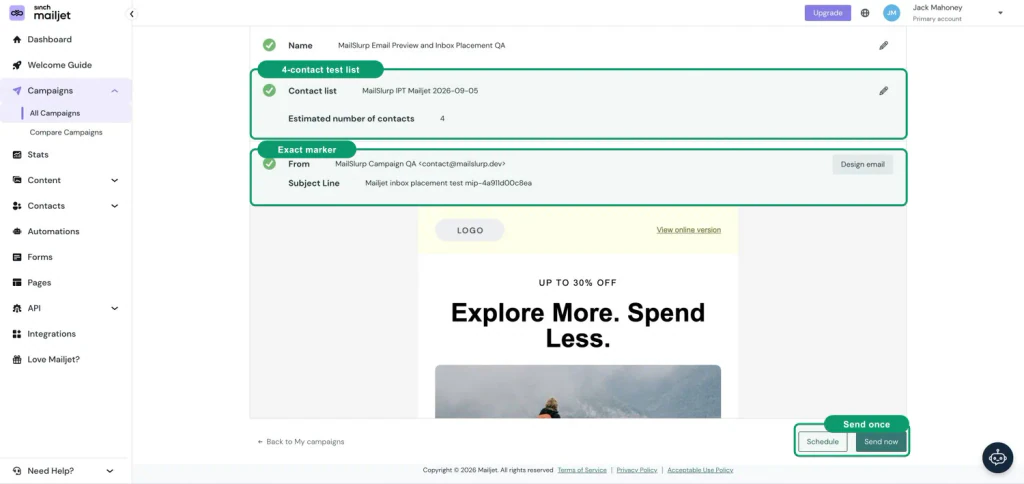
Follow the Mailjet inbox placement testing guide for the complete list, marker, send, and result flow.
Interpret the provider comparison:
- Spam across providers: inspect consent, authentication, complaints, stale contacts, links, and recent volume changes.
- One provider differs: focus on provider-specific reputation and filtering.
- Gmail Promotions: this is inbox categorization rather than a block or spam-folder result.
- Not received: return to the Mailjet event, list, exclusion, bounce, and recipient details.
- Primary inbox is healthy: move to content, rendering, link, and conversion checks.
Seed results are a controlled observation. Repeat them with a fresh run after one targeted correction so the comparison remains meaningful.
Preview the message after Mailjet transforms it
The editor preview cannot reproduce every inbox engine. The received message includes hosted assets, tracked URLs, Mailjet footer behavior, personalization output, and client-specific HTML rendering.
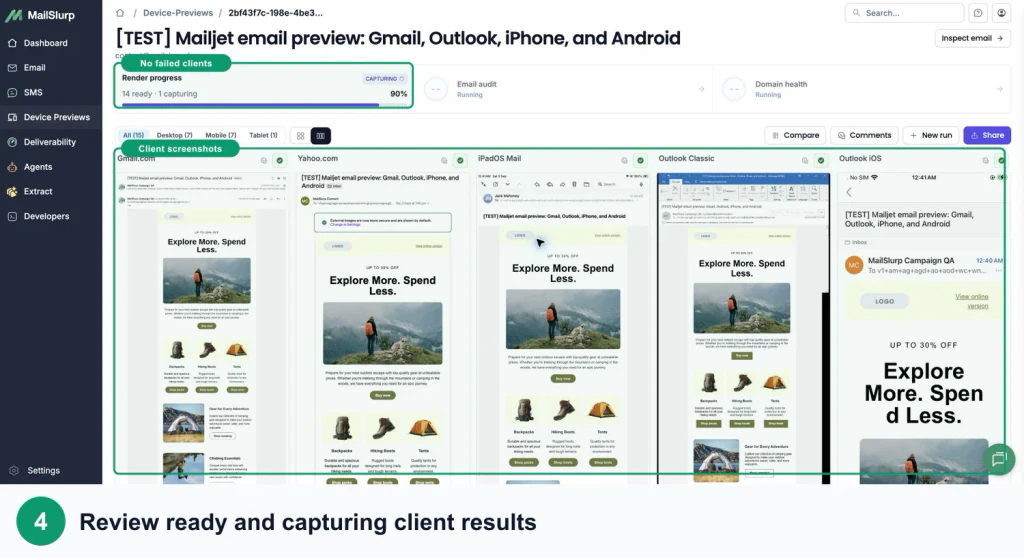
Use the Mailjet device rendering guide and inspect:
- template-language fallbacks and conditional content
- CTA visibility and tap targets on a phone
- image dimensions and alternative text
- column order, spacing, and buttons in Outlook
- logo and CTA contrast in dark mode
- tracked links and transactional destinations
- unsubscribe behavior for marketing messages
- the plain-text alternative
A template error can stop sending. A client-specific layout error can stop conversion. Both belong in the release path, but they surface at different stages.
Make the correction that matches the status
Use a narrow response:
- Blocked by template syntax: correct the template and retest.
- Pre-blocked for bounce or complaint history: verify consent and address ownership before requesting any review.
- Hard-bounced: correct a confirmed typo or remove the invalid contact.
- Soft-bounced or retrying: wait for the final outcome and inspect the provider reason.
- Delivered to spam: fix authentication, reputation, consent, audience, links, or content based on provider evidence.
- Delivered with poor conversion: repair the received layout, destination, offer, or personalization.
- Marketing excluded: preserve the exclusion unless the contact has clearly opted back in.
Changing the subject line cannot fix a previous hard bounce. Removing an exclusion cannot fix a malformed template. The status keeps the team focused.
Frequently asked questions
Why is my Mailjet email blocked?
Mailjet may pre-block a recipient because of a previous hard bounce, complaint, template error, anti-spam check, or other condition with little chance of successful delivery. Open the message details to see the exact reason.
What is the difference between blocked and bounced in Mailjet?
Blocked usually means Mailjet withheld the message before delivery. Bounced means a receiving system rejected an attempted delivery. Hard bounces are permanent; soft bounces are temporary.
Does Mailjet Delivered mean the primary inbox?
No. It means the receiving server accepted the email. The provider can still place it in Promotions, Spam, Junk, or another folder.
Why can a contact receive transactional email but not a campaign?
The address may be on Mailjet's Campaign Exclusion List or unsubscribed from marketing while still eligible for essential transactional messages.
Which MailSlurp checks should I use with Mailjet?
Use Mailjet inbox placement testing for provider folder results, Mailjet device rendering for received-client layouts, and domain monitoring for ongoing sender checks.
For current platform details, see Mailjet's primary documentation for campaign statuses, blocked messages, domain validation, marketing exclusions, and contact-list management.