
blog
Are Your Mailchimp Automation Emails Going to Spam?
Are your Mailchimp automation emails going to spam? Learn why open rates are not proof, test each welcome-series email and understand placement scores.
Your Mailchimp welcome automation has sent thousands of emails, but only half registered an open. Are the others going to spam? The open rate cannot answer that. An inbox placement test can show where controlled copies of each automation email arrived: the inbox, Promotions or spam.
Send each message through Mailchimp to MailSlurp's test inboxes, then compare the provider results and supporting findings. This guide covers a welcome email followed by a one-day delay and a second email, with screenshots, score interpretation and an optional API workflow.
Does a 50% open rate mean half your emails went to spam?
No. A 50% open rate is not a 50% spam rate. A message can reach the inbox and remain unread. Mailchimp's open tracking depends on an image loading, so blocked images can hide real opens and privacy features can register opens without a person reading the message. Mailchimp explains how open tracking works.
Check each email's sends, bounces, clicks, complaints and intended customer action alongside opens. For a welcome series, that action might be signing in or using the subscription. Mailchimp's automation reports help separate the email steps; their abuse-report count records recipient complaints, not every copy filtered into spam.
Contacts queued at a one-day delay have not necessarily reached the next send step. First confirm that Mailchimp sent the expected message, then test its placement. Neither a queue count nor a low open rate identifies the receiving folder.
What does inbox placement testing measure?
Inbox placement testing records the folder or category that receives an email in a set of test mailboxes. MailSlurp supplies the recipient addresses and a unique tracking marker. You send through your usual platform, then review results such as inbox, Promotions, spam or junk, and not received.
A send or delivery event does not reveal the receiving folder. MailSlurp's placement score summarizes the observed seed results; the content and domain checks provide separate findings to investigate.
MailSlurp's inbox placement testing supports personal and business accounts, including Gmail, Yahoo, Outlook, Google Workspace and Microsoft 365. Choose the audience appropriate to your customers and check the providers in the seed list returned for your run. Available targets depend on the selected audience, account access and current seed availability.
Keep consumer and business accounts distinct. A Gmail result does not establish Google Workspace placement, and Outlook.com does not stand in for every Microsoft 365 organization. A seed test gives you a repeatable sample; individual subscribers have their own filtering and engagement history.
Decide whether you are testing the message or the automation
There are two useful ways to start:
| Your question | Test to run |
|---|---|
| Where does this email's current content land? | Send a regular Mailchimp campaign copy only to the current placement seeds. Preserve the sender, content and tracking settings. |
| Does this automation send the intended email, and where does it land? | Enrol the controlled seeds in an isolated test flow and exercise the relevant trigger and email step. |
The campaign copy is a quick preflight. It does not exercise the automation's entry rules, delays, branches or contact data.
Mailchimp's ordinary Send a test email is useful for reviewing a draft, but its test-email guidance says contact-specific merge tags and dynamic content do not resolve as they do in a live send. Use representative test-contact data when personalization changes the message you need to check.
Mailchimp's Inbox Preview is a visual check of email-client rendering. A placement test supplies the separate folder-level evidence. You can pair the two tasks using the Mailchimp device-rendering walkthrough.
Step 1: Prepare one email step for testing
Consider this onboarding sequence: subscription signup -> welcome email -> one-day delay -> getting-started email. Test the two messages independently:
| Email step | Placement check |
|---|---|
| Immediate welcome | Create a run and send the marked welcome email to its current seeds. |
| Next-day follow-up | Create a separate run and send the marked follow-up through an isolated QA flow with a short delay. |
Use a fresh marker and the addresses returned for each run. Shortening the QA delay lets you check the follow-up's placement promptly; validate the real one-day schedule separately in Mailchimp.
Choose a specific message, such as the first welcome email. In Mailchimp, open Automations and find the flow containing it. Mailchimp's flow setup instructions describe its triggers, rules and email actions; your plan determines which tools are available.
Prepare an isolated QA flow using the same sender and email content. Restrict entry to controlled test contacts, and inspect every trigger and branch before activation. Importing contacts or assigning a tag can itself start other automations, so check those entry conditions before adding seeds to an existing audience.
For a simple repeatable check, a dedicated Tag added trigger can feed a single Send email step. Use a new trigger tag for that run, separate from the tag used to organize the seed contacts. Apply it only after the QA flow is ready.
This checks the email action and its placement. To validate an original signup, purchase or other integration trigger as well, run that actual event for your test contacts and confirm they follow the intended path. A replacement tag trigger does not validate an ecommerce integration.
Step 2: Get a current MailSlurp marker and seed list
Open Inbox placement in MailSlurp and prepare a new test. Choose personal, business or mixed inbox coverage, then copy the complete seed list and tracking marker.
Use the list returned by that run. The screenshots below come from our Mailchimp campaign guide and show a four-target test; your run can have a different count or provider mix. Always check that the providers you want, including Yahoo when required, appear in your current targets.
Check the run's expiry against the expected send time. Do not assume the same seed reservation will still be active after the one-day delay. For a placement-only check, shorten the delay in the isolated QA flow and preserve the email's sender and content. Create a fresh run if the reservation expires before the email can be sent.
You can create a free MailSlurp account to begin. Review your included test allowance and provider access before running a larger personal-and-business matrix.
Step 3: Add only the current seeds to your test audience
In Mailchimp's Audience, use Add contacts to import the current seed addresses. Assign an organizational tag, such as MailSlurp Inbox Placement Seeds, and verify each controlled address is eligible to receive marketing email. Use only the addresses supplied for this test, with the permission required for those controlled recipients.
Supply representative values for any fields the email uses: first name, language, customer type or another branch condition. Keep these values deliberate so every provider receives the same variant when you compare placement.
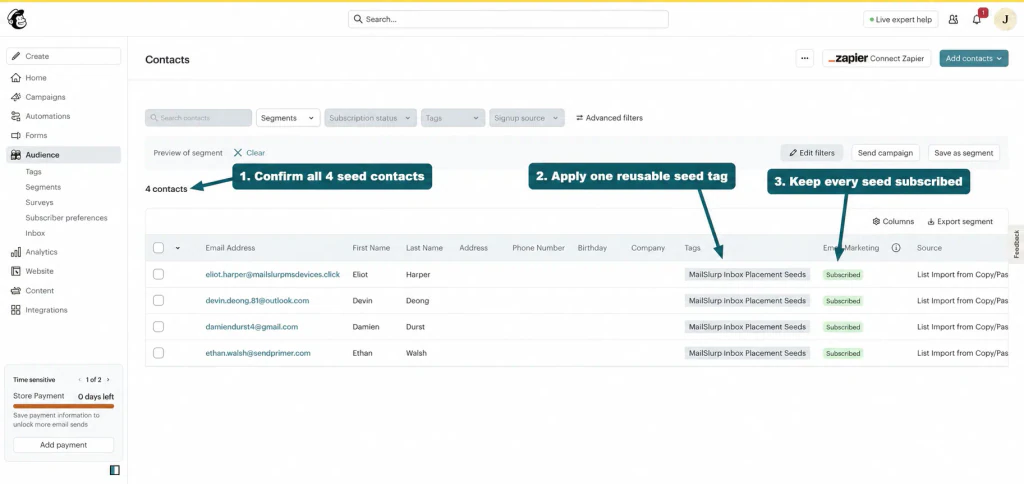
An organizational tag is not enough on its own to restrict a flow. Check its entry filters and any alternative triggers. Before proceeding, the eligible test contacts should match the active MailSlurp seed list exactly.
Step 4: Add the marker to the email being tested
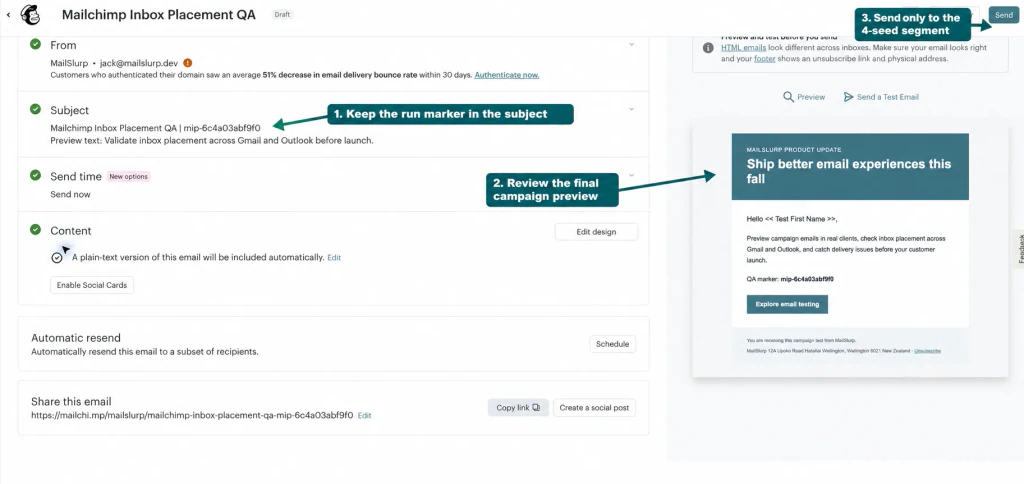
Place the exact marker from MailSlurp in the subject or body of the selected QA email. Preserve the real From identity, links, tracking, images, footer and unsubscribe content. A small marker in the body lets you retain the intended subject line, although it still makes this a controlled test version.
Keep that marker specific to one message and revision. Do not put the same marker on every email in a series: a matched welcome email would not tell you which later reminder you measured. Use a separate placement run for each message or branch variant.
For a quick campaign-copy preflight, the existing guide shows where to check the marker and recipient boundary:
Step 5: Trigger the flow and verify the email was sent
Review and activate only the isolated QA flow. For the tag-triggered example, apply its new trigger tag to the current seed contacts. For an original-event test, perform the event required by that flow.
Check Mailchimp's flow activity and the email step. Every expected seed should enter the intended branch and reach the send action. If a contact remains queued, inspect delays, send scheduling, entry filters, exit conditions and re-entry settings. Mailchimp documents these controls in editing an automation flow.
Return to the prepared MailSlurp run and confirm the send when Mailchimp has actually submitted the emails. A contact entering a flow is not yet a send confirmation. Keep the result open while provider observations finish.
After the test, pause the QA flow or remove its test-entry condition so later audience changes do not unexpectedly send another series. Leave the customer-facing production flow intact.
Step 6: Read the result for each provider
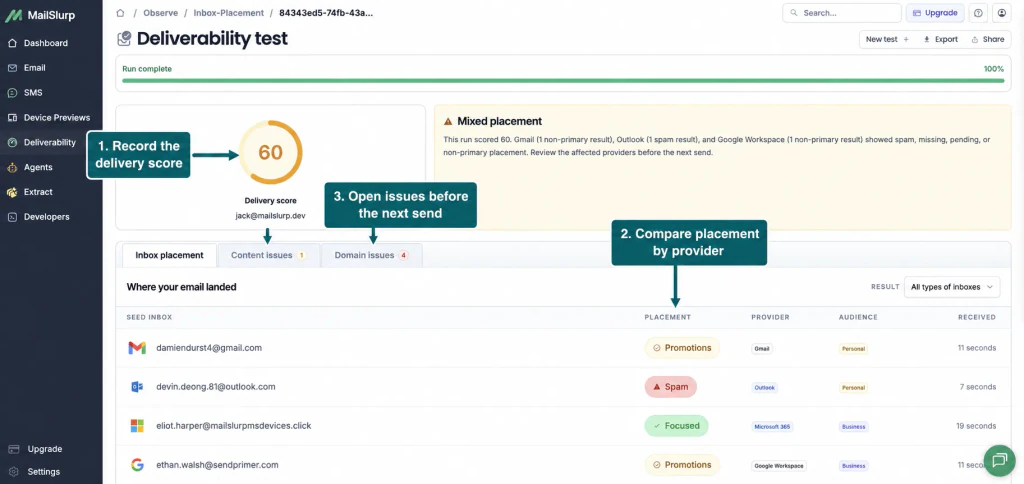
Review the provider rows before relying on an overall score. Here is the completed result from the existing Mailchimp campaign walkthrough:
What does the inbox placement score mean?
The delivery score summarizes the tested mailboxes, with higher values indicating better placement. Primary, Inbox and Focused results receive full credit; delivered categories such as Promotions receive partial credit; spam and confirmed missing results receive none. Read the provider rows and any unresolved targets alongside the number.
The screenshot's score of 60 belongs to that four-target test. It does not mean 60% of your subscribers reached the inbox, and it does not predict an open rate. Content warnings and domain findings help explain what to investigate; they are separate from the observed folder placement.
| Observation | What to check next |
|---|---|
| Inbox, Primary or Focused | Confirm the expected message and version arrived, then compare the other providers. |
| Promotions | Review it as a delivered inbox category, separately from spam. Decide whether it suits the message. |
| Spam or Junk | Inspect content and domain findings, sender authentication, reputation and recent sending changes. |
| Pending or partial | Give the remaining targets time to resolve. One received copy does not complete the provider matrix. |
| Not received or timed out | Compare Mailchimp's send activity with the seed list, marker, suppressions and run expiry. |
Open Content issues and Domain issues for supporting findings. Correct the strongest evidenced problem, then repeat with a new run. Keep the sender, email version and provider coverage comparable so a changed result has useful context.
If placement is good but engagement remains weak, review the sender name, subject, preview text and whether the welcome email gives a new subscriber one useful next action. Compare clicks and product use after a controlled change. Rewriting a subject alone does not establish that a spam-filtering problem has been fixed.
Connect placement testing to the API
For repeatable checks, your integration can create a MailSlurp run, send through Mailchimp and retrieve the result. Keep both services' credentials on your server.
This Node.js example uses mailslurp-client (compatible with version 17.4.0). Install it with npm install mailslurp-client, set MAILSLURP_API_KEY, and substitute your sending domain and address. The direct API create call reserves test usage immediately, so have the Mailchimp QA flow ready first:
import {
  Configuration,
  ApiInboxPlacementTestControllerApi,
} from "mailslurp-client";

const apiKey = process.env.MAILSLURP_API_KEY;
if (!apiKey) throw new Error("Set MAILSLURP_API_KEY on your server");

const api = new ApiInboxPlacementTestControllerApi(new Configuration({ apiKey }));

const run = await api.createInboxPlacementTest({
  createInboxPlacementTestOptions: {
    requestedSegment: "ALL_INBOXES",
    senderDomain: "example.com",
    fromEmail: "hello@example.com",
    publicShareRequested: false,
    addressFormat: "NEWLINE",
  },
});

console.log({
  id: run.id,
  marker: run.trackingToken,
  recipients: run.seedAddresses,
  expiresAt: run.expiresAt,
});
Store that run ID in your server-side job. Add its current seeds to the controlled Mailchimp audience and put its marker in the QA email before triggering the flow. Each create call starts a separate test, so reuse the saved ID when resuming a check. Creating the run alone sends no Mailchimp email.
If the flow uses Mailchimp's Customer Journeys API condition, its builder supplies the trigger URL for the selected journey and step. The documented flow trigger endpoint accepts an audience member's email address. For each eligible current seed, the request has this shape:
curl --fail-with-body "$MAILCHIMP_TRIGGER_URL" \
  --header "Authorization: Bearer $MAILCHIMP_API_KEY" \
  --header "Content-Type: application/json" \
  --data '{"email_address":"CURRENT_SEED_ADDRESS"}'
Replace CURRENT_SEED_ADDRESS with one address returned by the active run. This endpoint triggers the configured condition; it does not create the contact or prove the email has already been sent. An existing tag-based or ecommerce flow needs its own corresponding trigger.
Once Mailchimp confirms the actual send, the following code continues with the same api and run from above. This direct-create API workflow is already active; the dashboard's separate send-confirmation step is not needed here. Poll until the run finishes, keeping a partial result distinct from a completed test:
import { setTimeout as sleep } from "node:timers/promises";

const deadline = Date.now() + 5 * 60_000;
const terminal = new Set([
  "COMPLETE", "TIMED_OUT", "FAILED", "CANCELLED",
]);

while (true) {
  const current = await api.getInboxPlacementTest({ id: run.id });
  const status = String(current.status).toUpperCase();
  if (terminal.has(status) || current.completedAt) {
    if (status !== "COMPLETE") {
      throw new Error(`Run ${run.id} ended as ${status}; review unresolved targets`);
    }
    const report = await api.getInboxPlacementTestResults({ id: run.id });
    console.table(report.results.targets.map((target) => ({
      provider: target.provider,
      audience: target.segment,
      status: target.status,
      verdict: target.placementVerdict,
      folder: target.placementFolder,
    })));
    break;
  }
  if (Date.now() >= deadline) {
    throw new Error(`Still waiting for run ${run.id}; inspect it before retrying`);
  }
  await sleep(15_000);
}
Completion means the observation is ready to review, not that placement passed. Apply your own acceptance rules to the provider rows. Preserve Promotions and unresolved values rather than grouping every non-Inbox value under "missing". A local timeout also does not justify triggering another Mailchimp send automatically.
The placement automation documentation covers reports and exports. Keep the flow ID, email step and campaign revision alongside each run in your own records, and rerun after meaningful template, sender or authentication changes.
Common questions about Mailchimp automation tests
Why are my Mailchimp automation emails going to spam?
Possible contributors include sender authentication, reputation, audience quality, links and message content. First establish which providers actually placed the email in spam. Then use the placement report and Mailchimp's bounce/complaint data to choose a change; an open-rate drop alone cannot identify the cause.
Why did Mailchimp send to only some of the seeds?
Check subscription status, entry filters, branch conditions, exit rules and whether a previous run prevents re-entry. Also check that all current addresses were imported. Fix a flow-selection problem before interpreting an absent message as spam placement.
Can I test every email in a welcome series at once?
Give each email step or content variant its own run and marker. Start with one step across the desired providers, then repeat for the next. Keep each send within its run's reservation and observation window.
Is Gmail Promotions the same as spam?
No. Promotions is a delivered inbox category. Review it separately from Spam or Junk and consider whether the email's content matches its purpose. A welcome message and a promotional follow-up may produce different results.
Does a good spam score guarantee the inbox?
No. Use the score and content/domain findings to investigate the observed placement. Providers also consider sender history and recipient behaviour. The Mailchimp spam troubleshooting article explains how to investigate a poor result.
Check your next automation email before customers receive it
Start with one important message, such as your welcome email. Prepare the current seed list, send the marked version through Mailchimp, and review each provider before expanding the check to the rest of the series.
Create a free MailSlurp account and start an inbox placement test. For the companion visual check, follow the Mailchimp rendering guide to inspect the delivered email across desktop, mobile and dark mode.