
blog
Why Mailchimp Emails Go to Spam or Promotions (and What to Fix)
Diagnose why a Mailchimp campaign landed in spam, Outlook Junk, or Gmail Promotions. Check authentication, audience health, content, rendering, and real inbox placement before you resend.
When Mailchimp emails go to spam, the tempting response is to rewrite the subject line and send again. That can waste a campaign. Mailbox providers judge more than a few words: they also consider the sending domain, authentication, audience quality, complaint history, message structure, links, and each recipient's past behavior.
Gmail Promotions needs a different response. It is an inbox tab for commercial mail, not a spam folder. A promotion can be correctly classified there even when the campaign is healthy.
The useful question is therefore not simply, "Did Mailchimp send it?" It is, "Where did the finished campaign land at each provider, and which signal should we change first?"
Quick answer
If a Mailchimp campaign is going to spam or Promotions:
- Separate non-delivery, spam or junk, and Gmail Promotions. They are different outcomes.
- Authenticate the domain used in the From address and keep its DNS records valid.
- Review complaints, bounces, engagement, and how contacts joined the audience.
- Test the exact campaign rather than a simplified message from another sender.
- Check inbox placement across Gmail, Outlook, Microsoft 365, and other important providers.
- Preview the delivered email on mobile, desktop, and dark mode so layout defects do not suppress clicks.
- Change one meaningful variable, then repeat the same test before resending broadly.
Mailchimp's own guidance confirms that placement depends on a mixture of engagement, content, sender information, authentication, and recipient behavior. No sender can force a marketing email into Gmail Primary. You can, however, remove avoidable problems and measure whether a change improves the result.
First, identify what actually went wrong
Three reports can look similar while describing different problems.
| Result | What it means | First place to look |
|---|---|---|
| Bounced or rejected | The receiving server did not accept the message | SMTP response, address validity, policy rejection, authentication |
| Accepted but placed in spam or junk | The mailbox received the message and filtered it away from the normal inbox | Sender reputation, complaints, authentication, content, links, list quality |
| Gmail Promotions | Gmail accepted the message and categorized it as promotional | Whether that classification suits the campaign and how engaged subscribers behave |
Mailchimp campaign reports help with delivery, bounce, complaint, open, and click evidence. They do not show the folder selected inside every recipient's mailbox. That is why a controlled seed test is valuable: it supplies known Gmail and Outlook recipients whose observed placement can be compared.
Do not infer folder placement from open rate alone. Image blocking, privacy features, automated security scans, and delayed engagement all make opens an incomplete signal.
Check the From domain and authentication
Start with the identity visible in the From address. A campaign from a free Gmail or Yahoo address is harder to align with your brand and can run into provider policies. Use a domain your organization controls, then complete Mailchimp's domain authentication flow.
For the domain and message, verify:
- DKIM passes for the domain Mailchimp uses to sign the message.
- DMARC is published and aligned with the From domain.
- SPF is valid for the actual sending arrangement and does not contain conflicting records.
- The visible From name and address are stable and recognizable.
- Reply-To is monitored and belongs to the same organization.
- Tracking and landing-page domains do not redirect through suspicious or unrelated hosts.
Authentication is necessary, but it is not a placement guarantee. A fully authenticated sender can still reach spam when recipients complain, addresses are stale, or the campaign suddenly changes its sending pattern.
Use MailSlurp domain monitoring to watch SPF, DKIM, DMARC, MX, blacklist, and certificate changes between campaigns. This is especially useful when several people or vendors can edit DNS and a working record may be changed after the last successful send.
Review the audience before blaming the template
Mailbox providers learn from recipient behavior. A polished template cannot compensate for a list full of people who did not ask for the message.
In Mailchimp, look for changes in:
- abuse complaints
- hard and soft bounces
- unsubscribe rate
- engagement by signup source
- dormant contacts that have not opened or clicked for a long time
- imported contacts with unclear or outdated permission
- sudden jumps in audience size or sending volume
Mailchimp recommends permission-based audiences, current addresses, and re-confirmation when consent is uncertain. If a segment performs badly, suppressing inactive or questionable contacts is usually more useful than adding more promotional language to win them back in the next blast.
Keep the diagnosis provider-specific as well. A clean Gmail result does not prove that Outlook or a corporate gateway will behave the same way.
Test the campaign Mailchimp will really deliver
A personal email with the same subject is not a useful substitute. It uses a different sending service, IP path, authentication identity, headers, link wrapping, and MIME structure.
Create a MailSlurp inbox placement test, copy its current marker and seed addresses, and add the seeds to a dedicated Mailchimp audience or tag. Place the marker where the run instructs you to put it, then send the launch-candidate campaign through Mailchimp.
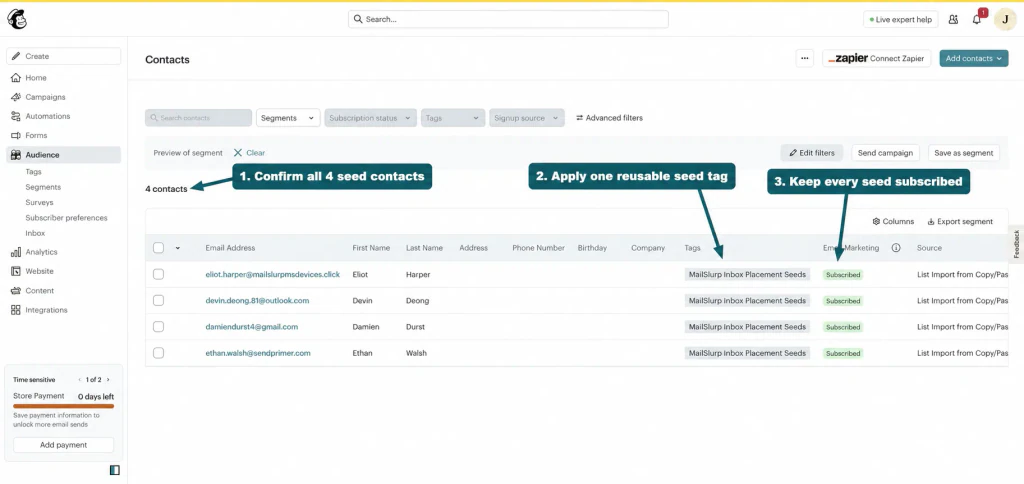
The send should preserve the settings that matter:
- the real From name and address
- the authenticated domain
- normal tracking settings
- final subject and preview text
- production links and hosted images
- the normal footer, unsubscribe link, and contact details
- the same template and personalization path planned for launch
Follow the complete Mailchimp inbox placement testing guide for the click-by-click audience, marker, send, and results workflow.
Read the result by provider, not as one magic score
An overall score is convenient, but the provider rows explain what to do next.
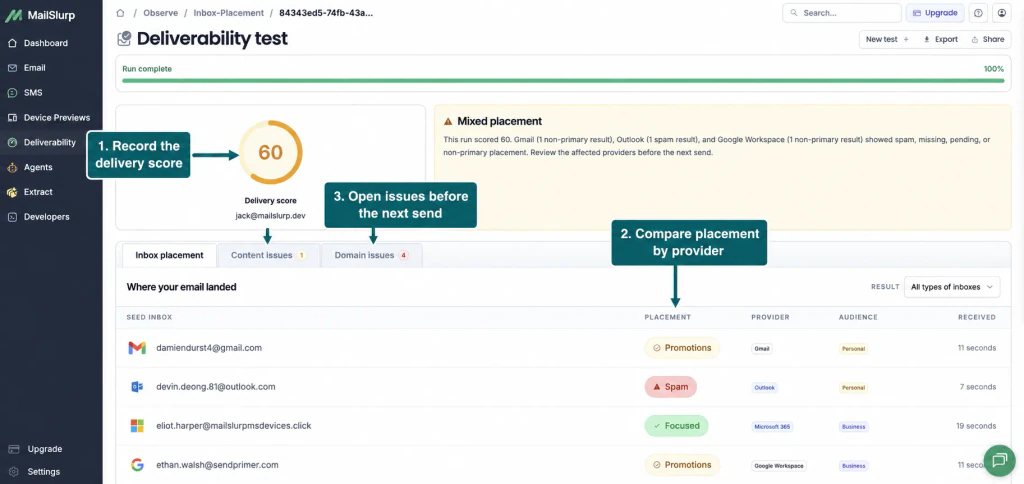
Use these patterns as starting points:
- Spam across most providers: inspect authentication alignment, complaint history, list source, sender reputation, link domains, and a recent change in volume.
- Outlook Junk but Gmail inbox: review Microsoft-facing complaint and reputation signals, authentication, corporate filtering, and whether the problem appears on consumer Outlook and Microsoft 365 accounts alike.
- Gmail Promotions but not spam: decide whether Promotions is reasonable for the campaign. Measure it, but do not treat it as authentication failure.
- Not received: wait for the test window, then inspect bounces, suppressions, the seed segment, and whether every seed was included in the send.
- One isolated seed differs: repeat before making a large change. Individual mailbox history can affect placement.
Placement is a sample of controlled mailboxes. It does not predict the exact percentage of a real audience that will reach each folder. Its value is repeatability: the same workflow can compare two campaign versions or detect a provider-specific regression before launch.
Check the email experience after it reaches the inbox
Placement gets the message into view. Rendering determines whether the recipient can use it.
Mailchimp's editor preview is useful during composition, but the delivered email can include final link tracking, hosted images, personalization, footer markup, and client-specific changes. Send the finished test to a MailSlurp render address, then review it across the clients that matter to your audience.
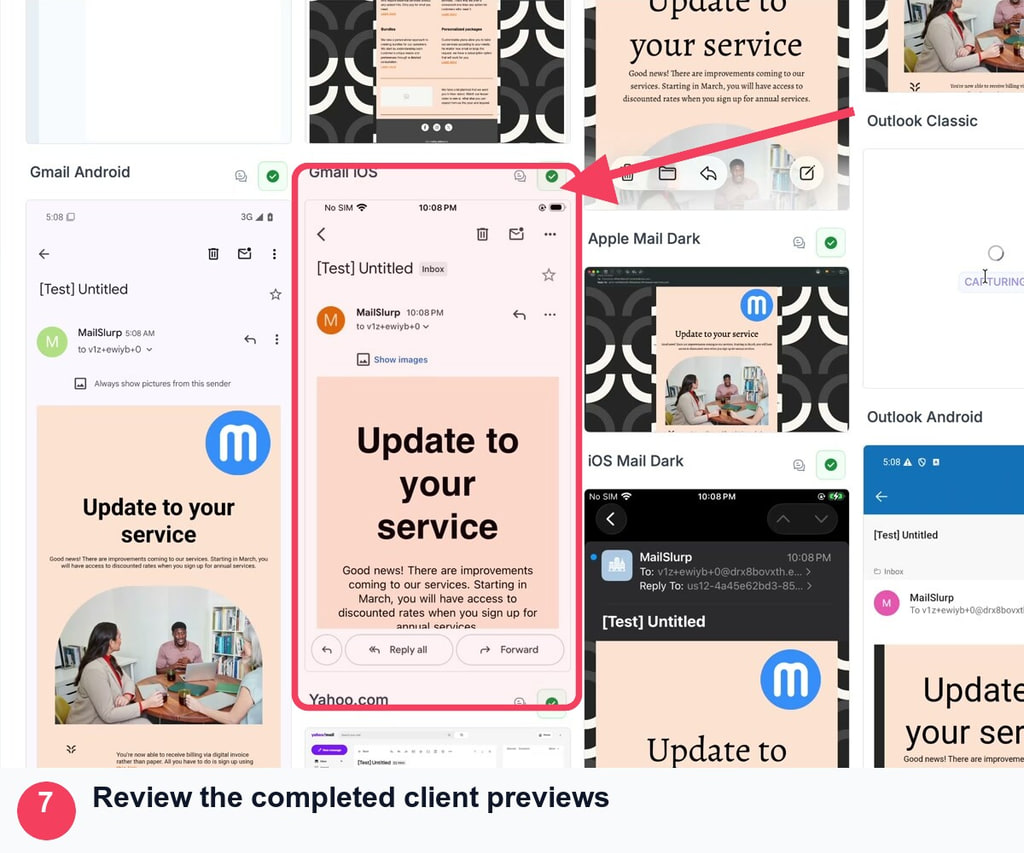
Pay particular attention to:
- the first screen on iPhone and Android
- CTA contrast in light and dark mode
- Outlook spacing and table layout
- image scaling and alternative text
- the subject and preheader combination
- tracked links, preference links, and unsubscribe links
- personalization fallbacks for missing data
The Mailchimp device rendering guide shows the full preview flow. Fixing a clipped button or invisible dark-mode logo will not move a message out of spam, but it can prevent a correctly placed campaign from losing the click.
Change one variable before the next test
Bulk edits destroy the comparison. If you change the From address, audience, subject, HTML, link domains, and send time together, an improved result will not tell you which change helped.
Choose the strongest suspected cause and keep the rest stable. For example:
- Correct a DKIM or DMARC alignment problem.
- Retest the same campaign and seed set.
- Save the provider-level result.
- If placement is still poor, remove stale contacts from the next audience and retest.
- Only then test a material content or link change.
This approach also protects you from chasing folklore. Replacing a single "spam word" is unlikely to repair a sender-history or permission problem.
Mailchimp pre-send checklist
Before approving the next campaign, confirm that:
- the From domain is authenticated and monitored
- the audience is permission-based and inactive contacts are handled deliberately
- bounce and complaint changes have been reviewed
- the final campaign, not a substitute message, was used for testing
- inbox placement was checked at the providers that matter to the audience
- Promotions was interpreted separately from spam
- mobile, Outlook, and dark mode rendering were reviewed
- every CTA, preference, and unsubscribe link works
- one named version of the test result is attached to campaign approval
Frequently asked questions
Why are my Mailchimp emails suddenly going to spam?
A sudden change can follow a DNS or authentication edit, a new From address, a different link domain, a large volume increase, a list import, more complaints, or a provider filtering change. Compare the last healthy campaign with the first affected campaign and test the current message across more than one provider.
How do I stop Mailchimp emails going to Gmail Promotions?
You cannot force Gmail to place a marketing campaign in Primary. Mailchimp says Gmail uses changing algorithms that consider engagement, content, and sender information, and only the recipient can directly move a message and teach Gmail a preference. Treat Promotions as a category, measure whether it is expected, and focus on permission, authentication, relevance, and consistent engagement.
Does authenticating Mailchimp guarantee inbox placement?
No. Authentication proves an authorized sending identity and supports trust, but mailbox providers also evaluate reputation, complaints, audience quality, content, links, volume, and recipient behavior.
Should I resend a Mailchimp campaign that went to spam?
Not until you identify a likely cause. Sending the same message to the same audience can repeat the result and create more negative engagement. Test the launch-candidate campaign, make one controlled change, and resend only to an appropriate segment.
Can I test Mailchimp spam placement before a campaign goes live?
Yes. Use a controlled seed audience and send the finished campaign through Mailchimp. Follow the Mailchimp inbox placement test guide, then pair the result with device previews and domain monitoring for a fuller pre-send check.
Mailchimp also publishes useful primary guidance on campaigns that reach spam folders, Gmail inbox tabs, Outlook Junk, and test email delivery failures.