
blog
MailerLite Campaign Not Converting? Check Placement and Mobile Layout
Diagnose a weak MailerLite campaign from subscriber groups and inactivity through spam placement, domain authentication, link scans, and mobile or Outlook rendering.

When a MailerLite campaign stops converting, the offer is only one possible cause. Some subscribers may have been excluded before send. Others may receive the message in spam. The remaining contacts may open it on a phone where the CTA is clipped, hard to tap, or invisible in dark mode.
Diagnose the path in that order. It prevents a common mistake: rewriting copy when the real loss happened before anybody could read it.
Quick answer
Use this sequence for a MailerLite campaign with weak delivery or conversion:
- Confirm the intended groups, dynamic segments, and exclusions.
- Review deliveries, hard and soft bounces, unsubscribes, spam complaints, and subscriber activity.
- Authenticate and align the custom sending domain.
- Separate inactive subscribers from recently engaged readers.
- Test the final campaign across controlled Gmail and Outlook seed inboxes.
- Scan the delivered message for link, image, and content problems.
- Render it on mobile, Outlook, webmail, light mode, and dark mode.
- Change the earliest failing stage before retesting.
This turns "not converting" into a specific question: did MailerLite send it to the right subscriber, did the mailbox show it, and could the subscriber use it?
Check groups, segments, and exclusions first
MailerLite groups and segments serve different jobs. A group is a collection you or an integration can add subscribers to. A segment is updated from rules. A campaign can include groups or segments and apply exclusions.
Before looking at spam placement, save the final recipient count and inspect:
- the groups included in the campaign
- the conditions used by each dynamic segment
- excluded groups or segments
- subscribers excluded because they were emailed recently
- signup source and consent state
- subscription, bounce, or spam-complaint status
Test a few known subscribers against the rules. A date, missing custom field, changed integration value, or AND/OR condition can silently alter a dynamic segment.
If a contact is not in the final audience, an inbox test cannot explain their missing email. Fix the selection logic first.
Read the campaign report as a path
MailerLite reports include deliveries, hard bounces, soft bounces, unsubscribes, spam complaints, opens, clicks, link activity, and subscriber activity. Use them in sequence rather than jumping to click-through rate.
- A hard bounce points to a permanent delivery problem such as an invalid address.
- A soft bounce points to a temporary rejection or delay.
- A spam complaint means the subscriber actively reported the campaign.
- A delivery means the message was accepted, not necessarily that it reached the primary inbox.
- An open without a click can indicate message relevance, but it can also expose a broken link or poor rendering.
- An unusually high click count can come from a corporate security scanner rather than a person.
MailerLite automatically changes a subscriber who reports spam from Active to Junk and prevents future campaigns to that address. That protects the list, but the complaint still matters because it contributes to sender reputation.
Authenticate and align the sending domain
Under MailerLite's domain settings, verify the custom sender and complete the supplied DNS records. MailerLite's current setup uses domain verification plus DKIM and SPF, with DMARC applied at the domain level.
Check that:
- the From address uses a custom domain the organization controls
- MailerLite reports the domain authenticated
- DKIM passes for a received message
- the From domain aligns under DMARC
- the domain has one valid SPF record rather than conflicting policies
- old services have been removed from SPF when they no longer send
- DNS changes have finished propagating before the campaign is approved
MailerLite's troubleshooting guide calls out duplicate SPF records and excessive SPF lookups as common failures. Do not paste a second v=spf1 TXT record beside the first. Merge the authorized senders into one valid policy.
Use MailSlurp domain monitoring to watch SPF, DKIM, DMARC, MX, blacklist, and certificate changes after setup. This is helpful when a website host, CRM, support platform, and MailerLite all depend on the same domain.
Remove inactive subscribers from the default blast
MailerLite provides an inactive-subscriber cleanup view and lets you save inactive readers as a segment for a focused re-engagement campaign. Use that capability deliberately.
Review inactivity alongside:
- how the subscriber joined
- last click or other meaningful action
- number of messages received
- recent purchases or membership activity outside MailerLite
- complaint and unsubscribe trends by source
- whether the address belongs to a business security gateway that scans links
Do not keep sending the same newsletter indefinitely to people who never respond. A small, well-defined re-engagement attempt followed by a sunset policy protects reputation and makes campaign reporting easier to trust.
Test the final MailerLite campaign across providers
Create a MailSlurp inbox placement run, copy its marker and seed addresses, and add those seeds to a dedicated MailerLite group. Select that group for the test campaign and include the marker exactly as instructed.
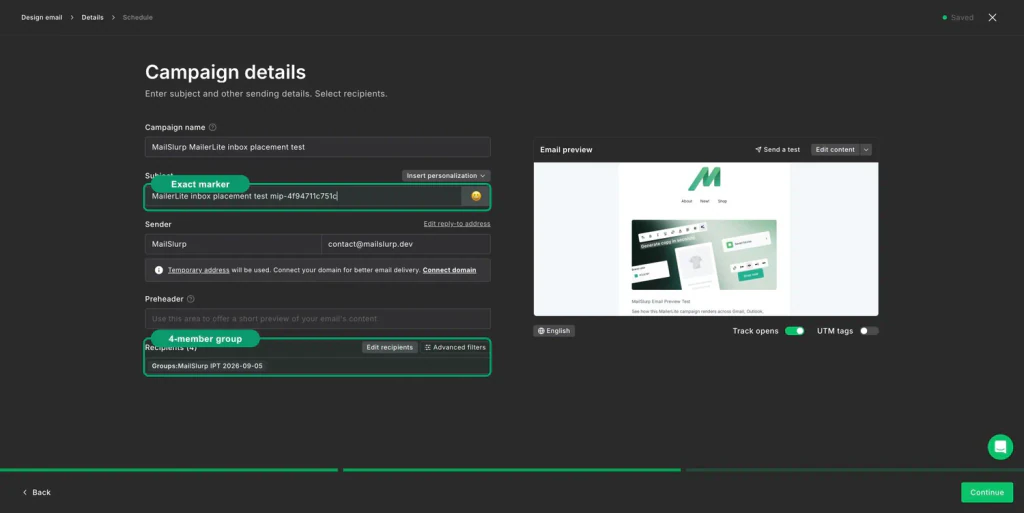
Keep the launch settings intact:
- authenticated From name and address
- final subject and preheader
- normal tracking
- personalized fields and fallbacks
- production images and destination URLs
- preference and unsubscribe links
- the same template used for the intended audience
Follow the MailerLite inbox placement testing guide for the exact group, marker, send, and results workflow.
Use the provider result to choose the next fix
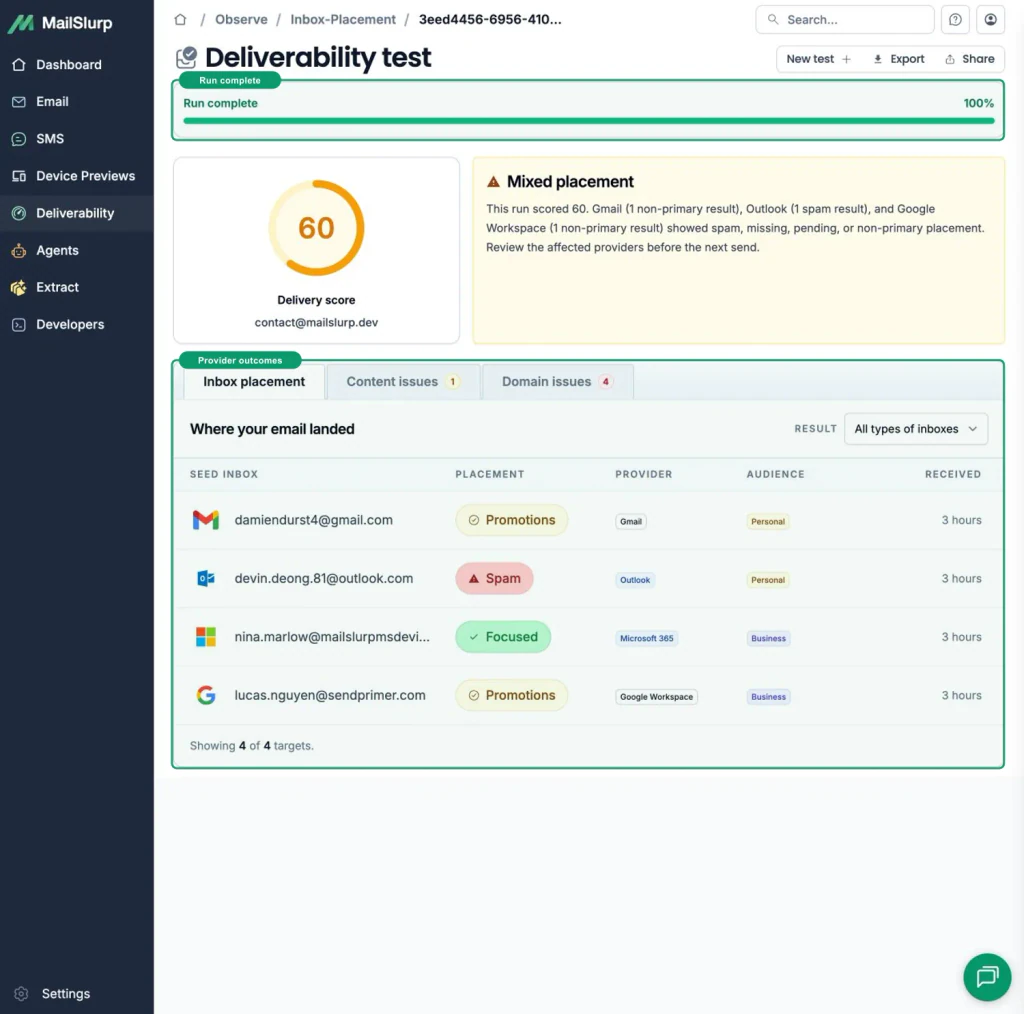
- Spam across providers: review authentication, list permission, inactive exposure, complaints, link reputation, and recent volume changes.
- Gmail Promotions: decide whether that is a reasonable category for the newsletter; it is not the spam folder.
- Outlook Junk only: inspect Microsoft-facing reputation, corporate filtering, and authentication.
- One address missing: confirm it is active, included in the test group, and not suppressed before checking the mailbox.
- Placement is healthy: move to content, link, and rendering checks rather than repeatedly changing authentication.
A seed test is a controlled comparison, not a forecast for every subscriber. Repeat it with the same sender and provider set after the selected fix.
Inspect the delivered layout on mobile and Outlook
MailerLite's editor helps assemble the message, but the received email includes final tracking URLs, hosted assets, footer content, and inbox-client behavior.
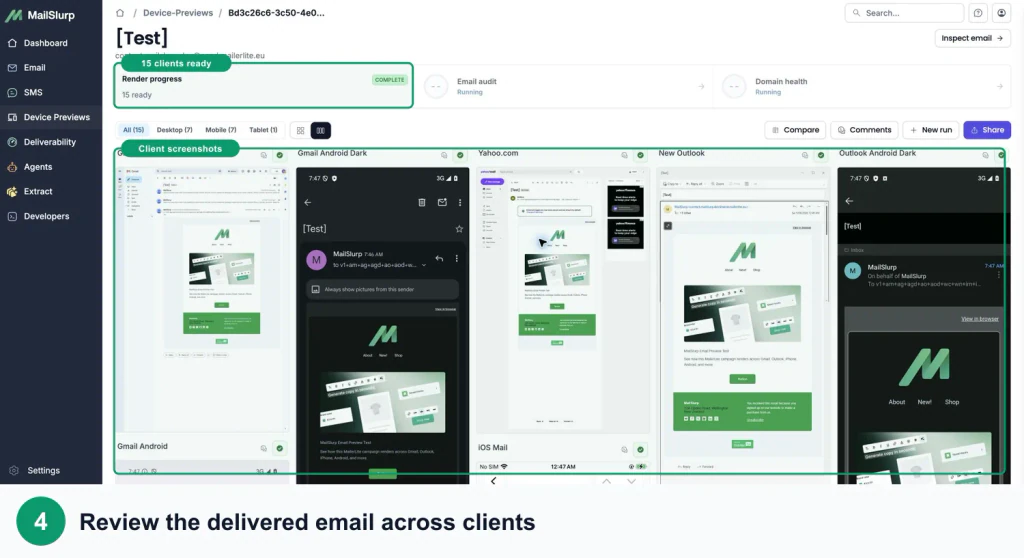
Use the MailerLite device rendering guide and check:
- the CTA appears early enough on a phone
- buttons have useful tap targets and contrast
- columns stack in the intended order
- Outlook preserves spacing and readable fonts
- dark mode does not hide the logo or CTA label
- images scale without cropping important content
- tracked links resolve to the correct page
- unsubscribe and preference links remain visible
Then run a delivered-message audit for broken links, missing images, unsupported markup, and content warnings. A campaign can reach the primary inbox and still lose conversion because the click path is broken.
Fix the earliest failing stage
Use the evidence to make one controlled change:
- Correct the group, segment, or exclusion when the audience is wrong.
- Repair authentication or domain alignment.
- Remove dormant or poorly sourced subscribers from the next broad send.
- Address bounces and spam complaints by source.
- Fix a broken destination, image, or unsupported HTML block.
- Repair the mobile, Outlook, or dark-mode layout.
- Repeat placement and rendering checks before resending widely.
If the message never reached the inbox, changing button color is premature. If placement is healthy and the CTA is hidden on mobile, changing DKIM will not help.
Frequently asked questions
Why are my MailerLite emails going to spam?
Common causes include an unauthenticated or misaligned domain, poor list permission, repeated sends to inactive subscribers, complaints, bounces, abrupt volume changes, suspicious links, and provider-specific filtering. Test the exact campaign across more than one provider before choosing a fix.
Does MailerLite remove spam complainers?
MailerLite changes subscribers who report a message as spam to Junk status and prevents future campaigns to them. Review the signup source and campaign that produced the complaint so the same problem does not continue with other readers.
Why are MailerLite clicks high but conversions low?
Security systems can scan links automatically, so unusually high clicks do not always represent people. Also check destination URLs, mobile rendering, CTA placement, page experience, and purchases or other downstream outcomes.
Should I delete inactive MailerLite subscribers?
Define inactivity for the business, consider one targeted re-engagement campaign, then apply a consistent sunset policy. MailerLite can save inactive subscribers as a segment before they are unsubscribed.
Which MailSlurp checks should I use with MailerLite?
Use MailerLite inbox placement testing for folder results, MailerLite device rendering for the received design, and domain monitoring for continuous sender checks.
For current platform details, see MailerLite's primary documentation for domain authentication, authentication troubleshooting, inactive subscriber cleanup, and campaign reports.