
blog
Why HubSpot Marketing Emails Go to Spam (and How to Diagnose It)
Trace a HubSpot marketing email from contact eligibility to Gmail or Outlook placement. Fix authentication, graymail, test-recipient, content, and rendering problems with a repeatable pre-send check.

When HubSpot marketing emails go to spam, begin with the recipient record rather than the subject line. HubSpot can exclude a contact before a message leaves the platform. A receiving server can reject it. Or Gmail and Outlook can accept it and place it somewhere the contact is unlikely to see.
Those outcomes need different fixes. This guide follows the message from the HubSpot contact and sending domain through inbox placement, rendering, and post-send reporting so you can find the weak stage without changing everything at once.
Quick answer
Use this order when diagnosing HubSpot email deliverability:
- Confirm that you are investigating a marketing email, not a connected-inbox one-to-one email or HubSpot system notification.
- Check whether the contact was eligible, included in the intended segment, and not suppressed.
- Authenticate the email sending domain and make sure it matches the domain in the From address.
- Review bounces, spam reports, unsubscribes, and engagement by source or segment.
- Send the final HubSpot marketing email to controlled inbox placement seeds.
- Compare provider results instead of relying on delivered rate alone.
- Preview the received message on the devices and clients your contacts use.
- Correct one suspected cause, then repeat the test.
The distinction between "not sent" and "sent to spam" matters most. Inbox placement testing cannot diagnose a contact HubSpot excluded before sending, while HubSpot's recipient report cannot show the folder selected inside every mailbox.
Is this a marketing email, one-to-one email, or notification?
HubSpot sends several kinds of email through different paths. Before looking at reputation or content, identify the path that failed.
| Email path | Typical use | Where to begin |
|---|---|---|
| Marketing email | Newsletters, promotions, nurture, automated campaigns | Marketing email recipients and performance reports |
| One-to-one email | A user emails a contact from a connected inbox | User inbox connection, sending limits, and conversation record |
| HubSpot system notification | Product alerts and account notifications | Notification settings, allowlisting, and the user's mailbox |
This article focuses on marketing email. If one salesperson's connected-inbox messages are affected, changing a marketing segment or email-health setting will not repair that separate sending route.
Confirm the contact was eligible to receive the email
Open the sent email's recipient view and find an affected contact. HubSpot separates recipients into states such as sent, delivered, bounced, unsubscribed, spam reported, and not sent. The reason attached to the contact is more useful than the campaign average.
Check whether the contact:
- is set as a marketing contact where the account requires that status
- belongs to the segment selected for this send
- is excluded by another segment or suppression rule
- previously unsubscribed from the relevant subscription type
- hard bounced in an earlier send
- reported a previous message as spam
- lacks a usable email address
- is affected by graymail suppression or an email frequency safeguard
If the status is not sent, solve the HubSpot eligibility reason before running an inbox test. No mailbox provider can place a message it never received.
For an automated email, also inspect the workflow enrollment history. A contact can meet the audience definition but miss the message because it never entered the workflow, reached the email action before publication, or left through another branch.
Authenticate the HubSpot email sending domain
HubSpot's current authentication flow is under Settings > Content > Domains & URLs > Email Sending. The subdomain connected there should match the domain used in the marketing email's From address.
HubSpot reports authentication states for the domain. Do not approve a large send while the intended identity is still unauthenticated or only partly configured.
Check:
- DKIM records generated for the HubSpot connection
- SPF configuration for the sending arrangement
- a DMARC record and policy suitable for the domain
- alignment between the visible From domain and authenticated identity
- a stable From name that contacts recognize
- Reply-To and landing-page domains owned by the same organization
HubSpot documents that an unauthenticated marketing send can use a HubSpot-managed variable domain. That change in the visible sender can confuse recipients and weaken the continuity you want between your website, From address, and message.
DNS is not a set-and-forget screen. Use MailSlurp domain monitoring to watch authentication, MX, blacklist, and certificate changes so a later DNS edit does not silently undo the setup.
Read HubSpot's email health and recipient evidence
HubSpot's post-send reports help answer whether the problem is broad, isolated to one segment, or limited to one provider.
Review:
- delivered, bounced, unsubscribed, and spam-report rates
- bounce categories and recipient-level reasons
- performance by segment or workflow
- changes after a list import or sending-volume increase
- engagement by original source and subscription type
- long-term Email Health or Delivery trends available in the account
Do not use open rate as a folder detector. Privacy protection, image blocking, and automated security activity can change open data. A falling open rate is a reason to investigate; it is not proof that every message went to spam.
HubSpot describes deliverability as a feedback loop involving the right content, contact, and timing. That makes contact quality part of the technical diagnosis. Segment contacts by why they subscribed and suppress people whose permission or interest is no longer clear.
HubSpot says delivered: read these results together
"Delivered" means the receiving system accepted the message. It does not identify the folder or tab selected inside the mailbox. Read the HubSpot recipient row and the completed MailSlurp provider row together before deciding what to fix.
| HubSpot evidence | MailSlurp evidence | What to do next |
|---|---|---|
| Not sent or zero eligible recipients | No message observed | Fix contact status, segment membership, suppression, or workflow enrollment before testing placement. |
| Bounced | No message observed | Read the bounce reason and repair the address, authentication, or sending condition it identifies. |
| Delivered | Pending | Wait for the observation window; pending is not a spam result. |
| Delivered | Spam or Junk | Investigate the sender, audience, authentication, links, and provider-specific evidence. |
| Delivered | Promotions or another inbox tab | Decide whether that category suits the marketing message; do not treat it as spam. |
| Delivered | Inbox, Primary, or Focused | Placement passed for that controlled account; still review the delivered design and real-audience feedback. |
For a worked example, suppose HubSpot reports four controlled contacts as delivered while the completed MailSlurp run shows Gmail in Promotions and Outlook in Spam. The HubSpot result rules out a zero-recipient mistake. The provider split then points to an Outlook-specific investigation rather than a blanket campaign rewrite. Preserve the sender and message, inspect the Outlook evidence, change one supported cause, and rerun the same path.
Run a provider-level placement test
HubSpot's delivered count records acceptance by the receiving system. A MailSlurp inbox placement test checks what happened inside controlled provider mailboxes after acceptance.
Create a placement run and copy its unique marker and current seed addresses. Add the seeds to a dedicated HubSpot segment, include the marker exactly as instructed, and send the launch-candidate marketing email through the same path planned for production.
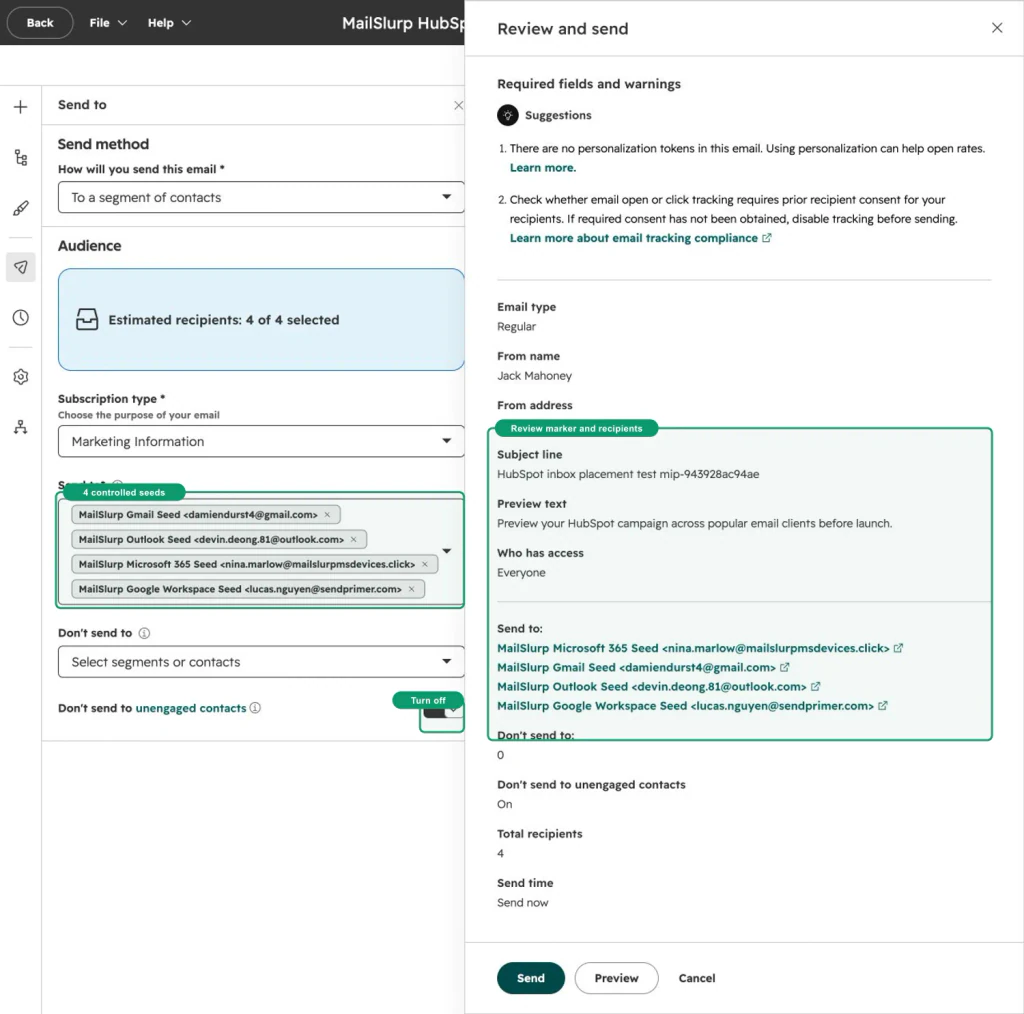
Keep these settings realistic:
- authenticated From address
- final subject and preheader
- normal link and open tracking
- production template and modules
- personalization using a representative contact
- live images, CTA URLs, footer, and subscription links
- the automation or regular-email path you will actually launch
The exact interface steps are in the HubSpot inbox placement testing guide.
Approve an external test recipient when HubSpot asks
HubSpot may require approval before an address can be used for a marketing test email. The approval message confirms that the address can be used as a sender or test recipient for the account.
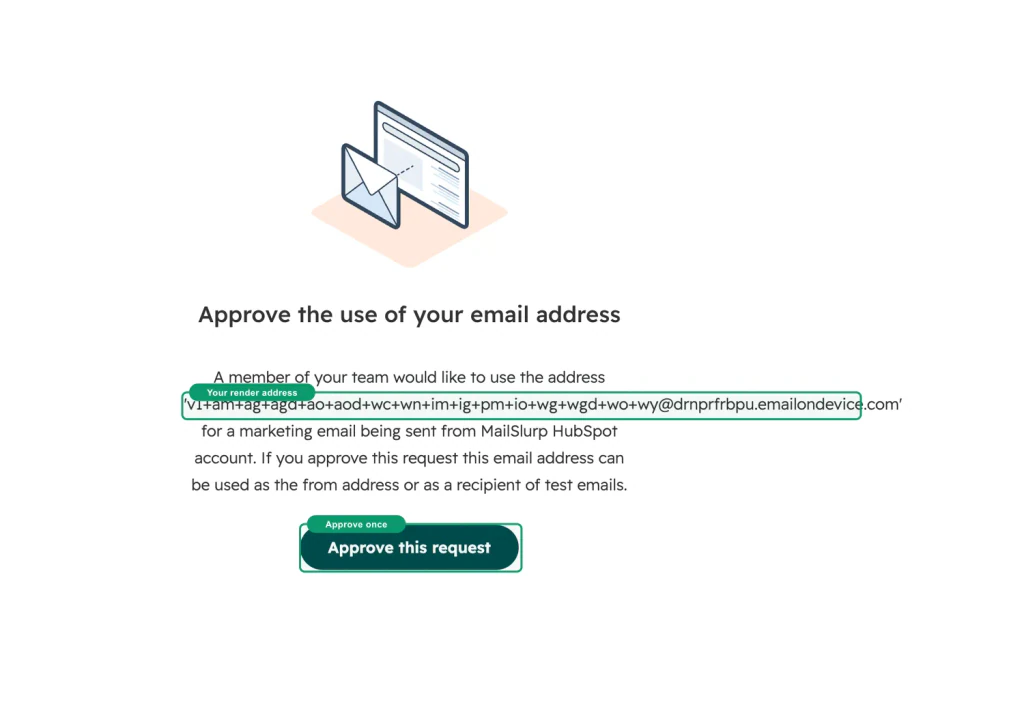
This approval is part of HubSpot's test-send path. It is separate from adding controlled seed contacts to an opted-in segment for a real campaign send. Use the method described by the guide for the workflow you are running and do not substitute personal addresses you do not control.
Interpret a mixed provider result
A provider split is useful evidence, not noise.
| Pattern | Likely next investigation |
|---|---|
| Gmail and Outlook both place in spam or junk | Authentication alignment, list source, complaints, sender history, link reputation, abrupt volume change |
| Gmail inbox, Outlook Junk | Microsoft-facing reputation, corporate filtering, complaint history, and whether consumer Outlook differs from Microsoft 365 |
| Gmail Promotions, Outlook inbox | Whether promotional classification matches the message and audience expectation |
| One seed missing | HubSpot recipient eligibility, segment membership, suppression, bounce response, and test timing |
| Good seeds but weak real engagement | Audience permission, segmentation, frequency, relevance, and recipient-specific history |
A seed test is a controlled sample, not a forecast for every CRM contact. Its strength is comparison: you can preserve the sender and template, change one suspected problem, and see whether the same provider result improves.
Preview the delivered HubSpot email, not only the editor canvas
Once placement is acceptable, check whether contacts can read the message and use its links. HubSpot's editor preview is helpful for assembling modules and personalization. The delivered email adds final tracking URLs, hosted assets, headers, footer content, and client-specific rendering.

Use the HubSpot device rendering guide to test the final send across Gmail, Outlook, iPhone, Android, and dark mode. Check:
- whether personalized modules have safe fallbacks
- CTA visibility above the fold on mobile
- columns and images in narrower clients
- button and logo contrast in dark mode
- Outlook spacing and font fallback
- tracked links, preference links, and unsubscribe behavior
- footer identity and physical-address content
Placement and rendering measure different things. A message can reach the inbox and still hide its CTA on a phone. It can also render beautifully in the editor and land in junk. Keep both checks in the same release record without treating one as a substitute for the other.
Improve the next send without obscuring the cause
Pick the most strongly supported change:
- Repair authentication or alignment if the message identity is wrong.
- Correct contact eligibility when the email was not sent.
- Suppress stale or poorly sourced contacts when negative engagement is concentrated there.
- Reduce an abrupt volume jump and warm a new HubSpot sending domain deliberately.
- Replace suspicious or broken links and confirm landing domains.
- Fix a rendering defect that blocks reading or clicking.
- Repeat the same provider test before expanding the audience.
Avoid changing the From address, segment, HTML, links, subject, and send time together. If the next result improves, that bundle will not tell you which change mattered.
HubSpot campaign release checklist
- Confirm the email is using the intended marketing path.
- Check that representative contacts are eligible and enrolled.
- Verify the email sending domain reports authenticated.
- Review recent bounces, spam reports, unsubscribes, and engagement by source.
- Use the final From address, tracking, template, and personalization in the test.
- Run provider-level inbox placement checks.
- Preview the delivered message across priority clients and devices.
- Confirm subscription and unsubscribe behavior.
- Save the tested email version and results with approval.
- Monitor the sending domain for later DNS or reputation changes.
Frequently asked questions
Why are my HubSpot emails suddenly going to spam?
Look for a change in the sending domain, From address, authentication, link domain, audience source, contact engagement, volume, or complaint rate. Compare the first affected marketing email with a recent healthy send, then test the current version across Gmail and Outlook.
Why did a HubSpot contact not receive a marketing email?
Open the email's recipient report and inspect that contact's status. They may have been excluded as non-marketing, unsubscribed, bounced, suppressed, ineligible for the subscription type, or outside the selected segment. A "not sent" reason must be fixed before inbox placement can be measured.
Does connecting a HubSpot email sending domain guarantee inbox delivery?
No. It establishes an authenticated sending identity, but providers also evaluate reputation, permission, complaints, engagement, message content, links, sending patterns, and recipient history.
Can HubSpot show whether an email reached spam?
HubSpot reports delivery, bounce, spam-report, unsubscribe, and engagement data. A controlled inbox placement test adds observed folder results for test accounts at individual providers.
Where can I find the exact test workflow?
Use the HubSpot inbox placement guide for spam and folder results, the HubSpot device rendering guide for visual QA, and domain monitoring for continuous authentication and sender-domain checks.
For current platform details, see HubSpot's primary documentation for email authentication, email deliverability, contact cleanup, and recipient analysis.