
HubSpot Email Preview: Send and Check a Test Email
Preview a HubSpot marketing email as a contact, send a test and compare Gmail, Outlook and mobile layouts. Check smart content and dark-mode contrast.

HubSpot email preview testing should prove that the marketing email customers receive still looks right after HubSpot applies the final send details.
HubSpot includes useful preview and test-send workflows inside the email editor. Checking each contact variant across separate inboxes still means reopening the latest revision and collecting matching screenshots after every edit.
MailSlurp is an email testing platform with device previews that brings those captures together. Pair it with HubSpot's editor checks to review the delivered message across Gmail, Outlook, phone apps, light mode and dark mode.
How automated device rendering works
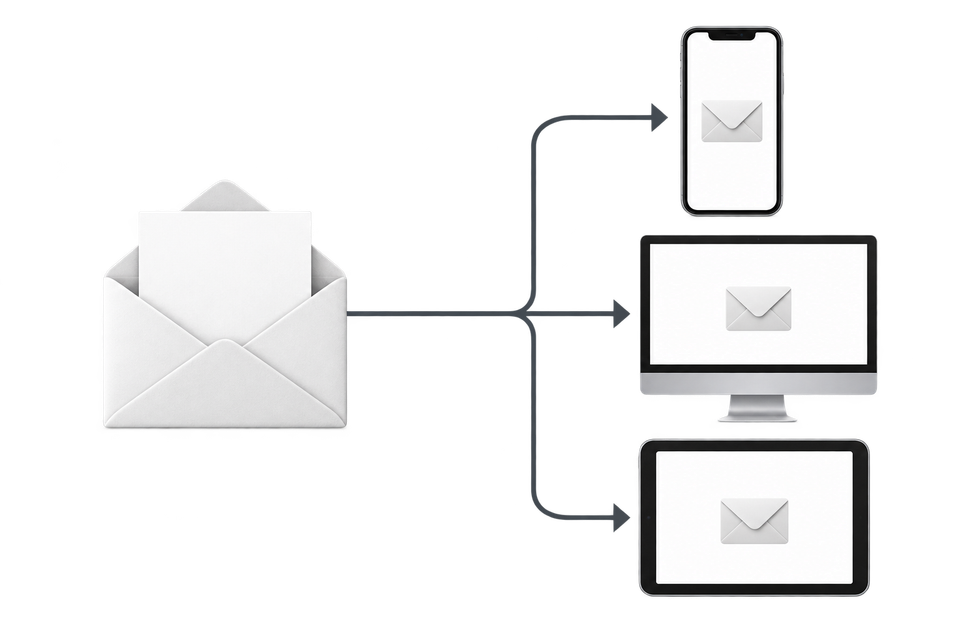
Choose the devices and email services you want to test, and MailSlurp gives you a special email address. Send your campaign to that address. MailSlurp opens the email in the selected apps and webmail services, then captures screenshots automatically.
The screenshots come back together, ready to compare across phones, tablets and computers. Check the layout, images and buttons, then share a result link so your team can review the same version of the email.
Quick answer
Use HubSpot's Preview and test menu to send a test marketing email, preview as a contact, and generate email-client previews when your subscription includes them. When the email is close to launch, send the final test to MailSlurp and run device previews against the delivered message.
One important distinction: HubSpot's current test-email documentation says a test send uses noreply@hubspot.com rather than the campaign's configured From address. That makes the built-in test useful for content and rendering review, but it does not prove production sender reputation or inbox placement. Use a controlled send through the connected sending domain when placement is the question.
That helps catch issues involving:
- personalization tokens
- smart content rules
- images blocked or displayed differently by the inbox
- live links and tracking URLs
- mobile layout changes
- Outlook-specific rendering differences
- dark mode contrast problems
- footer, unsubscribe, and preference-link visibility
What to test inside HubSpot first
Start with HubSpot's editor controls while the email is still easy to change.
In the email editor:
- Open the Preview and test menu.
- Send a test email to reviewers.
- Preview the email as a specific contact when personalization matters.
- Generate email-client previews for the clients and devices that matter to the audience.
- Toggle image blocking when you need to see how the email behaves with images disabled.
This catches many design, personalization, and image-loading issues before you move into final approval.
Why test the delivered HubSpot email too
Editor previews are useful, but final campaign QA should inspect the received email.
The delivered version can include:
- live tracking redirects
- final unsubscribe and preference links
- contact-specific personalization
- smart content variants
- image-hosting behavior
- plain-text fallback choices
- final HTML and MIME structure
- inbox-applied dark mode changes
That is why a HubSpot preview workflow should end with a render of the delivered message.
HubSpot preview workflow with MailSlurp
1. Choose the launch candidate
Use the exact drafted marketing email that is closest to send. Avoid previewing an older template if the final campaign copy, images, or smart content has changed.
2. Pick realistic recipients
Preview as contacts that cover the important variants: default personalization, smart content rules, lifecycle-stage rules, and long or missing values.
3. Send the test to MailSlurp
Choose the client targets in MailSlurp before copying the render address. Send HubSpot's editor test to that address for a content and layout check, using Preview as contact when you need a particular contact's values.
When approval needs the configured From identity and the regular campaign send path, follow the HubSpot device-rendering walkthrough. It sends a regular marketing email to one controlled render contact; HubSpot's editor test uses noreply@hubspot.com instead.
4. Review device previews
Open MailSlurp device previews and inspect the delivered email across:
- Gmail web and mobile
- Outlook desktop and web
- iPhone and Android
- desktop webmail
- light mode and dark mode
5. Keep the result with launch approval
Store the render result beside the campaign checklist so future reviews can repeat the same process.
HubSpot email preview checklist
Before launching, confirm:
| Area | Check | Risk |
|---|---|---|
| Personalization | Tokens and contact-specific copy render with safe fallbacks | Raw tokens or empty text |
| Smart content | The intended variant appears for each test contact | Wrong content for a segment |
| Mobile layout | Columns, CTAs, and images stack clearly | Cropped images or wide layouts |
| Dark mode | Text, logos, and buttons remain readable | Low contrast or hidden brand assets |
| Links | CTA, unsubscribe, preference, and tracking links resolve | Wrong destination or broken redirect |
| Image blocking | The message still makes sense when images are disabled | Missing context or invisible CTA |
| Footer | Legal and preference content remains visible | Compliance content hidden or clipped |
Use ESP email preview testing for the broader ESP workflow and email compatibility tester when preview review should sit beside link, image, and HTML support checks. Related platform workflows include Klaviyo email preview testing, Salesforce Marketing Cloud email preview testing, and Customer.io email preview testing.
Smart content preview tips
HubSpot smart content can change the email by contact list membership or lifecycle stage, so test more than one recipient when the email uses variants.
For smart content campaigns:
- Create or choose contacts that match each important rule.
- Preview the email as each contact inside HubSpot.
- Send delivered tests to MailSlurp.
- Confirm the right variant appears in the received email.
- Run device previews on the received messages that represent each launch variant.
This catches the common case where the default version looks right but a targeted version has broken copy, layout, or images.
When a fast render is enough
Use Free email render when you need a quick one-off check during editing.
Use MailSlurp device previews when:
- the campaign needs shareable review evidence
- stakeholders need to compare light and dark mode
- smart content or personalization changes the layout
- the same review process should repeat across future HubSpot sends
- the team wants rendering, inbox, link, and content checks close together
FAQ
What is HubSpot email preview testing?
HubSpot email preview testing checks how a HubSpot marketing email will look before recipients receive it.
Can HubSpot preview emails in different clients?
Yes. HubSpot supports email-client previews from the email editor for eligible subscriptions, and those previews can be generated for selected client versions.
Should I preview HubSpot emails in Gmail and Outlook?
Yes. Gmail, Outlook, mobile clients, desktop clients, image blocking, and dark mode can all change the way a marketing email appears.
Can MailSlurp preview HubSpot test emails?
Yes. Send the HubSpot test email to a MailSlurp render address or controlled inbox, then run device previews against the delivered message.
Where should I start?
Start with Free email render for a quick HubSpot test send. Use device previews when HubSpot rendering should become part of repeatable campaign approval.