
How to Send a Test Email in Klaviyo: Campaigns and Flows
Test Klaviyo campaigns and abandoned-checkout flows with the right data. Follow a real store event into Manual review, then inspect the received email and recovery link.
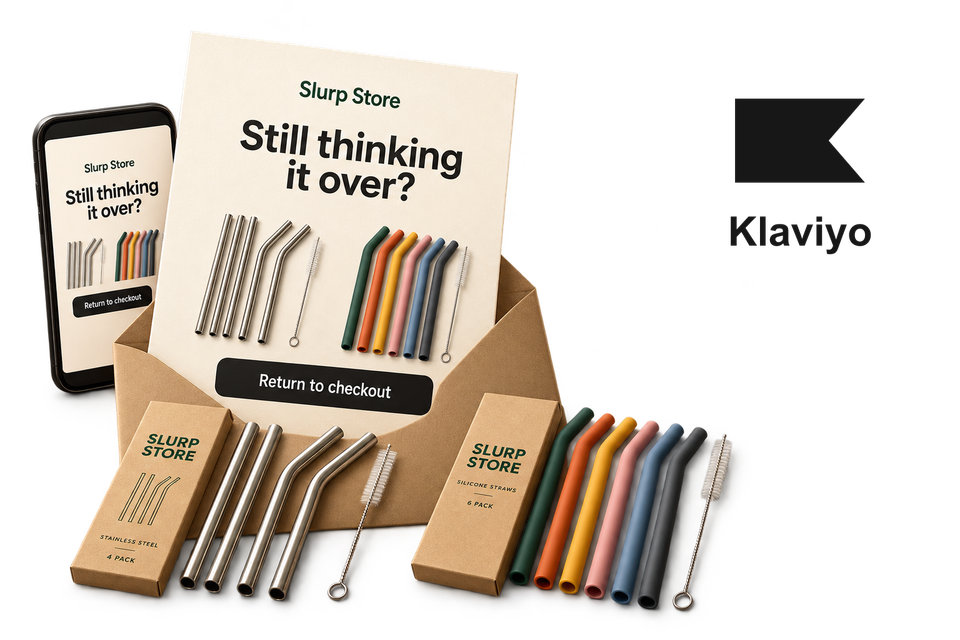
Before a Klaviyo campaign or flow goes live, check both the content it produces and the conditions that send it. A preview can show a shopper's products without proving that the shopper qualifies for the flow. The populated email can also read differently on a phone and in desktop Outlook.
Checking all of that by hand means selecting the right profile or event, repeating the store action, inspecting the flow history and opening the received email in several apps. After an edit, those checks need to refer to the same new message.
MailSlurp is an email testing platform with automated device previews. It captures the delivered email in the clients you select, so reviewers can compare the same message. We'll use a two-product checkout reminder to connect the store event and Klaviyo's Manual review to the recipient's email.
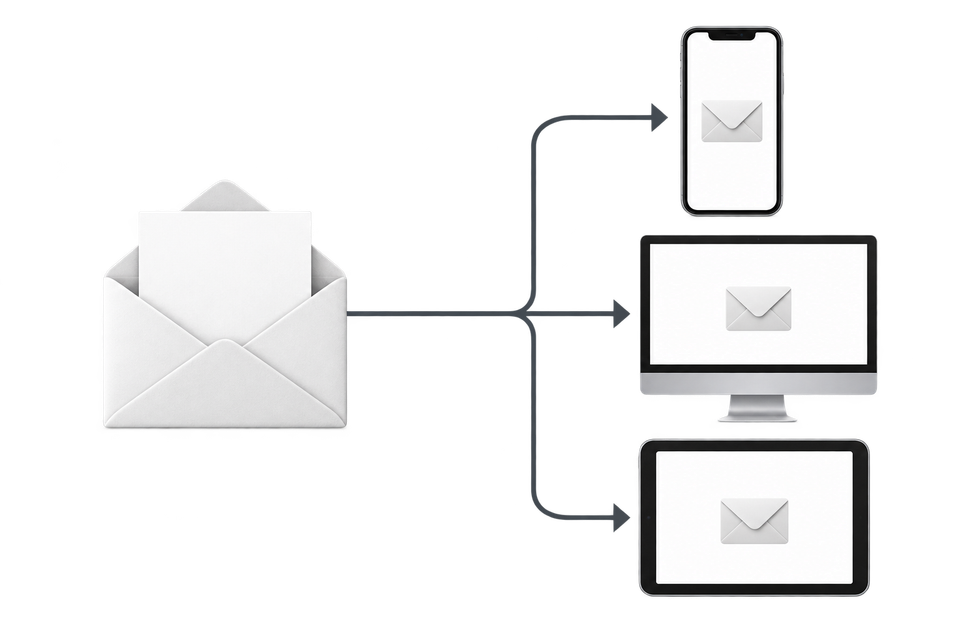
How automated device rendering works
Choose the devices and email services you want to test, and MailSlurp gives you a special email address. Send your campaign to that address. MailSlurp opens the email in the selected apps and webmail services, then captures screenshots automatically.
The screenshots come back together, ready to compare across phones, tablets and computers. Check the layout, images and buttons, then share a result link so your team can review the same version of the email.
Choose a campaign preview or a flow test
For a campaign or saved template, open Preview or Preview & test and choose a representative profile. That profile supplies personalization; the test-recipient address determines where the preview is sent. For a compatible event-triggered flow, select the relevant event so its product and checkout values are available.
A saved template's event preview does not make those values available when the template is sent as a campaign. Klaviyo's personalization panel guide describes the data available in each editor.
Choose the sending path according to what you need to establish:
| Your question | Test to use |
|---|---|
| Does the populated message look right? | An ordinary test send with appropriate preview data |
| Do campaign links and send-time behavior work? | A small controlled live campaign |
| Does this shopper qualify for an event-based flow? | The actual store action, followed through the flow's recipient activity |
Klaviyo's preview and test-send instructions explain why some dynamic behavior differs in previews. A campaign using the same template does not exercise a checkout trigger.
For the ordinary template-send procedure and a separate dark-mode example, follow the Klaviyo device-preview guide. The example below uses an actual store event with its flow message held for review.
Test an abandoned checkout with real product data
Slurp Store is a fictional shop selling reusable drinking straws. Our test shopper adds a Colour Pop Silicone Straws six-pack at NZ$18.90 and a Stainless Steel Straws four-pack at NZ$14.90, one of each. The reminder should show both products and return the shopper to the same checkout, with a NZ$33.80 product subtotal.
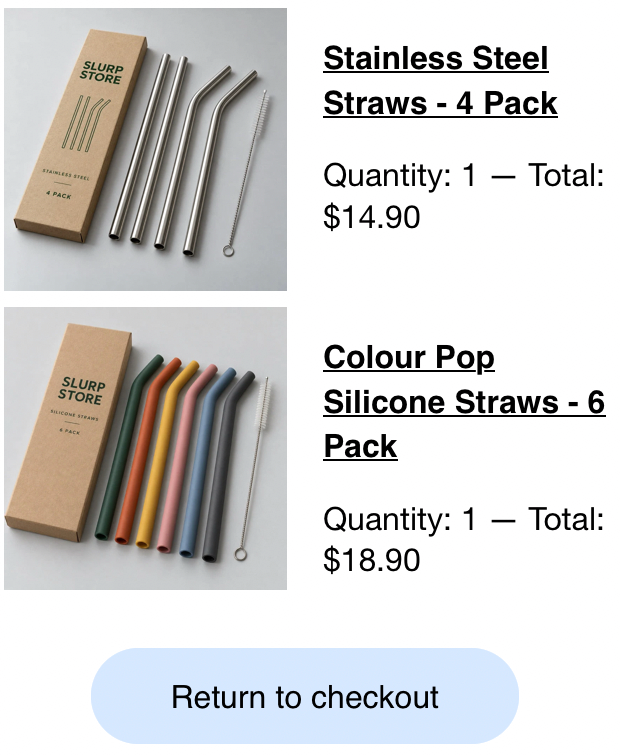
The store recorded Checkout Started for the intended profile, and that shopper reached Needs review in the restricted flow. After manual release, the populated email arrived in MailSlurp. All three client captures show both products, but the phones retain a pale-blue checkout button while Outlook Classic displays its label without that background. Inspect the delivered comparison, or follow the event and review steps below.
1. Choose the receiving address and clients
Open MailSlurp's new device-preview form, expand the target selector and choose the apps to check. This case uses Gmail Android, iOS Mail and Outlook Classic, all in their default light appearances.
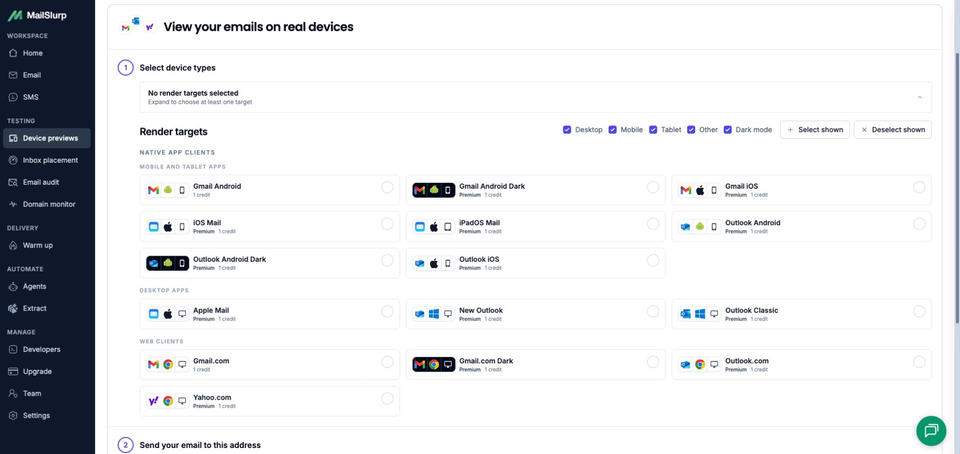
Review the selected clients and credit requirement, choose Use selected, then copy the complete receiving address. Check whether a saved profile has added other clients. This run uses the three-client selection directly, with no saved profile.
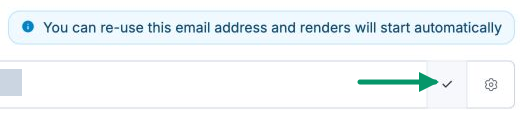
Inspect the complete receiving-address screen
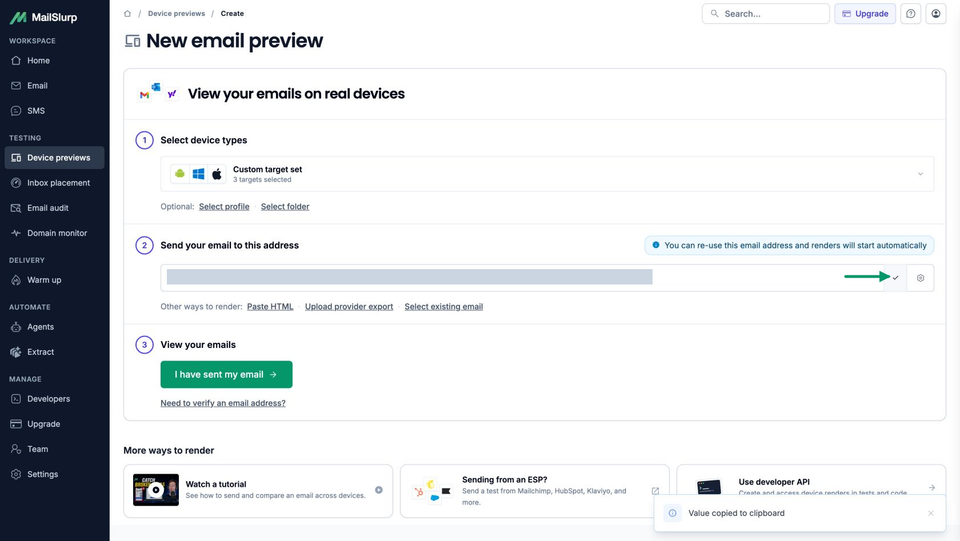
Use that address as the shopper's email in the test. Keep it consistent through the profile filter and checkout; another recipient would not satisfy the restriction below.
2. Restrict a separate checkout flow
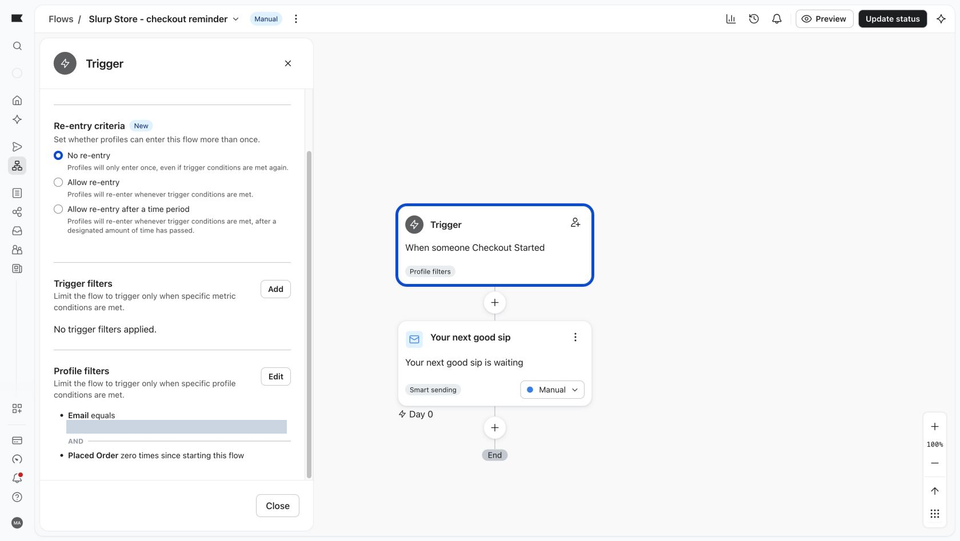
In Klaviyo, create a separate flow using the connected store's checkout metric. This workspace calls the native Shopify metric Checkout Started. The test flow, Slurp Store - checkout reminder, contains one email with no delay before it and uses No re-entry.
Add a profile filter requiring the exact controlled email address. Retain the purchase condition Placed Order zero times since starting this flow. This condition defines eligibility; testing its purchase branch would require a separate completed test order.
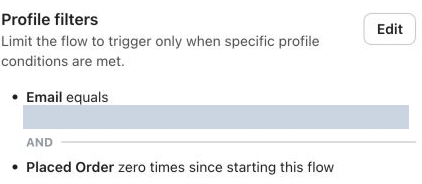
Set the email to Manual. A qualifying event can then schedule the message for review instead of sending it automatically. Keep existing customer flows and their schedules separate from this controlled test.
Inspect the complete restricted Manual flow
Klaviyo's flow-testing instructions distinguish trigger-preview checks from a recipient reaching a message. A trigger preview checks entry conditions; inspecting Needs review checks who reached the Manual email.
3. Prepare the native checkout reminder
Open the flow's email and save its sender, subject, product content and checkout button. This reminder uses Klaviyo's native abandoned-cart template with the subject Your next good sip is waiting. Keep its product content attached to the checkout event instead of replacing the products with fixed example text.
Use the matching event in the preview panel to inspect the item names, quantities and prices. Check which shopper supplied that event: the most recent available event may belong to someone else. A correctly populated preview for another shopper does not verify this test profile's checkout.
Keep the checkout recovery destination supplied by the integration. This native button uses {{ event.extra.checkout_url }}. A link to the shop's homepage or an individual product serves a different purpose from reopening the shopper's checkout. Inspect the actual received link after the flow sends it.
4. Start checkout and review the one pending message
With the restricted email in Manual mode, add the two products in the connected store and begin checkout. Enter the controlled email and the required checkout details, then leave without placing an order. In this store, we entered test delivery details before the new event appeared; no payment was submitted.
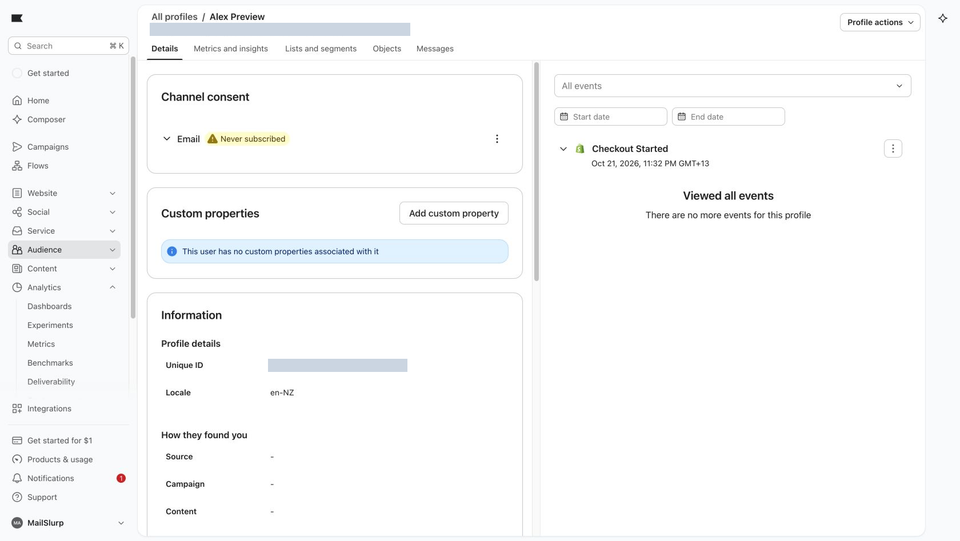
Open the matching Klaviyo profile and find Checkout Started in its activity. Confirm that its product data belongs to the basket you just created. Our event contained both sets with quantity one.
Inspect the recorded checkout event
Open the email's Recipient activity and inspect Needs review. In this isolated flow, exactly one pending recipient matched the intended shopper.

Inspect the complete pending-recipient view
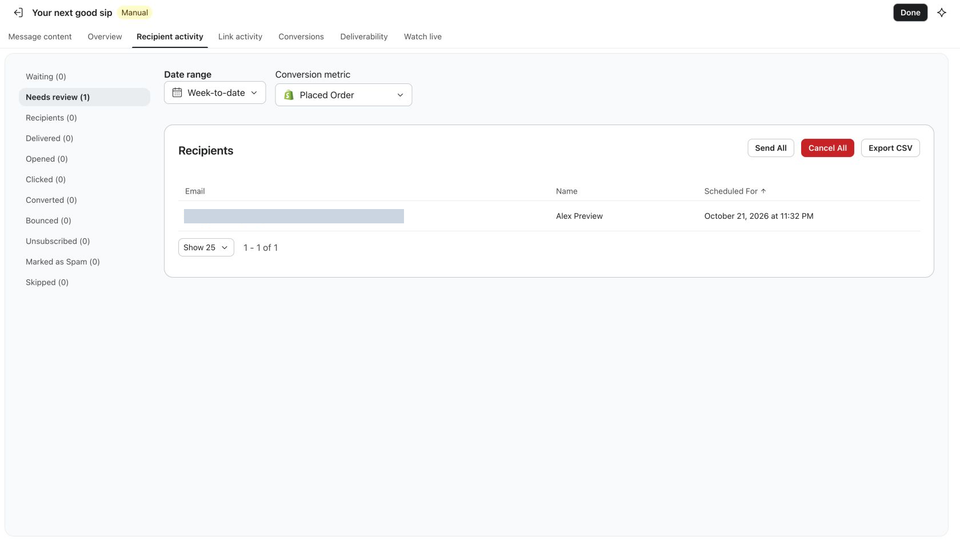
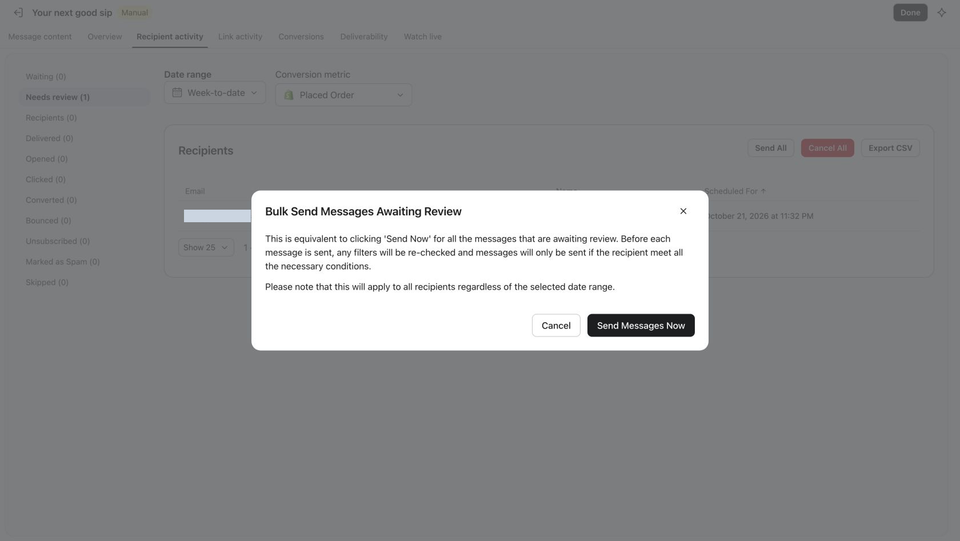
The current interface offered Send All. After verifying that the queue contained only this one recipient, we selected it and confirmed Send Messages Now. That control applies to all messages awaiting review, regardless of the date filter. Check the whole queue before using it; a narrowed report view is not a recipient restriction.
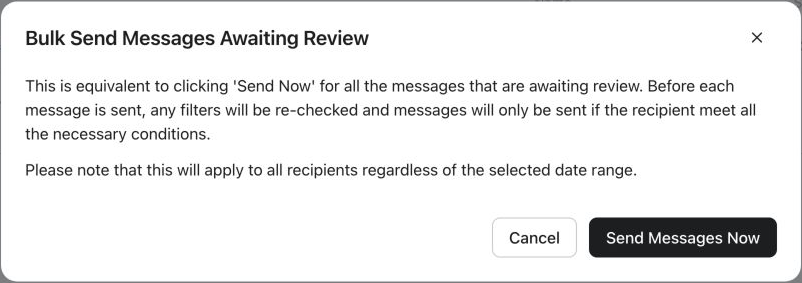
Inspect the confirmation in the complete recipient view
After confirmation, inspect the recipient's send status and MailSlurp receipt separately. A message in Waiting (After Review) is still awaiting sending. Do not interpret that state, or an empty Needs review queue, as delivery.
Inspect the delivered message
Return to MailSlurp and choose I have sent my email to open the waiting view. Receipt starts rendering automatically. Open the matching subject with View results, then wait for each selected client to become Ready.
Inspect the complete three-client result
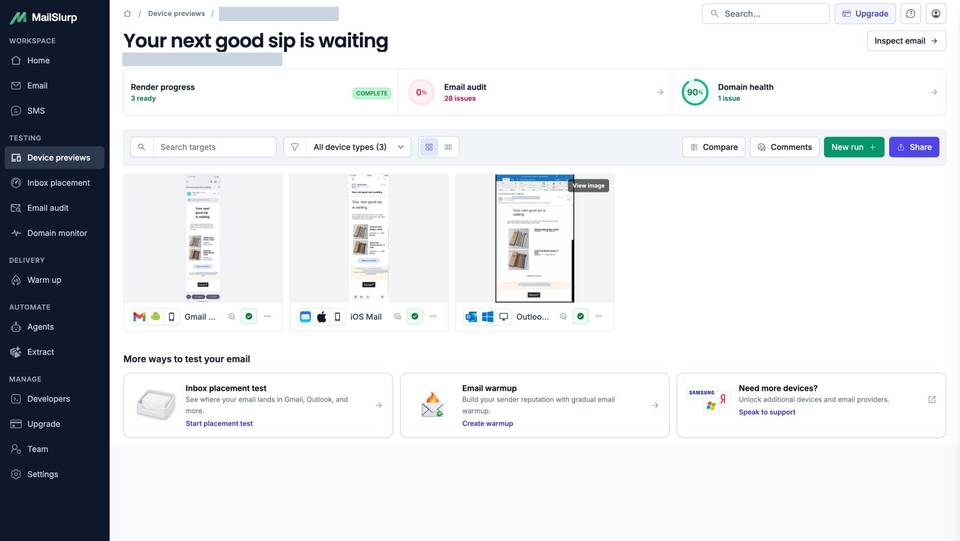
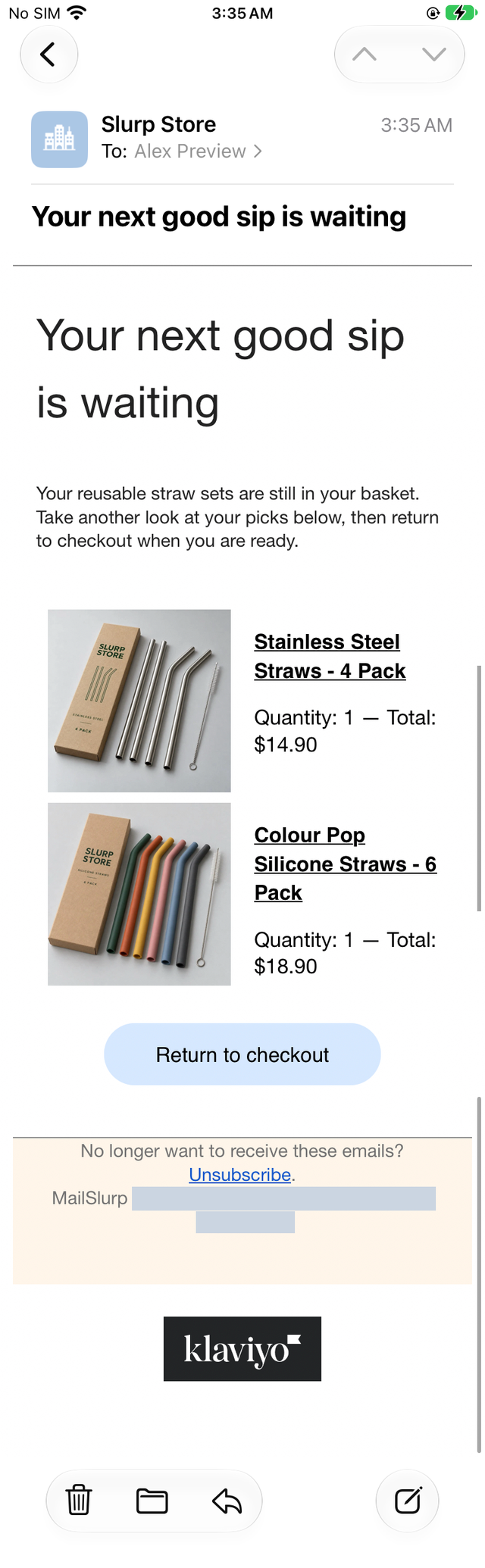
The actual flow email completed all three selected captures. Each contains the steel four-pack and silicone six-pack, their photographs, quantity one and item totals of $14.90 and $18.90. Those values match the checkout's New Zealand dollar prices. The native template lays out one product per row, with its photograph beside its name and quantity.
iOS Mail: products and button
Outlook Classic: products and button
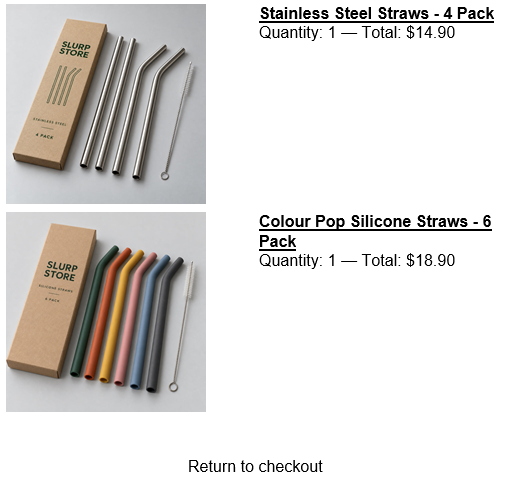
The phone's longer product names wrap, while the wider Outlook view gives them more room. Gmail Android also retains the blue checkout button. The missing fill in Outlook Classic is a layout issue to correct and retest; confirming that the words are present would not catch that visual change.
Inspect the complete original flow email in all three clients
Original flow: iOS Mail
Original flow: Outlook Classic
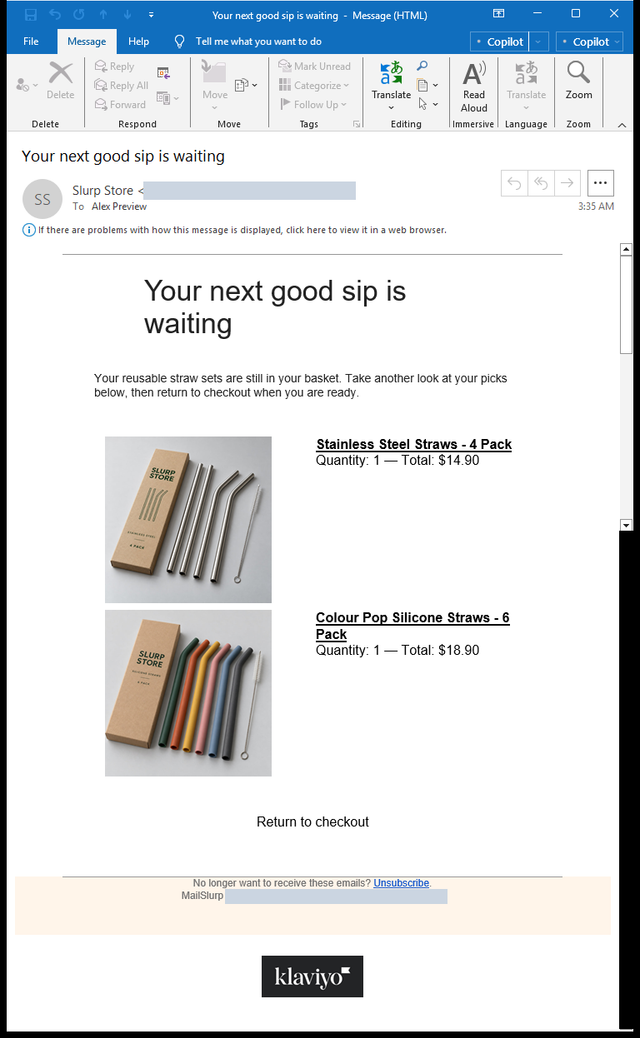
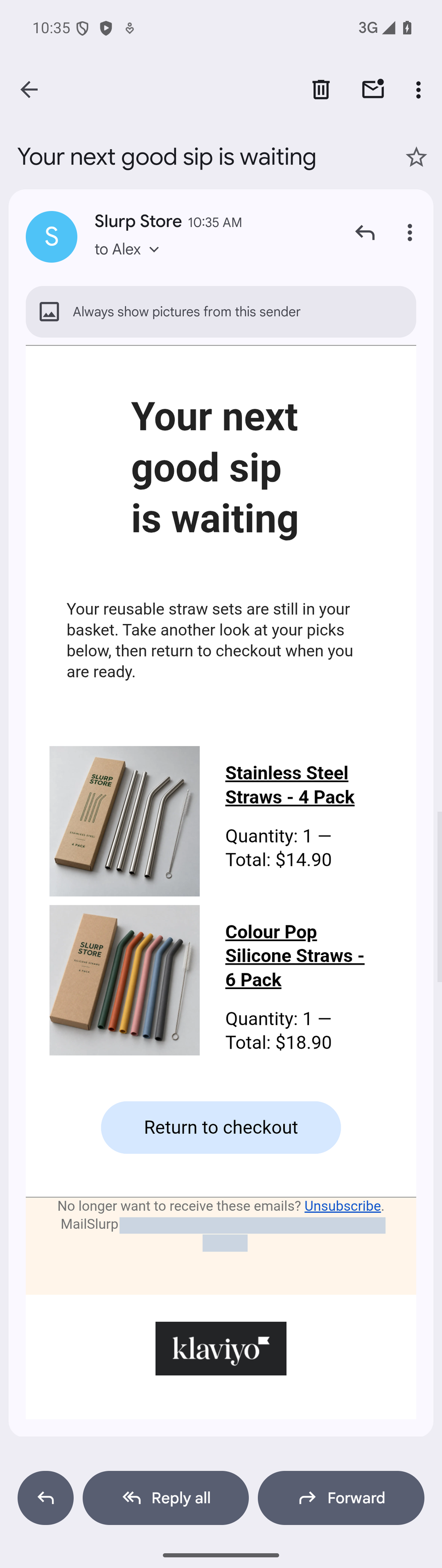
Read the whole message, including the footer and unsubscribe link. These results cover the selected light appearances; add supported dark targets for a separate appearance check.
Follow the received checkout button
Open Return to checkout in the received message and compare the destination with the triggering event. Check the shopper's contact and delivery details as well as the items, quantities and prices.
For this email, one browser navigation showed the two expected products but a contact field belonging to a different test profile. Opening the same received link in a separate signed-out browser reached the store's password page. Those observations do not establish recovery of this shopper's checkout, and they do not isolate a cause for the contact mismatch.
Keep that recovery check separate from the client comparison: the screenshots establish how the email appears, including the missing Outlook button fill. They do not establish which checkout a browser will open. No order or payment was submitted in this example.
Correct the product links and test the revision
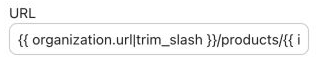
The product titles and photographs are separate links from Return to checkout. In the original flow email, those product links used the account's website address rather than the Shopify storefront. The native template combined {{ organization.url|trim_slash }} with /products/ and {{ item.product.handle }}. The product handle was correct, but the account's website was not the store.
We changed the product-title and image link bases in this message to the connected Shopify storefront, keeping the dynamic product-handle variable. The account's shared website setting stayed unchanged.
Original: account website
Revision: Shopify storefront
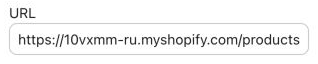
Inspect both URL settings in the complete editor
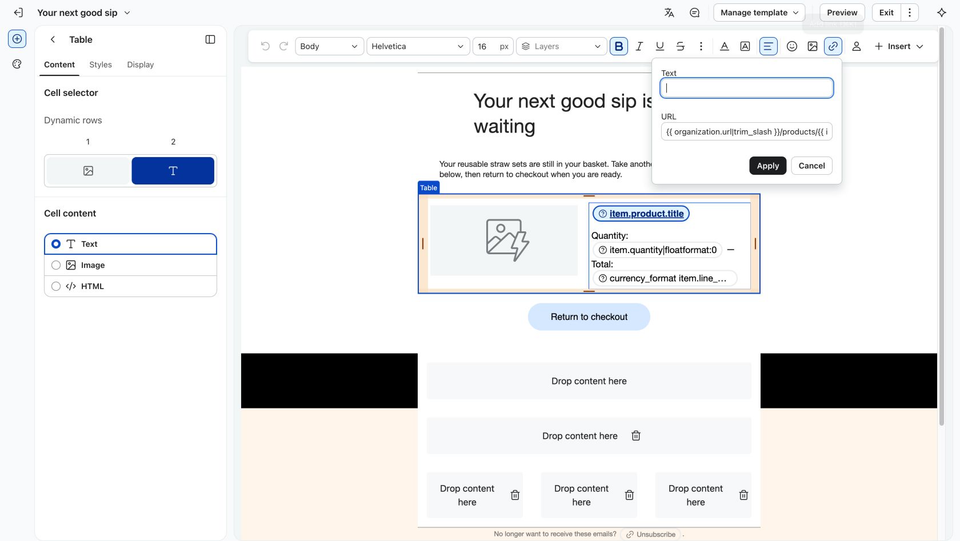
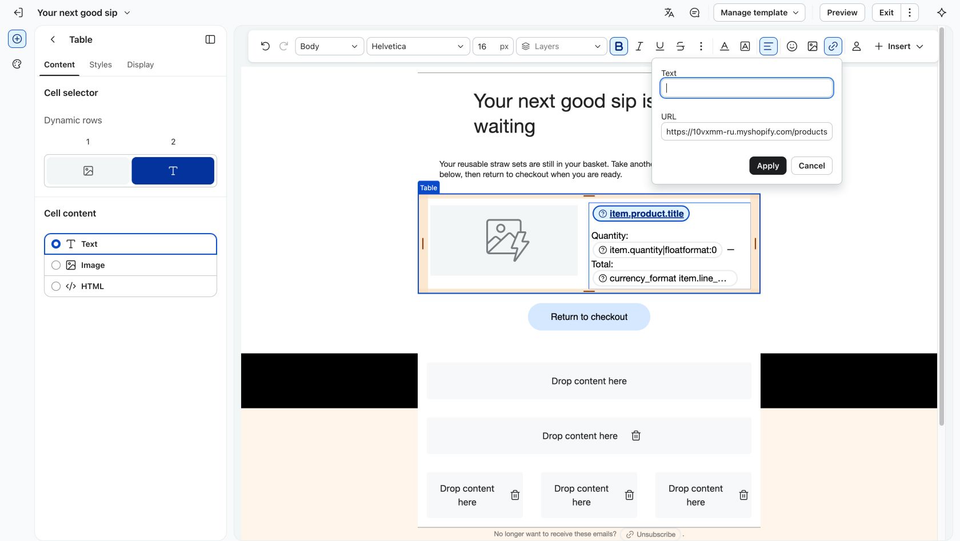
To check this change, we selected the same shopper's original Checkout Started event in Preview and sent a new native test email to the controlled receiving address. Its subject began [Preview]. This was a preview of the revised template, not a second checkout-triggered flow send.
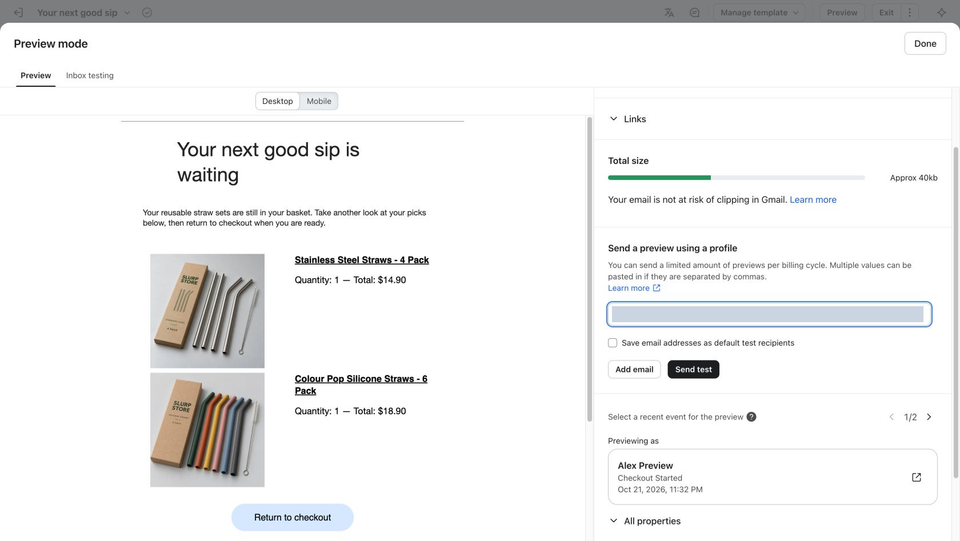
In the browser session with store access, both product-title links in the received preview opened the corresponding Shopify product pages at NZ$14.90 and NZ$18.90. We opened both image links separately and confirmed the same respective product destinations. This verifies the corrected product links in that preview; the original flow captures above still document the earlier message and its Outlook button issue.
Keep the received message and client captures together when requesting review. If the product content, links or template change, repeat the relevant store event with a qualifying controlled profile and compare the new message. The email preview approval workflow explains how to share a result and discuss a specific client or element.
Diagnose the stage that did not match
An empty product block, an absent flow recipient and a missing email are different problems. Start from the last stage you can verify:
| What you observe | What to check |
|---|---|
| Wrong or missing products in the preview | Selected profile, event and native product variables |
| No checkout event for the intended profile | Store integration, identification and completed checkout steps |
| Event exists, but no recipient reaches the email | Trigger, profile filters, re-entry, delays and message status |
| Recipient remains in Needs review | The message is Manual and has not been released |
| Recipient is waiting after review | Provider send status; release is not yet delivery |
| Sent email has an unexpected layout | The same received message in each named client |
This checkout test does not exercise a completed-purchase exclusion or a missing-name fallback. Test those separately with appropriate controlled input rather than treating one eligible profile as coverage of every branch.
Add dark-mode and other client checks
For a separate same-source button correction, follow the Klaviyo light/dark comparison. Its ClearRoof email and iPhone results are a different example from this checkout reminder.
Choose actual apps when extending coverage: Gmail on Android and iPhone are separate targets, as are Outlook Classic and New Outlook. For missing backgrounds or changed button fills, the Outlook rendering guide provides its own verified diagnosis and repair.
Check inbox placement separately
Client captures do not identify the recipient's mailbox folder. The Klaviyo inbox placement guide shows a separate controlled campaign sent to monitored seeds. That campaign checks its own sending path; it does not test this checkout flow's eligibility or event data.
For a quick layout check during editing, use Free email render. Use the real flow procedure when the question depends on store events, recipient eligibility or populated checkout content.
FAQ
What is Klaviyo email preview testing?
It checks the content and appearance of a Klaviyo campaign, template or flow email. Testing an event-triggered flow also requires the store action and recipient history; a populated editor preview alone does not establish that the flow sends.
Should I preview Klaviyo emails in Gmail and Outlook?
Choose the apps your audience uses. Gmail Android and Gmail iOS are different checks, as are Outlook Classic and New Outlook. Add supported dark-mode variants when reviewing contrast.
Can MailSlurp preview Klaviyo test emails?
Yes. Select the clients in MailSlurp and send the Klaviyo test email to the generated receiving address. MailSlurp captures that delivered message. An actual flow email can use the same address as its controlled recipient.
Should I test a live campaign preview list?
Use a small internal list to inspect campaign behavior that previews do not reproduce. For an event-triggered flow, perform its trigger and follow the intended recipient through the flow instead of converting its template into a campaign.
Where should I start?
For an ordinary template test, follow the Klaviyo device-preview procedure. For a checkout reminder, start with the controlled flow example so the message uses a real store event.