
How to Test Klaviyo Emails in Dark Mode and on iPhone
Test a Klaviyo email in Gmail Android light and dark modes, fix a button contrast problem, and compare the same email in Gmail and Apple Mail on iPhone.
Use with your tools
A Klaviyo email needs more than a narrow editor preview to show how it reads on a phone. Gmail and Apple's Mail app can arrange the same content differently, and dark mode can change a button's label without changing its background. Check the delivered message in the apps and appearances your subscribers use.
Doing that after every revision means sending tests, opening several mailboxes and keeping the screenshots together. MailSlurp is an email testing platform with automated device previews that brings those captures into one place for comparison and review.
Here we'll send a Klaviyo template, check a dark-mode button problem, test a color change and compare the original email in two iPhone apps. For a real two-product checkout event, Manual review and the resulting flow email, follow the Klaviyo campaign and flow testing guide.
How automated device rendering works
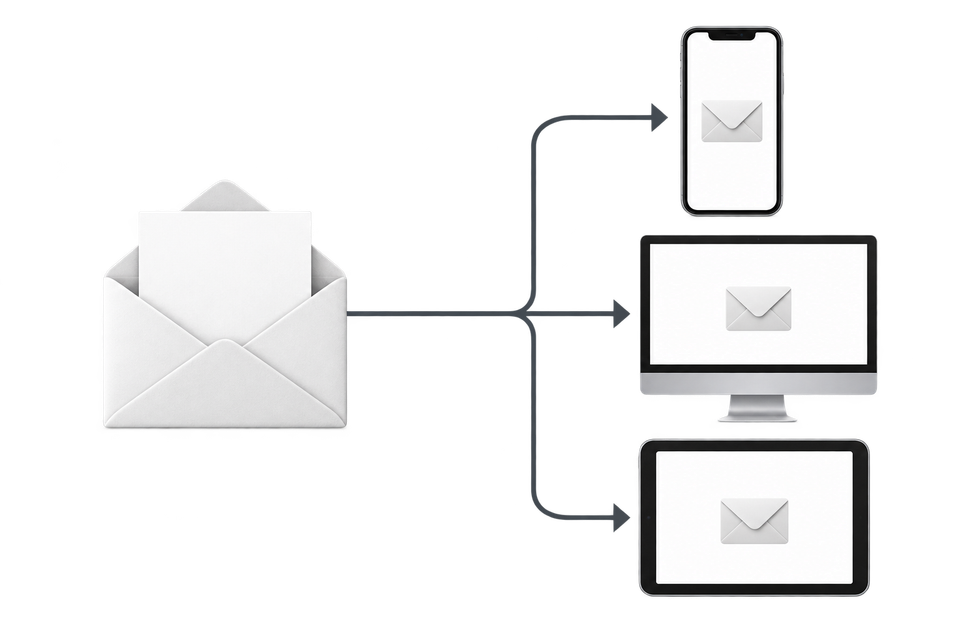
Choose the devices and email services you want to test, and MailSlurp gives you a special email address. Send your campaign to that address. MailSlurp opens the email in the selected apps and webmail services, then captures screenshots automatically.
The screenshots come back together, ready to compare across phones, tablets and computers. Check the layout, images and buttons, then share a result link so your team can review the same version of the email.
Send your Klaviyo email to MailSlurp
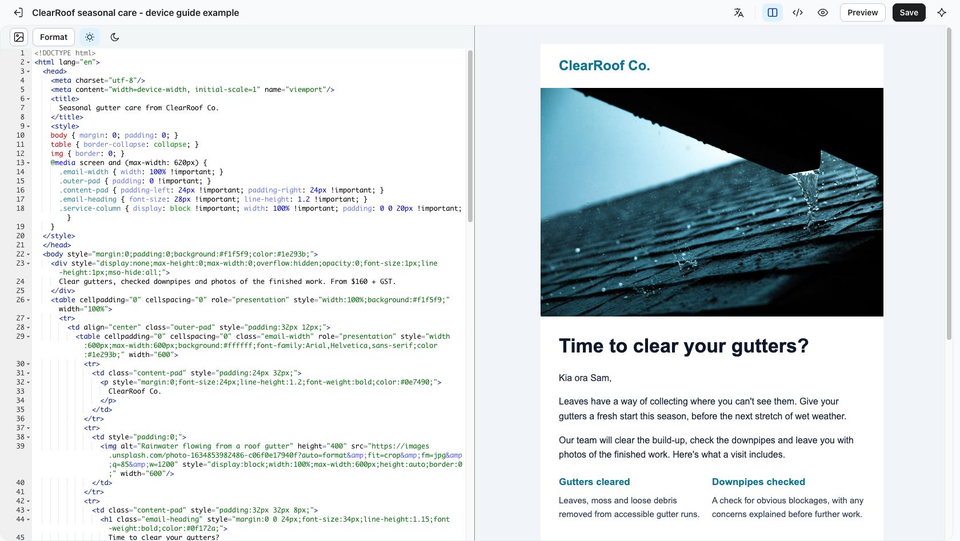
Let's use a fictional seasonal email from ClearRoof Co. It has a gutter photograph, two service descriptions, a price and a yellow booking button. The service descriptions are designed to sit beside each other on a wide screen and stack on a phone. The teal brand name is text, so we'll check its color alongside the headings, body text and button.
The starting design is open in Klaviyo's HTML template editor. The photograph fills the message width, and the two service descriptions sit side by side in this wide preview.
Step 1: Open the email in Klaviyo
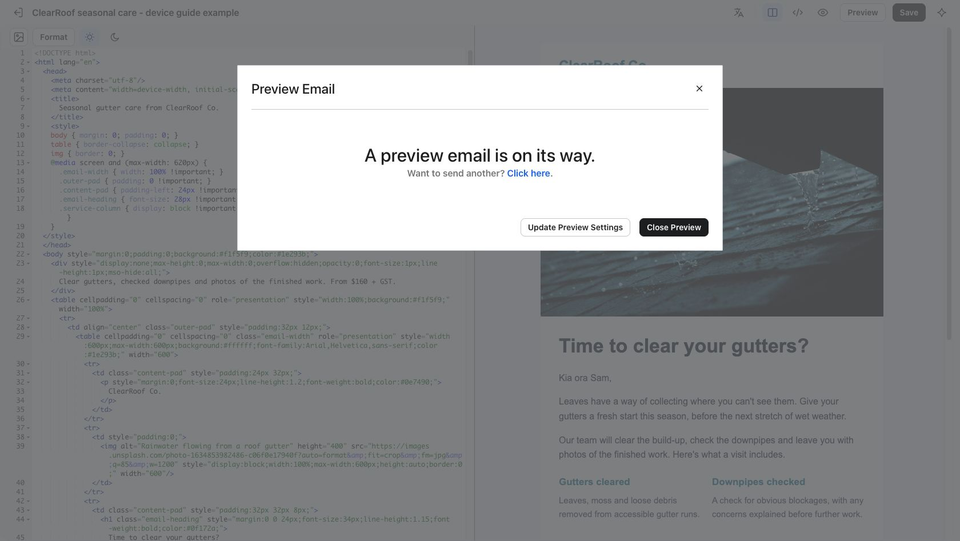
Save the template and click Preview. In this HTML editor, the Preview Email dialog offers Show directly in Klaviyo and Send as an email. Choose Send as an email, then find Send To. You'll paste the MailSlurp address there after choosing the clients.
If you use Klaviyo's visual editor, open its Preview panel and find Send a preview using a profile instead. Choose the profile whose values you want to inspect; the test-recipient address controls delivery, not personalization. Compatible event-triggered flow messages also need the relevant event data. Klaviyo's personalization panel documentation explains those differences.
The ClearRoof template uses fixed fictional text. Its greeting does not demonstrate profile or event personalization.
Step 2: Choose the MailSlurp clients
Open Device Previews in MailSlurp and click Start new render. If you need an account, sign up for device previews.
Choose Gmail Android and Gmail Android Dark for the color comparison. Add Gmail iOS and iOS Mail to compare Gmail and Apple's Mail app on an iPhone. Apple Mail, without iOS in its name, is the desktop Mac target.
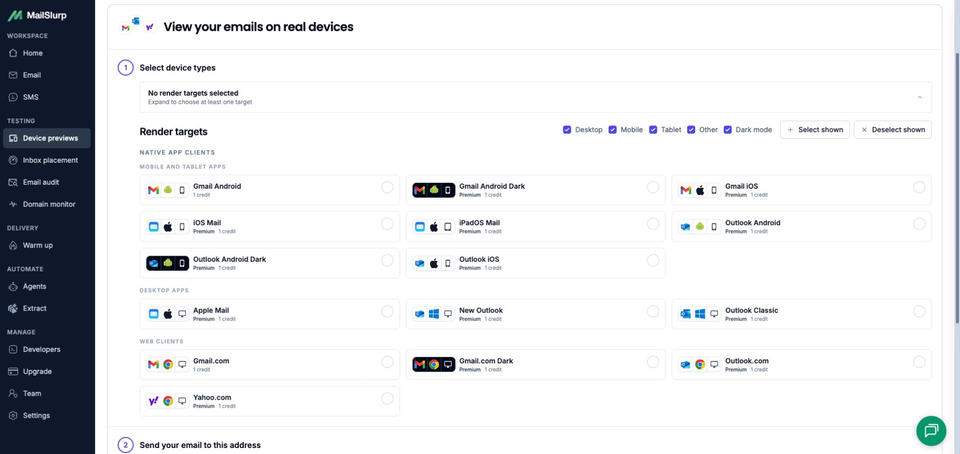
Review the four selected targets and the credit requirement, checking that a saved profile has not added unwanted clients. Click Use selected, then copy the complete address under Send your email to this address.
The two iPhone selections are light-mode checks. The Android pair tests Gmail Android dark mode; it does not establish how either iPhone app behaves in dark mode.
Step 3: Send the Klaviyo preview
Return to the HTML template's Preview Email dialog. With Send as an email selected, paste the render address into Send To and click Preview Now. Klaviyo confirms this send with A preview email is on its way.
In the visual editor's profile-preview panel, enter the same render address in the test-recipient field and click Send test instead. See Klaviyo's preview and test-send instructions for that workflow.
If Klaviyo reports an error, check the address and test-send allowance before trying again. If the outcome is unclear, check MailSlurp for the message first so you do not send a duplicate.
Review the delivered Klaviyo email
Klaviyo's confirmation establishes that the test was accepted. Next, check that MailSlurp received it and that each required client has a completed capture.
Step 4: Open the completed results
Return to MailSlurp and click I have sent my email to open the waiting view. Receipt starts rendering automatically; this button lets you follow that process. Open View results when the email is detected.
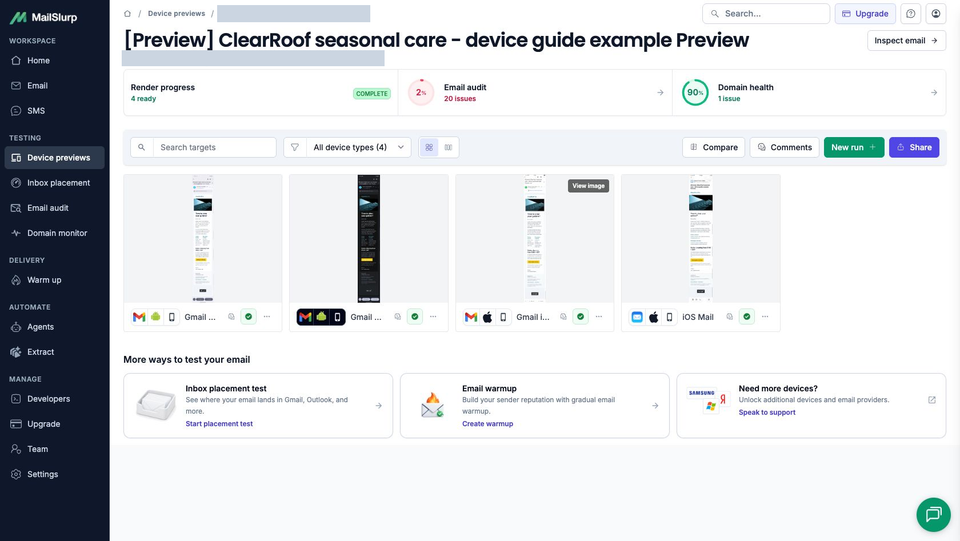
Check each selected target's state. In this example, all four captures are ready. Open the individual results to inspect the email beyond the thumbnails.
Check Klaviyo emails in dark mode
Open Gmail Android and Gmail Android Dark from the same send. Use Compare to inspect matching parts of the message, starting with the brand and continuing through the footer. Look inside the email body: a dark inbox toolbar alone does not tell you which campaign colors changed.
In the dark result, ClearRoof's white message surface becomes nearly black, and the main text becomes light. The photograph stays visible. The yellow booking button keeps its fill, but its dark label turns almost white and becomes harder to read.
Original: Gmail Android light

Original: Gmail Android dark

The price, service descriptions and full footer remain present in both captures. The specific problem is the button's text against its fill, so that is the element to change before testing again.
Change the button colors and test both modes again
For the next test, we changed the booking button to the campaign's teal and set its label to white in Klaviyo. These are the button settings we changed:
- Cell
bgcolorand CSSbackground: yellow#facc15to teal#0e7490. - Border color:
#eab308to#0e7490. - Link text color: dark
#0f172ato white#ffffff.
Save the changed template, then send a fresh preview to Gmail Android and Gmail Android Dark. Keep the earlier run so you can compare the original problem with the revised result.
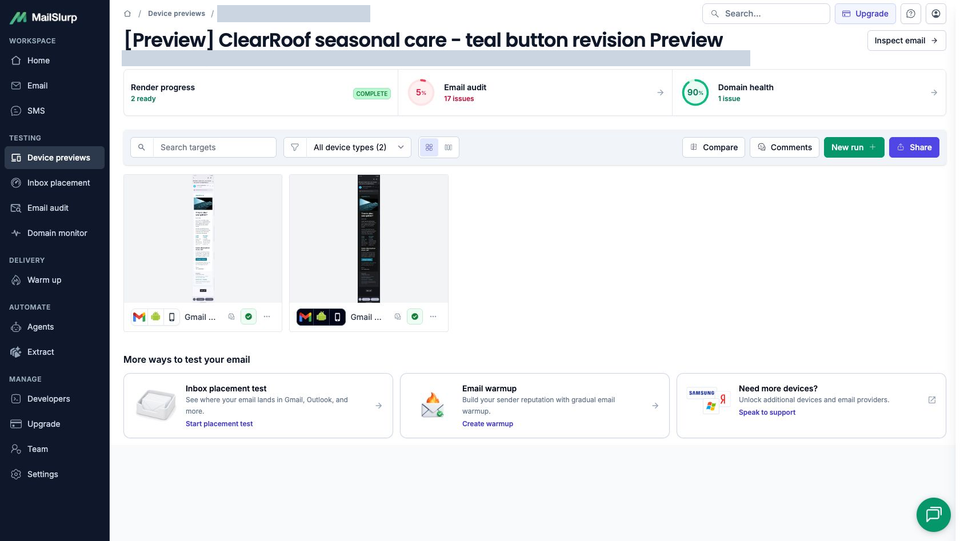
The revised label is clearly readable against the teal fill in both returned captures. The photograph, price, service descriptions and footer remain visible too. The service descriptions still sit side by side in both Android results.
Revised: Gmail Android light

Revised: Gmail Android dark

For your own email, check the logo and smaller footer links separately from the button. Klaviyo's dark-mode design guidance discusses artwork that remains visible on different backgrounds. The dark-mode logo example demonstrates a separate imported email with an image-logo problem; ClearRoof uses a text brand.
Compare Gmail and Apple Mail on iPhone
The original four-target send also shows why an iPhone check needs an app name. Gmail keeps the two service descriptions side by side. Apple's Mail app stacks "Downpipes checked" below "Gutters cleared", as the template intends.
Both results show the photograph, complete price, booking button and full footer. Gmail's two-column arrangement gives each service paragraph less room, so read both descriptions rather than approving only the opening screen.
Original: Gmail on iPhone

Original: Apple Mail on iPhone

The delivered HTML retains the rule asking those columns to stack on a narrow screen. The captures establish the different layouts, but do not isolate their cause. If you change the layout, send a new test to both apps and compare the service paragraphs again.
These iPhone results belong to the original yellow-button version. When approving the revised template for an audience that uses iPhone, repeat these two client checks as well. A successful Android retest does not verify a different app.
For target-specific steps, follow the Gmail on iPhone walkthrough or the iPhone Mail walkthrough.
Add the other clients your campaign needs
Choose additional targets according to where your subscribers read email. Gmail.com tests Gmail in a browser, Apple Mail tests the Mac app, and New Outlook and Outlook Classic are separate Windows checks.
| Device | Email app | Appearance |
|---|---|---|
| Android phones | Gmail, Outlook | Light and dark |
| iPhone | Gmail, Apple Mail, Outlook | Default |
| iPad | Apple Mail | Default |
| Mac | Apple Mail | Default |
| Windows | New Outlook, Outlook Classic | Default |
| Webmail | Gmail | Light and dark |
| Webmail | Outlook.com, Yahoo Mail | Default |
Choose the available clients and modes in your workspace when starting a preview. Test the apps your customers use, including dark mode where it is offered.
Check the current selector for the exact choices in your workspace. The Outlook client comparison explains those app distinctions. Keep the campaign revision the same while comparing clients.
Troubleshooting Klaviyo device previews
The test email does not arrive in MailSlurp
Check the complete recipient address and confirm that Klaviyo reported a successful send. Look for an existing incoming message or run before resending. If Klaviyo rejected the test, review its displayed error and test-send allowance.
Personalization does not match the intended recipient
In the visual editor, the preview profile supplies the values; the recipient address does not select them. For event-based content, open the matching event-triggered flow and choose an appropriate event. A saved template's event preview does not make those values available to a campaign.
A preview also does not establish that a profile passes a flow's triggers and filters. Follow the campaign and flow testing guide for that separate check, using a controlled test profile.
Images are missing in one or more clients
Check that the image has an absolute HTTPS URL that opens without signing in. Confirm that the saved Klaviyo version references the intended image, then inspect another completed client from the same send. A browser loading the image does not establish that every mail app displayed it.
An image is oversized or spacing changes in Outlook
Identify the affected Outlook target first. For an oversized image in a visual-editor template, Klaviyo documents Image layout > W. Set it for the template or column being used, then resend and review the affected Outlook app plus a phone result. See the Outlook image-sizing instructions.
For a missing background or button fill, the separate Outlook rendering guide explains a Classic-versus-New comparison and a verified repair to its own example.
One result is still capturing
Review ready targets while you wait, then return to the unfinished result. Keep a capture failure separate from a completed image whose layout needs a change.
Review the final revision before sending
Keep the original and revised results together when asking a colleague to review a correction. Point them to the exact element and client: for this example, the near-white label on the original yellow button in Gmail Android Dark, followed by the teal-button result. The email preview approval workflow explains how to use comments and share links for that review.
Open your own campaign's test message and click its important links as well. A screenshot establishes appearance, not a working destination or touch behavior. ClearRoof's booking and preference addresses are fictional examples.
Preview sends can differ from live sends in unsubscribe, link and flow behavior. Check those with the appropriate controlled live test described by Klaviyo. An inbox placement test answers the separate question of where the message lands.
FAQ
Does MailSlurp use the email Klaviyo actually sent?
Yes. The send-address workflow renders the message Klaviyo delivers to MailSlurp. Importing HTML directly is useful during editing, but it checks the supplied source before any later Klaviyo send processing.
Is Klaviyo Inbox testing the same as sending a preview email?
Klaviyo's Inbox testing tab is a separate paid-account client-preview workflow. This guide uses an ordinary Klaviyo preview send followed by MailSlurp's selected client captures.
When should I rerun the preview?
Send a fresh test after changing content, images, personalization, layout, links or footer settings that affect the delivered email. Review the same required targets so an older result cannot be mistaken for approval of the new version.
Watch the Klaviyo email preview workflow
The video follows a separate yoga-class email in an earlier interface. It illustrates the test-send route; the written steps above distinguish the HTML-template and visual-editor controls.