
blog
Customer.io Email Preview Testing: Preview Test Sends Before Launch
Preview Customer.io emails after Liquid personalization, event data, tracking links, images, and final HTML are applied. Use MailSlurp device previews for Gmail, Outlook, mobile, and dark mode checks.
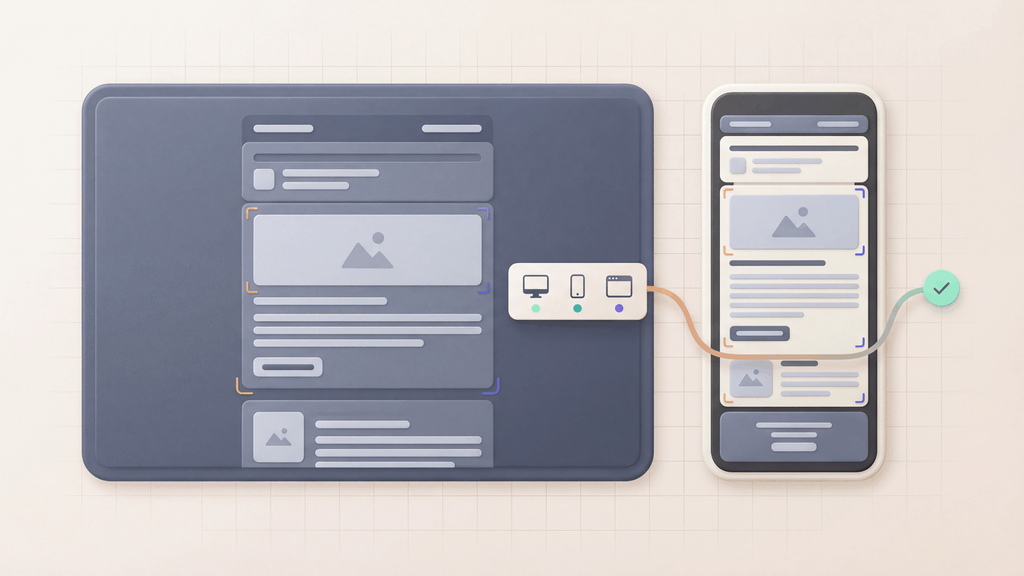
Customer.io email preview testing should prove that the final campaign, broadcast, or workflow email still renders correctly after Liquid data, event context, tracking links, images, and final HTML are applied.
Customer.io gives teams preview and test-send controls while building messages. For launch review, pair those checks with MailSlurp device previews so the delivered email can be inspected across Gmail, Outlook, iPhone, Android, desktop, light mode, and dark mode.
Quick answer
Use Customer.io preview tools to check Liquid output and send a test email. When the message is close to launch, send the final test to MailSlurp and run device previews on the received message.
That helps catch issues involving:
- Liquid variables and fallback values
- event-triggered content
- conditional blocks
- tracked CTA links
- hosted images
- unsubscribe and preference links
- mobile layout changes
- dark mode contrast
What to test inside Customer.io first
Start with Customer.io while the message is still easy to edit.
For a high-value email:
- Preview the email with realistic profile or event data.
- Check Liquid variables, conditionals, fallbacks, and repeated blocks.
- Send a test email to reviewers.
- Confirm subject, preheader, CTA, unsubscribe, and preference-link behavior.
- Move the final version into MailSlurp for device-preview review.
This catches personalization and assembly issues before the team reviews client rendering.
Why test the delivered Customer.io email too
The received message is the version customers see.
The final email can include:
- live tracking redirects
- profile-specific Liquid output
- event-specific product, order, or account data
- final hosted image URLs
- unsubscribe and preference-center content
- final HTML and MIME structure
- inbox-applied dark mode changes
That final version deserves a render review before launch.
Customer.io preview workflow with MailSlurp
1. Choose realistic data
Use a profile, event, or object payload that looks like production. Include long names, missing optional values, product rows, plan names, coupon codes, and each important conditional branch.
2. Send the test to MailSlurp
Send the Customer.io test email to a MailSlurp render address or controlled inbox. If the workflow depends on an event, trigger the workflow with test data so the received email represents the real automation path.
3. Review device previews
Open MailSlurp device previews and inspect the delivered email across:
- Gmail web and mobile
- Outlook desktop and web
- iPhone and Android
- desktop webmail
- light mode and dark mode
4. Save review evidence
Save the render result alongside the campaign or workflow version, so the next reviewer knows which send they're looking at.
Customer.io email preview checklist
Before publishing, confirm:
| Area | Check | Risk |
|---|---|---|
| Liquid data | Variables, filters, and fallbacks render correctly | Raw tags or empty content |
| Event context | Event-driven rows and values are present | Missing order, product, or account data |
| Mobile layout | Images, rows, and CTAs stack clearly | Cropped content or wide tables |
| Dark mode | Text, logos, and buttons remain readable | Hidden text or low contrast |
| Links | CTA, unsubscribe, preference, and tracking links resolve | Broken redirect or wrong destination |
| Images | Hosted images load from final URLs | Missing images or blocked assets |
Use ESP email preview testing for the broader workflow and HTML email preview when the first risk is visual rendering.
Workflow email preview tips
Customer.io workflow emails often depend on an event or customer state. Test the automation path, not only the saved template.
For lifecycle emails:
- Trigger the workflow with a controlled test customer.
- Receive the actual message in MailSlurp.
- Assert important content, links, and identifiers.
- Run device previews against the received message.
- Store the result with the workflow release notes.
This connects rendering review to the real event-driven message.
When a fast render is enough
Use Free email render when you need a quick one-off check while editing.
Use MailSlurp device previews when:
- stakeholders need a shareable result
- the workflow uses Liquid or event data
- light and dark mode both matter
- the same review should repeat across future broadcasts and workflows
- rendering, inbox receipt, content checks, and release evidence should stay together
FAQ
What is Customer.io email preview testing?
Customer.io email preview testing checks how a Customer.io campaign, broadcast, or workflow email appears before it reaches customers.
Should I preview Customer.io Liquid data?
Yes. Preview with realistic customer, event, and object data so variables, conditionals, and fallback text are checked before launch.
Can MailSlurp preview Customer.io test emails?
Yes. Send the Customer.io test email to a MailSlurp render address or controlled inbox, then run device previews against the delivered message.
Should I test workflow emails differently from broadcasts?
Yes. Trigger workflow emails with controlled test data so the received message includes the same event context customers would receive.
Where should I start?
Start with Free email render for a quick test send. Use device previews when Customer.io rendering should become part of repeatable launch review.