
blog
How to Preview an HTML Email Before You Send It
Preview an HTML file, saved email or ESP campaign in real mail apps. See an Outlook and Gmail example, fix the layout and check the next version.
Your email looks ready in the editor. The headline fits, the image is sharp and the button sits exactly where you want it. An HTML email preview lets you check what happens when that design opens in someone else's mail app.
To preview it in Gmail, Outlook or Apple Mail, send a test to a MailSlurp render address, paste your HTML, or upload a saved .eml email. Choose the mail apps and devices you want to check, then inspect their screenshots. You can start with the free email preview and use Device Previews for comparisons and repeat campaign reviews.
The useful result is a decision: what needs fixing before this email goes out? Let's work through the input choices and a real example of a background image behaving differently in Outlook and Gmail.
Choose the email you want to preview
You do not need to write code to test a campaign. Start with the version your team already has.
| What you have | How to preview it | What the check includes |
|---|---|---|
| A campaign in Mailchimp, HubSpot or another email service provider (ESP) | Send its test email to the MailSlurp render address | The message produced by that test send, including the provider's changes to the HTML |
| An HTML template from a designer or builder | Paste the HTML into the preview tool | The template as it exists now, before any later sending-platform changes |
A saved .eml file |
Choose Upload EML | The message saved in that file |
An EML is a saved email, including its message content and headers. It is useful when a colleague sends you an exported message to review. Changing a file's extension from .html to .eml does not turn it into a saved email.
If your campaign is ready in an ESP, use its test-send path for the final visual check. Copying the design out of a browser and pasting it into another email editor can change the message you meant to test.
Why the browser preview is only a first pass
An email client is the app or website someone uses to read mail. Gmail in a desktop browser, Gmail on Android and Classic Outlook for Windows are different places to open the same message.
A browser preview helps you spot obvious mistakes while building a template. It cannot tell you exactly how a mail app will handle its layout, fonts, background images or dark mode. Even a phone-shaped frame around the HTML is still a browser preview unless the service renders the message in the selected email client.
Keep the builder preview for quick editing. Use client screenshots to check the finished result. For Outlook, choose the actual version your audience uses: the Outlook preview guide explains why Classic and New Outlook deserve separate checks.
Start a preview with your template or campaign
For a quick check, open Free email render and choose an email client. The next step offers Send an email, Paste HTML and Upload EML.
If you have HTML, paste the email's source into Paste HTML and start the preview. If you have a saved email, use Upload EML. Images referenced by the HTML need accessible URLs; a picture stored only on your laptop will not become available to a mail app simply because you pasted its filename.
For an ESP campaign, copy the displayed render address into the provider's test-recipient field and send the test. Return to MailSlurp and open the result when it is ready. If nothing arrives, check the complete address and whether the provider finished sending the test.
The Mailchimp walkthrough shows that sequence in the campaign editor. Mailchimp's testing guidance also explains a useful limit: ordinary test sends do not populate contact-specific merge tags or dynamic content as a live send would. Use its live merge-tag preview to check those values before relying on the visual result. Other ESPs have their own personalization controls.
For repeated checks, open Device Previews in MailSlurp and save a profile with the clients your team needs. Start with the mail apps your audience uses, including relevant desktop and mobile results. Add available light and dark variants where they matter. One Gmail screenshot does not cover every Gmail app, and one Outlook screenshot does not cover every Outlook version.
A real example: the background changes, the message stays the same
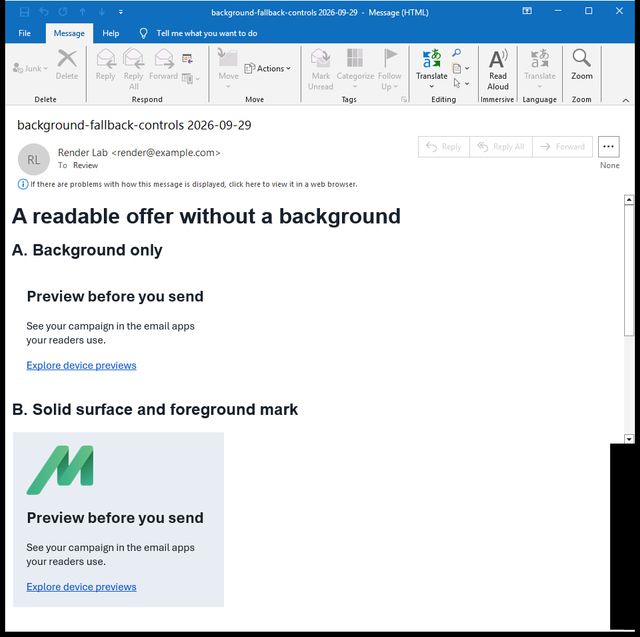
Our September 29, 2026 background test put two arrangements in one saved email. The first placed a MailSlurp icon behind the words. The second placed the icon above the same words on a solid pale-grey surface.
In Classic Outlook for Windows, the background icon was absent. In Gmail on Android, it appeared enlarged behind the text. The separate foreground icon remained visible in both captures, without sitting behind the copy.
Classic Outlook: background missing
Gmail Android: background enlarged
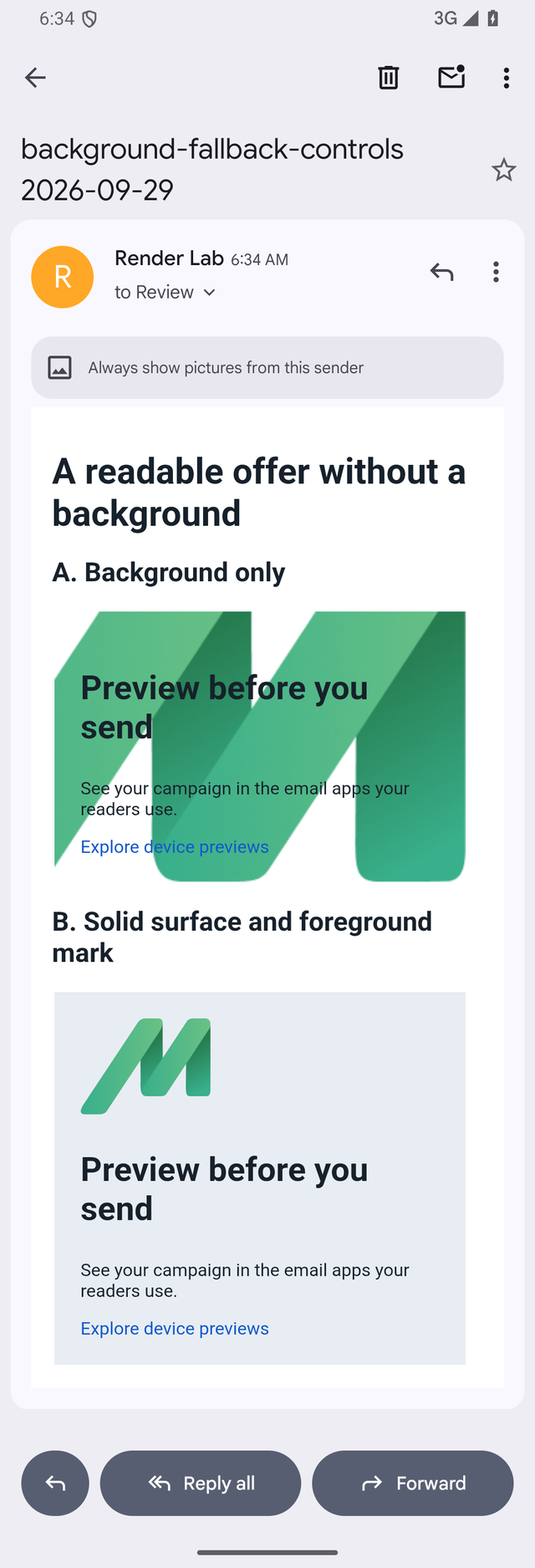
This is the kind of difference a preview can turn into a useful repair request: "Move the icon above the headline and keep the section readable without a background image."
The text in this example remained visible because it was dark on a light surface. White text over a photograph needs its own fallback contrast check. This experiment did not test dark mode.
You can download the example EML to try the same input, or follow the background-image repair guide to choose between a solid-color fallback, a foreground image and a more specific template repair.
Fix the campaign, then compare the next version
Make the correction in the original template or ESP so it reaches the email you will actually send. For the background example, that means changing the image treatment there, then sending or importing a fresh version into MailSlurp.
Compare the new run with the earlier result on the same client. Start with the problem you found: is the icon visible, is the headline readable and does the button still have room? Then review the other selected clients so a desktop fix does not introduce a phone-width problem.
A useful final pass follows the email in reading order:
- Read the headline and offer at a normal viewing size. Watch for awkward wrapping or text covered by an image.
- Follow the layout down to the main action. Check column order, image width and button visibility on a phone.
- Read the footer too. The unsubscribe and required campaign details should remain reachable.
- Open the important links from the actual test email. A screenshot shows a button's appearance; clicking checks its destination.
Use Email Audit for broken-link, image and content checks alongside the visual review. If the question is whether a campaign reaches inbox or spam, run inbox placement testing separately.
Share the corrected run with the people approving the send, and make clear which version they are reviewing. The team review guide covers comments, comparisons and final human sign-off.
Previewing emails sent by an application
For receipts, welcome messages or password resets, trigger the real workflow in a test environment and preview the resulting message. That gives you the populated content, rather than a template with placeholder values.
Teams can add API-triggered previews when they need the same check after each template change. If the test also needs to verify receipt, a code or a working reset link, use email integration testing alongside the screenshots.
Can I preview Gmail, Outlook and Apple Mail without maintaining my own devices?
Yes. MailSlurp Device Previews runs the selected supported clients and returns their screenshots. Choose the exact app, platform and mode shown in the current selector, then inspect the result at a readable size.
Should I approve the HTML file or the delivered email?
Use the HTML preview while the design is changing. Before the campaign goes out, preview a test sent through your ESP and check any personalization separately. If the team works from an EML, confirm that it contains the current version.
Start with one free preview, then compare the corrected campaign in MailSlurp Device Previews when you are ready for the next review.