
blog
Salesforce Email Deliverability: Settings, Placement, and Previews
Diagnose Salesforce email delivery from org access settings through authentication, subscriber data, inbox placement, and device rendering. Learn which test answers each failure.

Salesforce email deliverability can mean two different things. In Salesforce core, Deliverability is an admin setting that controls whether the org can send outbound email. In a Marketing Cloud campaign, deliverability describes whether an accepted message reaches the inbox rather than spam or junk.
Those are related, but they are not interchangeable. Turning on "All email" cannot repair a poor Gmail reputation. Rewriting a subject line cannot fix an org whose access level allows only system email. A useful diagnosis follows the message from the Salesforce sending gate to the subscriber, receiving provider, and rendered inbox.
Quick answer
Use this order to test Salesforce email deliverability:
- Identify the sending product and route: Salesforce core, an external Gmail or Microsoft 365 connection, email relay, or Marketing Cloud.
- For core Salesforce email, confirm the org's Deliverability access level permits the intended message type.
- Verify the sender address, authentication, relay, and bounce configuration for that route.
- For Marketing Cloud, preview with a representative subscriber and resolve profile or personalization errors.
- Send the final campaign to controlled provider seed inboxes.
- Compare inbox, Promotions, spam, junk, and missing results by provider.
- Render the delivered message across Gmail, Outlook, iPhone, Android, and dark mode.
- Correct one supported cause and repeat the same test.
The main discipline is to avoid treating "Salesforce did not send," "the receiving server rejected it," and "the mailbox put it in junk" as the same event.
Start by naming the Salesforce sending route
Salesforce can hand off email through several routes. The controls and evidence depend on the one in use.
| Route | Typical messages | First diagnostic |
|---|---|---|
| Salesforce core email | User-composed email, alerts, workflow notifications | Setup Deliverability, email logs, bounce state |
| Send through Gmail or Microsoft 365 | User email sent through a connected external mailbox | External connection, user permission, provider sent mail |
| Email relay | Salesforce hands outbound email to the organization's mail server | Relay configuration, relay logs, authentication, recipient response |
| Marketing Cloud campaign | Bulk, lifecycle, and segmented marketing email | Subscriber context, send configuration, campaign reporting, seed placement |
Record the route with each test result. Otherwise, an admin may change core Deliverability while the affected campaign is actually leaving through Marketing Cloud or an external service. For a new Marketing Cloud Engagement dedicated IP, use the IP warming guide to plan the first sends from that IP.
What the Salesforce Deliverability setting controls
In Salesforce Setup, search for Deliverability. The Access to Send Email level controls which outbound messages the org can send:
- No access blocks outbound email apart from limited required system behavior.
- System email only permits automatically generated system messages but blocks ordinary user and application email.
- All email permits all outbound email types supported by the org.
Salesforce sandboxes commonly use a restrictive setting to prevent development activity from emailing real users. If a test never leaves a sandbox, inspect this control before checking spam folders.
Changing the access level is an administrative action with a wide effect. Confirm the environment, intended recipients, and organization policy before enabling broad outbound mail. A safe test contact or MailSlurp inbox prevents a newly enabled sandbox from reaching customer addresses.
For core Salesforce email, the platform's built-in Test Deliverability function sends a set of messages from Salesforce infrastructure to one address. It helps identify blocking between the Salesforce instance and that receiving system. It does not show whether a Marketing Cloud campaign reached Gmail Promotions, Outlook Junk, or the primary inbox across several providers.
Verify identity, authentication, relay, and bounce evidence
Once the route is allowed to send, inspect its identity.
For mail sent through Salesforce infrastructure, verify:
- the user's sender address has been confirmed
- SPF, DKIM, and DMARC are configured for the chosen sending model
- the visible From domain aligns with the authenticated identity
- email security compliance settings match the organization's current authentication design
- an enabled email relay accepts Salesforce traffic and returns useful delivery evidence
- bounce management is configured for the route and bounced contacts are visible to users
- TLS requirements do not exceed what a recipient domain can negotiate
Inspect a delivered message with the email header analyzer to compare the recorded authentication and relay path with this setup. Salesforce's current guidance recommends relying on standard authentication instead of maintaining broad IP allowlists when possible. If a corporate receiving server still requires allowlisting, treat that as a recipient-domain exception and keep the range current.
Use MailSlurp domain monitoring to watch SPF, DKIM, DMARC, MX, blacklist, and certificate changes. This is valuable in a Salesforce environment because DNS, relay, security, and marketing administration often belong to different teams.
Resolve subscriber and personalization errors before placement testing
Marketing Cloud test sends can depend on a selected subscriber, active segment, or sample profile. Personalization and dynamic content are evaluated using that record.
If Preview and Test reports a profile validation error, check:
- an active segment or target audience is selected
- the sample subscriber has the attributes used by the template
- required personalization values are present
- the subscriber is eligible and not suppressed
- the From name and address are valid for the business unit
- the content version is saved and available to the send flow
This is a message-construction failure, not an inbox-placement result. Fix the sample data until Salesforce can generate the final email, then use that output for the external test.
Avoid filling missing subscriber fields with unrealistic placeholders. A short first name and complete product block may render perfectly while a real long name, empty optional value, or multi-row recommendation breaks the design.
Separate delivery logs from inbox placement
Email logs and campaign reports answer whether Salesforce attempted the send, whether the receiving system accepted it, and whether a bounce or complaint was recorded. They do not prove which folder an accepted message reached.
Use each evidence source for its own question:
- Org setting: was this email type allowed to leave Salesforce?
- Email or relay log: which server handled it and what response came back?
- Bounce record: did the receiving server reject the recipient permanently or temporarily?
- Campaign report: how did the audience engage after send?
- Inbox placement test: where did controlled Gmail and Outlook mailboxes place the accepted message?
- Device preview: what did the received email look like in the client?
This prevents a successful SMTP response from being mistaken for primary-inbox delivery.
Run an inbox placement test from the campaign
Create a MailSlurp placement run and copy its current marker and seed addresses. Add those addresses to a dedicated Marketing Cloud audience, include the unique marker as instructed, and send the same campaign version planned for launch.
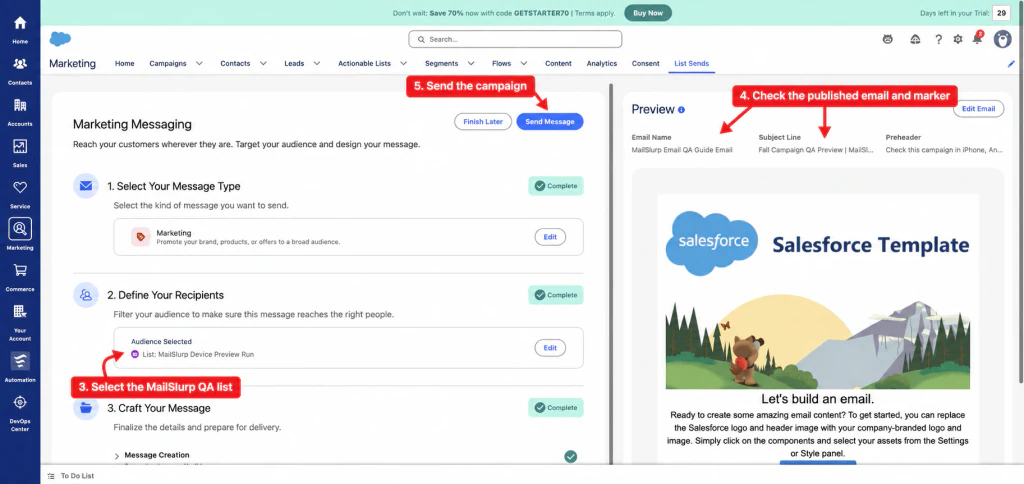
Preserve:
- the authenticated From address and business unit
- final subject and preheader
- real tracking configuration and landing domains
- dynamic content and personalization
- hosted images and complete footer
- the send classification or campaign route used in production
- every seed address supplied by the current run
The Salesforce inbox placement testing guide covers the complete marker, audience, send, and results workflow.
Read provider results as a pattern
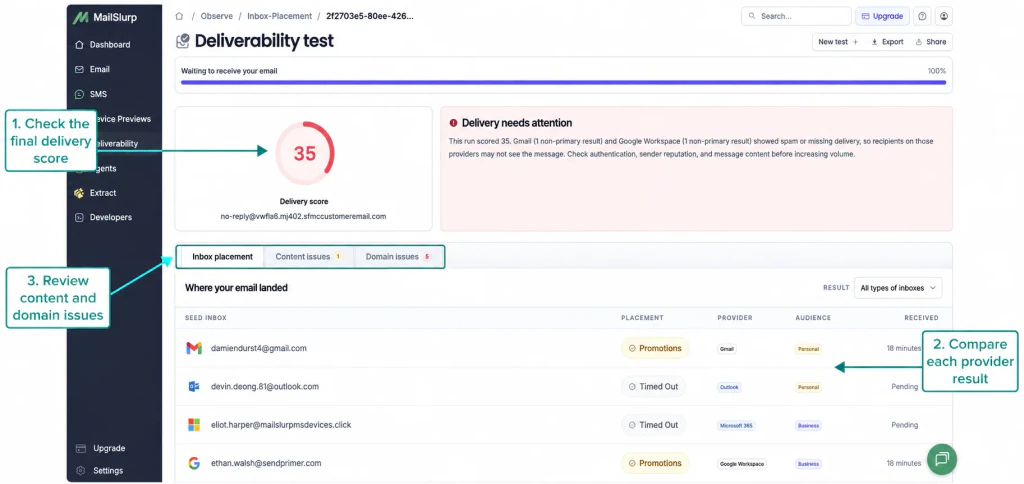
Use the observed pattern to choose the next check:
- Spam or junk across providers: inspect authentication, complaints, list permission, sending history, link domains, and recent volume changes.
- Outlook Junk while Gmail is healthy: review Microsoft-facing reputation, corporate policies, relay behavior, and whether consumer Outlook differs from Microsoft 365.
- Gmail Promotions: decide whether the classification is reasonable for a commercial campaign. Promotions is not spam.
- Not received: check the seed audience, subscriber eligibility, send status, bounce response, relay, and test window.
- Only one recipient domain fails: compare that domain's security policy and transport requirements before changing a global campaign.
Seed placement is a controlled sample. It does not promise that every subscriber will receive the same folder placement, but it gives the team a repeatable comparison before and after a change.
Render the generated email across real clients
Salesforce preview shows the message before it encounters client-specific rendering. The received email includes final personalization, link wrapping, hosted images, headers, and MIME structure.
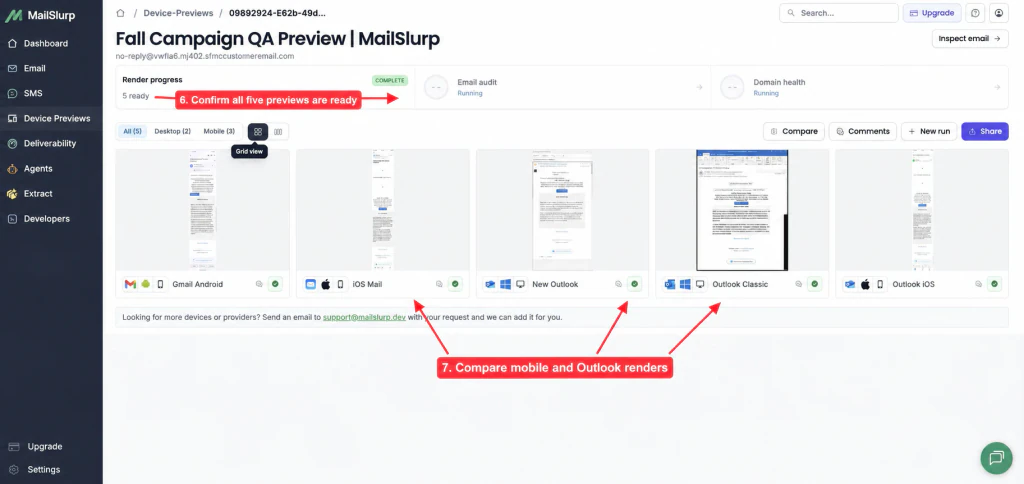
Follow the Salesforce email device preview guide and check:
- AMPscript or subscriber personalization output
- mobile stacking and CTA tap targets
- Outlook table spacing and fonts
- image dimensions and alternative text
- dark-mode contrast for logos, copy, and buttons
- preference-center and unsubscribe links
- tracking redirects and final destinations
- long or missing profile values
Placement and rendering are separate checks. A message can arrive in the inbox with a hidden CTA, or render beautifully while sitting in junk. Keep both results beside the same content version.
Make a controlled correction
Choose one change that follows from the evidence:
- Enable the required outbound access in the correct non-production or production org under the organization's sending policy.
- Repair subscriber data or personalization when message generation failed.
- Correct authentication or From-domain alignment.
- Repair an email relay or TLS mismatch shown by logs.
- Remove invalid or unpermissioned addresses and address complaint trends.
- Fix one content, link, or rendering defect.
- Repeat the same placement and render checks before widening the audience.
Do not change org access, relay, sender, audience, HTML, links, and timing together. A better result after a large bundle of edits is difficult to reproduce and harder to approve safely.
Salesforce pre-send evidence checklist
- Record the product and sending route.
- Confirm the org access level permits the intended email type.
- Verify sender address, authentication, relay, bounce, and TLS configuration.
- Use an eligible sample subscriber with representative values.
- Save the generated launch-candidate content version.
- Send to the current controlled placement seed set.
- Review every provider row, not only an overall score.
- Preview the delivered message on priority devices and clients.
- Confirm tracking, preference, and unsubscribe destinations.
- Attach logs, placement, and rendering evidence to approval.
- Continue monitoring the sending domain after launch.
Frequently asked questions
How do I enable email deliverability in Salesforce?
In Salesforce Setup, search for Deliverability and review the access level under Access to Send Email. "All email" permits supported outbound email types, while "System email only" is commonly used to prevent ordinary mail from sandboxes. Confirm the environment and policy before widening access.
Does Salesforce Test Deliverability check the spam folder?
The built-in Salesforce test helps identify whether test messages can travel from Salesforce to one receiving address. A seed-based inbox placement test adds observed folder results across controlled provider accounts such as Gmail and Outlook.
Why does a Salesforce test email show a profile validation error?
The template may not have an eligible sample subscriber or required profile fields. Confirm the active audience or segment and provide realistic values for every personalization dependency before sending the external test.
Is delivered email the same as inbox placement?
No. Delivered generally means the receiving system accepted the message. Inbox placement describes the folder or tab that received it after acceptance.
Which MailSlurp workflow should I use?
Use Salesforce inbox placement testing for folder results, Salesforce device previews for client rendering, and domain monitoring for ongoing authentication and sender-domain checks.
For current platform behavior, see Salesforce's primary documentation for Deliverability settings, setting guidelines, delivery troubleshooting, and spam or junk diagnosis.