
guides
How to Warm Up Email in HubSpot Before Your Next Campaign
Decide whether you are warming a HubSpot sending domain, marketing dedicated IP, or separate mailbox, then test the real campaign before increasing volume.
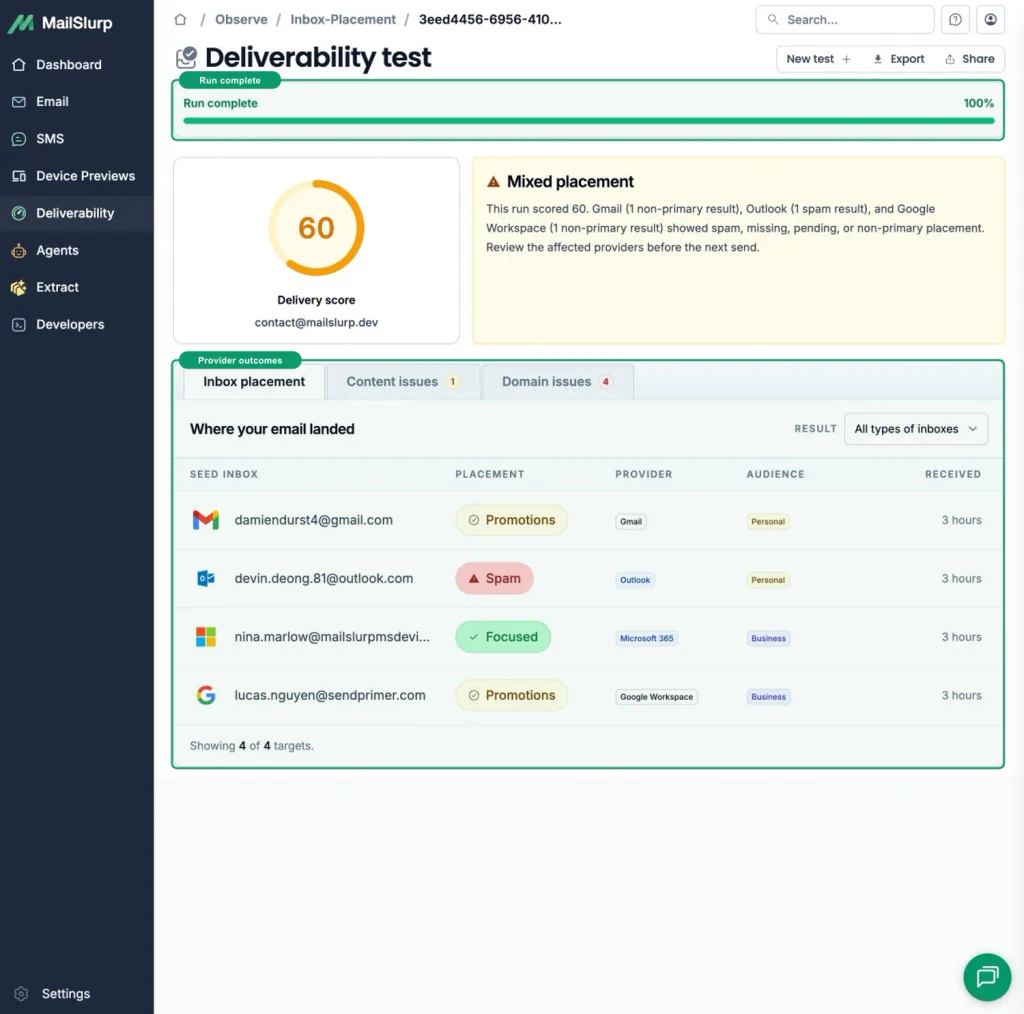
Before you warm up email in HubSpot, identify what is new. A new sending domain, a HubSpot marketing dedicated IP, and a separately connected mailbox are different sending paths. They should not share one copied schedule.
The practical goal is to introduce the changing sender gradually, watch real campaign feedback, and test the HubSpot message that will carry the next send. This guide helps marketing, CRM, and operations teams choose that path without treating a countdown as proof of readiness.
Choose the HubSpot warmup path
Use the path that matches the sender:
- New HubSpot sending domain on shared marketing infrastructure: authenticate it, begin with recent consenting contacts, and use HubSpot feedback plus placement results to decide when to expand.
- HubSpot marketing dedicated IP: follow HubSpot's automated dedicated-IP process and send the real marketing campaigns that participate in it.
- Separate Gmail, Microsoft 365, or SMTP mailbox: warm that mailbox only through a supported MailSlurp connection. This does not warm the HubSpot marketing route.
- Domain and dedicated IP are both new: track both changes, but do not invent a second IP schedule outside HubSpot's process.
| Change | What the warmup applies to | Who controls the process | Where MailSlurp helps |
|---|---|---|---|
| New sending domain or subdomain used by HubSpot marketing email | The authenticated domain identity and the campaign traffic using it | HubSpot account owner, DNS owner, and campaign team | Test the actual HubSpot campaign's provider placement and rendering during the ramp. |
| HubSpot marketing dedicated IP | Traffic gradually routed through the dedicated marketing IP | HubSpot's automated dedicated-IP process plus the campaign team | Check the campaign path while HubSpot shifts traffic and keep provider results beside HubSpot feedback. |
| Separate mailbox or sender connected to MailSlurp | That mailbox or supported sending connection | MailSlurp warmup schedule plus the mailbox/provider settings | Run paced warmup through the verified connection and review sent messages, receipts, and available placement checkpoints. |
More than one row may apply. If the domain and dedicated IP are both new, record both changes so a poor result is not blamed on the wrong part of the setup.
Warming a different Gmail or Microsoft 365 mailbox exercises that mailbox's route. It does not establish history for the IP carrying HubSpot marketing campaigns. Use HubSpot's process for the HubSpot route, and use MailSlurp to test the real campaign that travels through it.
Check your HubSpot setup before choosing a plan
Bring the campaign owner, a HubSpot administrator, and the person who manages DNS into the same setup check. Confirm:
- the exact marketing email path you intend to use
- visible From address and reply handling
- authenticated email sending domain
- whether the domain or subdomain is new to sending
- shared or dedicated marketing IP arrangement
- HubSpot subscription and dedicated-IP add-on, when applicable
- current campaign volume and recent sending gaps
- the first audience segment and why those contacts should receive the message
- recent bounces, spam reports, unsubscribes, and complaints
HubSpot's domain settings are under Settings > Content > Domains & URLs. Use the account's current authentication status and DNS instructions rather than copying records from a screenshot. HubSpot's email authentication documentation is the maintained setup reference.
A reusable setup worksheet
Complete this before agreeing on the first campaign:
| Question | Your answer |
|---|---|
| Which HubSpot marketing email will be used first? | |
| What From address and authenticated domain will it use? | |
| Is the domain or subdomain new to sending? | |
| Is HubSpot using shared infrastructure or the marketing dedicated-IP add-on? | |
| When was the last campaign sent from this identity? | |
| Which recent, consenting contacts form the first audience? | |
| Which provider feedback will the team review after each send? | |
| Which Gmail, Outlook, and Microsoft 365 placement results will be checked? | |
| Who can hold, investigate, or approve the next increase? |
This worksheet is deliberately about your sending path and audience. It does not prescribe a universal daily-volume formula.
What HubSpot handles for a marketing dedicated IP
HubSpot currently documents an automated warmup for accounts using its Dedicated IP Address Add-On for marketing email. After the DNS setup is complete and the first marketing email is sent, HubSpot incrementally shifts traffic from shared IPs to the new dedicated IP over 40 days.
HubSpot also states that:
- a sending pause longer than seven days pauses the process until sending resumes
- the marketing dedicated-IP add-on applies to marketing email
- the Transactional Email Add-On uses a separate transactional path and can use its dedicated IP immediately
- a sending domain that has never been used may need its own gradual introduction alongside the IP process
Read the current HubSpot dedicated-IP guide before the first send. The provider controls how traffic is shifted through its IPs. Your team still controls audience selection, campaign quality, cadence, and the decision to hold the next increase.
Do not replace HubSpot's process with a mailbox warmup schedule. The campaign needs to travel through the HubSpot marketing path for its traffic to participate in that route.
Prepare a sensible first audience
Start with people who recently and clearly asked to hear from the organization. A useful first audience is based on consent and current interest, not on how large a segment can be exported.
Prioritize contacts whose recent activity supports the send, such as:
- a recent signup or preference update
- a recent purchase, account action, or event registration that matches the message
- recent clicks or replies where those signals are reliable
- a subscription type that clearly includes this campaign
Preserve suppressions, hard-bounce history, unsubscribes, and spam reports. Do not treat every imported CRM contact as engaged. If consent or relevance is unclear, resolve that question before adding the contact to a warmup send.
Keep automated HubSpot workflows visible in the plan too. A campaign ramp may not be the only traffic using the domain. Welcome flows, lead nurture, event follow-up, and other marketing automation contribute to the same workload.
Test a real HubSpot campaign during the ramp
A provider warmup status tells you about the process. It does not show where one launch-candidate campaign landed or whether the delivered design survived Gmail, Outlook, and mobile clients.
Test the campaign itself:
- Create a fresh MailSlurp inbox placement run.
- Import its current seed addresses into an isolated HubSpot contact selection.
- Add the exact marker to the final campaign.
- Use the intended From identity, authenticated domain, links, tracking, footer, and unsubscribe content.
- Send only to the seed-only audience.
- Wait for the observation window to finish.
- Review Gmail, Google Workspace, Outlook, and Microsoft 365 results separately.
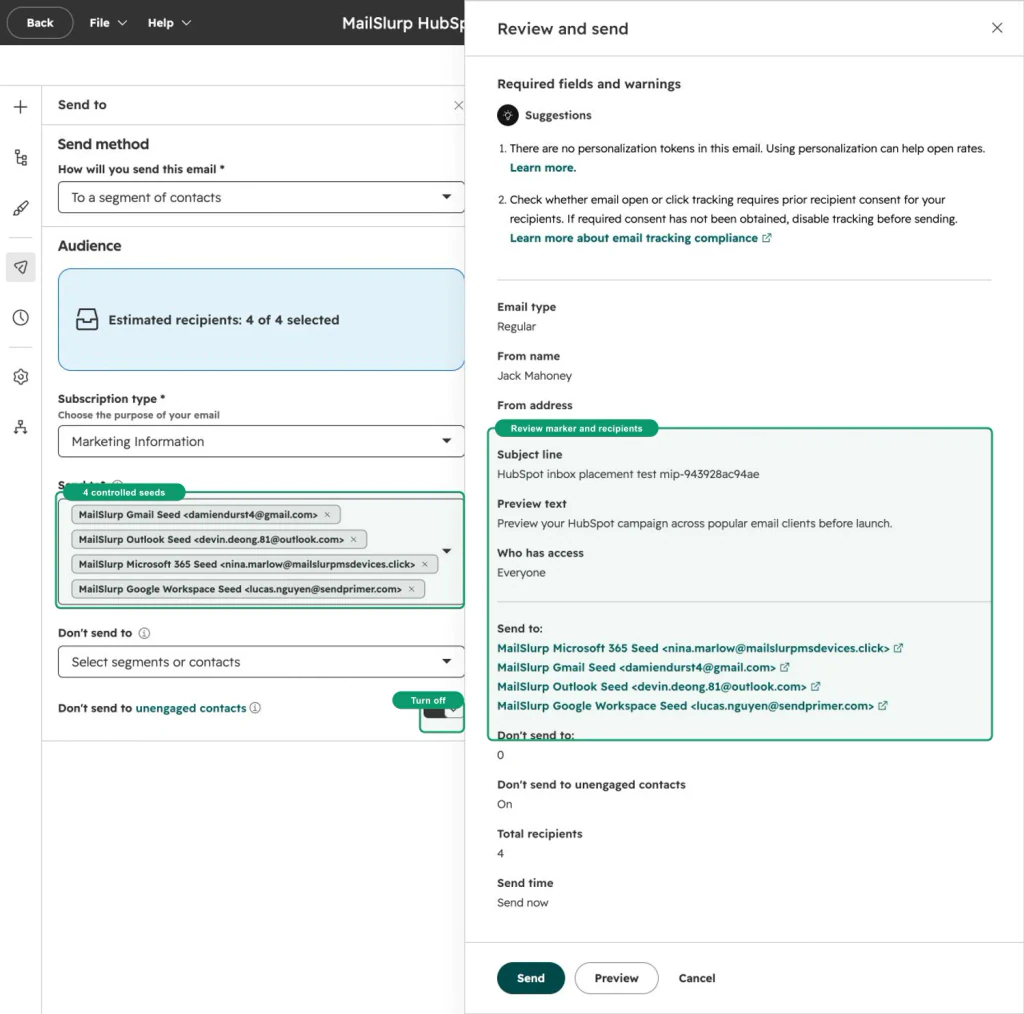
The complete instructions are in the HubSpot inbox placement guide. Its advice to turn off unengaged-contact suppression applies only to the isolated seed-test audience, not to subscriber campaigns.
After the placement check, use the HubSpot device rendering guide to inspect the same campaign across the mobile, desktop, light-mode, and dark-mode clients that matter to the audience.
Decide when to hold, investigate, or expand
Use the provider's current guidance together with the campaign results you actually saw.
| Evidence | Decision |
|---|---|
| Authentication incomplete, wrong From identity, or DNS errors | Hold and repair the sending identity before expanding. |
| HubSpot excluded the intended test contacts | Fix audience eligibility or suppression; no placement conclusion is available. |
| Placement result still pending | Wait for the run to complete. Pending is not spam. |
| Spam or junk concentrated at one provider | Investigate that provider's received headers, authentication, reputation, and complaint history. |
| Broad bounce, complaint, or spam increase | Hold expansion and review the sender, audience source, cadence, and message path. |
| Completed results remain acceptable and HubSpot feedback is healthy | Continue under HubSpot's process and the campaign team's approved plan. |
Do not increase because day 40 arrived or because one seed result was good. A warmup timer describes elapsed process time. Readiness for the next audience also depends on contact consent, production feedback, provider guidance, and the actual campaign path.
Where MailSlurp email warmup fits
MailSlurp email warmup runs paced messages through a supported, verified sender connection and reports sent messages, receipts, and available placement checkpoints. It is useful when the sender you need to prepare can be connected through the maintained provider options or SMTP setup.
For HubSpot marketing campaigns, combine HubSpot's own sending-domain or dedicated-IP process with MailSlurp placement and rendering checks of the campaign itself. HubSpot shows the infrastructure process; MailSlurp shows what happened to the received campaign.
If you also operate a separate supported mailbox or SMTP sender, treat it as its own route. The SMTP warmup guide explains how to verify that connection, and the email warmup results guide explains accepted sends, receipts, pending checkpoints, and provider placement.
Frequently asked questions
Does HubSpot automatically warm a marketing dedicated IP?
HubSpot documents an automated 40-day process for its marketing Dedicated IP Address Add-On. It begins after DNS setup and the first marketing email, then shifts traffic from shared IPs to the dedicated IP. Recheck the official guide for current account requirements.
What if I use HubSpot's shared marketing infrastructure?
There is no dedicated-IP transition for your team to manage. Authenticate the sending domain, begin with recent consenting contacts, watch HubSpot's bounce and complaint feedback, and test the actual campaign before expanding. Follow the account's current HubSpot guidance rather than copying the 40-day dedicated-IP process.
What happens if HubSpot marketing sends stop?
HubSpot currently says a pause longer than seven days pauses the dedicated-IP warmup until sending resumes. Build the campaign calendar with that provider rule visible.
Is a new sending domain the same as a new dedicated IP?
No. The domain is the identity visible in the From address and authentication. The IP is sending infrastructure. They can be introduced together, but each has its own settings and results to review.
Does warming a Gmail mailbox warm HubSpot campaigns?
They use different sending paths. Use the mailbox program for that mailbox, and use HubSpot's process plus a real HubSpot campaign test for HubSpot marketing email.
Which contacts should receive the first campaigns?
Use recent, consenting contacts whose activity or subscription makes the message relevant. Preserve suppressions and avoid a generic formula that ignores the account's audience history and provider guidance.
Warm the path, then test the campaign
Write down what is changing, follow the process owned by that sending path, and keep the next audience decision tied to observed delivery feedback. For HubSpot, that means pairing its domain or dedicated-IP process with a placement test of the actual marketing campaign.
Check your campaign during warmup with the HubSpot inbox placement guide, then explore MailSlurp email warmup for supported sender connections.