
guides
How to Test Brevo Inbox Placement and Spam Score
Run a Brevo inbox placement test across Gmail, Google Workspace, Outlook, and Microsoft 365, then review provider placement, content issues, and sending-domain signals.
Use with your tools

Your Brevo campaign is ready, but a successful test send won't tell you whether it landed in the inbox or spam. That takes a look inside the receiving account.
MailSlurp is an email testing platform that gives you controlled Gmail, Google Workspace, Outlook and Microsoft 365 addresses for that check. Add them to Brevo's Test List, send the marked campaign, and compare the observed folders alongside content and authentication findings.
Quick answer
To test Brevo inbox placement and spam signals:
- Create a new MailSlurp inbox placement run.
- Copy the unique marker and all current provider seed addresses.
- Add the seed addresses as contacts in Brevo.
- Open Settings > Campaigns > Test List, add all current seeds, and save.
- Add the exact MailSlurp marker to the Brevo subject or message body.
- Open Preview & test > Send test email.
- Select all current seed recipients and click Send Test.
- Return to MailSlurp and choose Get your score.
- Review every provider row, then inspect Content issues and Domain issues.
Create a fresh MailSlurp run for every campaign revision. Its marker and seed addresses identify one specific test.
Before you begin
Prepare the Brevo email you intend to test. Confirm the sender identity, sending domain, subject, preview text, links, hosted images, footer, subscription settings, and unsubscribe behavior match the planned campaign.
Brevo requires each Test List address to exist as a contact. Its documented Test List limit is 20 addresses, so compare the current MailSlurp seed count with the available Test List capacity before sending. Do not use customer addresses for this controlled test.
Step 1: Create a MailSlurp placement run
Open Deliverability, choose Inbox placement, and create a new test. Copy the unique marker and all current provider seed addresses.
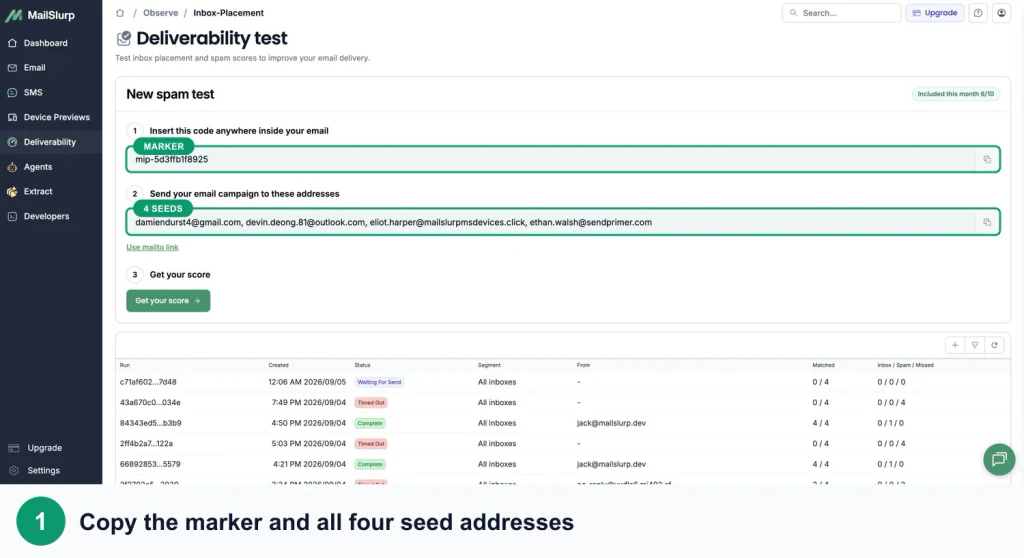
The screenshots show a four-address example; your active run may supply a different number of seeds. Use every address from that run.
The seed set covers personal and business mailbox experiences across Gmail, Google Workspace, Outlook, and Microsoft 365. Use the values displayed by the active run rather than addresses from an earlier test or screenshot.
Step 2: Add the current seeds to Brevo
Add the current MailSlurp seed addresses as Brevo contacts. Then open the account menu, choose Settings, open Campaigns, and manage the Test List.
Enter one seed address per line and save the list. Remove expired seeds from earlier runs so the recipient selector is unambiguous. If the new addresses do not appear immediately in the campaign, refresh the Brevo page.
For a larger or repeatable production-like workflow, MailSlurp's provider CSV can be imported into a dedicated Brevo contact list. For the direct campaign QA workflow shown here, the Test List keeps the send controlled and fast.
Step 3: Keep the marker in the campaign
Add the exact MailSlurp marker to the Brevo email subject or body. A clear test subject is:
Brevo inbox placement test mip-example123
Brevo adds TEST - to the subject of test sends. That prefix is expected; keep the MailSlurp marker unchanged elsewhere in the subject or body so the run can match the message.
Step 4: Select all current seeds and send
Open Preview & test, choose Send test email, and select all current seed recipients from the Brevo Test List. The selector may display the first address plus an additional-recipient count. Verify that their total matches the current seed list before sending.
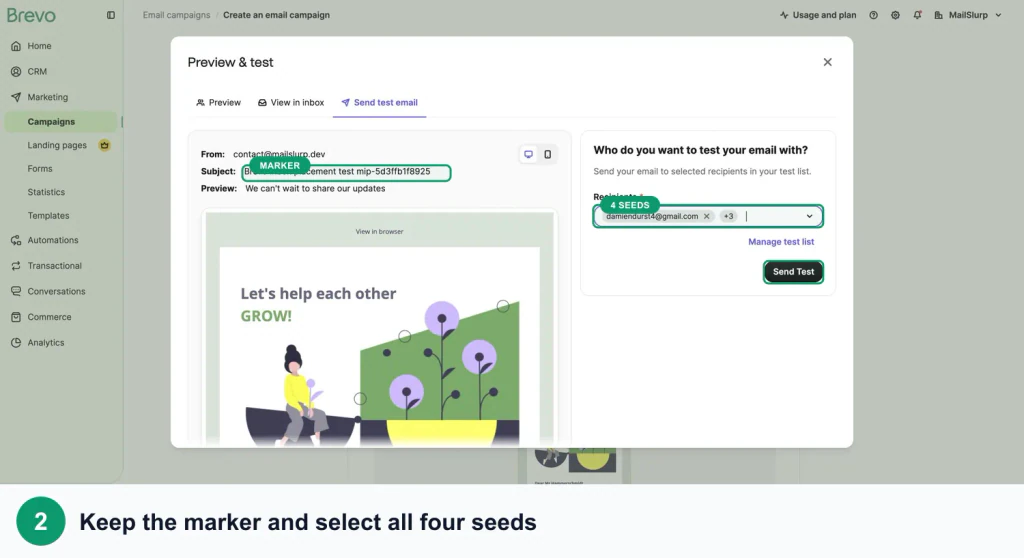
Click Send Test once. This sends the same marked campaign copy to the current controlled provider addresses.
Step 5: Get the inbox placement score
Return to the active MailSlurp run and choose Get your score. Results update as each provider receives and classifies the message.
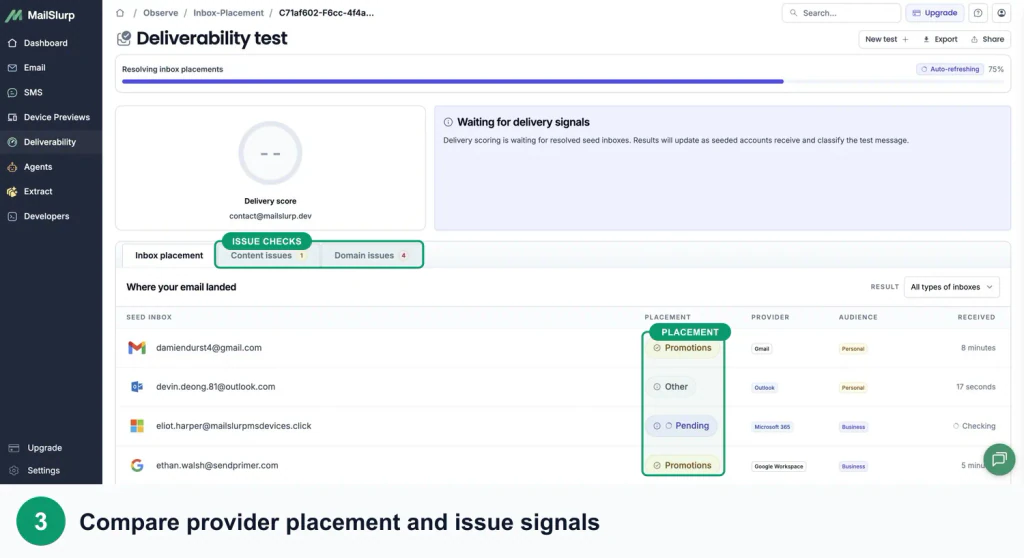
Do not replace a slow or missing result with an assumption. Keep the run open until the observation window resolves each target.
Step 6: Interpret provider placement
| Result | What it means |
|---|---|
| Primary or inbox | The message reached the provider's main inbox experience |
| Promotions | The provider delivered the message to a promotional category rather than the primary view |
| Focused or Other | The provider delivered the message to a named tab or filtered inbox experience |
| Spam or junk | The provider classified the message as unwanted or suspicious |
| Not received | MailSlurp did not observe the message at that seed during the test window |
| Pending | The provider result is still being checked |
A promotional or filtered-tab result is delivered, but it is different from primary placement. Judge the outcome against the purpose of the message.
Step 7: Review content and domain issues
Open Content issues for message-level findings and Domain issues for sender and sending-domain checks. Use the result to choose a specific correction:
- verify SPF, DKIM, and DMARC alignment for the Brevo sending domain
- confirm the visible From address and reply handling
- replace broken, redirected, or unnecessary links
- keep text, images, and alternative text balanced
- preserve a clear unsubscribe and preference path
- avoid sudden volume changes or unengaged customer audiences
- retest the complete revised Brevo email with a fresh run
Change one meaningful variable at a time when comparing results.
Run recurring checks through Brevo SMTP
For a repeated sender check, connect Brevo's transactional relay using its SMTP login and a dedicated SMTP key. The Brevo setup guide covers the credential, expiry and verification steps for both automated placement and warmup.
In MailSlurp, choose Inbox placement > Automations > Create automation, select the verified Brevo connection, and set the frequency and audience. Keep {{trackingToken}} in the scheduled subject or text body. Review an immediate Run now result and a later scheduled execution separately. The automation tests its configured message; keep using the campaign workflow above for a newsletter with different design, links or routing.
Brevo inbox placement checklist
Before treating a run as valid, confirm:
- the marker and seed addresses came from the active MailSlurp run
- all current seeds exist as Brevo contacts
- the Brevo Test List contains all current seeds
- old seed addresses and customer addresses were removed
- the marker appears unchanged in the subject or body
- the final sender, sending domain, content, and links were used
- the recipient selector total matches the current seed count
- Brevo reported a successful test send
- all MailSlurp provider rows belong to the current run
- content and domain issue tabs were reviewed before retesting
Troubleshooting Brevo placement tests
The seeds do not appear in the campaign
Confirm each address exists as a Brevo contact and is included in Settings > Campaigns > Test List. Save, refresh the campaign page, and reopen the recipient selector.
MailSlurp does not recognize the Brevo email
Confirm the exact active marker appears in the delivered subject or body. The TEST - prefix is safe, but the marker itself must not be changed or truncated.
Fewer results arrive than expected
Compare the Brevo Test List with the active MailSlurp seed set. Reopen the recipient selector and verify its total matches the current run's recipient count. Then wait for the complete observation window.
A provider stays pending
Keep the result page open while MailSlurp checks the provider. A delayed or not-received target is evidence from the test and should not be replaced with an assumed placement.
A content score looks good but placement is poor
Content checks do not reproduce every provider's filtering, reputation, engagement, and historical signals. Review the provider rows, authentication, list quality, sending pattern, and content together.
FAQ
How do I test Brevo inbox placement?
Create a MailSlurp placement run, add its current seeds to the Brevo Test List, keep the unique marker in the campaign, send one Brevo test to all current recipients, and review the provider rows.
Is Brevo deliverability the same as inbox placement?
Delivery indicates that the receiving system accepted the email. Inbox placement identifies the folder or category where a controlled provider seed observed the message.
Can I test Gmail Promotions and Outlook spam placement from Brevo?
Yes. The MailSlurp placement run includes controlled personal and business provider seeds and reports observed results such as primary, promotions, focused, spam, other, or not received.
Can I use the Brevo Test List for the placement send?
Yes. Add all active seed addresses as Brevo contacts, include them in the Test List, select all current seeds in Send test email, and keep the MailSlurp marker in the message.
Should I reuse the same seeds next week?
No. Create a fresh MailSlurp run and use its current marker and seed addresses for each campaign revision.
For visual QA, follow the Brevo Gmail, Outlook, iPhone, and Android preview guide. The dashboard steps and result definitions are also available in the inbox placement documentation.