
guides
How to Test GetResponse Inbox Placement and Spam Score
Run a GetResponse inbox placement test across Gmail, Google Workspace, Outlook, and Microsoft 365, then review provider placement, campaign content, and sending-domain signals.
Use with your tools
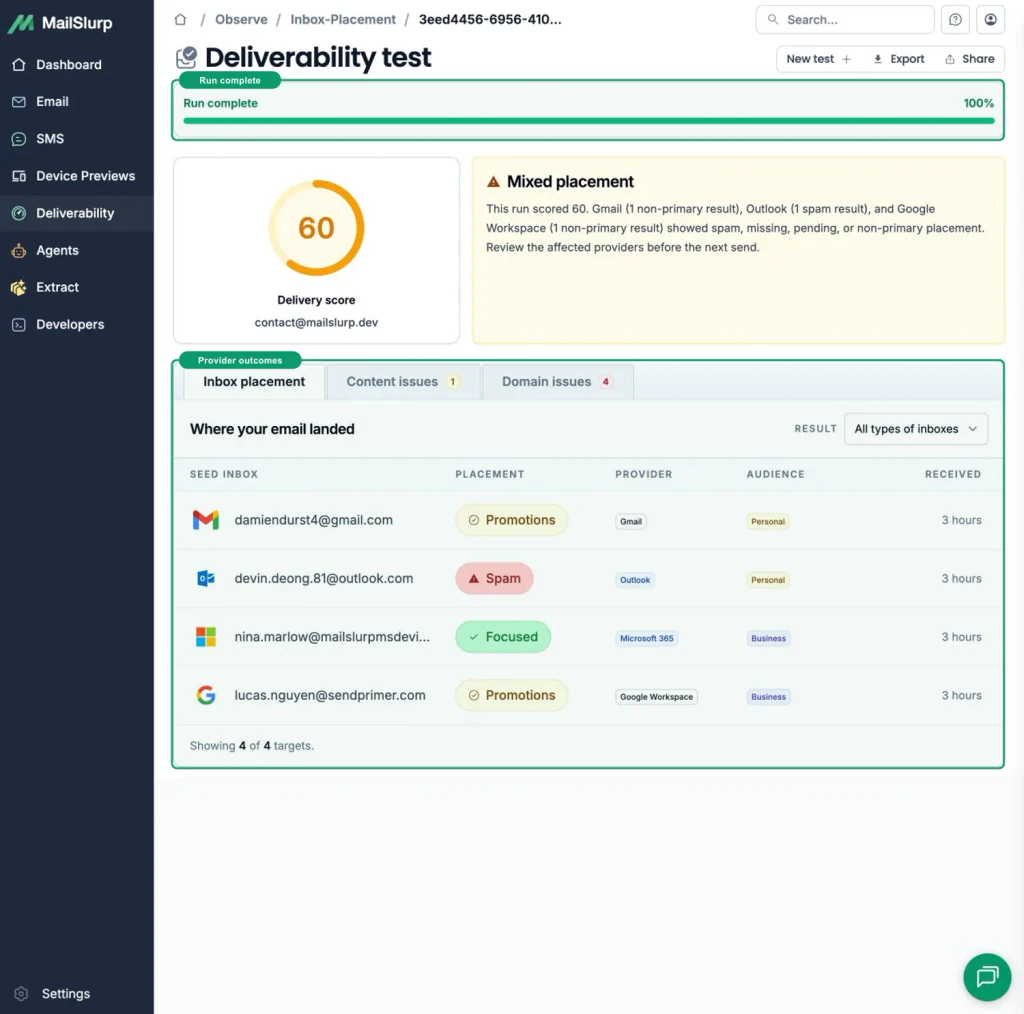
Where did your GetResponse newsletter land? The send report can't tell you which folder a reader will find it in. To check that, send the finished campaign to controlled test accounts.
MailSlurp provides Gmail, Google Workspace, Outlook and Microsoft 365 seed addresses, plus a marker to identify your message. This guide walks through importing them into a dedicated GetResponse list and reading the placement, content and domain results.
Quick answer
- Create a new MailSlurp inbox placement test.
- Copy its unique marker and current seed addresses.
- Choose Download CSV for your mail provider, select GetResponse, and download the provider-ready file.
- Import the CSV into a dedicated GetResponse list.
- Add the exact marker to the campaign subject or body.
- Send the final campaign only to the dedicated list.
- Return to MailSlurp, get the score, and wait for the run to complete.
- Review the percentage, provider rows, content issues, and domain issues.
Create a fresh run for every campaign revision. The marker and seed list identify one specific test.
Before you begin
Use an approved sending address and a GetResponse account with sending enabled. A pending compliance review must be resolved by GetResponse before a real result can be produced.
Use the sender, sending domain, subject, preview text, links, images, footer, subscription settings, and unsubscribe behavior planned for the campaign. Do not include customers or old seed addresses in the test audience.
Import into a dedicated test list
GetResponse imports contacts directly into a selected list and asks whether to add new records, update existing records, or both. For a fresh MailSlurp run, use a dedicated list and verify the mapped email and name columns before importing.
See the GetResponse contact import documentation for the provider's current setup terminology and prerequisites.
Step 1: Create a fresh MailSlurp placement run
Open Inbox placement and create a test. Copy the unique marker and current provider seed addresses.
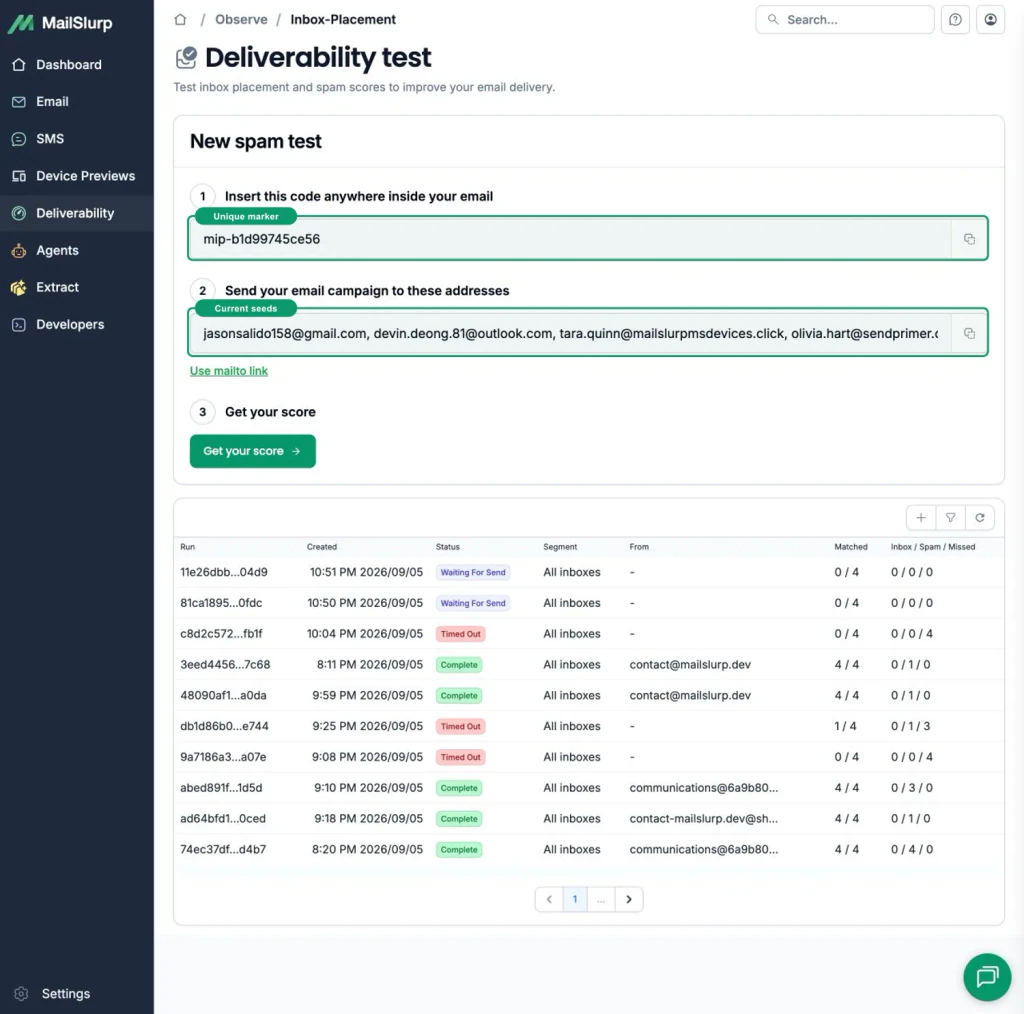
Never copy seed addresses or a marker from an older run or tutorial screenshot. The active values are what let MailSlurp associate the delivered messages with this result.
Step 2: Download the GetResponse CSV
Next to the mailto action, choose Download CSV for your mail provider. Select GetResponse, review the import instructions, and download the file. The exported rows use headers recognized by GetResponse and contain only the current MailSlurp seeds.
Step 3: Import the current seeds into GetResponse
- Open Contacts > Add contacts, choose Import from file, and select the dedicated placement list.
- Upload the GetResponse CSV, map email and name, confirm permission for the controlled test addresses, and finish the import.
- Verify that the list contains every current seed and no customer contacts.
Keep this list isolated. Remove expired seeds from earlier tests so the member count and active run remain unambiguous.
Step 4: Add the exact marker
Add the MailSlurp marker exactly as shown to the campaign subject or body. A clear subject pattern is:
GetResponse inbox placement test mip-example123
Keep the marker unchanged if GetResponse adds its own test prefix or tracking parameters.
Step 5: Send to the controlled seed audience
Select the dedicated list in the newsletter recipient step, keep the active MailSlurp marker unchanged, and send the regular newsletter once.
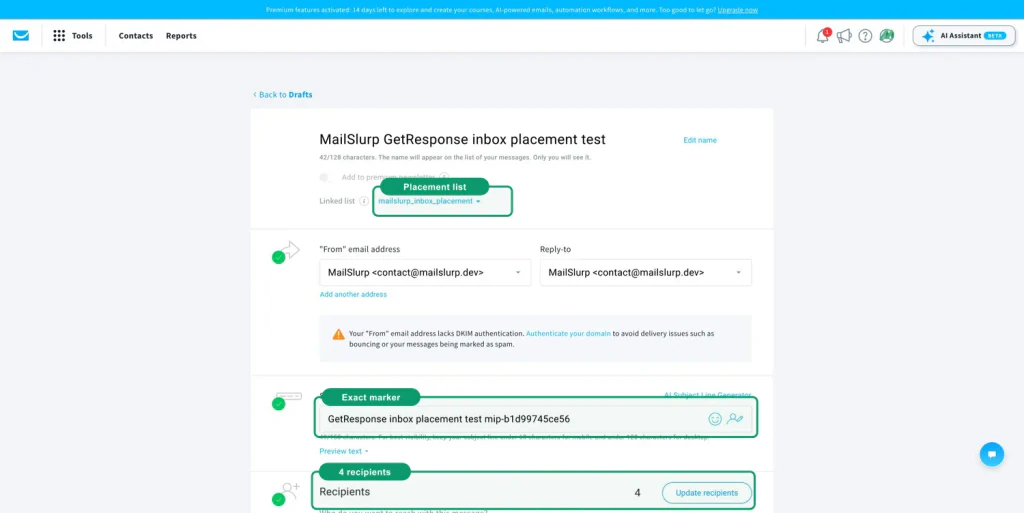
Confirm the send is accepted and that the recipient count matches the current MailSlurp seed list.
Step 6: Wait for the placement result
Return to the active MailSlurp run and get the score. Keep the result open until the observation window completes and the progress indicator reaches its final state.
Do not infer a missing provider result. Let the observation window resolve it as received or not received.
Step 7: Interpret the result
| Result | Meaning |
|---|---|
| Primary or inbox | The provider placed the campaign in its main inbox experience. |
| Promotions | The message was delivered to a promotional category. |
| Focused or Other | The message was delivered to a named tab or filtered inbox experience. |
| Spam or junk | The provider classified the message as unwanted or suspicious. |
| Not received | MailSlurp did not observe the message at that seed during the test window. |
| Pending | The provider result is still being checked. |
A promotion or filtered-tab result is delivered, but it is different from primary placement. Evaluate the result against the campaign's purpose.
Step 8: Review content and domain issues
Open Content issues for message-level findings and Domain issues for sender and sending-domain checks. Use those findings to make a specific correction:
- verify SPF, DKIM, and DMARC alignment for the sending domain
- confirm the visible From address and reply handling
- replace broken, redirected, or unnecessary links
- keep text, images, and alternative text balanced
- preserve a clear unsubscribe and preference path
- avoid sudden volume changes or disengaged audiences
- retest the complete revised campaign with a fresh MailSlurp run
GetResponse inbox placement checklist
- The marker and seeds came from the active MailSlurp run.
- The GetResponse CSV was downloaded for the current run.
- The dedicated list contains every current seed and no customer contacts.
- The marker appears unchanged in the subject or body.
- The final sender, domain, content, and links were used.
- The recipient count matches the MailSlurp seed count.
- GetResponse accepted the send.
- The MailSlurp progress indicator reached its final state.
- Provider placement, content issues, and domain issues were reviewed.
Troubleshooting
MailSlurp does not recognize the campaign
Confirm the exact active marker appears in the delivered subject or body and that the current seed addresses were used.
The imported seeds are missing
Reopen the GetResponse list, check field mappings and consent status, and wait for any asynchronous import or member-count refresh to finish.
Fewer results appear than expected
Confirm the campaign recipient count matched the seed count and that the run is still active. Keep the result open until the observation window resolves every target.
The campaign lands in spam
Review the provider row together with content and domain issues. Correct one meaningful variable at a time, then create a fresh run and send the complete revised campaign.
FAQ
What is a GetResponse inbox placement test?
It is a controlled send of the final GetResponse campaign to MailSlurp seed inboxes so you can observe destination folders across Gmail and Microsoft mailbox families.
Is a spam score the same as inbox placement?
No. Content and authentication checks identify risk signals; placement testing records what happened to the marked campaign at the controlled mailbox providers.
Can I reuse an old seed list?
Use the marker and seed addresses shown by the active run. A fresh run keeps the campaign revision and its evidence clearly connected.
Should the placement and device-preview emails be combined?
Keep them separate. A render address produces client screenshots, while a marked seed list produces provider placement observations.
After placement review, use the GetResponse device preview guide to inspect the delivered design across Gmail, Outlook, iPhone, Android, and desktop clients.