
guides
How to Test Mailchimp Inbox Placement and Spam Score
Run a Mailchimp inbox placement test across Gmail, Google Workspace, Outlook, and Microsoft 365, then review spam, promotions, content, and domain results.
Use with your tools
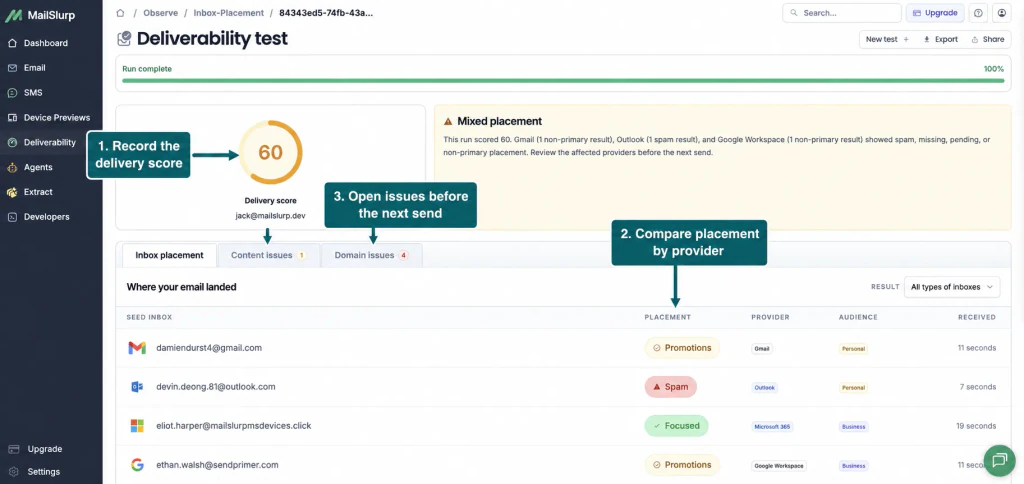
Mailchimp inbox placement testing sends the finished campaign to controlled Gmail, Google Workspace, Outlook, and Microsoft 365 seed addresses. MailSlurp matches the delivered message using a unique marker, then reports the folder or category observed at each provider.
This is more useful than treating a Mailchimp spam test or content score as a guarantee. A spam score can identify risky message characteristics; inbox placement records where a real provider placed the campaign sent during the test. Review both the provider rows and MailSlurp's content and domain checks before changing the campaign.
Testing a welcome series or another automated email? Follow the Mailchimp automation inbox placement walkthrough for entry rules, delays, individual email steps and API triggers.
Quick answer
To test Mailchimp inbox placement and spam signals:
- Create a new inbox placement test in MailSlurp.
- Copy its unique marker and all current provider seed addresses.
- Import the seeds into a Mailchimp audience as subscribed contacts.
- Apply a dedicated tag such as
MailSlurp Inbox Placement Seeds. - Create or replicate a regular Mailchimp email.
- Target only the dedicated seed tag.
- Put the exact marker in the subject or message body.
- Confirm that every current seed contact is subscribed and eligible and send the campaign.
- Review the placement rows, delivery score, content issues, and domain issues.
Use a new marker and the current seed addresses for every placement run. Do not reuse the values from an earlier result.
Before you begin
The illustrated run used four provider targets, including business inboxes. Your current seed list may have a different count or provider mix. Choose a plan with business inbox coverage, or use the personal targets available in your current allowance. Always send only to the seed addresses supplied for your run.
Prepare the Mailchimp email you want to test and confirm that its From name, From address, verified domain, content, links, footer, and unsubscribe settings are ready. You need permission to import contacts, assign a tag, edit the email checklist, and send the campaign.
Use an existing test audience when possible and isolate the current seeds with a dedicated tag. Mailchimp counts the same contact separately when it appears in multiple audiences, so a tag is usually cleaner than creating another audience only for this test.
Step 1: Create a MailSlurp inbox placement test
Open Deliverability, choose Inbox placement, and create a new test. Copy the unique marker and all seed addresses displayed for the run.
MailSlurp provides personal and business targets across Gmail, Outlook, Google Workspace, and Microsoft 365. The marker associates the delivered copies with this specific result.
Step 2: Import the provider seeds into Mailchimp
Open Audience in Mailchimp and select the audience that will contain the test contacts. Choose the contact import flow, then paste or upload a CSV with the current seed addresses.
Use clear first and last names such as Gmail Personal Seed and Microsoft 365 Business Seed. When Mailchimp asks for their email marketing status, import them as Subscribed because these addresses are controlled test recipients for the campaign.
Do not add customer addresses to this import. The file should contain only the active provider seeds.
Step 3: Apply a dedicated Mailchimp tag
During the import, apply a tag named MailSlurp Inbox Placement Seeds. If the contacts already exist, select them in the audience and apply the same tag.
Mailchimp's tag targeting instructions describe tags as the internal organization method for selecting contacts in an email. The dedicated tag makes the recipient boundary visible before the send.
Open the tagged contacts view and confirm that every current seed record is subscribed.
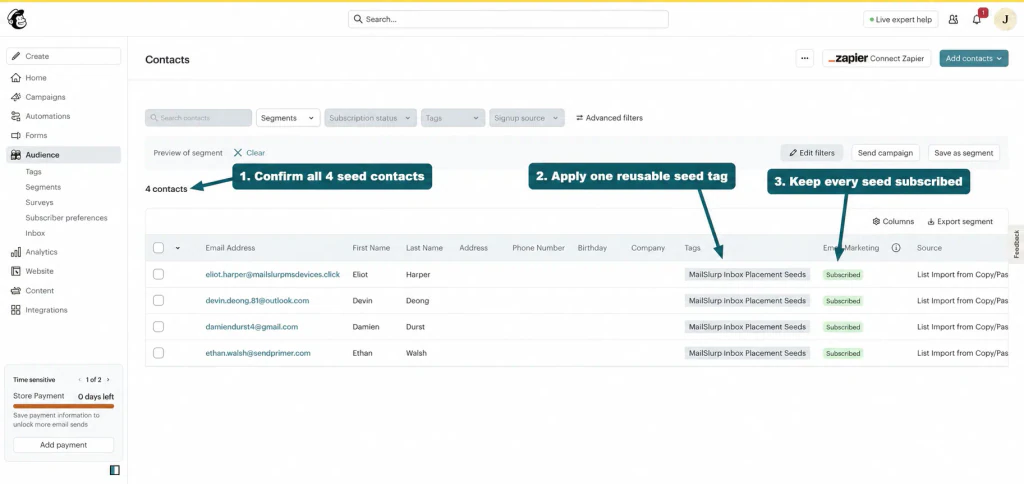
The tagged, eligible contacts must match the current seed list exactly. Remove stale seed addresses and correct any missing or excluded contacts before creating the campaign.
Step 4: Create or replicate a regular email
Create a regular Mailchimp email, or replicate a suitable campaign so the test uses realistic creative. Mailchimp's regular email checklist includes recipients, From details, subject, send time, content, and optional tracking settings.
Use the final or near-final production content. Keep hosted images, links, merge tags, footer details, tracking behavior, and unsubscribe controls representative of the version you intend to launch.
Step 5: Target only the seed tag
Open the To section of the email checklist and choose the audience containing the provider seeds. In Send to, select the MailSlurp Inbox Placement Seeds tag or create a segment whose condition matches that tag.
Save the recipient settings and confirm that the estimated recipient count matches the current seed list. Mailchimp sends regular marketing emails only to eligible subscribed contacts, so an unsubscribed, cleaned, or otherwise excluded seed will reduce the count.
Step 6: Add the unique marker
Open the Subject section and put the exact MailSlurp marker in the subject line or message body. A clear subject format is:
Mailchimp Inbox Placement QA | mip-example123
Adding the marker to the subject makes it easy to compare the Mailchimp checklist with the active MailSlurp run. Save the subject and check that no character was omitted.
Step 7: Review and send the Mailchimp campaign
Complete the email checklist, then verify:
- the intended audience is selected
- the dedicated tag is the only recipient group
- the estimated recipient count matches the current seed list
- the exact marker belongs to the active MailSlurp run
- the From name and verified From address are correct
- content and send time are complete
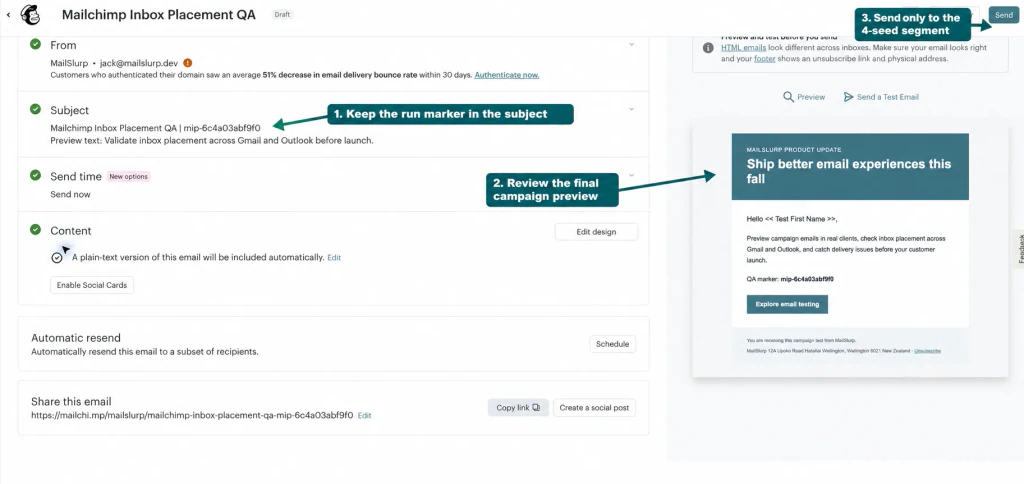
Choose Send now and confirm the final prompt. Mailchimp's send instructions note that a sent regular email cannot be stopped or edited, which is another reason to keep this campaign restricted to the current test contacts.
Step 8: Read the inbox placement result
Return to the active MailSlurp test. The result updates as Gmail, Google Workspace, Outlook, and Microsoft 365 receive and classify the campaign.
Each provider row reports the seed address, placement, audience type, and receive time. Treat the result as evidence from this controlled send, not a prediction that every subscriber at the provider will receive the same classification.
In the run shown, Mailchimp sent all four marked copies and MailSlurp returned a delivery score of 60. Gmail Personal and Google Workspace landed in Promotions, Outlook Personal landed in Spam, and Microsoft 365 Business landed in Focused. The copies were observed in 7 to 19 seconds, with one content issue and four domain issues available for review.
| Result | What it means |
|---|---|
| Primary or inbox | The message reached the main inbox experience for that seed |
| Promotions | The provider delivered the message to a promotional category rather than the primary view |
| Spam or junk | The provider classified the message as unwanted or suspicious |
| Not received | MailSlurp did not observe the message at that seed during the test window |
| Timed out | MailSlurp did not observe a provider result before the run finished |
| Pending | The provider result is still being checked |
A Promotions result is delivered, but it is not primary placement. Compare each provider outcome with the purpose of the campaign.
Step 9: Review content and domain issues
Open Content issues to inspect message-level findings, then open Domain issues to review sender and sending-domain checks associated with the run.
Use those findings to choose a concrete next change:
- authenticate the sending domain with SPF, DKIM, and DMARC
- keep the visible sender and reply handling consistent
- remove broken, misleading, or unnecessary links
- balance text and images and use meaningful alternative text
- keep the unsubscribe and preference experience clear
- avoid sudden or unexplained volume changes
- send production campaigns to permissioned, engaged contacts
- create a fresh placement run after revising the campaign
Retest the complete message after a meaningful change. A new subject attached to otherwise different content is not an equivalent comparison.
Mailchimp inbox placement checklist
Before treating a run as valid, confirm:
- the marker and seeds belong to the active MailSlurp run
- the Mailchimp tag contains exactly the current provider seeds
- all current seed contacts are subscribed and eligible
- the campaign targets only the dedicated tag or matching segment
- the expected recipient count matches the current seed list
- the exact marker is present in the saved subject or body
- the From name, From address, and sending domain are correct
- Mailchimp confirmed the campaign send
- all MailSlurp provider rows belong to the current run
- pending targets have been given time to finish
- content and domain issues have been reviewed
Troubleshooting Mailchimp placement tests
MailSlurp does not recognize the Mailchimp email
Confirm that the exact active marker appears in the subject or body of the delivered campaign. If the wrong campaign revision or old marker was sent, create a fresh MailSlurp run and update the email before sending again.
Mailchimp estimates fewer recipients than the seed list
Check that every seed contact is subscribed, tagged, and eligible. Review cleaned addresses, unsubscribes, audience selection, exclusions, and the segment or tag rule before sending.
The campaign would send to contacts outside the seed list
Stop at the checklist and correct the To settings. Select only the dedicated tag or a segment that matches it. Do not use All email subscribers for a placement test.
A provider stays pending
Wait for the observation window to complete. A delayed, not-received, or timed-out target is useful evidence and should not be replaced with an assumed placement.
Gmail reaches Promotions instead of Primary
Promotions is a delivered category. Decide whether it fits the campaign, review the reported content and domain signals, and retest the complete revised message.
The spam score looks acceptable but placement is poor
A content-based email spam score test does not reproduce every provider's filtering, sender reputation, and engagement data. Use the observed provider results, authentication checks, list quality, and campaign content together.
FAQ
How do I test Mailchimp inbox placement?
Create a MailSlurp placement run, import its current seeds into Mailchimp as subscribed contacts, apply a dedicated tag, place the unique marker in a regular email, send only to that tag, and review the provider rows.
Can I test a Mailchimp campaign for spam before sending it?
Yes. Send the final campaign to the controlled seed tag first. MailSlurp reports whether each test copy reached the main inbox, Promotions, spam, or was not received and also surfaces content and domain issues.
Is Mailchimp deliverability the same as inbox placement?
No. Deliverability records whether the receiving system accepted a message. Inbox placement records the folder or category where the received copy appeared for the controlled test seed.
Should I create a separate Mailchimp audience for the seeds?
Usually no. Use an existing test audience and isolate the seeds with a dedicated tag. This keeps the recipient group reviewable without creating duplicate contacts across audiences.
Can I reuse the Mailchimp tag?
You can reuse the tag name and campaign pattern, but update the tagged contacts to the addresses supplied by the current MailSlurp run and use its new marker every time.
Start with the inbox placement documentation for the dashboard workflow. To approve visual layout and dark mode, follow the Mailchimp Gmail, Outlook, iPhone, and Android preview guide.